
Update the Story Theme without losing your settings
Get the latest version of the Story Theme while keeping your text, images, colors and layouts: download, merge, upload and publish.
The Story Theme evolves regularly: new sections, new blocks, fixes. The Update tool in your member area takes the theme installed on your store, keeps all your content and carries it over into the latest version. You get a new file to upload to Shopify: your live store doesn't change until you publish it.
1. Check that your version can be updated
- In your member area sidebar, click Update.
- At the top of the page, the Current Story Theme version label shows the latest available version.
- In the Can your version be updated? box, choose your theme's version from the Version installed on your store menu. The menu is sometimes already filled in based on your last download: check that it really matches your store's theme.
- If you see Version X can be updated, the steps and the upload area appear below.
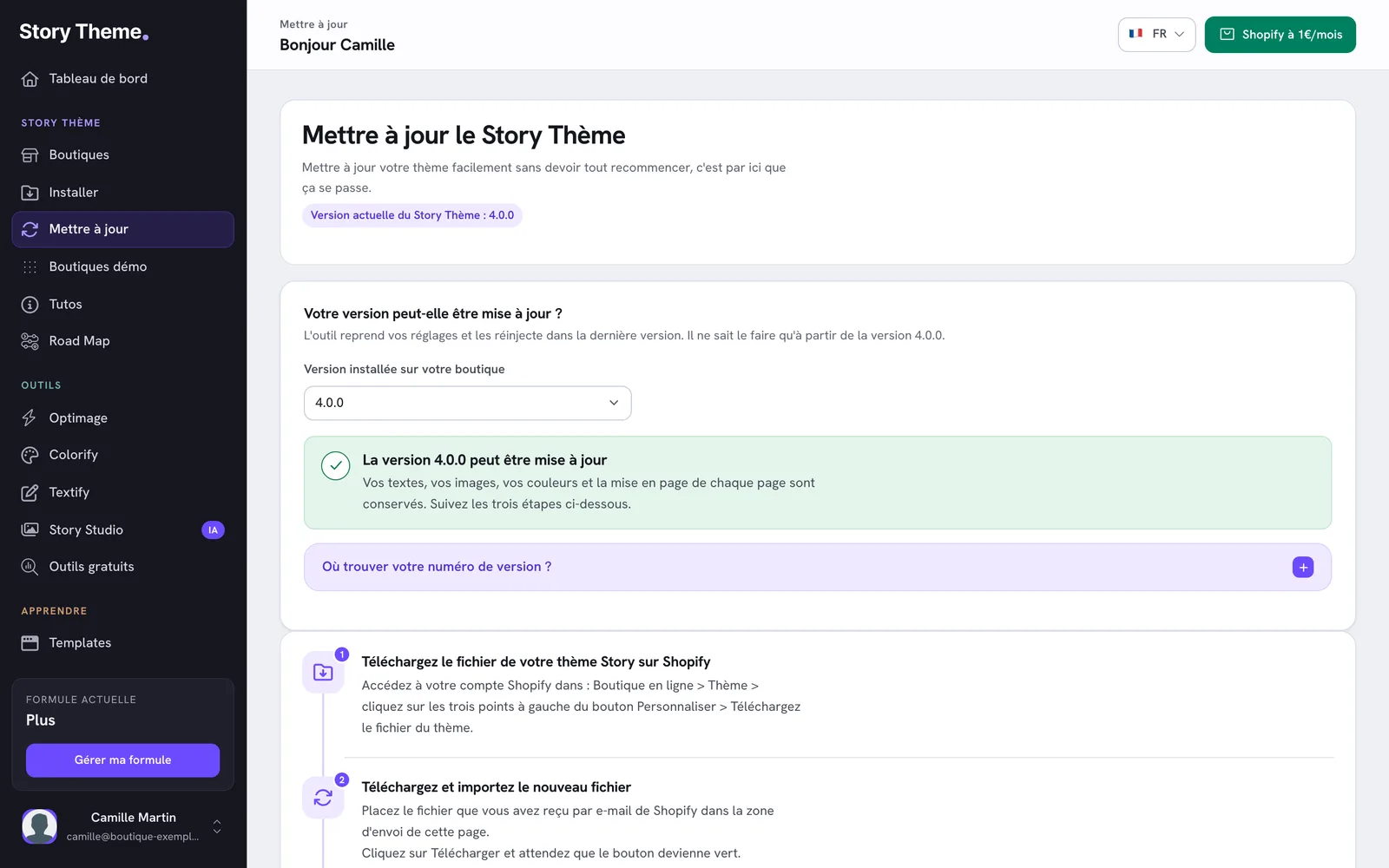
Don't know your version? Choose I don't know, then expand Where do you find your version number?, or read Find the installed theme version.
2. Download your theme from Shopify
The tool needs your current theme file, with all your settings.
- In your Shopify admin, open Online Store > Themes.
- On the theme to update (usually your published theme), click the … button to open the actions menu.
- Choose Download theme file.
- Shopify sends you an email with a download link. Download the file, and keep it as a .zip: don't unzip it.
3. Upload the file and get the updated theme
- Go back to the Update page in your member area.
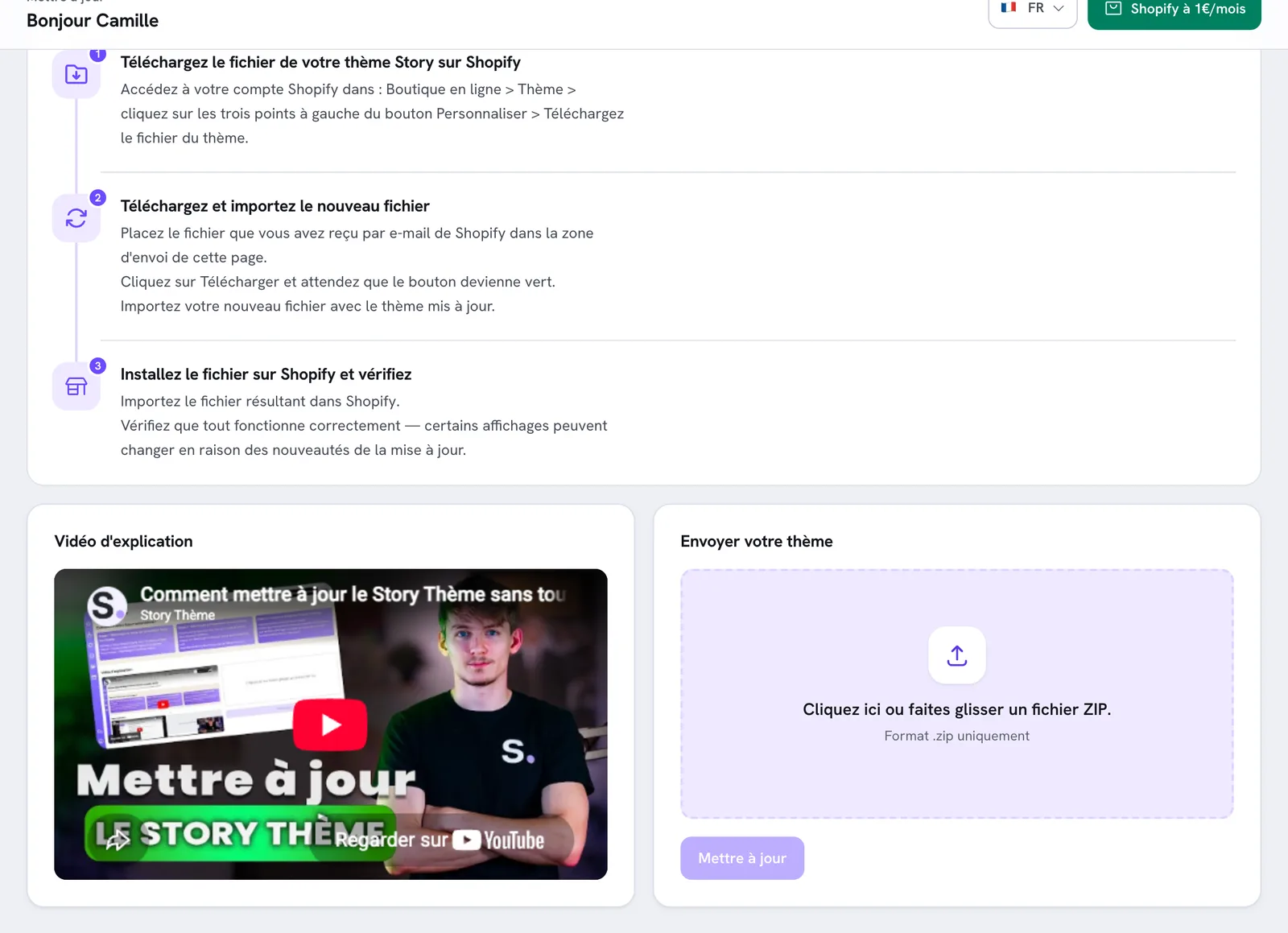
- In the Upload your theme block, click the Click here or drag a ZIP file in. area, then choose the zip you received from Shopify. Its name appears in the area.
- Click Update. The button shows Loading... during the merge.
- When the button changes to Download, click it.
- Your browser saves a new file named Story Thème - version - your file name.zip (for example
Story Thème - 4.0.1 - my-store.zip). The page then reloads.
If the This file cannot be updated box appears, read the message: it tells you either that the theme is on a version too old for the tool, or that the zip doesn't have the structure of a Shopify theme (see the warning above).
4. Upload the new theme to Shopify
The file you get is a new theme: it doesn't replace anything automatically.
- In Shopify, open Online Store > Themes.
- In the Draft themes section, click Import theme, then Upload zip file.
- Choose the "Story Thème - … .zip" file and click Upload. It lands in your draft themes, unpublished.
5. Check the preview, then publish
- Open the new theme's preview (… button, then Preview) or click Edit theme.
- Go through the important pages: home, a product page, a collection, the cart, and your custom pages. Do it on mobile too.
- Check your app blocks (reviews, upsell…) and your custom sections.
- When everything looks right, click Publish on this theme.
Some displays may change slightly: that's the effect of the version's new features. The Road Map details what changed in each version.
Once the new theme is published, the version shown in your member area updates at your store's next analysis. To refresh it right away, click Run the analysis again on the store's card.
What's kept, and what isn't
| Kept | Replaced by the new version |
|---|---|
| The content of every page: sections, blocks, text, images (including your custom product, collection and page templates) | The theme's code files (.liquid files, CSS, JavaScript) |
| The header, footer and other section groups | The theme's language files (default text and built-in translations) |
| Theme settings: colors, fonts, color schemes, general settings | The file that describes the theme settings |
| App blocks and embeds, and files you added to the theme (a custom section, for example) |
Settings whose format changed between two versions are converted automatically. The only case where content is lost: a section or block that no longer exists in the new version is removed.
Your products, collections, orders, menus, pages and discounts are never affected: they belong to Shopify, not to the theme.
Frequently asked questions
Do I have to update with every new version?
It's not required: your theme keeps working. Updating gives you the new features and fixes. The Update available badge on your store cards tells you when a newer version exists.
I'm updating several stores
Repeat the process for each store, with each one's theme file: each merged file contains the settings of the store it came from.
Is there a video?
Yes, the Update page includes a Walkthrough video that shows the whole process.