
Move from version 3 to version 4.0
The update tool doesn't convert a 3.x theme to 4.0. Here's how to install 4.0 and carry over your store without losing anything.
Version 4.0 of the Story Theme was rebuilt from the ground up: sections and settings are no longer organized the way they were in 3.x. That's why the Update tool can't convert a store on 3.x: its settings wouldn't map to anything, and the store would start over empty. To move to 4.0, you install the new theme and carry your content over into it. This article shows you how to do it without losing anything, while your current store keeps selling in the meantime.
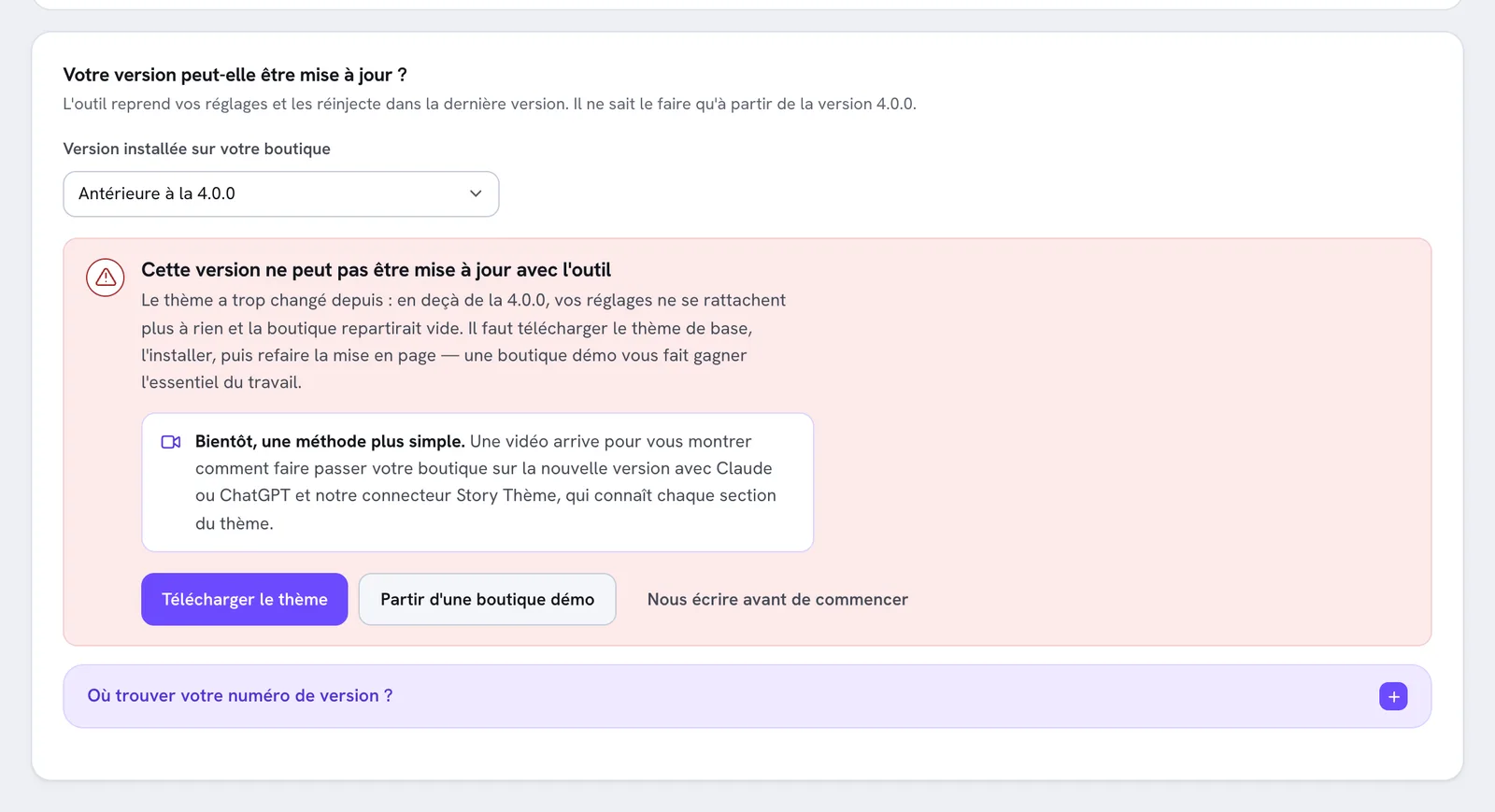
On the Update page, if you choose Older than 4.0.0, the member area tells you so and offers you the base theme or a demo store directly.
What stays in place
Rest assured: most of your store isn't in the theme. Your products, collections, orders, customers, pages, blog posts, menus, discounts and apps belong to Shopify. They stay where they are and will show up in the new theme. The images you've already uploaded to Shopify also remain available in your files.
What you need to carry over is the layout: your pages' sections, their text and images, your colors, your fonts and the theme settings.
1. Keep your current theme as a reference
Don't touch your 3.x theme: it stays published, your store keeps selling, and it serves as your model. To be safe, you can also keep a copy: in Online Store > Themes, your theme's … button, Download theme file.
2. Install version 4.0
Choose your starting point:
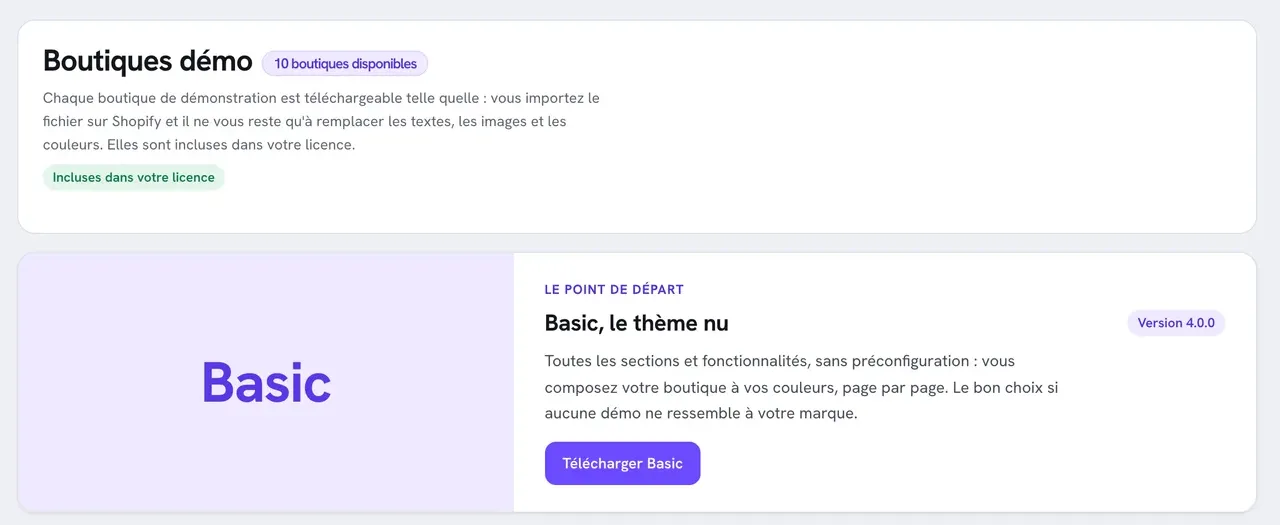
- Basic: the bare theme, with every section and feature, no preset. Ideal if you want to faithfully reproduce your current layout.
- A demo store: a 4.0 theme already laid out, ready to adapt. It's often the fastest option, especially if you want to use the opportunity to modernize your store.
- In your member area, open Demo stores.
- Click Download Basic, or Download under the demo you chose. Keep the file as a .zip.
- In Shopify, open Online Store > Themes, then, in the Draft themes section, click Import theme > Upload zip file.
- The 4.0 theme lands in your draft themes, unpublished: nothing changes on your store.
See also Start from a demo store.
3. Carry over your content, page by page
Open your old theme and the new one side by side, in two tabs: the old one's preview on one side, the new one's editor (Edit theme) on the other.
- Identity: in the 4.0 theme settings, carry over your logo, your favicon, your colors (note their codes, for example #1A1A1A) and your fonts. See Logo, colors and typography.
- Header and footer: connect your menus, carry over the announcement bar and the footer links.
- Home page: rebuild it section by section, copying your text and reselecting your images from the Shopify file library.
- Product pages: rebuild the product template, then your custom templates if you have any. Check that they're assigned to the right products. See Different templates for different products.
- Secondary pages: contact, FAQ, order tracking, our story…
- Cart: free shipping, upsells, reassurance messages.
- Apps: turn their embeds back on and put their blocks (customer reviews, for example) back into the new theme.
4. Test, then publish
- Open the 4.0 theme's preview and browse the store like a customer: home, collection, product page, add to cart, all the way to checkout. On desktop and on mobile.
- Check your translations if your store is in several languages. See Translate your store.
- When everything is ready, click Publish on the 4.0 theme.
Your license stays valid: it's tied to the domain name registered on the Shops page, not to the theme version. Keep the old theme unpublished for a few weeks, in case you need to retrieve some text from it.
Future updates (4.0 to 4.x) will then be done with the update tool, without redoing anything.
Need help?
The Update page announces a simpler method, on video, for moving your store to the new version with the help of Claude or ChatGPT and the Story Theme connector. In the meantime, the Write to us before you start button puts you in touch with support. See Contact support.