
Add a product on Shopify
Create a complete product page in Shopify (photos, compare-at price, inventory, variants, SEO) and see where each piece of information shows up in the theme.
All of a product's information is entered in the Shopify admin, not in the theme. Story Theme then takes care of laying it out on the product page, in product lists and in the cart. This article walks through the product creation page from top to bottom and shows, for each field, where it appears on your store.
Create the product
- In your Shopify admin, open Products.
- Click Add product.
- Fill in the fields described below, then click Save.
Title and description
- Title: the product name. It becomes the main heading of the product page (Product title block) and the name shown on product cards and in the cart. Keep it short and precise: "Royal jelly moisturizing cream, 50 ml" rather than an advertising slogan.
- Description: the presentation text, with formatting (bold, lists, links). It appears in the Product description block of the product page. If your text is long, turn on Limit the number of lines in that block: the customer will see a link to read more.
Photos and videos
Add your images, videos or 3D models in the media area. The first image is the main image: it's the one that appears on product cards, in collections and in the cart. Drag the media to change their order.
On the product page, they appear in the Product gallery block. Use the same format for all your photos (for example 4:5 portrait): the gallery and the cards stay aligned.
Price and compare-at price
- Price: the price the customer pays.
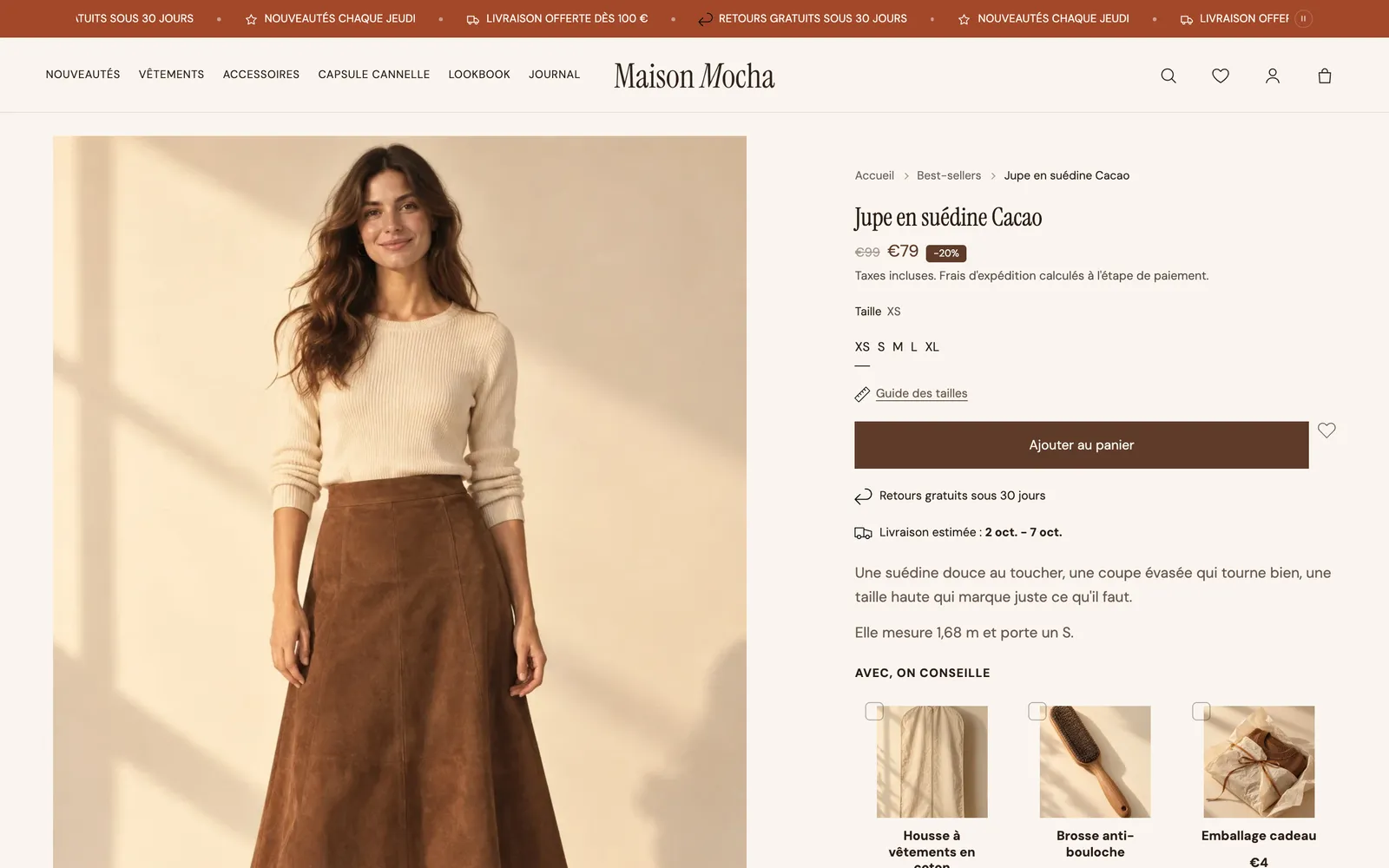
- Compare-at price: the former price, shown crossed out next to the price. Leave it empty if the product isn't on sale.
- Cost per item: what the product costs you. It's never shown to customers; Shopify uses it to calculate your margin.
On the Story Theme product page, the Price block shows the compare-at price (Show compare-at price setting, on by default). To add a "-20%" badge next to the price, turn on Show discount badge in that same block.
Inventory and shipping
- In the inventory section, check Track quantity and enter the number of units available.
- Enter a SKU if you use internal references.
- Check Continue selling when out of stock only if you accept orders without stock (pre-orders, made to order).
- In the shipping section, leave the product marked as This is a physical product and enter its Weight: it's used to calculate shipping rates.
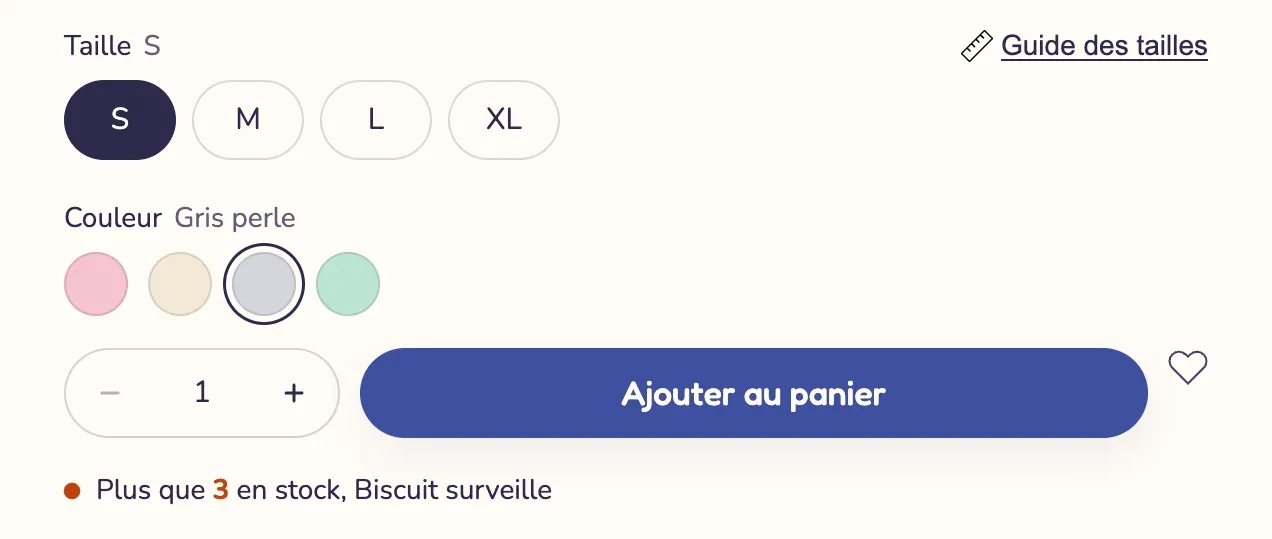
Inventory tracking is required for the product page's Stock block to show "Only 3 left in stock" or "Sold out", with its Stock type setting on Stock managed on Shopify. See Stock bar and urgency.
Variants: sizes, colors, formats
- In the Variants section, add an option (for example
Color) and its values (Black,Beige…). - Add a second option if needed (
Size). - Shopify creates one variant per combination. Click each variant to give it its own price, inventory, SKU and image.
On the product page, the Variant picker block shows these options as buttons, a list or a dropdown menu. Options named Color, Colour, Couleur or Coloris appear as color swatches (Options shown as swatches setting). Name your options consistently from one product to the next. All the details: Variants and color swatches.
Search engine optimization (SEO)
At the bottom of the page, the Search engine listing section shows how the product appears in Google. Click the edit icon to customize:
- the Page title (about 60 characters);
- the Meta description (about 155 characters), the short text under the title in Google;
- the product's URL handle, for example
/products/moisturizing-cream.
Changing the URL of a product that's already live creates a new address: check the redirect option Shopify offers so you don't lose visitors coming to the old one. More tips in Optimize your pages' SEO.
Status, sales channels and organization
In the right-hand column:
- Status: Draft while the page isn't ready, Active to put it on sale. A draft product isn't visible on the store.
- Publishing: make sure the Online Store channel is selected, otherwise the product stays invisible on your site even if it's active.
- Product organization: type, vendor, collections and tags. Tags are used for search, for automated collections and, with Story Theme, for badges: a
badge-newtag displays a "new" badge on the product card. - Theme template: the layout of the product page. Keep the default template, or choose one of the offer templates that come with the theme (for example
offers-quantity). See Use different product templates.
Check the result
Click Preview at the top of the product page to see it on your store. If some information is missing (compare-at price, stock, swatches), first check the field in Shopify, then the matching block in Online Store > Themes > Edit theme, template Products > Default product.