
Create a discount code on Shopify
Create a percentage or fixed-amount promo code, limit it in time and share it with a link that applies it automatically.
A discount code is a word your customers enter at checkout to get a discount: WELCOME10, SALE20… You create it in a few minutes in the Shopify admin, with no app and no theme setting.
Create the code
- In your Shopify admin, open Discounts in the left menu.
- Click Create discount.
- Choose the discount type:
- Amount off products: the discount applies to specific products or collections;
- Amount off order: the discount applies to the whole cart;
- Buy X get Y: a free or discounted product when another is purchased;
- Free shipping: shipping is free.
- In the Method section, leave Discount code selected.
- Enter the code, for example
WELCOME10, or click Generate random code.
Set the discount value
- In Discount value, choose Percentage (e.g. 10%) or Fixed amount (e.g. $5).
- If you chose a product discount, specify the collections or products in Applies to.
- In Minimum purchase requirements, you can require a minimum amount (e.g. $50) or a minimum number of items. Leave No minimum requirements for an unconditional discount.
Limit who can use it, and how many times
- Customer eligibility: all customers, or only certain segments (for example your loyal customers).
- Maximum discount uses: check Limit to one use per customer for a welcome code, or limit the total number of uses for a "first 100 customers" offer.
- Combinations: specify whether this code can be combined with your other discounts. By default, it can't.
Schedule the dates
In Active dates, choose the start date and time. Check Set end date for a limited-time offer: the code will stop working automatically.
Then click Save. The code is active immediately (or on the start date you chose) and appears in the Discounts list, with its number of uses.
Share the code with a link
Your customers don't need to remember the code if you send them a link that applies it for them. Just add /discount/ followed by the code to your store's address:
https://your-store.com/discount/WELCOME10
The customer lands on your store with the discount already applied to their cart. You can even send them straight to a product by adding ?redirect=/products/product-name to the end of the link.
Promote your code on the store
A code nobody sees is useless. With the Story Theme, you can display it:
- in the announcement bar at the top of every page;
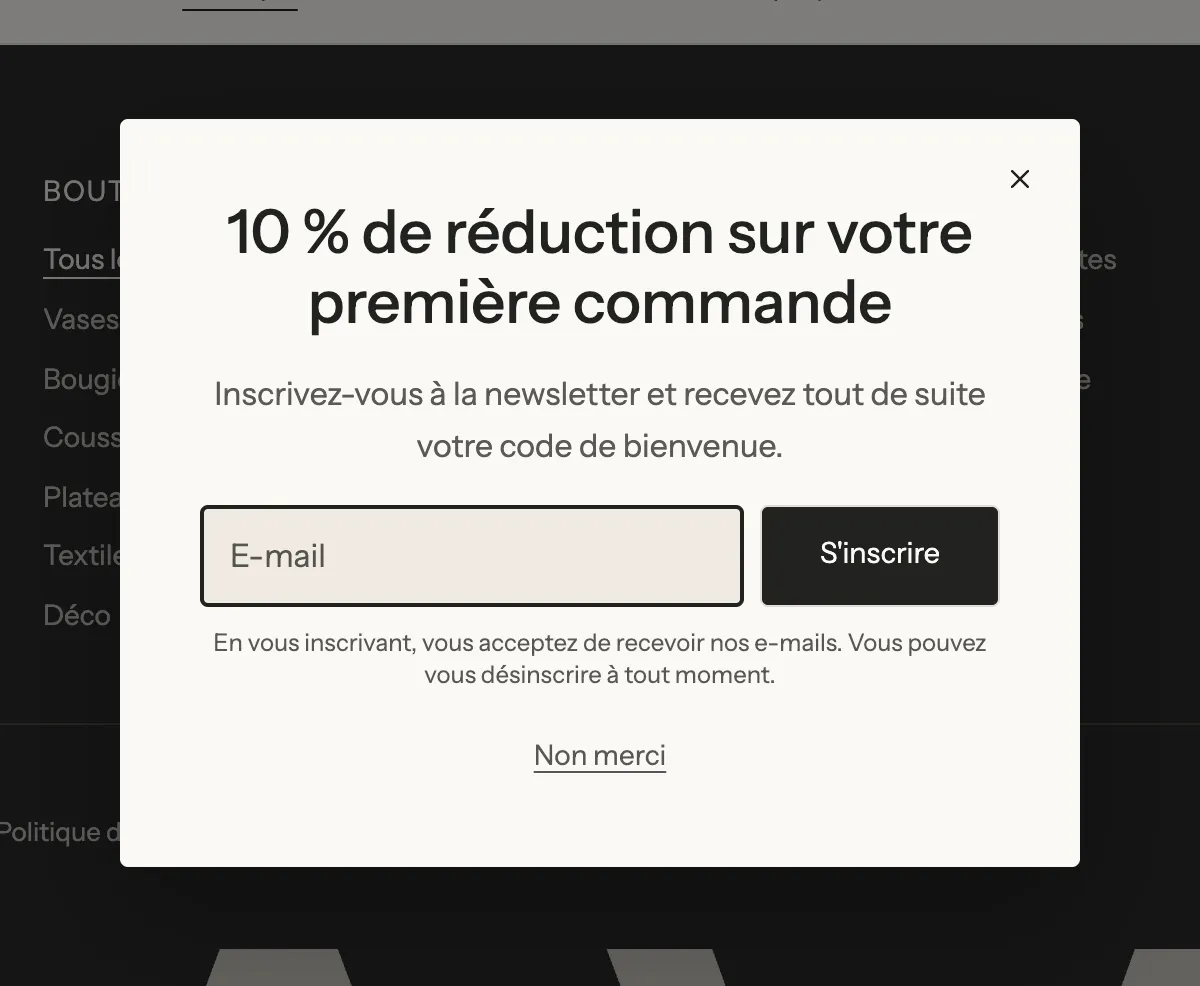
- in a welcome popup, in exchange for an email address;
- in the cart messages, when the customer is hesitating.

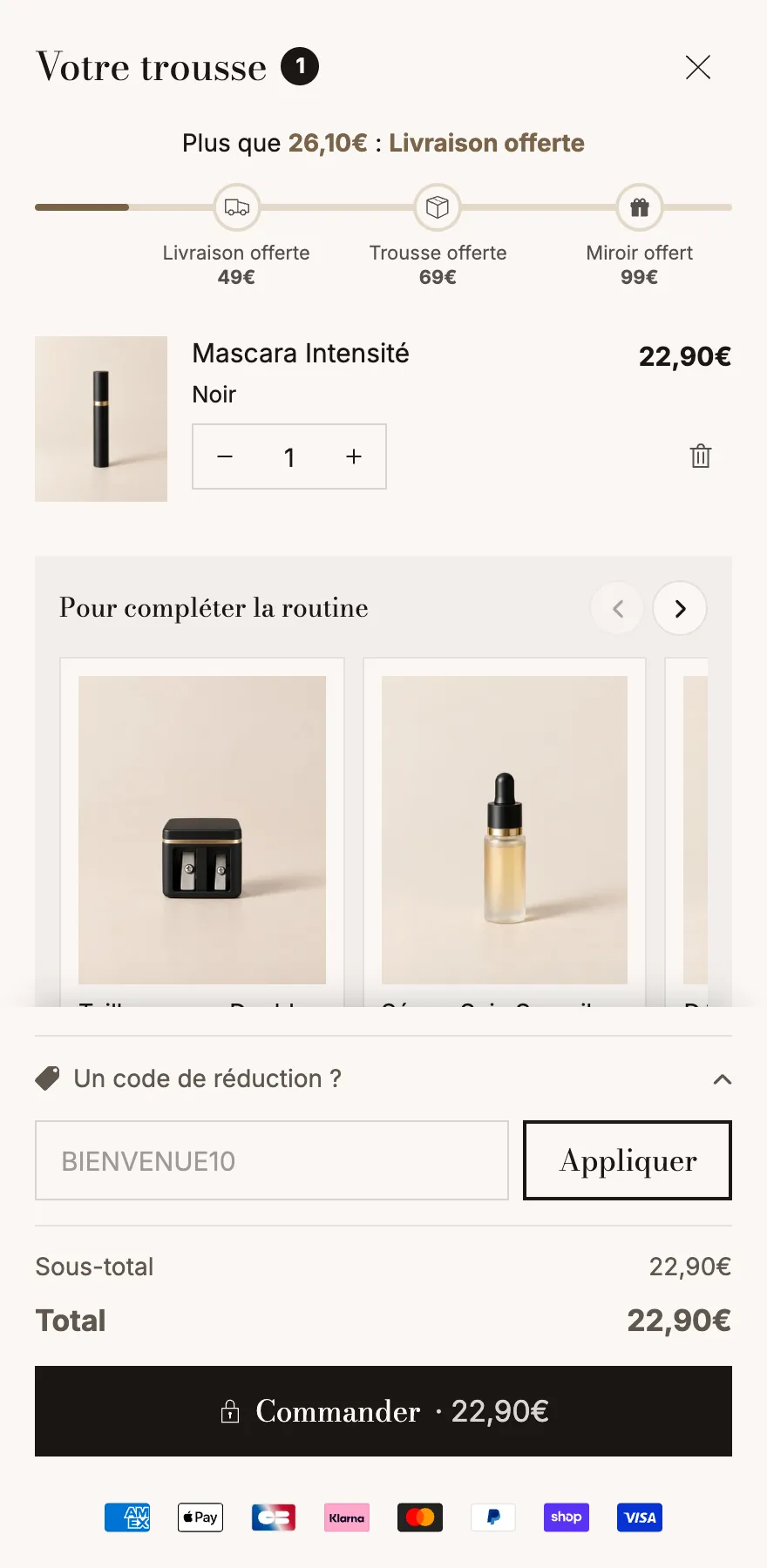
With the Story Theme, customers can also enter their code directly in the cart, before going to checkout.
FAQ
A customer says the code doesn't work
In Discounts, check that the code is Active (not scheduled or expired), that the cart meets the minimum requirements, and that the products in the cart are eligible. A non-combinable code is rejected if another discount is already applied.
Can I edit a code that's already been used?
Yes, open it from Discounts and change its value, conditions or dates. Orders already placed aren't affected.
How do I see how many sales a code generated?
The Discounts list shows the number of uses. For the revenue generated, open Analytics > Reports and look for the sales by discount code report.