
Show remaining stock and an urgency message
Show each variant's stock with the Stock block, add an urgency message to the cart or a countdown timer, while staying honest with your customers.
Knowing that only a few pieces are left helps a customer make up their mind. Story Theme shows the stock of the selected variant on the product page, as a dot or a bar, and can remind shoppers in the cart that an item is almost sold out. These messages work best when they're true: that's the approach this article recommends.
Show stock on the product page
The Stock block is already included on the product page that ships with the theme, below the variant picker.
- Open Online Store > Themes > Edit theme, template Products > Default product.
- In the Product page section, expand the Group and click Stock.
- In Stock type, leave Stock managed on Shopify.
- Set Running low at or below: under this number (10 by default), the low stock message appears.
- Click Save.
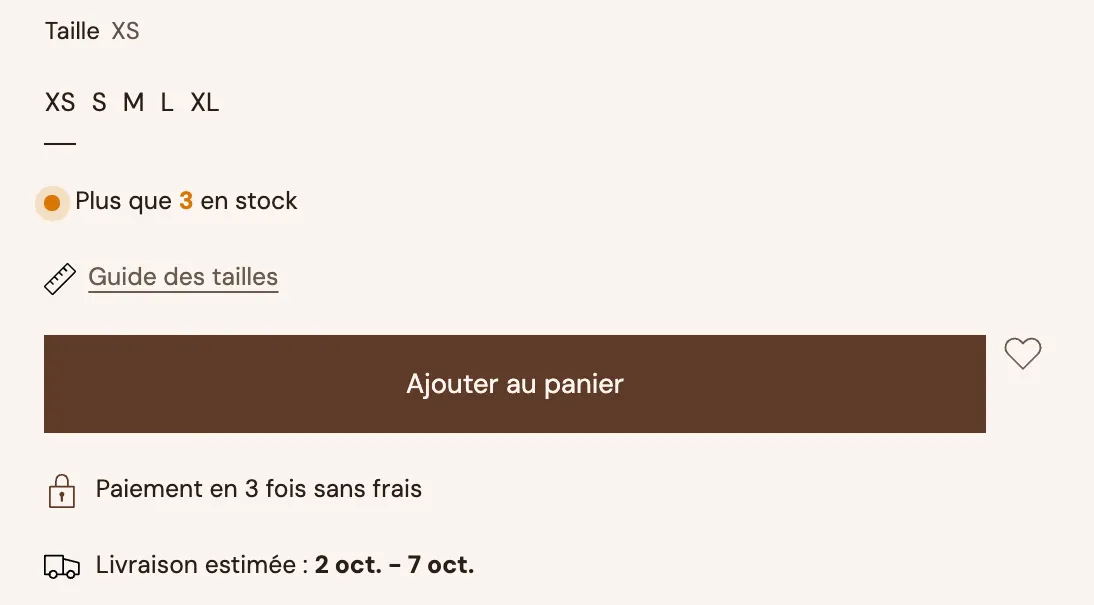
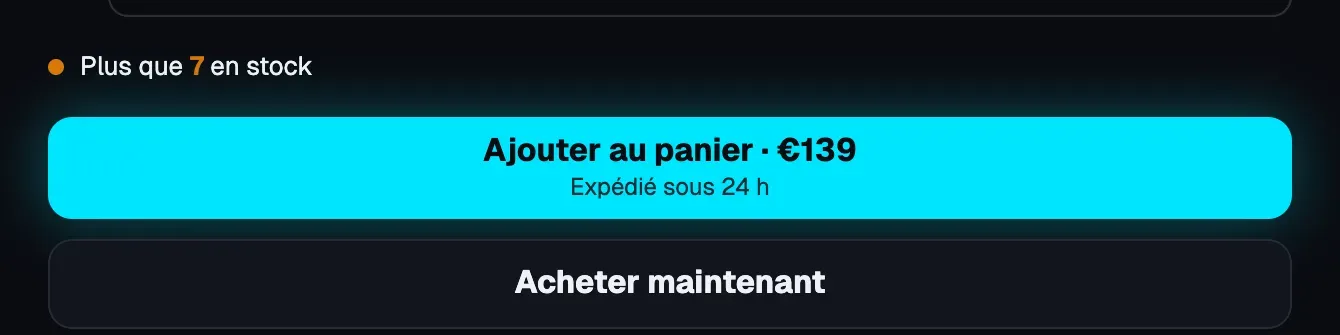
The block uses your store's colors. On the Lumyx demo store, with its dark background, the same message appears just above the buy button:
The messages
The Messages group contains one text per situation. The default texts are:
| Situation | Setting | Default text |
|---|---|---|
| Low stock | Low stock | Only [quantity] left in stock |
| In stock | In stock | In stock, ready to ship |
| Sold without stock | Sold without stock | Available to order, ships as soon as it is back |
| Sold out | Sold out | Sold out |


[quantity] is replaced with the number left. You choose which messages to show with Show a message when in stock, … when sold without stock and … when sold out (the last one is unchecked by default, since the buy button already shows the item is out of stock).
The indicator
In Indicator, choose Dot (default), Bar or None. With Bar, the Full bar at setting sets the stock level at which the bar is full (30 by default). Each situation has its own color (In stock in green, Low stock in orange…), and the block's Style can be Plain, Filled or Outline.
Remind shoppers of urgency in the cart
The Urgency message block can be added to the cart drawer, the cart page or the added-to-cart popup.
- In the editor, open the Cart drawer section (or the Cart template for the cart page).
- Click Add block and choose Urgency message.
- In Show when, choose An item is running low, then set Running low at or below (5 by default).
- Keep the default text or adapt it: "Only [quantity] left in stock for [product]".
[quantity]is the real stock of the item closest to selling out,[product]its name.
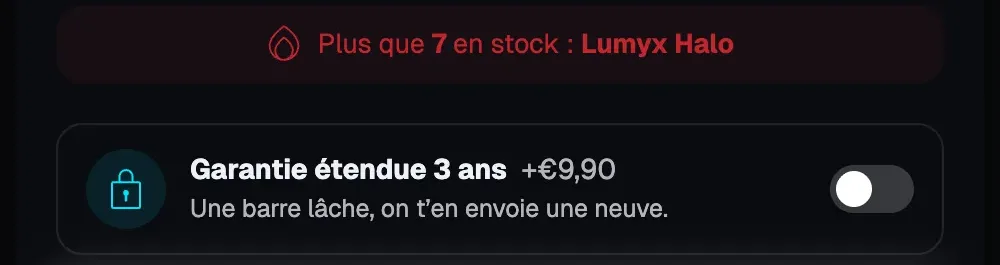
The same block can also show a number kept up to date by an app or by Shopify Flow in a product metafield (A product has a number in its metafield, for example the number of recent sales). Finally, it offers a random number ([nbr]): like the simulated figure, it doesn't correspond to anything real, so avoid it.
To set everything up in the cart, see Messages and reassurance in the cart.
Add a countdown timer
A countdown is justified when a deadline really exists: the end of a sale, today's shipping cut-off time.
- For a real offer end date, use the countdown in an announcement bar message, which is set with a precise date and time, or the Cart countdown block, which counts down to a date or to today's cut-off time.

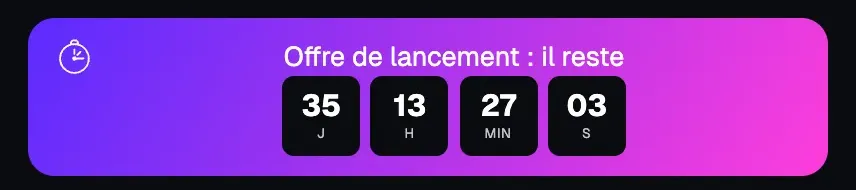
- For the shipping cut-off time, the Delivery date block shows "Order within … to get it by …": see Estimated delivery date.
- The Countdown block (Selling points category) is a timer of a few minutes specific to each visitor (Minutes setting), which restarts according to When timer expires:. It doesn't match any real deadline: only use it for an offer that's genuinely limited for each visit, and don't present it as the end of a promotion.
Learn more
- Estimated delivery date
- Messages and reassurance in the cart
- Structure a product page that converts
- Product page blocks: buying (Stock) and Cart blocks (Urgency message, Cart countdown)
- The Announcement bar section