
Create an automatic discount on Shopify
Create a discount that applies itself in the cart, and match it to the offers, bundles and tiers shown by Story Theme.
An automatic discount applies in the cart and at checkout as soon as its conditions are met, without the customer having to enter a code. It's also what actually charges the discounts Story Theme shows on your offers, bundles and reward tiers.
Create the discount
- In your Shopify admin, open Discounts in the left menu.
- Click Create discount.
- Choose the type:
- Amount off products: a discount on certain products or collections (the case for quantity discounts);
- Amount off order: a discount on the whole cart;
- Buy X get Y: a free or discounted item (the case for "buy 2, get 1 free" and gifts);
- Free shipping: free shipping costs.
- Under Method, select Automatic discount.
- Enter a Title, for example
Duo -10%. Your customers see this title in the cart and at checkout: choose a clear name.
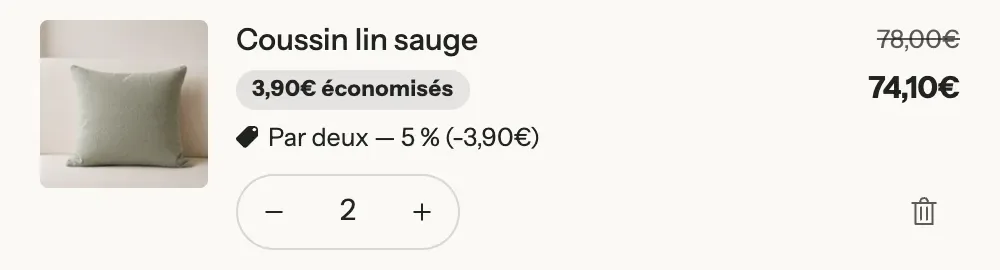
Set the discount and its conditions
- In Discount value, choose Percentage or Fixed amount and enter the value.
- In Applies to, choose Specific products or Specific collections, then add the products concerned.
- Under the minimum purchase requirements, choose Minimum quantity of items (for a quantity discount) or Minimum purchase amount (for a discount from a given cart amount).
- Under Eligibility, leave All customers, unless the discount is reserved for certain segments or markets.
- Under Combinations, choose whether this discount can combine with your other discounts (for example a welcome code).
- Under Active dates, choose the start date. Click Set end date for a limited-time promotion.
- Click Save.
The discount appears in the Discounts list. Shopify allows at most 25 active automatic discounts at the same time, app discounts included.
For a promotion with an end date, announce it on your store with the countdown of an announcement bar message, set to the same date as the discount:

Match the discount to a Story Theme offer
The product page Offers block (see Quantity discounts) shows a discounted price on each card, calculated from its Quantity, Discount and Value settings. For the customer to pay that price, the Shopify discount must reproduce exactly the same rule.
Example: a $40 cream sold by 1, 2 or 3
On the product page, the Offers block contains three cards:
| Card (Offer block) | Quantity | Discount | Value | Price shown |
|---|---|---|---|---|
| 1 jar | 1 | None | — | $40 |
| The duo | 2 | Percentage | 10 | $72 instead of $80 |
| The stock-up | 3 | Percentage | 15 | $102 instead of $120 |
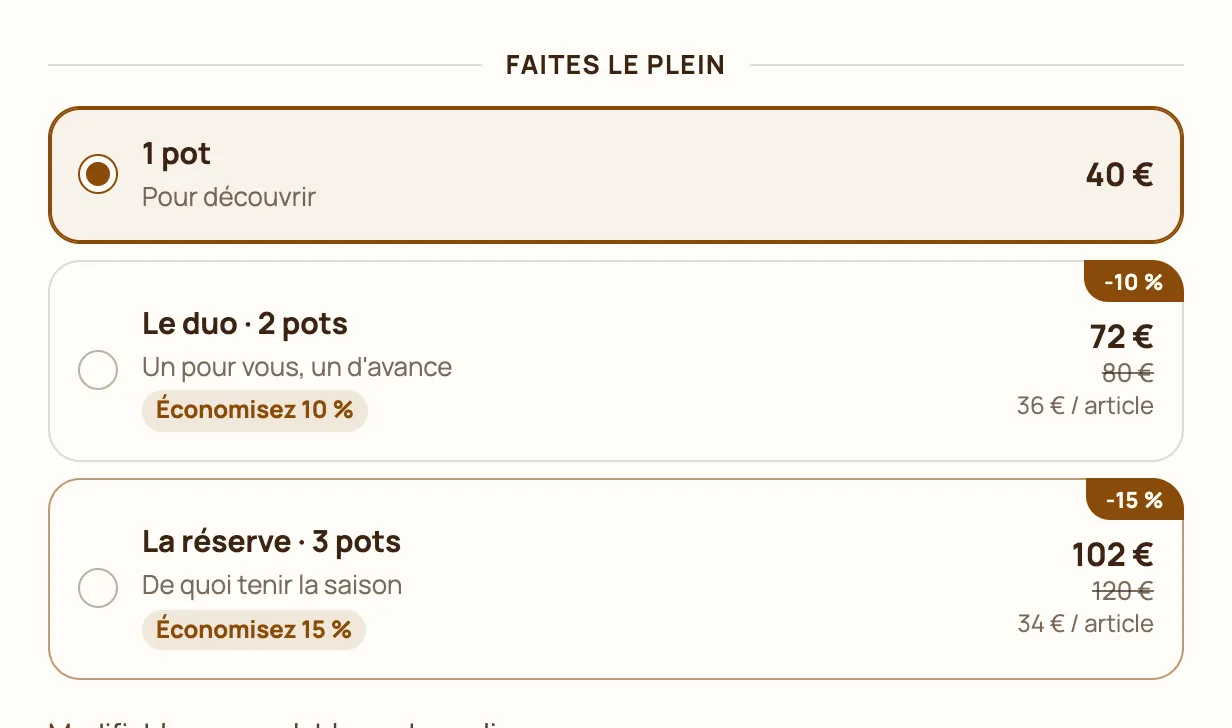
In Shopify, create one automatic discount per discounted card:
- Duo -10%: Amount off products, Percentage 10, Applies to the cream, Minimum quantity of items 2.
- Stock-up -15%: same type, Percentage 15, Applies to the cream, Minimum quantity of items 3.
With 3 jars in the cart, both discounts are possible: Shopify applies the one that's best for the customer, 15%. The cart then shows the same price as the chosen card.
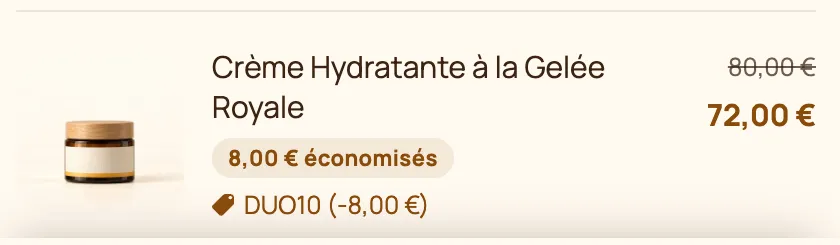
Other discounts shown by the theme
- Free items ("buy 2, get 1 free"): on the card, Quantity 2 and Free items 1. In Shopify, create a Buy X get Y: under Customer buys, a Minimum quantity of items of 2 on this product; under Customer gets, 1 item of the same product, At a discounted value set to Free.
- Gifts in an offer (Gifts group of the Offer block): a Buy X get Y where the product the customer gets is the gift, set to Free.
- Gift from a cart tier (Rewards progress block, Gift products setting): a Buy X get Y with a Minimum purchase amount equal to the tier's Threshold, and the gift set to Free. The theme adds the gift to the cart; the discount is what brings its price down to zero.
- Free shipping from a tier: a Free shipping discount with the same minimum amount, or a free shipping rate (see Set up shipping).
- Discounted add-ons (Add-ons block): an Amount off products discount on the add-on product.
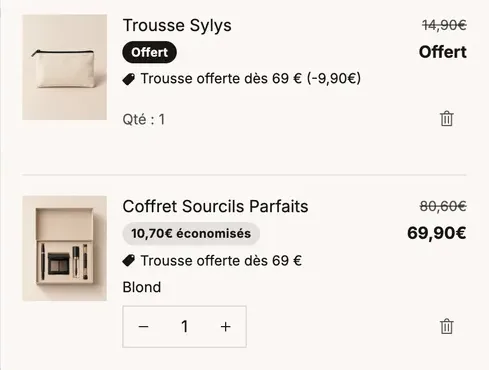
Test before launching
- Open your store in a private browsing window.
- Add each offer to the cart and compare the cart price to the price shown on the card.
- Go all the way to the checkout page, without paying, to check the final total.
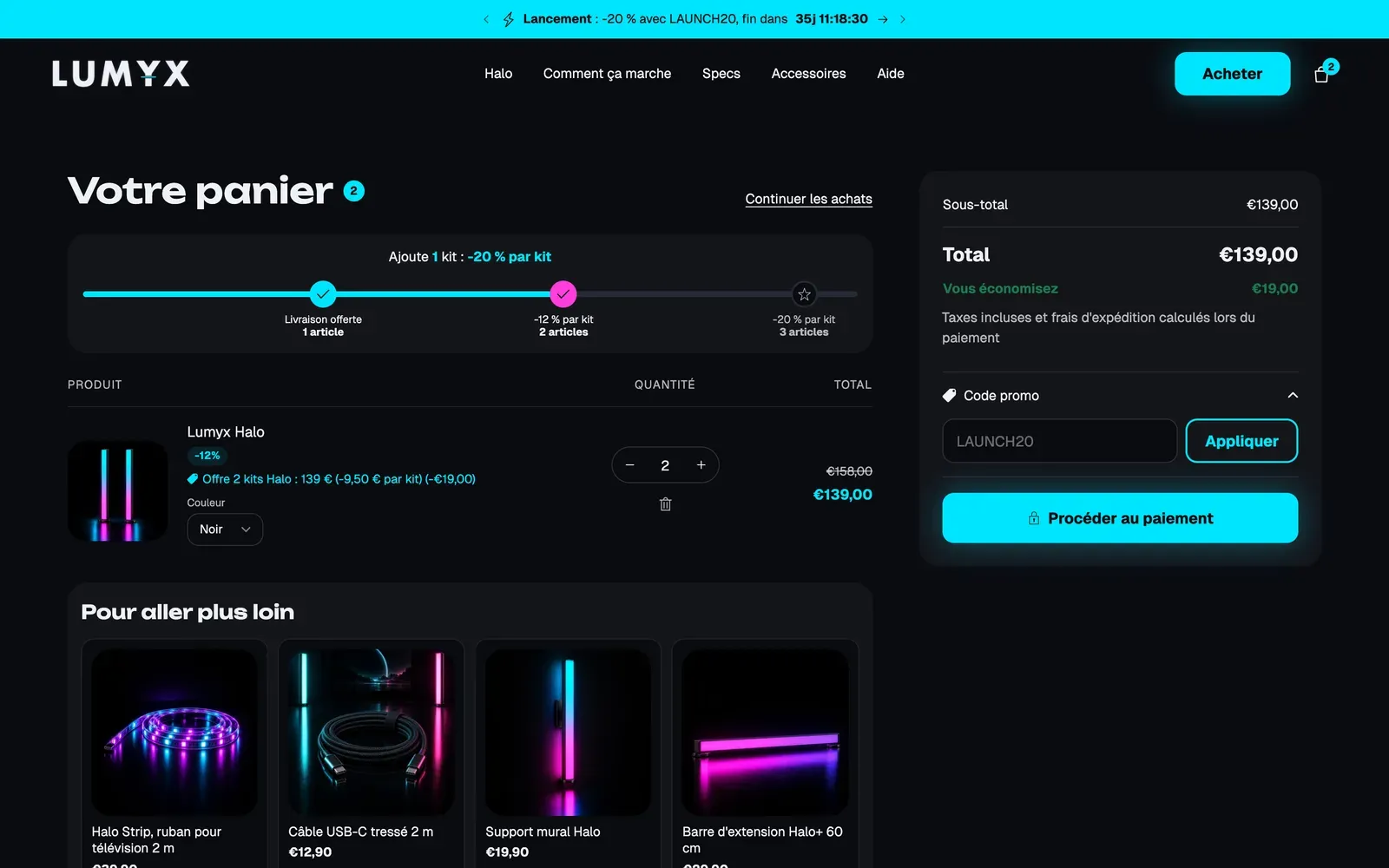
If the cart shows full price, check in Discounts that the discount is Active, that it applies to the right product and that the minimum quantity matches the card.
Learn more
- Quantity discounts
- The free shipping bar
- Upsells in the cart
- Offer blocks: Offers, Add-ons and Bundle builder
- Shopify Help: Automatic discounts