Optimize the SEO of your products, collections and pages
Page-by-page habits for Google: title and meta description, URL, image alt text, a single H1, useful content and internal links.
The Story Theme handles the technical side of SEO: product markup for Google, canonical URL, a single main heading per page. What's left is what Google can't guess: what you sell, in your own words. This article gives you the right habits for every product page, collection and page.
Write the title and meta description
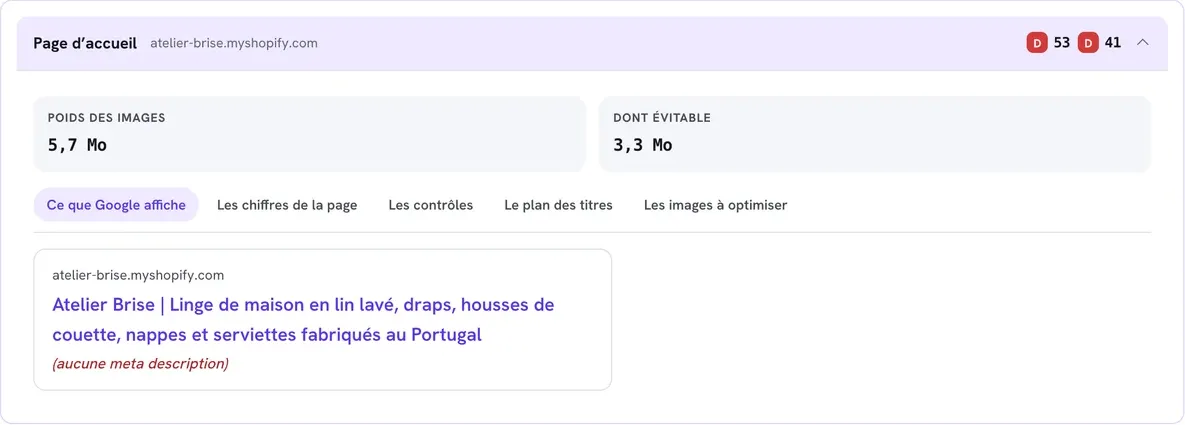
The title (the title tag) is the blue clickable line in Google; the meta description is the gray text below it. Shopify fills them in automatically with the name and the start of the description, but text written for Google does better.
- In your Shopify admin, open the product, collection or page.
- Scroll to the bottom, to the Search engine listing area, and click Edit (the pencil icon).
- Write the page title: what you sell, what sets you apart, then your brand. For example "Washable faux fur dog bed | Softy". Stay between 30 and 60 characters: beyond that, Google cuts off the end.
- Write the meta description: a 70 to 160 character sentence that makes people want to click, with a concrete benefit ("Free shipping over $39, 30-day returns").
- Click Save.
For the home page, the title and meta description are set in Online Store > Preferences, under Title and meta description.
A different title for every page: two product pages with the same title compete with each other in Google.
Choose a short, clear URL
In the same Search engine listing area, you can edit the end of the page address (the URL handle). Go for a short, lowercase address, with the words your customers search for: /products/faux-fur-dog-bed rather than /products/copy-of-product-2.
Only change the address of a page that's already live if it's really bad. If you do change it, leave checked the box Shopify offers to create a redirect from the old address: links and Google rankings aren't lost.
Describe your images
Alt text describes an image to Google Images and to people who use a screen reader.
- Open the product in Shopify and click an image.
- Add its alt text: simply describe what you see, for example "Round dusty pink faux fur dog bed, front view".
- For images in your sections (banners, images with text), go through Content > Files.
Avoid stacking keywords: a natural sentence is better understood. While you're at it, lighten heavy images with Optimage: a fast page also ranks better.
Keep a single H1 heading per page
The H1 heading tells Google what the page is about. You need exactly one, and the Story Theme takes care of it:
- Product page: the Product title block has a Heading level setting, h1 by default. Only use h1 once per page, on the main product;
- Home page and pages: in the Heading block, the level (H1, H2…) is chosen with the Aa menu directly in the heading field. An H1 only keeps its tag in the first section of a page that has no title of its own; further down, it looks the same but becomes an H2;
- Collection: the collection name, shown by the Collection banner section, serves as the main heading.
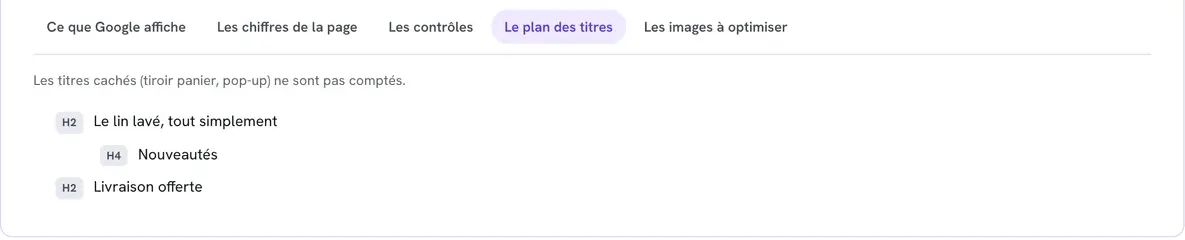
Below the H1, organize the rest with H2s then H3s, without skipping levels. The SEO report in your member area shows the heading outline of each page.

Write useful content
Google needs text to understand what you sell.
- Product pages: write your own description, not the supplier's, copied word for word on dozens of other sites. Answer customers' questions: material, dimensions, care, who it's for, in which situations.
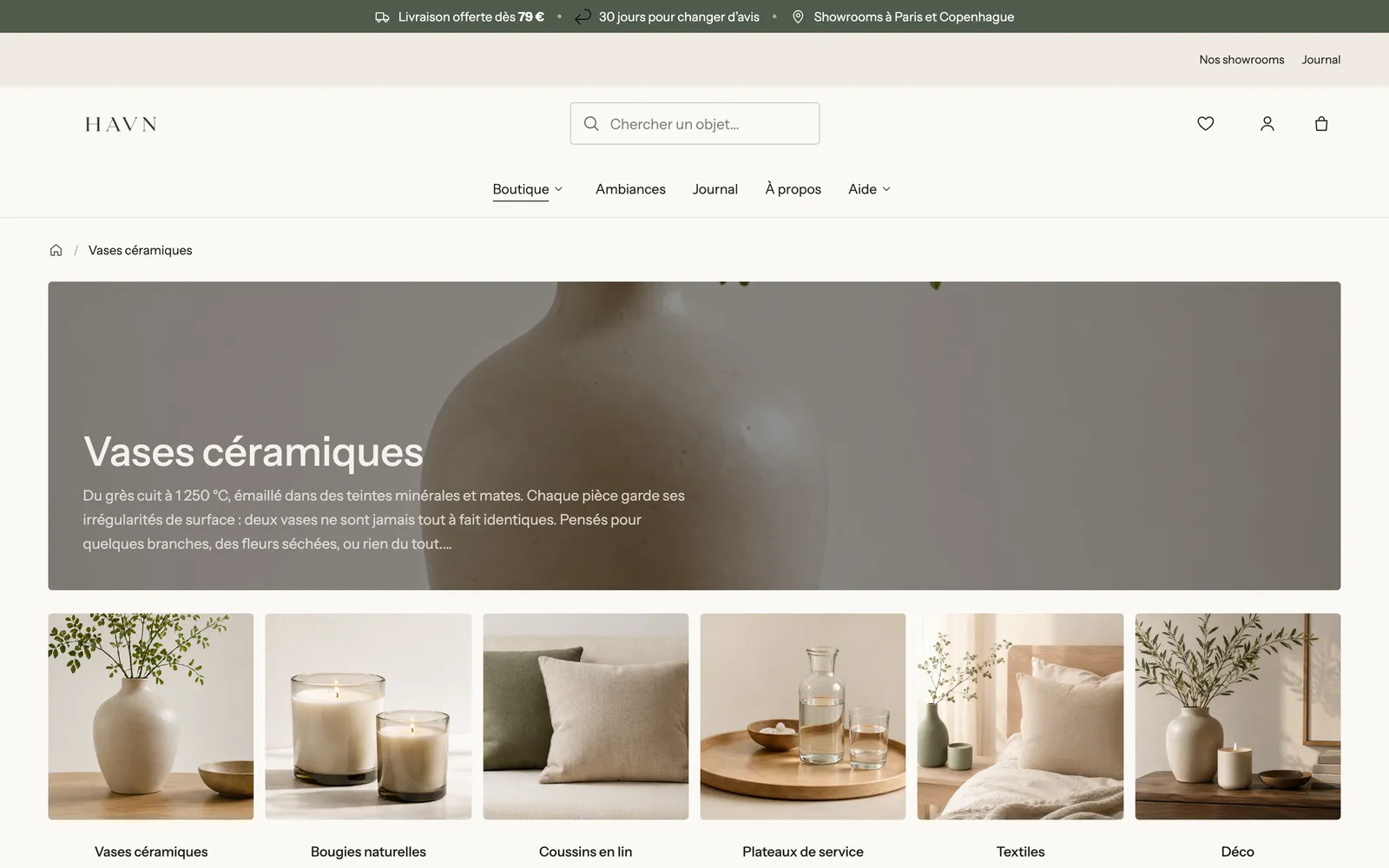
- Collections: add a description of a few sentences to the collection in Shopify. It shows in the Collection banner section. See Collection pages.
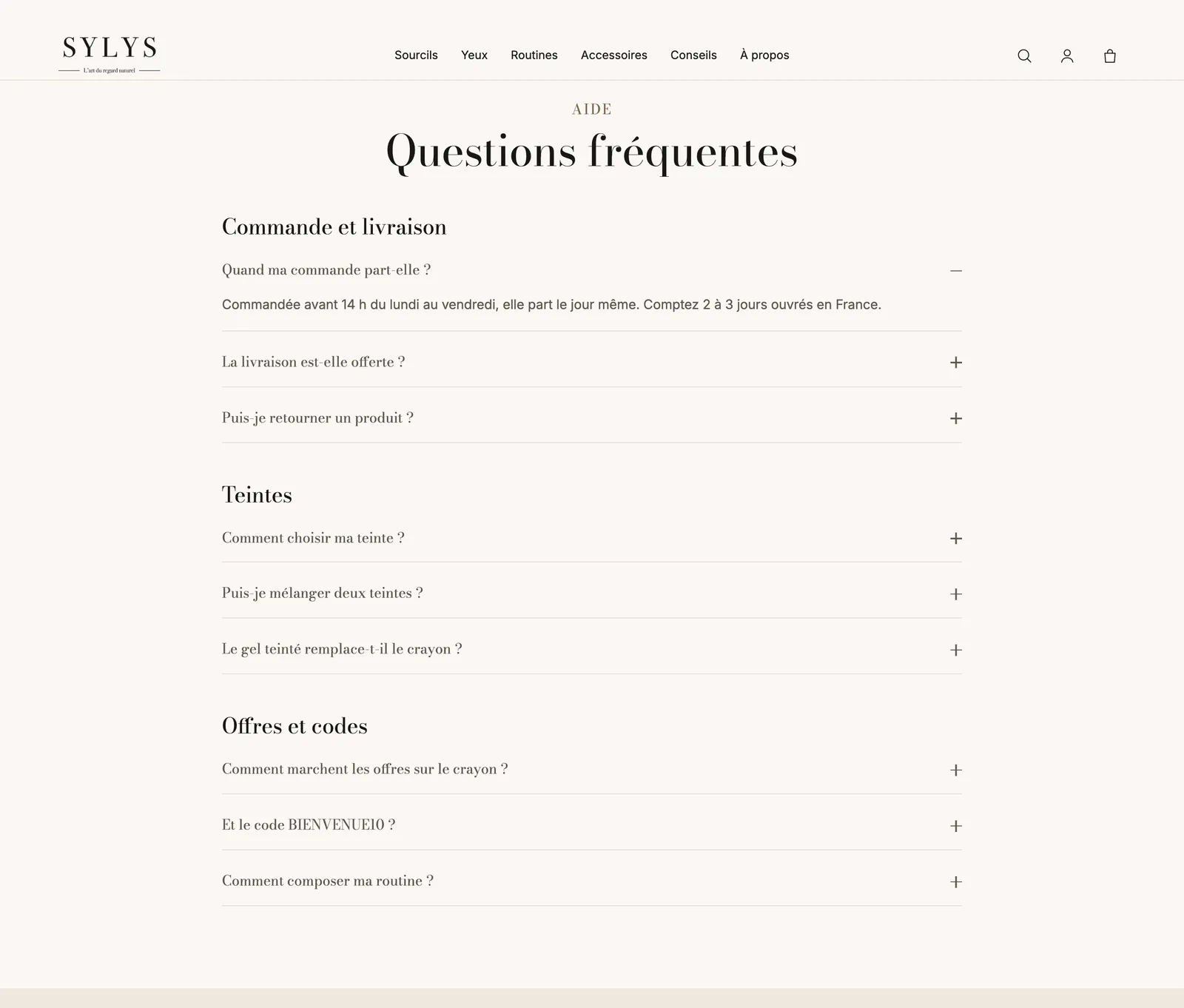
- Frequently asked questions: an FAQ section with Mark up the questions for search engines turned on helps Google understand your answers. Keep this setting on for only one FAQ section per page. See Create an FAQ page and the FAQ section.
Link your pages together
Internal links help Google discover your pages, and your customers get around.
- Fill out your header and footer menus: see Menus, header and footer.
- Add a Breadcrumb block to your product pages: with Add a collection on product pages, it shows the path Home > collection > product. See the Breadcrumb section.
- Place buttons or links to your collections in your descriptions and sections, with text that says where they lead ("See the dog beds" rather than "See more").
- Keep recommended products at the bottom of your product pages.

The theme's SEO settings
In the theme editor (Online Store > Themes > Edit theme), open Theme settings > SEO:
- Addresses hidden from search engines: one address per line, for example
/pages/thank-you, to ask Google not to show these pages. End with*to hide every address that starts that way, for example/collections/vendors*. Never put a page here that you want to see in Google. - To give Google a different official address for a product, collection, page or blog post, add the
custom.canonical_urlmetafield to it. Keep this for duplicate page cases.
On the Products > Default product template, the Product page section offers Add the rating to search results: it shows the rating and review count from your review app. Only turn it on if your app doesn't already do it, otherwise Google sees the rating twice.
Check the result
- In your member area, open your store's SEO report and have the edited page analyzed. The What Google shows tab displays the title and description as Google will read them.
- Be patient: Google revisits your pages at its own pace, and a change can take several days or weeks to show in the results.