
Upsells and recommended products in the cart
Offer complementary products, a checkbox add-on or a gift in the Story Theme cart to increase your average order value, with no app.
The cart is the best moment to suggest a small extra item: the customer has already decided to buy. Story Theme gives you three tools for this, to place in the drawer, the cart page or the added to cart popup: product recommendations, a checkbox product (warranty, gift wrapping…) and gifts unlocked by tiers.
Add recommendations
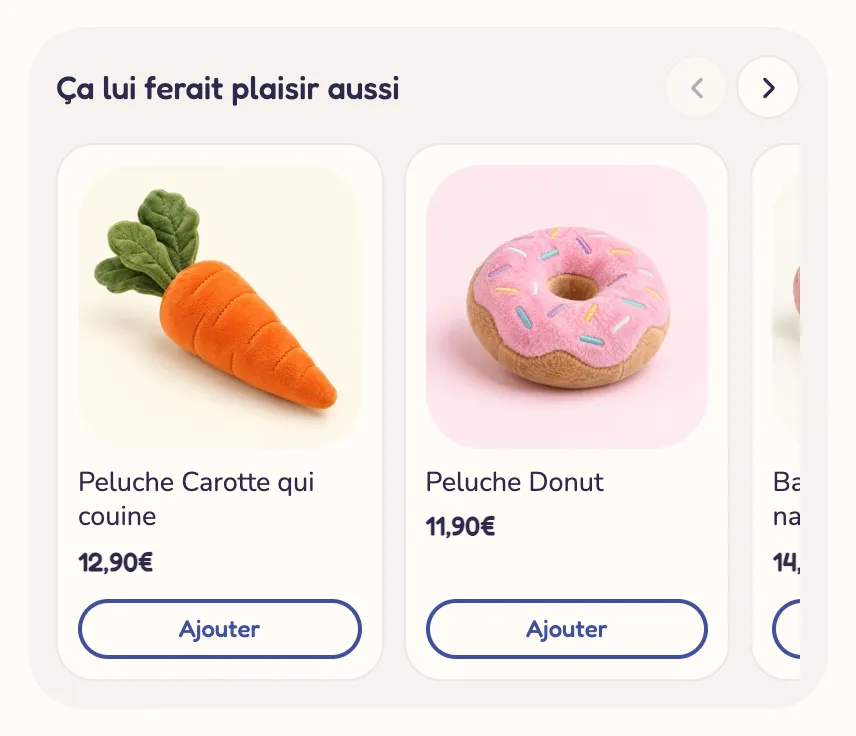
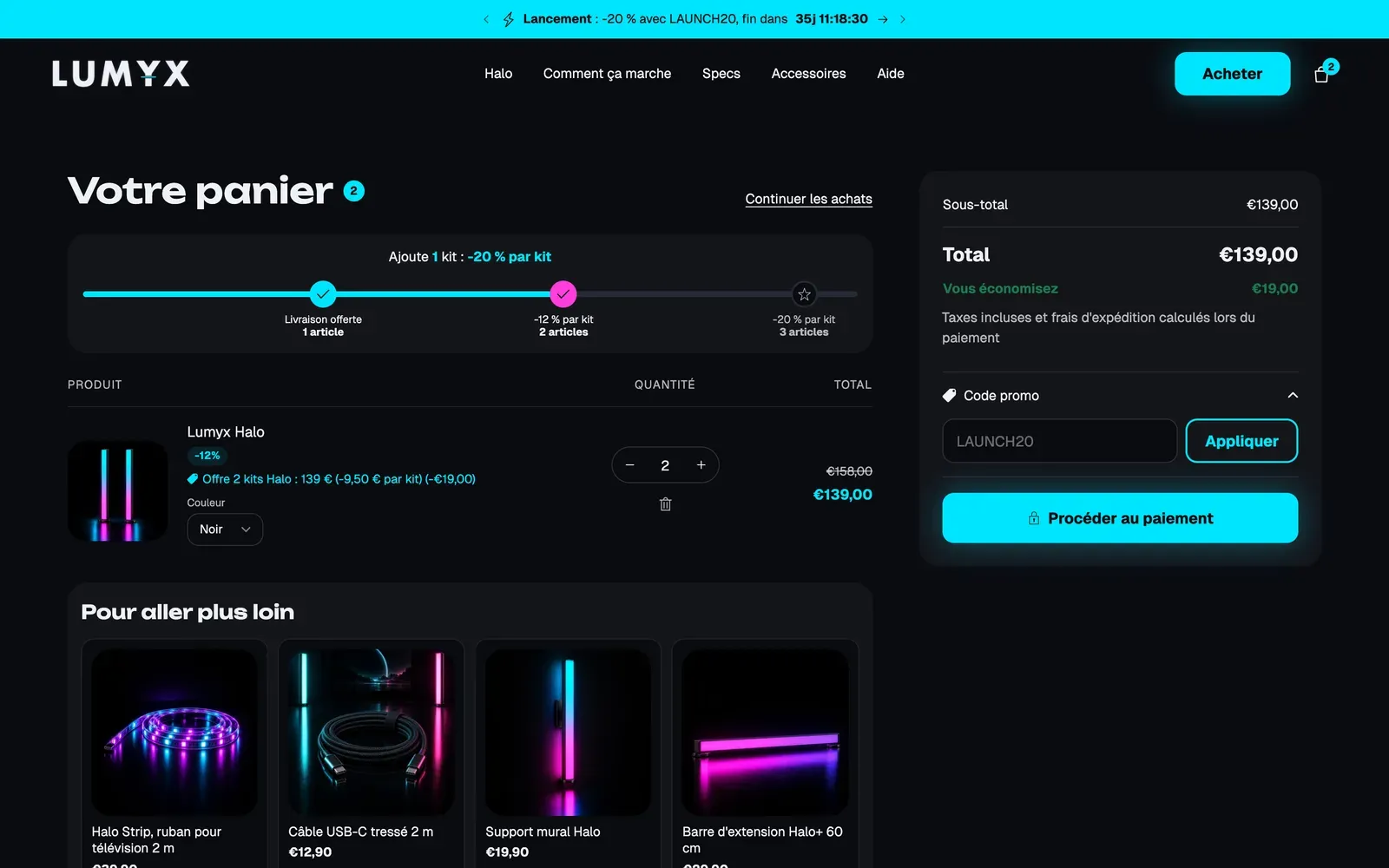
The cart drawer that ships with the theme already contains an Upsells block below the items.
- Open Online Store > Themes > Edit theme, add a product to the cart in the preview and open the drawer.
- In the left sidebar, under Cart drawer > Content, click Upsells. If it isn't there, click Add block, Cart category, then Upsells.
- Choose the products' Source (see the table below).
- Set the Number of products and the Heading (for example "Complete your order").
- Click Save.
| Source | What the customer sees | When to choose it |
|---|---|---|
| Shopify recommendations | Products picked by Shopify based on what's in the cart | To get started without preparing anything |
| Collection | The products of a collection (for example "Accessories") | To push a small, low-priced range |
| Chosen products | The products you select one by one | For a specific offer, the same for everyone |
| Product metafield | The products you've linked to each product in the cart | For tailored suggestions, product by product |
With Shopify recommendations, the Recommendation type offers Complementary, then related, Complementary or Related. Complementary products are set in Shopify's free Search & Discovery app; related products are calculated by Shopify. Also fill in a Collection: it's shown when Shopify has nothing to suggest, for example on a new store.
With Product metafield, the block reads the custom.cart_upsells metafield by default. In Shopify's settings, create a product metafield definition of the product list type with this namespace and key, then fill it in on each product.
Set the look
The block's appearance settings are in the group named Progress bar (even though the block doesn't show a bar):
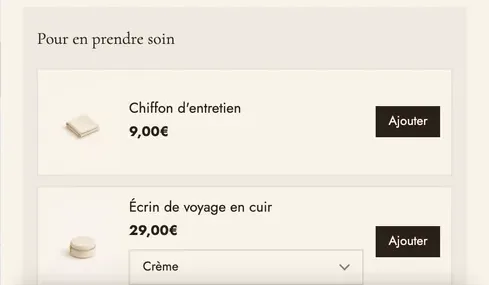
- Layout: Carousel, List or Grid. As a carousel, Visible cards sets how many cards fit across the width;
- Show variant selector: the customer picks their size or color without leaving the cart;
- Show compare-at price and Discount badge (Percentage or Amount): they use the compare-at price set on the product in Shopify;
- Button label, Button style and Button size.
Leave Hide products already in the cart checked so you don't suggest a product the customer already has.
Offer a checkbox add-on
The Checkbox product block adds a line in one tap: warranty, shipping protection, gift wrapping.
- Under Cart drawer > Content, click Add block, then Checkbox product.
- In Type, choose:
- Product: a real line item is added to the cart, with its price. First create this product in Shopify, with a single variant, and remove it from your collections if it shouldn't appear there;
- Cart attribute: a simple yes or no saved on the order, under the Attribute name you choose (for example "Gift wrapping"). Nothing is charged.
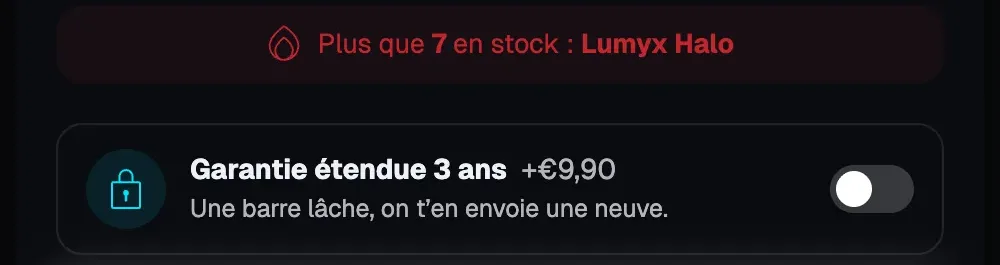
- Fill in the Title and the Description, then choose the Control: Switch or Checkbox.
- Leave Pre-selected unchecked if the option is paid: in the European Union, a paid option that's checked in advance is prohibited.

With the Switch Control, the option shows up as a toggle:
In the Line items block, the Hide checkbox products from the list setting, checked by default, keeps the option from appearing a second time among the items.
Offer a gift from a set amount
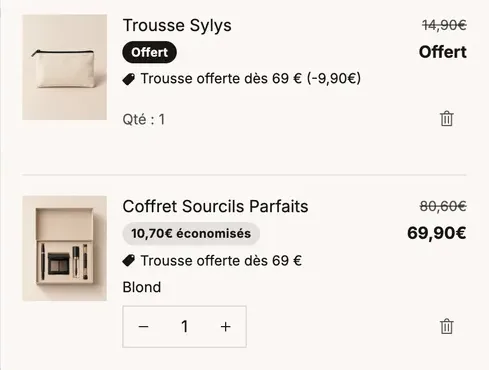
A gift added automatically when the cart reaches an amount is set up in the Rewards progress block, with the Free gift reward. See Free shipping bar and reward tiers. Here too, create the automatic discount in Shopify that brings the gift down to $0.
Fill the empty cart
An empty cart can sell too. In the Empty cart zone of the drawer (or the cart page), add an Upsells, Product list or Collection list block: the customer heads back to your best products instead of closing the cart. To work on this state, check Preview empty cart in the Cart drawer section.

Learn more
- Set up the cart
- Free shipping bar and reward tiers
- Messages, reassurance and countdown in the cart
- Cart blocks (Upsells, Checkbox product, Rewards progress, Empty cart)