
Messages, reassurance and countdown in the cart
Reassure customers right when they pay: delivery date, shipping cut-off time, savings, low stock and notes under the checkout button.
In the cart, customers often hesitate for small reasons: when will I get my order? Is the payment secure? Is this really a good deal? Story Theme has blocks that answer these questions in the right place, in the drawer, the cart page or the added to cart popup.
Announce a real deadline
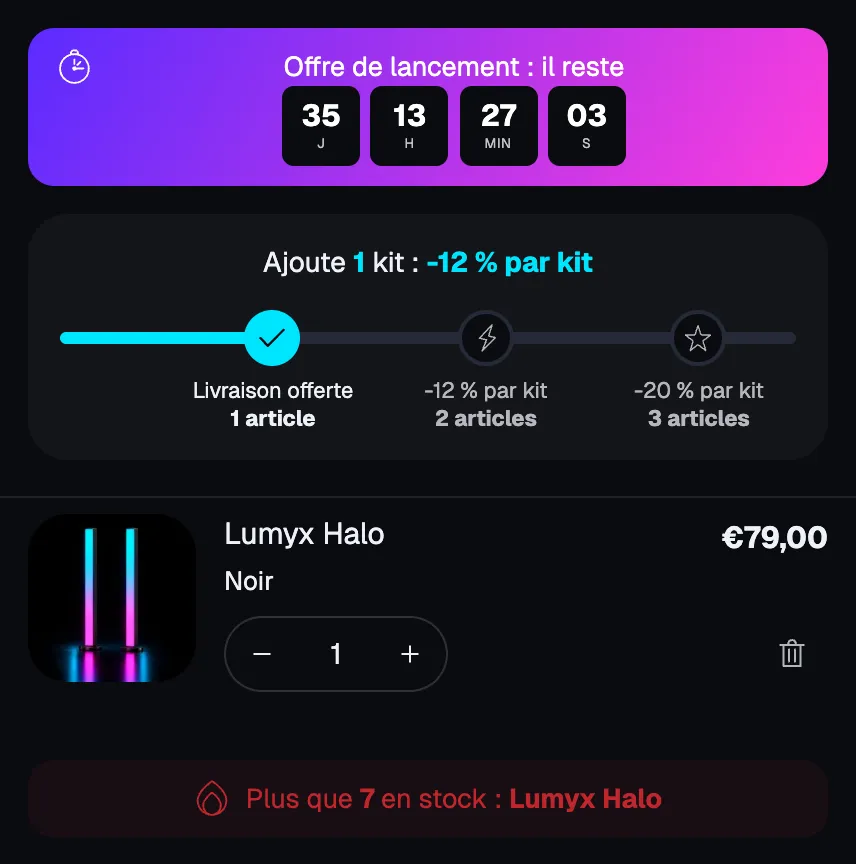
The cart countdown
The Cart countdown block counts down to a real deadline, the same for every visitor and calculated in the store's time zone.
- In Count down to, choose:
- A date and time: the end of an offer. Fill in the End date in YYYY-MM-DD format (for example
2026-11-30) and the End time in HH:MM format; - A cut-off time every day: today's shipping time. Fill in the Cut-off time (for example
14:00) and check Monday to Friday only if you don't ship on weekends. After that time, the countdown is hidden until the next day.
- A date and time: the end of an offer. Fill in the End date in YYYY-MM-DD format (for example
- Write the Text, placing
[timer]where the countdown goes, for exampleOrder within [timer] to ship today. - For an end date, choose When it ends: Hide the timer or Show a message.
- Set the Timer style: Cards, Outline (border only), Inline with labels or Minimal (digits only).
The reservation timer
The Reservation timer block shows "cart reserved for 10 minutes". Set its Duration (1 to 60 minutes), Restart when a product is added and When it ends (Show a message, Start again or Hide the timer). The cart is never emptied at the end: the items stay in place. Only use it if you actually reserve the stock; otherwise, go with the cart countdown.
Give the delivery date
The Delivery estimate block shows the shipping and delivery dates, in business days starting from today.
- In Layout, choose Steps (order, shipping, delivery) or One line.
- In the Dates group, fill in Days to prepare order, Shortest shipping time (days) and Longest shipping time (days).
- Leave Don't count weekends checked and enter your Closed days (in DD/MM format, for example
25/12, 01/01). - Fill in the Cut-off time: orders placed later ship on the next business day. Show the time left before the cut-off adds a countdown.
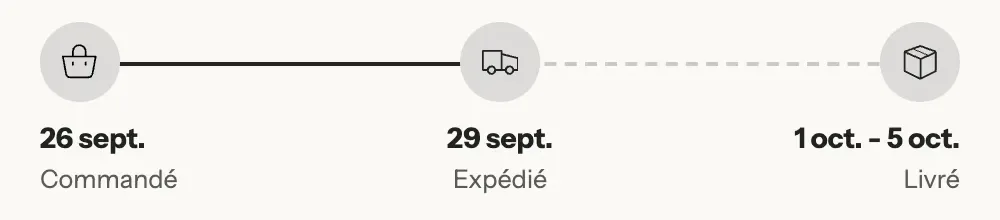
Use the same lead times as on the product page, so the customer reads the same date everywhere. See Estimated delivery date.
Show the savings
- Savings banner: a sentence with
[amount](amount saved) or[percent](percentage), for exampleYou're saving [amount] on this order. Show from keeps the banner from showing for just a few cents. - In the Line items block, Show compare-at price and Show savings badge show the discount line by line.
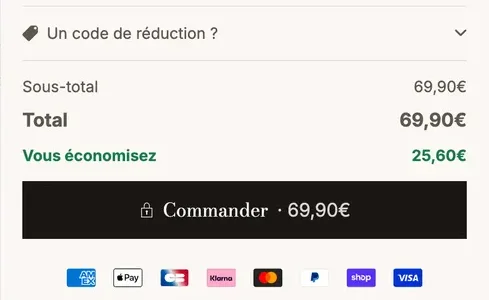
- In the Order summary block, the Total savings line adds up everything the customer saved.
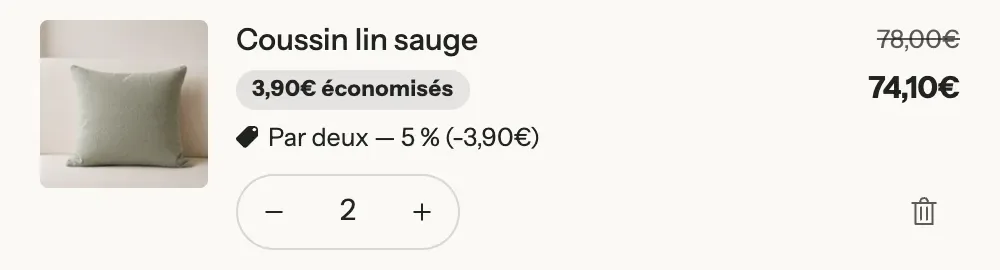
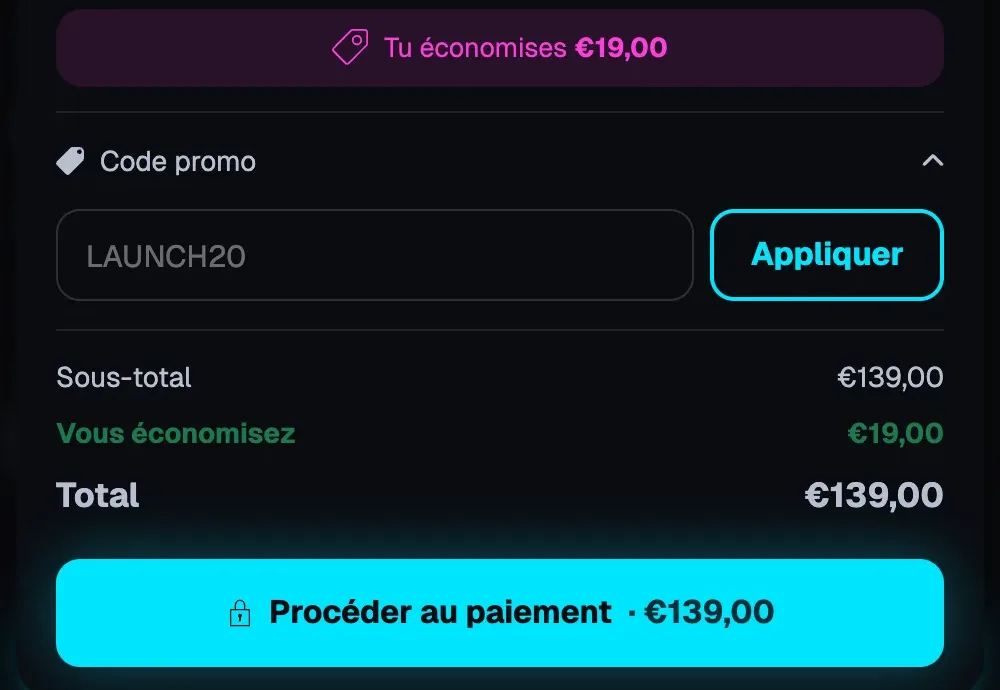
These amounts come from your products' compare-at prices and the discounts applied by Shopify. If an offer shown by the theme (bundle, tier, gift) doesn't have a matching automatic discount, the customer pays full price.
Flag low stock
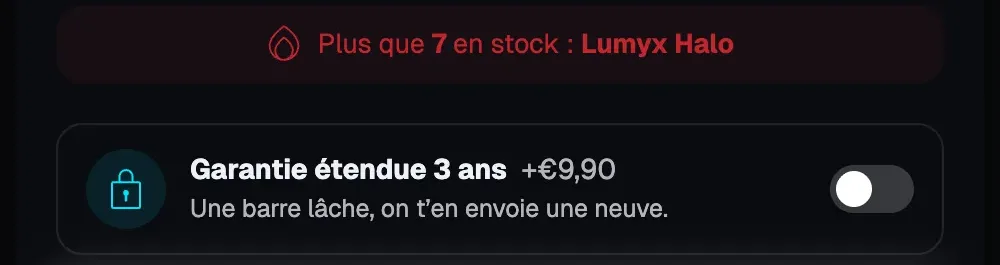
The Urgency message block relies on real data. In Show when, choose:
- An item is running low: the message appears when a tracked item's stock drops below Running low at or below.
[quantity]shows the real stock and[product]the product name; - A product has a number in its metafield: for example a number of recent sales (
custom.recent_sales), which you keep up to date yourself or with Shopify Flow.
The block also accepts a random number ([nbr], between Minimum random number and Maximum random number): this number has no link to your real activity, so avoid it.
For a reminder right on the item's line, set Low stock alert in the Line items block: "Only X left in stock" appears below this threshold.
Reassure near the checkout button
- Checkout buttons: Text above the button and Second line (for example "Secure payment") add a short note. Show total in the button repeats the amount, and Show express checkout shows Shop Pay, Apple Pay, Google Pay or PayPal if they're turned on.
- Trust badges and Payment icons: add them below the button, in Footer.
- In Order summary, Taxes and shipping note explains what's included, and Custom text holds a free-form sentence, for example "Free returns within 30 days".
Collect information before checkout
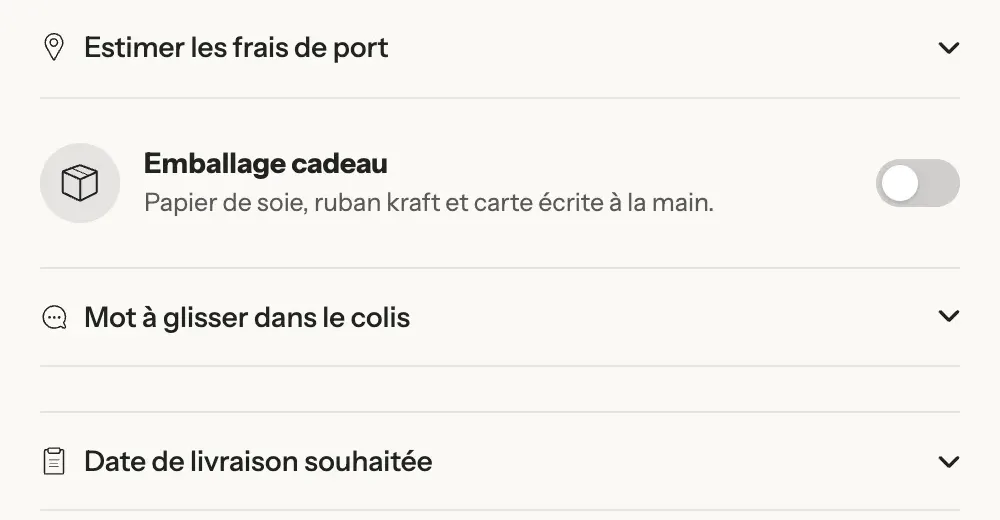
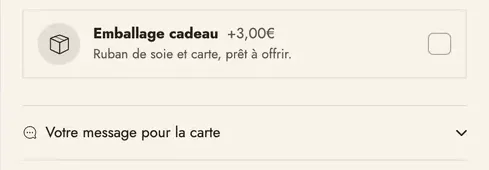
- Order note: a free text field for the customer (Collapsed, Open by default or Always visible).
- Order field: a specific question saved on the order under the Attribute name you choose, as Short text, Long text, Dropdown list, Date or Checkbox. Check Required to block checkout until it's filled in.
- Terms checkbox: the customer must check your terms before paying; otherwise, the Error message appears.
- Shipping estimate: the customer enters their country and postal code to see your shipping rates.
Learn more
- Set up the cart
- Free shipping bar and reward tiers
- Stock bar and urgency on the product page
- Cart blocks: details on every block mentioned here