
The Image weight report: lighten your home page
Understand what the Image weight report in your member area measures, why an image gets flagged and how to fix it with Optimage.
Images often make up most of a page's weight, and a heavy page takes longer to display, especially on mobile. The Image weight report in your member area spots the images on your home page that weigh more than they need to and tells you how much you can save.
Where to find the report
On the Dashboard (My shops cards) and on the Shops page, each store's Images row shows a grade from A to E and the weight you could save, for example 3.3 MB to save, or Nothing to save.
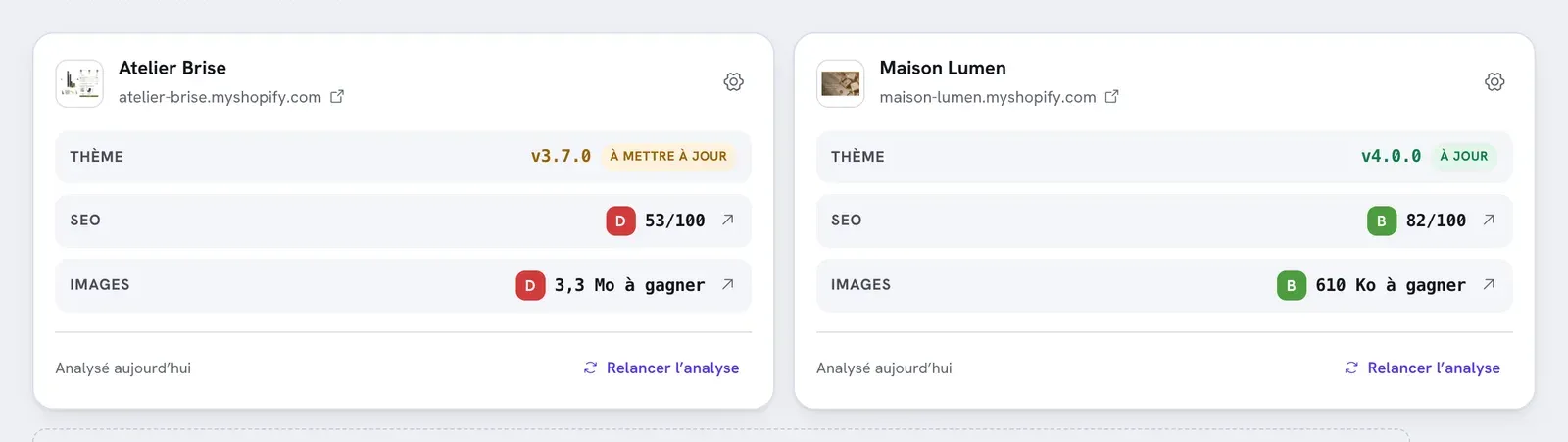
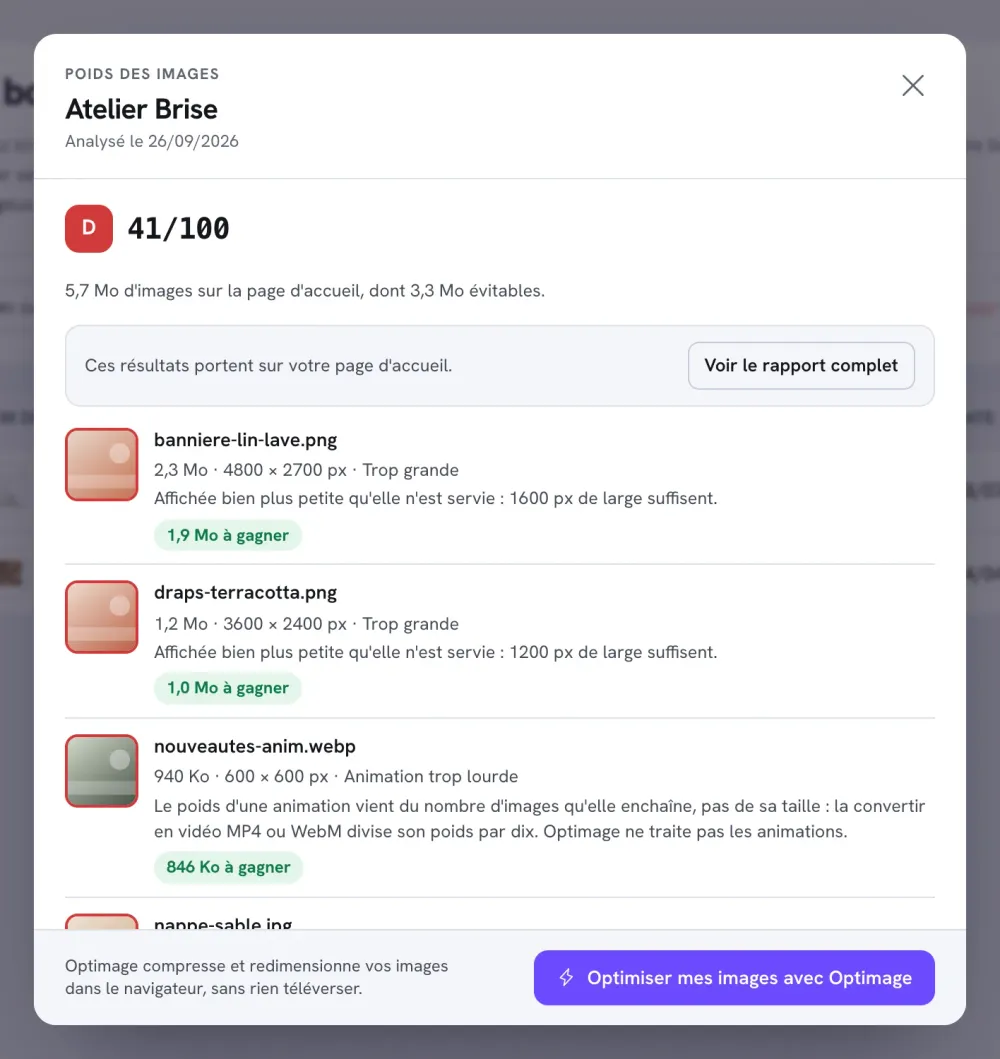
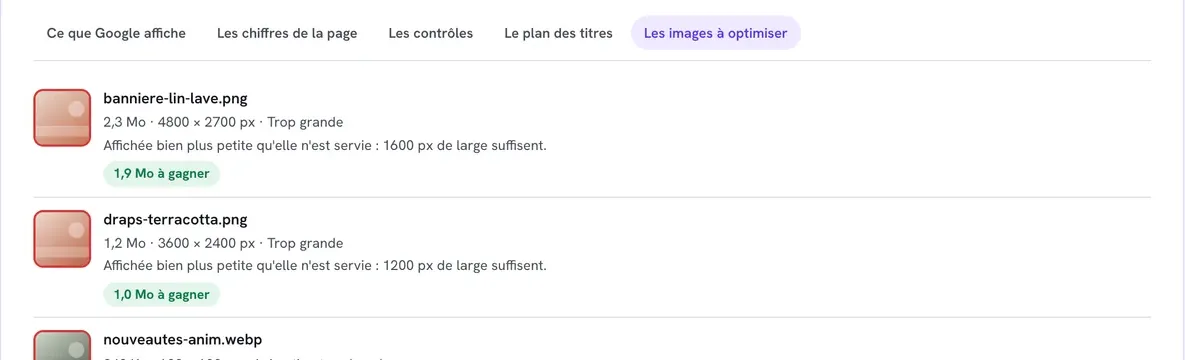
Click this row to open the Image weight window. The store's full report (See the full report) shows the same information in its Images worth optimising tab, with Image weight (the total) and Avoidable (what you can save) at the top.
What the report measures
- It covers the home page, analyzed automatically when the store is registered, then about every 7 days when you visit your member area. You can also click Run the analysis again.
- The first 20 images on the page are weighed, as a recent browser receives them.
- To analyze another page (product page, collection), use Your site pages in the full report: see Read and use the SEO report.
A password-protected store shows Not measurable: the analysis can't read the page while the protection is on.
Why an image gets flagged
| Flag | When | Advice shown |
|---|---|---|
| Too heavy | The image weighs 200 KB or more. | Compress it or export it as WebP: the rendering will not change. |
| Too large | It's much wider than the space it takes up on screen (more than twice as wide), or it's over 2,000 px wide when its space isn't known. | The report gives the width that's enough, for example "1600 px wide is enough". |
| Animation too heavy | It's an animation (GIF or animated WebP) of 200 KB or more. | Converting it to MP4 or WebM video cuts its weight by ten. |
An image is only flagged if the estimated saving is over 50 KB: there's no point reworking an image for a few kilobytes.
Each row shows the file name, its weight, its dimensions, the flag, the advice and the estimated saving (1.9 MB to save…).
The A to E grade
The grade takes into account both the share of avoidable weight and the total weight of the images. A page that's already light can't get a bad grade, even if one image could be better compressed. The letters follow the same scale as the SEO score: A from 90, B from 75, C from 60, D from 40, E below that.
Fix a flagged image
- Note the name of the flagged file and, for a Too large image, the recommended width.
- Click Optimise my images with Optimage at the bottom of the window.
- In Optimage, load the original image. For an image that's too large, enter the recommended Width (px) and leave the height empty; for an image that's too heavy, keep Auto. Choose the WebP format.
- Click Apply to all, then Download.
The settings are detailed in Optimage: compress and crop your images.
Replace the image in Shopify
Optimage doesn't change your store: you replace the old image with the new one yourself.
- Section image (banner, image with text…): in Online Store > Themes, click Edit theme, select the section that shows the image, then replace the image in its settings with the optimized file.
- Product photo: in Products, open the product, add the new image, move it to the same position as the old one, then delete the old one.
- Click Save.
- In your member area, click Run the analysis again to check the saving.
Animations
Optimage doesn't handle animations: it would only keep the first frame. When the list contains only animations, the Optimage button disappears and the report suggests converting them to video. Convert the GIF to an MP4 or WebM video with the tool of your choice, upload the video in Content > Files, then use a Story Theme video section instead of the animated image.
FAQ
I replaced the image, but the report still flags it
Run the analysis again: the report reflects the last analysis. Also check that you edited the published theme and that the old image isn't used in another section.
Doesn't Shopify already compress my images?
Shopify converts and resizes some images when they're displayed, and the report takes this into account: it weighs the images as a browser receives them. So a flagged image is still too heavy even after that processing.
My report shows "Nothing to save"
Your images are already the right size. To go further on speed, see Improve your store's speed.