
Read and use the SEO report in your member area
Understand your stores' SEO grade and each green, orange or red check, then fix them in Shopify or in the Story Theme, page by page.
Your member area automatically analyzes the home page of each registered store and gives it an SEO grade, from A to E. The report details what Google sees on your page, what's working and what's holding your ranking back. This article shows you how to read it, then how to fix each point in Shopify or in the Story Theme.
Where to find the report
The SEO grade shows up in two places:
- on the Dashboard, in the My shops cards (SEO row);
- on the Shops page, in the SEO column of the table.
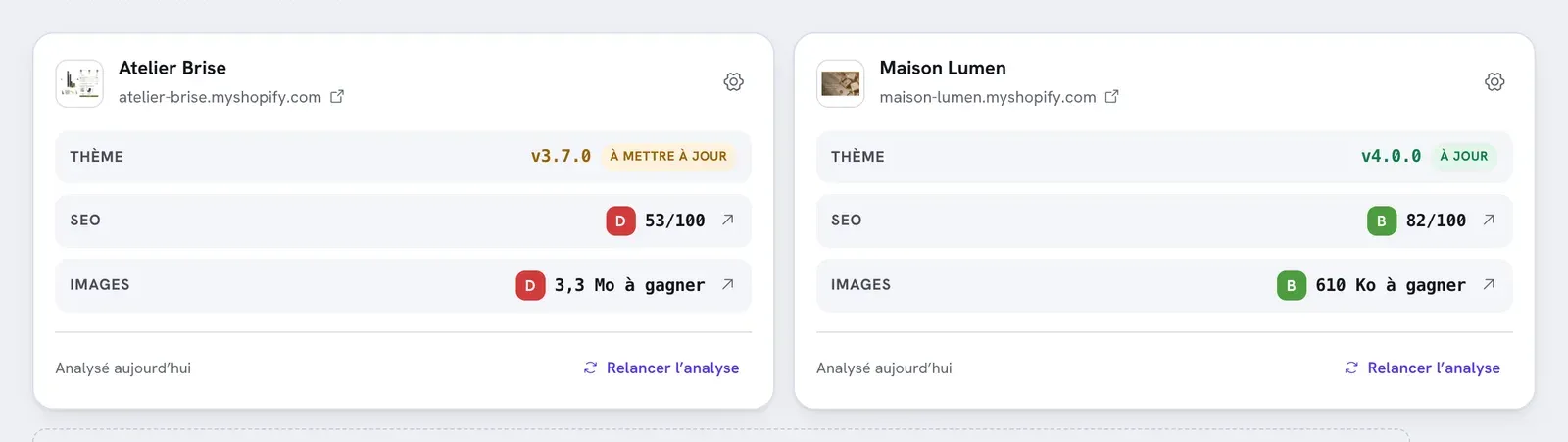
Click the grade to open the SEO report window. At the bottom of that window, See the full report opens the Store report page, which goes further: Google preview, figures, heading outline, and analysis of your other pages.
When the analysis runs
- When you register a store, a first analysis starts automatically.
- Then roughly every 7 days: when you open the dashboard or the Shops page, stores analyzed more than 7 days ago are checked again. So the analysis happens on your visits, not in the background.
- On demand: click Run the analysis again under a store card, or Refresh the store in the full report. You can run 10 analyses per day across all your stores; beyond that, the button shows Daily limit reached until the next day.
The footer of each card shows the date of the last analysis ("Analysed today", "3 days ago"…). After a fix, run the analysis again to see the new grade.
If the grade shows just a dash, the store hasn't been analyzed yet, or its address isn't responding: check the domain registered in your store management. Changing a store's domain erases its analysis, which starts over from scratch.
Understand the grade
The letter and the score
Each check has a weight based on its importance and gets a status:
- Passing (green): the point counts in full;
- Worth watching (orange): it counts for half;
- To fix (red): it earns nothing.
The score out of 100 is the weighted average of all the checks. It translates into a letter:
| Letter | Score |
|---|---|
| A | 90 and above |
| B | 75 to 89 |
| C | 60 to 74 |
| D | 40 to 59 |
| E | below 40 |
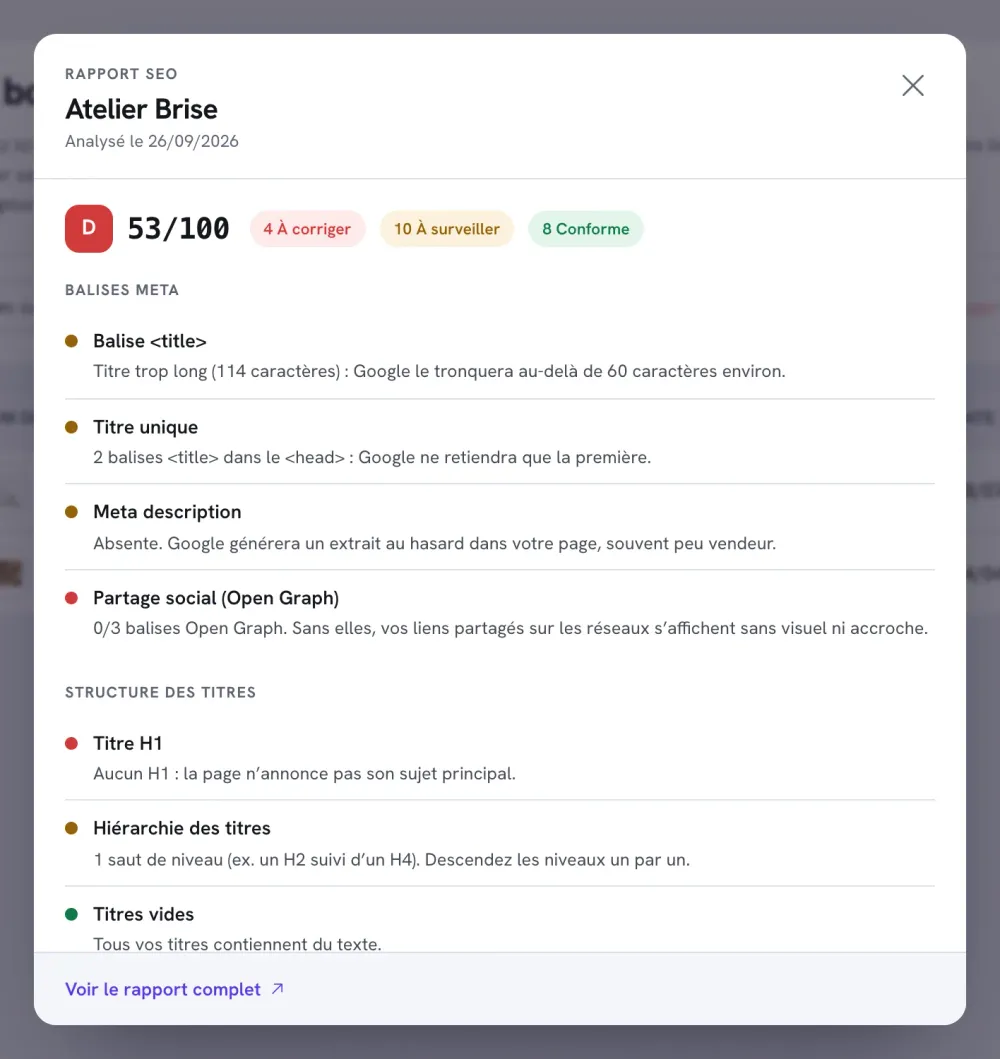
Red is reserved for blockers
Red is deliberately rare. It only flags what really prevents Google from finding or understanding the page: no title tag, no H1 heading, no headings at all, an almost empty page, no internal links, a page blocked from search engines (noindex), an address without HTTPS, no viewport tag, no social sharing tags. Deal with the reds first, then the oranges that carry the most weight (title, meta description, heading hierarchy, content volume).
An orange isn't a serious error: it's a possible improvement. A store graded B is already in good shape.
The "Store report" page
At the top, it brings together the four figures for your home page: SEO, Images, Image weight and Avoidable (for these last two, see The "Image weight" report).
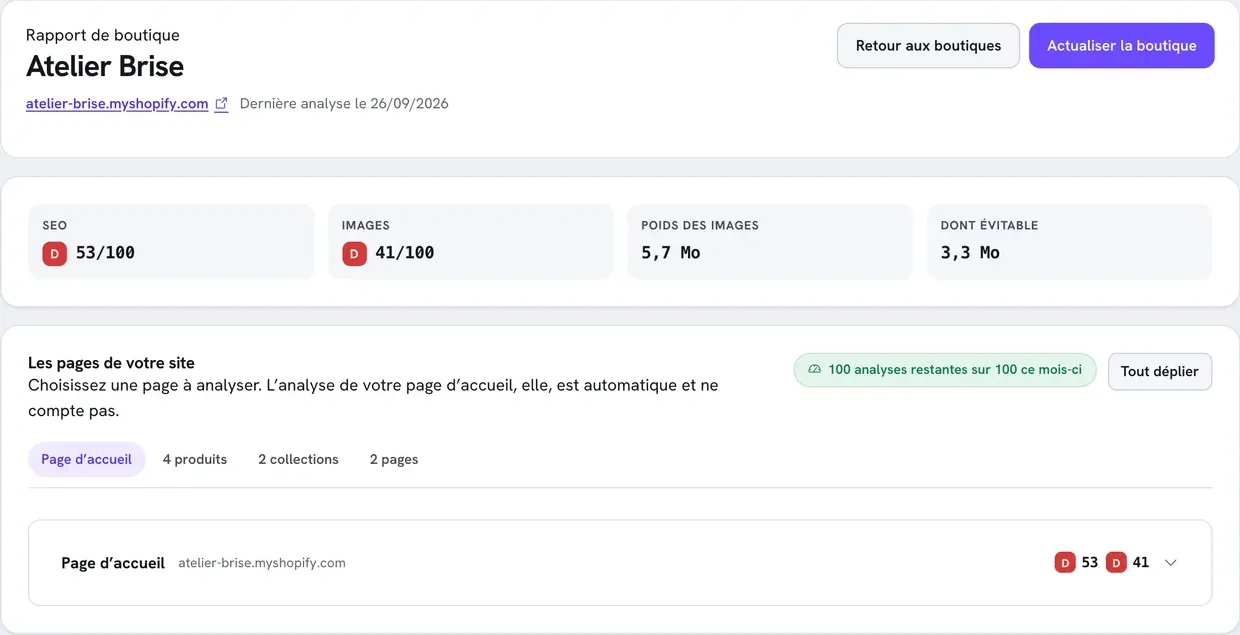
Expand an analyzed page to see its five tabs.
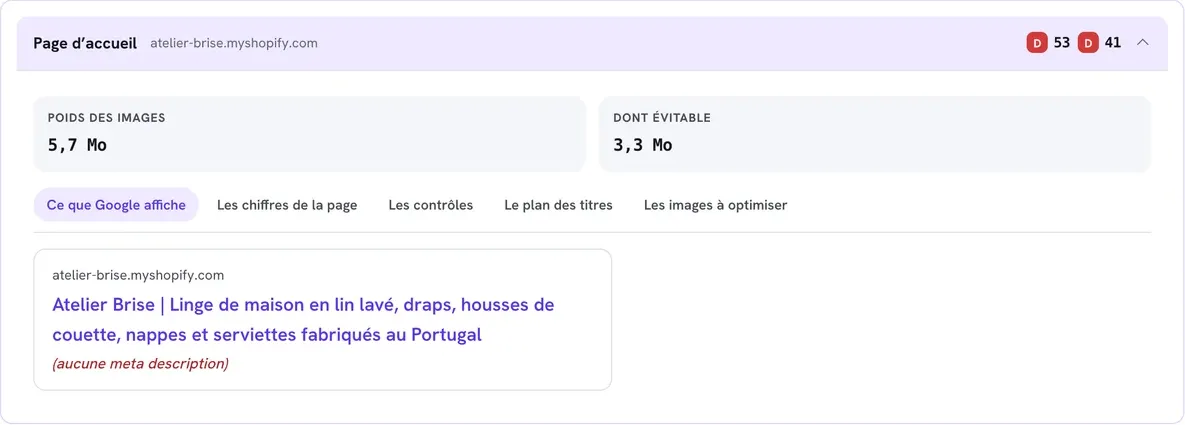
What Google shows
A preview of the Google result: the address, the title (title tag) and the description (meta description). "(no meta description)" means Google will pick an excerpt from the page itself, often not a very persuasive one.
The page in numbers
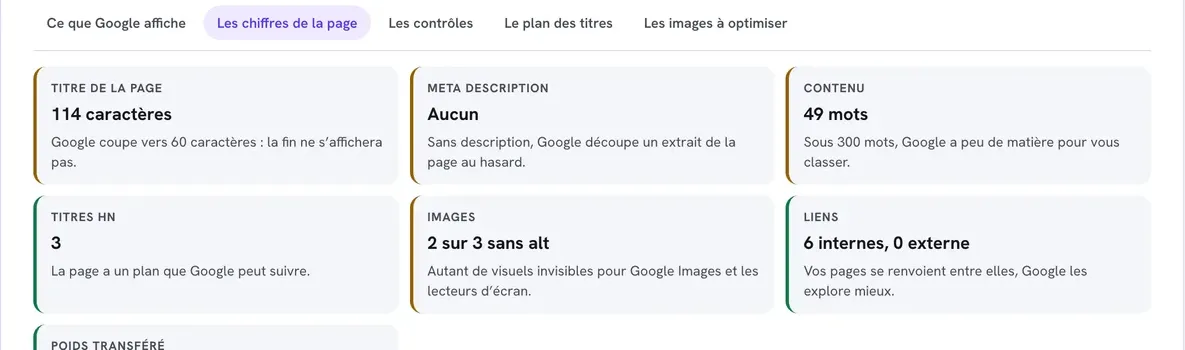
Seven indicators, each with a one-line explanation: Page title (in characters), Meta description, Content (in words), Hn headings, Images (how many without alt text), Links (internal and external) and Transferred weight. The colored border shows whether there's something to do.
The checks
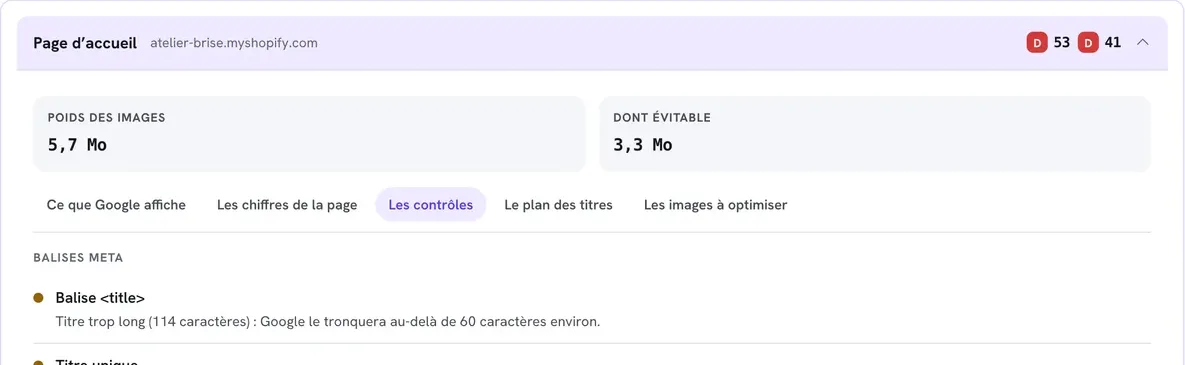
The full list of checks, grouped by topic, with their status dot and a sentence explaining the issue. It's the same list as in the SEO report window.
The heading outline
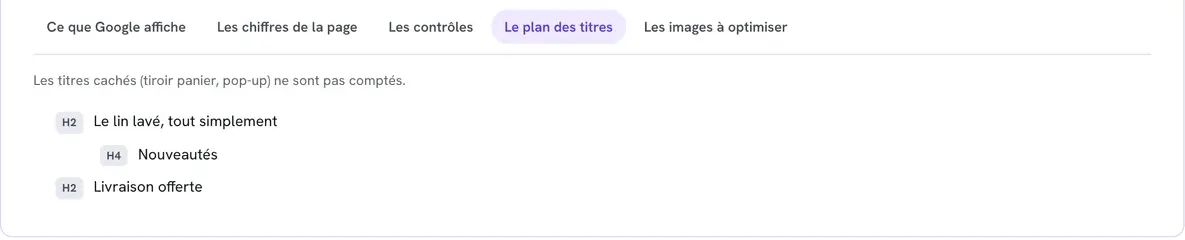
The page's H1 to H6 headings, in order, as Google reads them. Hidden headings (cart drawer, pop-up) aren't counted. This is the most useful tab for spotting a missing H1 or a skipped level.
Images worth optimizing
Images that are too heavy or too large, with the possible savings, and the Optimise my images with Optimage button.
Fix each check
Here are the checks as they appear in the report, with how to fix them.
Meta tags
<title> tag (red if missing, orange outside 30 to 60 characters). This is the blue title of the Google result. Beyond 60 characters, Google cuts it off.
- Home page: Online Store > Preferences, Title and meta description section.
- Product, collection, page: at the bottom of its page in the Shopify admin, in the Search engine listing section, click Edit.
- A formula that works: what you sell + what sets you apart + your brand, for example "Washed Linen Home Textiles | Atelier Brise".
Single title (orange). The page contains several title tags: Google only keeps the first one. It's almost always an app or a code change adding one. Turn off your SEO apps one by one to find the culprit, or contact support.
Meta description (orange if missing or outside 70 to 160 characters). The gray text under the Google title. It doesn't change your ranking but makes people want to click. Same place as the title tag. Write one sentence that promises a benefit and invites action.
Social sharing (Open Graph) (red if none of the three tags is present, orange if some are missing). These tags build the preview of your links on Facebook, WhatsApp or LinkedIn. The title and description come from the settings above; add a social sharing image in Online Store > Preferences. Check the result with the free Social share preview tool (The free tools).
Heading structure
H1 heading (red if none, orange if there are several). The H1 announces what the page is about; you need exactly one.
- Home page: in the theme editor, select the heading of the first section (often the banner) and choose the H1 level from the Aa menu of the heading field. The Story Theme only keeps the H1 in the first section of a page that doesn't have its own title; further down, an H1 looks the same but becomes an H2.
- Product page: the Product title block has a Heading level setting, H1 by default. Only use H1 once per page.
Heading hierarchy (red if the page has no headings, orange if a level is skipped). An H2 should be followed by an H3, not an H4. In the Story Theme, many blocks offer a Heading level setting (h2, h3, paragraph); rich text headings are set with the Aa menu. Spot the skip in the The heading outline tab, then adjust the level of the faulty heading.
Empty headings (orange). A heading field contains only a space or an invisible element. Fill it in or clear it completely.
Duplicate sections (orange). Two identical H1 or H2 headings on the page, for example two "Our best sellers" sections. Give them different, specific headings.
Subheadings (orange). The page is over 500 words with fewer than two H2 or H3 subheadings. Break up long text with subheadings.
Content
Content volume (red under 100 words, orange under 300). Google needs text to understand what you sell. Add sections that also help your customers: brand introduction, benefits, FAQ, reviews. See Build the home page.
Images
Alt attributes (orange). Some images have no alt text, or the page has no images at all. Alt text describes the image for Google Images and screen readers. For a product image, open the product in Shopify, click the image and add its alt text; for other images, go through Content > Files. Simply describe what's shown: "Terracotta washed linen duvet cover".
Image dimensions (orange). More than half of the images don't declare their dimensions: the page can "jump" while loading. Story Theme images declare them; this issue usually comes from an image pasted into rich text or from an app.
Links
Internal linking (red with no internal links, orange under 3). Links to your other pages help Google discover them. Add buttons to your collections, a featured collections section, a complete footer menu (Menus, header and footer).
Link anchor text (orange). Some links say "click here", "learn more" or "see more", or have no text. Prefer a label that says where the link goes: "Shop bed linen" rather than "See more". Change button text in the section settings.
Technical
Indexability (red if the page is set to noindex). The page asks Google not to show it. Check the Story Theme's Addresses hidden from search engines list in Theme settings > SEO, as well as your SEO apps' settings.
Canonical URL (orange if missing). It tells Google the page's official address. The Story Theme declares it; if it's missing, an app or a code change is to blame.
HTTPS (red if the page is served over HTTP). Shopify provides HTTPS for free. If you've just connected a domain, the certificate can take a little time: see Connect a domain name.
Viewport tag (red if missing), Declared language and Charset (orange). These technical tags are built into the Story Theme. If they're missing, the theme has been modified or the Story Theme isn't the theme being displayed: contact support.
Structured data (orange if none). It helps Google show rich results. The Story Theme adds it to product pages, blog posts and FAQs. On the home page, a FAQ section with the Mark up the questions for search engines setting turned on adds some.
Page weight (orange above 120 KB transferred). This is the page's code, not the images. A high weight often comes from a large number of sections or apps. Remove unnecessary sections and apps: see Improve your store's speed.
Analyze your other pages
The automatic analysis only covers the home page. For your product pages, collections, pages and blog posts, use the Your site pages panel in the full report.
- Open a store's full report (See the full report).
- In Your site pages, choose a tab: Home page, products, collections, pages or articles. Pages are read from your store's sitemap; the first 60 of each type are listed.
- Click Analyse next to the page you want. Once the analysis is done, the page expands with its grades and the same five tabs as the home page.
- After a fix, click Re-analyse.
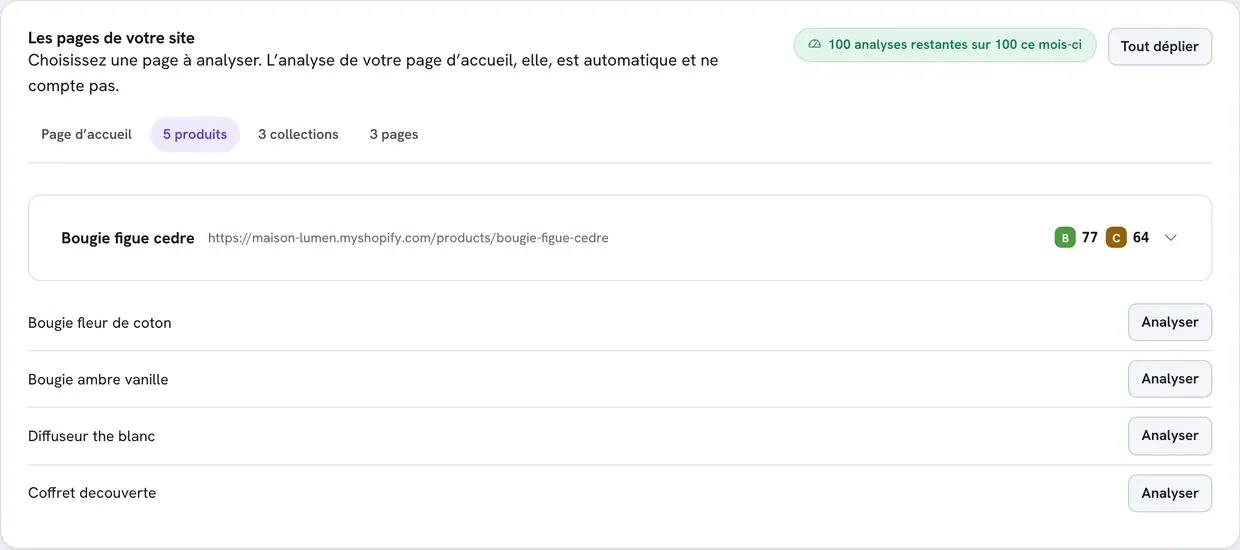
The counter at the top of the panel shows your remaining analyses for the month:
| Plan | Page analyses per month |
|---|---|
| Standard | 50 |
| Plus | 100 |
| Business | 1,000 |
The counter resets at the start of each month. Whatever your plan, at most 40 page analyses can be run per day. The automatic home page analysis, Run the analysis again and Refresh the store don't use up this quota. The last 12 analyzed pages are kept for each store.
Frequently asked questions
I fixed it, but the grade hasn't changed
The report dates from the last analysis. Click Run the analysis again (or Re-analyse for a chosen page). Also check that you edited the published theme.
My grade is good, am I ranking well?
The grade measures the technical and editorial quality of the page, not your position in Google. It doesn't guarantee a ranking, which also depends on the competition, the age of the site and links from other sites. A good grade removes the obstacles.
The report doesn't see text added by an app
The analysis reads the page's code as it's sent, without running scripts. Content added afterward by an app isn't counted; Google often reads it less well too.