
Improve your store's speed
Measure your store's speed with PageSpeed Insights and Shopify, then apply the settings that matter: images, apps, videos, fonts.
A store that loads fast loses fewer visitors, especially on mobile. The Story Theme is designed to be lightweight, but what you add (photos, videos, apps, sections) weighs more than the theme itself. This article shows you how to measure your store's speed, then which actions to take, in the order that pays off most.
Measure speed
With PageSpeed Insights
- Open PageSpeed Insights, Google's free tool.
- Paste the address of a page on your store, with your domain name (for example
https://your-store.com), not the.myshopify.comaddress. - Click Analyze and read the Mobile tab first: that's where most of your customers shop.
- Test three typical pages: the home page, a product page and a collection. Run each test two or three times.
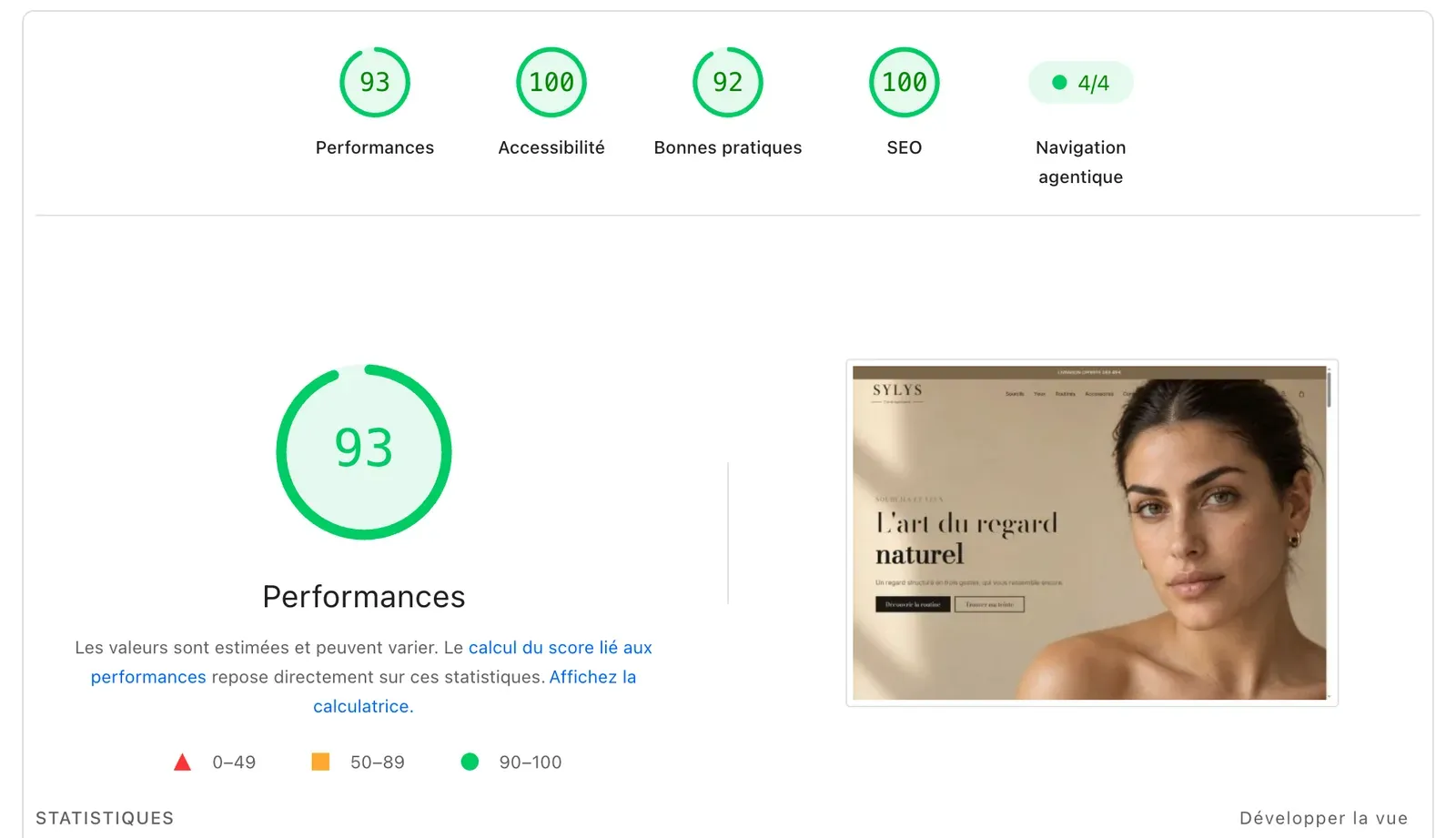
Below the score, three metrics matter most:
- Largest Contentful Paint (LCP): how long it takes to show the main element of the first screen, often the banner image;
- Interaction to Next Paint (INP): how responsive the page is when the visitor clicks or taps;
- Cumulative Layout Shift (CLS): how much the page "jumps" while loading.
The Diagnostics list at the bottom of the report shows what's slowing the page down: images that are too heavy, app scripts, etc.
With Shopify
In your Shopify admin, open Analytics: Shopify offers a report on your online store's speed there, measured on your real visitors, with the same metrics (LCP, INP, CLS). It's the most reliable measurement, but it moves slowly: wait a few days of traffic after a change before drawing conclusions.
What the Story Theme already does
You don't need to set anything for these:
- each feature only loads its code if it's on the page;
- images on the first screen load right away, the next ones only when the visitor gets close;
- the first section of a page is never animated, so it shows without waiting;
- YouTube and Vimeo videos load nothing before the click, and other videos wait until they're visible;
- second images on product card hover only download on the first hover;
- the heights of the header, scrolling text and prices are reserved to avoid layout jumps.
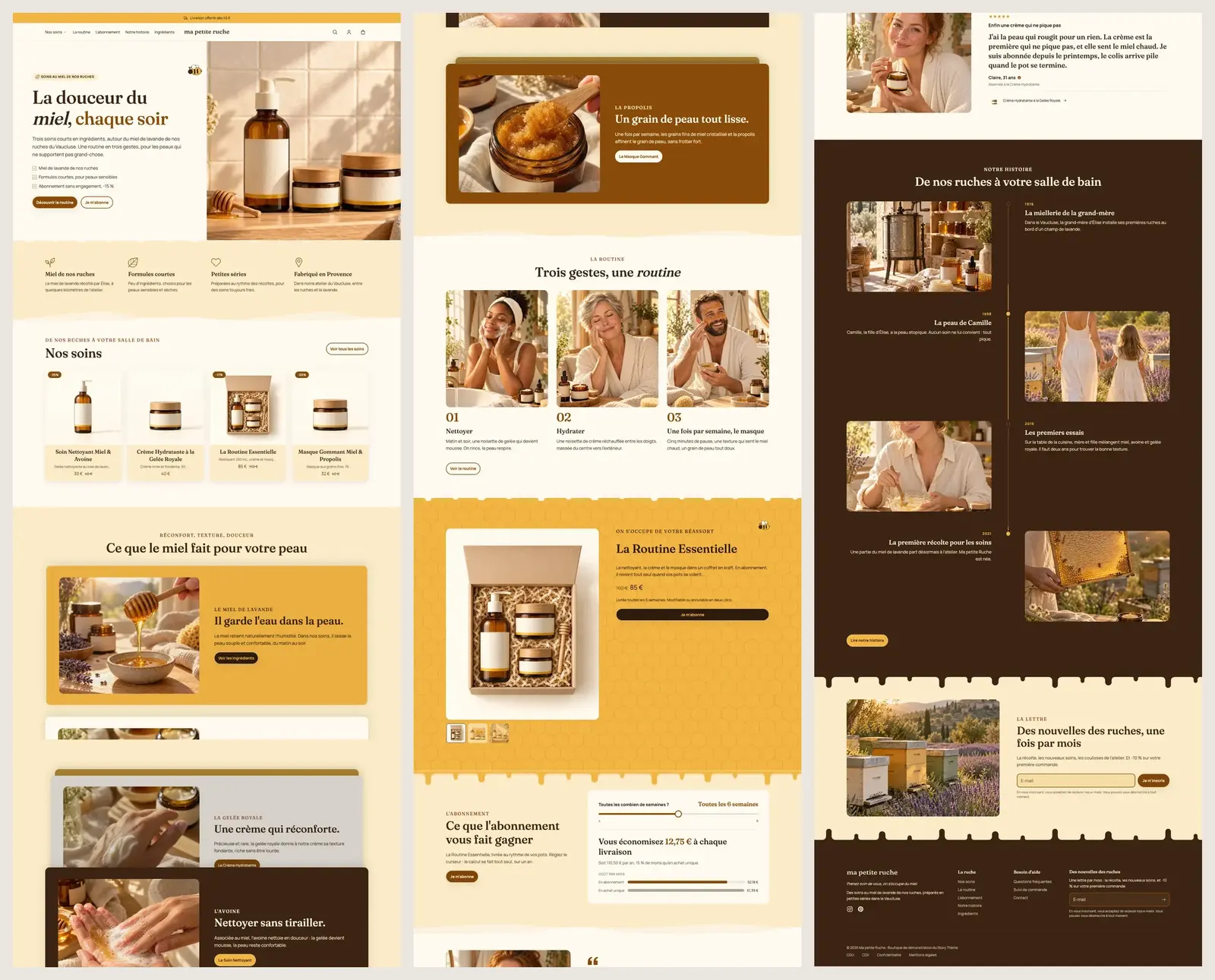
So slowness almost always comes from the content you've added. Here's what to do, in order.
1. Lighten your images
Images are the biggest weight in a store. A camera photo of several megabytes shows up on a phone screen that doesn't need it.
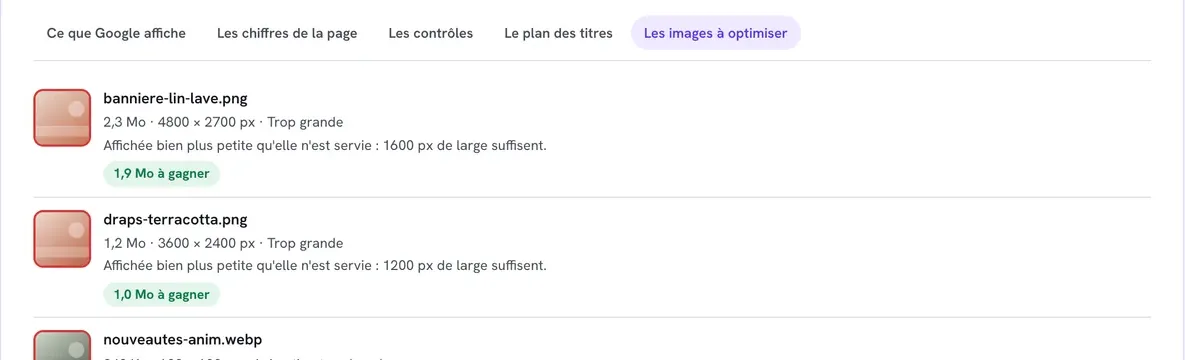
- Open the Image weight report in your member area: it lists the images on your home page that are too heavy or too large, and the weight you can save. See The Image weight report.
- Run your images through Optimage, included in your subscription: it compresses, resizes and converts them to WebP.
- Replace them in Shopify or in the theme editor.
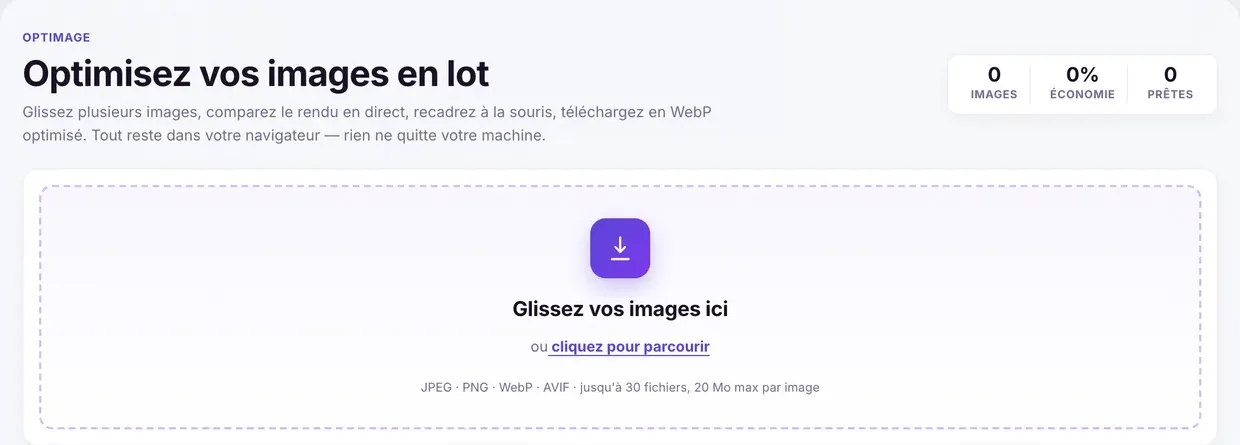
Aim for a width that fits the use: Optimage's presets (for example Banner 16:9 at 1920 × 1080, Square at 1080 × 1080 for a product photo) are a good starting point; a thumbnail or an icon can be much smaller. Take special care of the first section's image: it's often what determines the LCP.
2. Clean up your apps
Every app that adds a script to the store slows down every page. The Story Theme already includes offers, upsells, cart tiers, countdowns, review display and order tracking: check whether an app is doing the same job.
- In the theme editor, open App embeds in the left bar and turn off the ones you no longer use.
- Delete app blocks left in your sections.
- Then uninstall the app from the apps list in your Shopify admin.
- Run a PageSpeed Insights test again.
3. Take care of the first screen
What visitors see when they land should show first, and fast.
- Video on mobile: in your Banner section, Media on mobile group, set Media type to Image and choose a lightweight image. The video stays on desktop.
- Media effect: Slow zoom, Parallax and Zoom on scroll are nice, but None is the lightest for the first section.
- Slideshow: a single well-chosen slide shows faster than five.
- Image block: leave Image loading on Automatic. It loads first-section images right away and defers the others.

See also the Banner section and the Slideshow section.
4. Limit the number of sections
Each section adds code to the page, even if the visitor never sees it. A home page with 8 to 12 well-chosen sections loads faster and reads better than a page with 25 sections.
- Delete hidden sections you'll no longer use (the eye icon hides a section, but it stays in the template).
- Avoid duplicating heavy blocks as Desktop only and Mobile only versions: a block hidden with Show on is still in the page.
- On the product page, keep Carousel in the Product gallery block's Mobile layout: a different layout per screen is loaded twice.
- On collections, a reasonable number of Products per page lightens the page.
5. Tune animations and effects
In Theme settings > Animations:
- Enable animations: unchecked, the animation script isn't loaded at all. The gain is real but modest; keep them if they serve your brand image;
- Enable page transitions: adds an overlay between two pages. Leave it off if speed is your priority;
- Cards and Buttons (Hover group): None for the minimum.
6. Limit fonts
Each font, and each weight, is a file to download. In Theme settings > Typography, two fonts are enough (one for Headings, one for Body). A single font for both is even lighter. If you upload your own .woff2 files in Custom fonts, the Shopify font they replace is no longer loaded.
7. Keep "Minify scripts" checked
In Theme settings > General, Minify scripts is checked by default: leave it on. This option only works on your domain name, not on the .myshopify.com address: one more reason to always measure speed on your domain. See Connect a domain name.
Settings that load an external service
Some blocks call a third-party service. They're set up to load nothing until they're useful:
- Map: Load the map automatically is unchecked by default, so the map loads on click (see the Map section);
- Trustpilot blocks: Load the TrustBox widget adds Trustpilot's script. Without it, the stars show in a simple version.
Frequently asked questions
My score changes with every test
That's normal: the test depends on the network and the server used at the time of the analysis. Take several measurements and compare trends, not a single number.
My score is much lower on mobile
PageSpeed Insights simulates an average phone on a slow network: the mobile score is always lower than on desktop. Focus on images and the first section.
PageSpeed Insights flags scripts I don't recognize
They're often apps, an ad pixel or a chat tool. Turn them off one by one in App embeds and run the test again to find the heaviest one.