
Translate your store and sell in several languages
Add languages in Shopify, translate your content, take advantage of the theme's built-in translations, and show a language and country selector.
Selling in several languages takes three things: turning on the languages in Shopify, translating your own content, and giving your visitors a selector. The Story Theme handles the rest: its own text (buttons, cart, forms) is already translated.
What gets translated, and by whom
| Text | Example | Who translates it |
|---|---|---|
| Theme text | "Add to cart", "Your cart is empty", form labels | The Story Theme, automatically |
| Your content | Headings and text you enter in sections, products, collections, pages, menus | You, in Shopify |
| Checkout pages | The checkout | Shopify |
The Story Theme's text is translated into 14 languages: French, English, German, Spanish, Italian, Dutch, Portuguese (Brazil and Portugal), Polish, Swedish, Danish, Norwegian, Finnish and Czech.
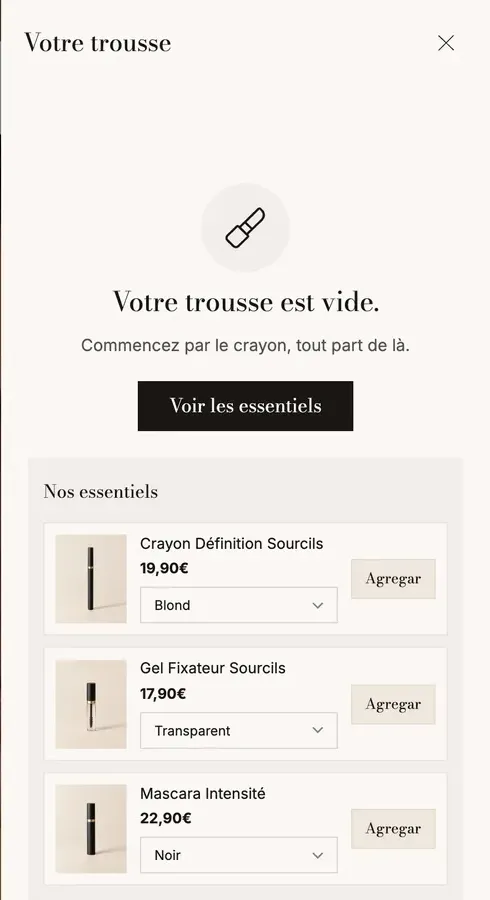
The screenshot above shows the difference clearly: the button supplied by the theme switched to Spanish on its own, while the headings and products entered by the brand stay in French until they are translated.
1. Add a language in Shopify
- In your Shopify admin, open Settings > Languages.
- Click Add language and choose it.
- Translate your content (next step), then publish the language to make it visible to your customers.
Depending on your setup, languages are then linked to your markets in Settings > Markets: this is where you decide which countries see which language and which currency. Shopify's help center covers these options, which change regularly.
2. Translate your content
Shopify offers a free app, Translate & Adapt, that shows your content side by side with its translation: products, collections, pages, menus, and the text in your theme sections. It also offers automatic translation for you to review.
- Install Translate & Adapt from the Shopify App Store.
- Choose the language, then the type of content to translate (products, theme…).
- Translate, or run the automatic translation, then proofread it: an unreviewed machine translation shows, especially in headings and buttons.
- Save.
Edit a theme text
If a text supplied by the theme doesn't suit you (for example "Add to cart", which you would rather read "I want it"), you can replace it without touching the code, from the theme's … menu in Online Store > Themes, with the option to edit the theme's default content. Search for the text, replace it, and save. Many Story Theme blocks also have their own label field: left empty, it uses the theme's translated text; filled in, it shows your text (which you then translate in Translate & Adapt).
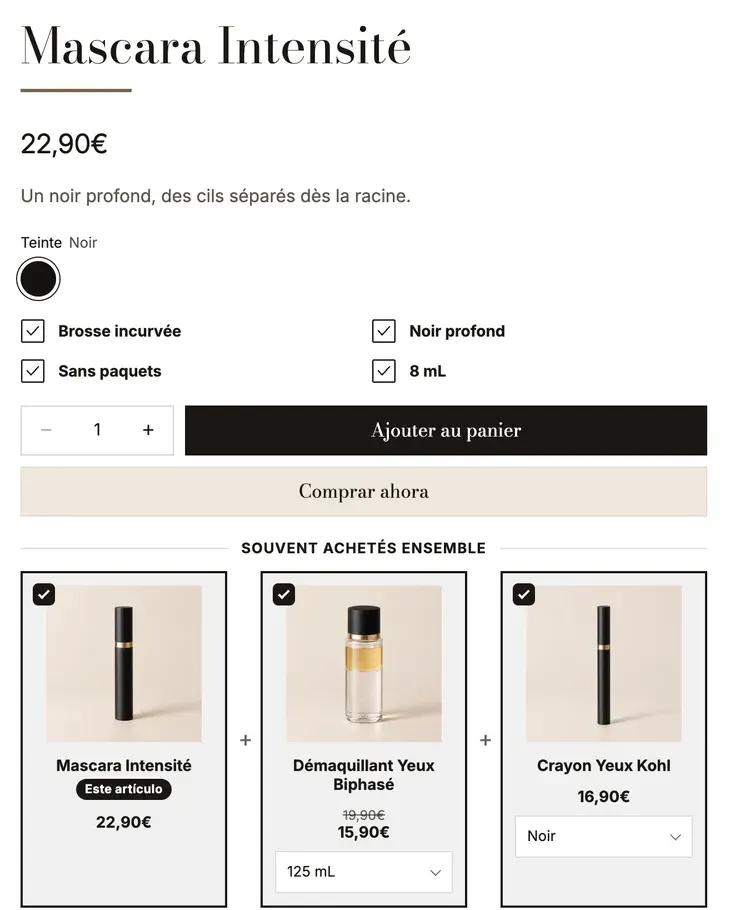
The Spanish version of the Sylys demo shows both cases on the same product page: the "Este artículo" badge comes from the theme and translated itself; the "Ajouter au panier" button, whose label the brand typed into the block, stays in French until it is translated. The "Comprar ahora" button is Shopify's dynamic checkout button, translated by Shopify.
3. Show the language and country selector
The Story Theme offers two blocks:
- Country and language in the header. The theme as delivered includes one in the mobile menu drawer, and another, hidden, in the Right area of the Announcement bar: click the eye icon to show it on desktop.
- Country/language selector in the footer.
In Country and language, set:
- Source: Markets (the countries and languages set up in Shopify) or Other stores (links to your other sites, one Store block for each);
- Show country/region and its Country display (Flag and currency, Flag and name, Currency only, Flag only);
- Show language and its Language display (Code (EN) or Name);
- Layout: Dropdown for the header bar, Rows for the mobile menu.
Prices and amounts in the theme
The amounts you enter in the theme (free shipping threshold, cart reward tiers…) are in your store's currency. For other currencies, the theme converts them at the exchange rate. Some cart blocks offer a Thresholds per currency field to set a round amount for each currency (for example USD:60;GBP:45).
The language of the theme editor itself depends on your Shopify account language (your account preferences), not on the store's language.