
Add your store and activate the license
Register your store's domain in the member area to activate the Story Theme license, and update it when you connect your own domain.
The Story Theme works on the stores registered in your member area. Adding your store activates its license: there is no key to copy, only the store's domain to enter.
Find the right domain
The domain to register is the one your visitors see in the address bar:
- You don't have a domain name yet: it's your store's Shopify address, which ends in
.myshopify.com, for examplemy-store.myshopify.com. - You've connected your own domain: it's that domain, for example
mystore.com. It must be the store's primary domain in Shopify.
To check, open Settings > Domains in your Shopify admin: the primary domain is shown there.
www. and capital letters don't matter: mystore.com and www.mystore.com are recognized the same way.
Add the store
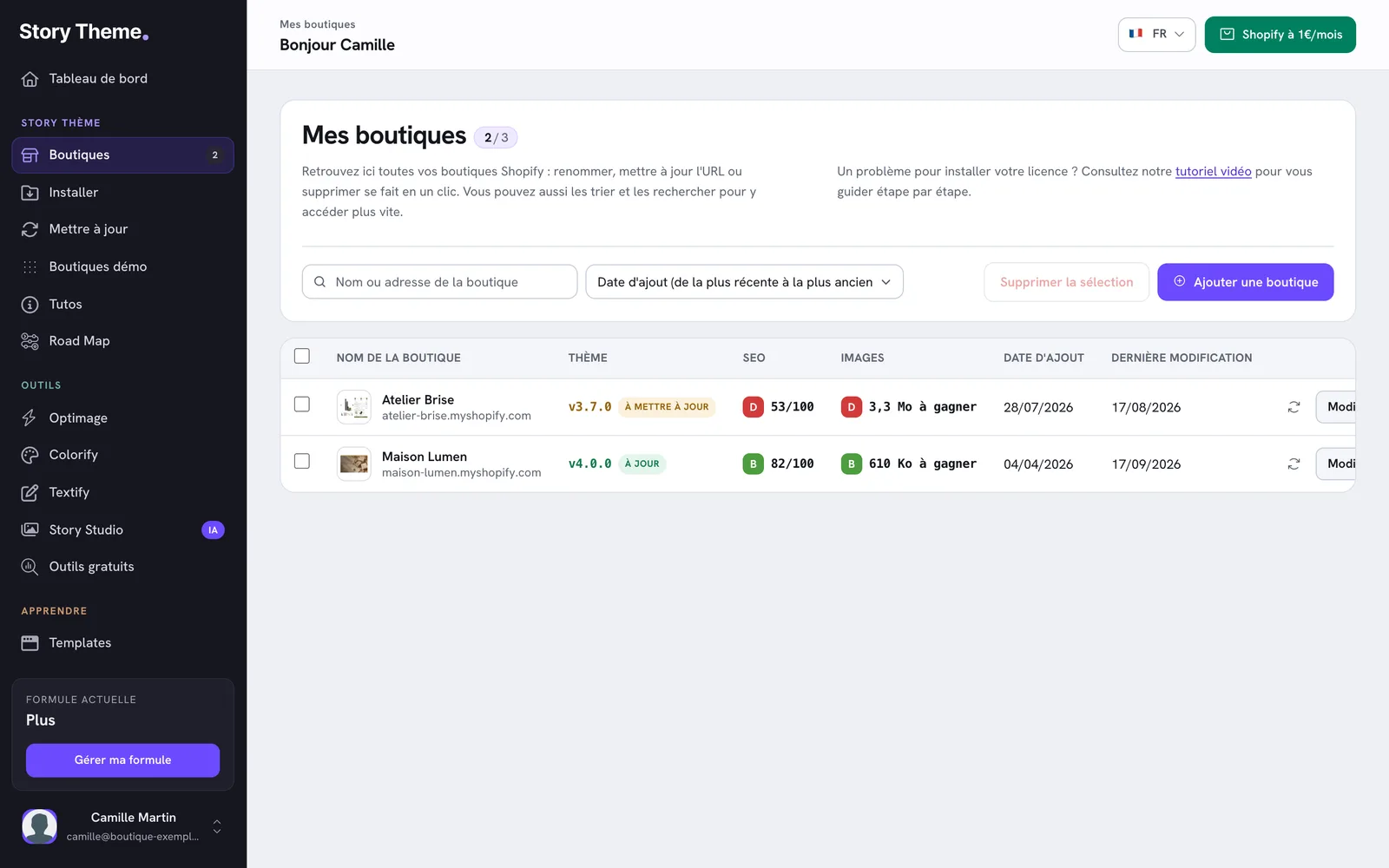
- In your member area, open Shops in the sidebar. You can also get there from the Install page with the Go to my shops button.
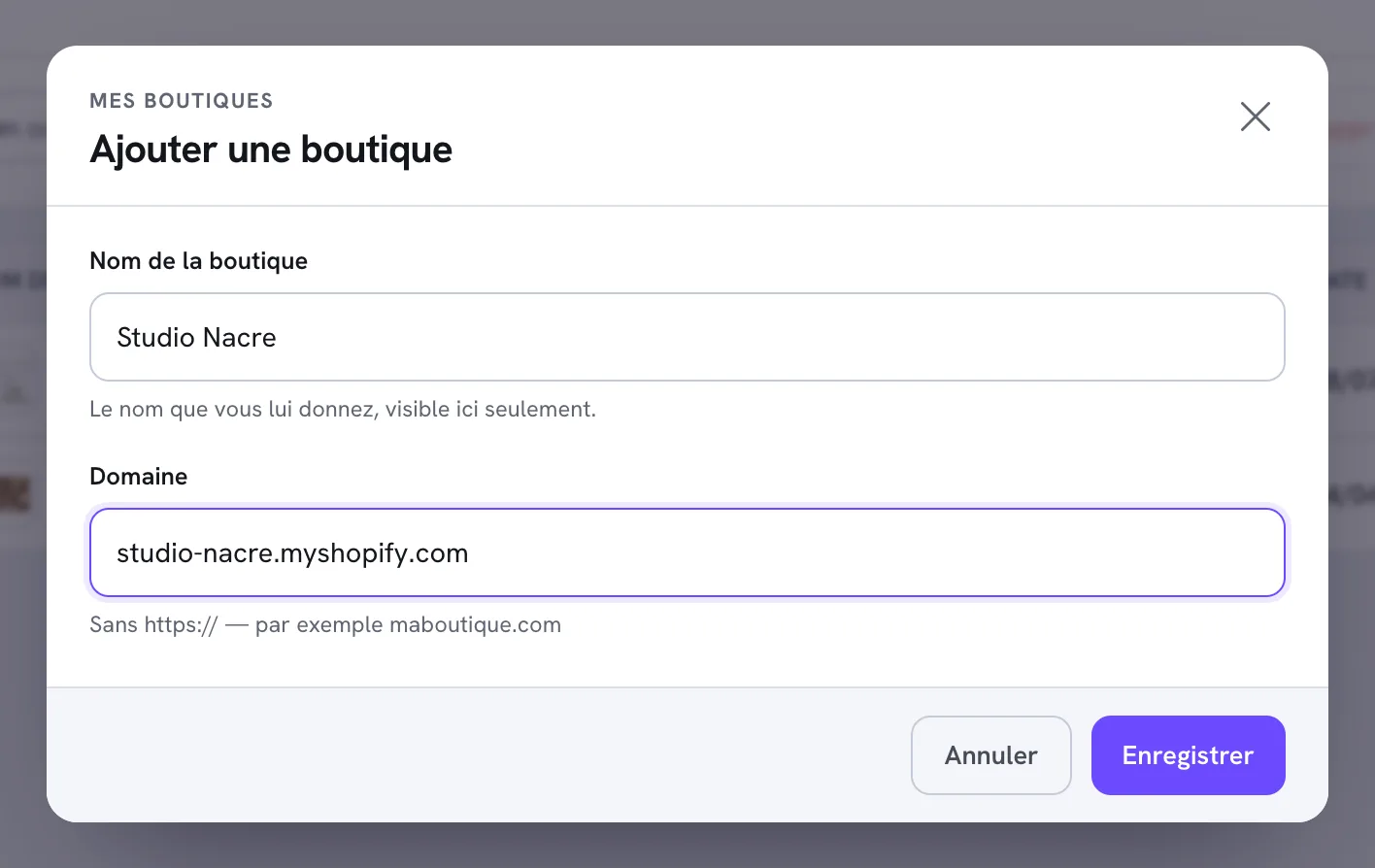
- Click Add a shop.
- In Shop name, enter a name that makes sense to you. It's only visible in your member area.
- In Domain, enter the domain you found above, without
https://. If you paste the full address, thehttps://, thewww.and everything after the first/are removed automatically. - Click Save.
The message Shop added. appears, the page reloads and your store shows up in the list. A first analysis of the store starts right away: it detects the installed theme and its version.
Then open your online store: the add to cart buttons work.
When you connect your domain name
If you registered the .myshopify.com address and then connected your own domain in Shopify, the license no longer recognizes the store: it now expects the new primary domain. Update it:
- Open Shops and click Edit on the store's row.
- Replace the contents of the Domain field with your domain, for example
mystore.com. - Click Save. The message Shop updated. confirms the change.
The store analysis (theme, SEO and image scores) starts over after a domain change. See Connect a domain name for the Shopify side.
How many stores can you add?
Each registered store uses one license. The number depends on your plan, monthly or annual:
| Plan | Stores |
|---|---|
| Standard | 1 |
| Plus | 3 |
| Business | 10 |
The counter next to the My shops title shows where you stand (for example 2 / 3). Once you reach the limit, the Add a shop button is replaced by the Plan limit reached box, with a Change plan link. You can also delete a store you no longer use to free up its spot. See Change your plan.
If the store shows "license not active"
When the license isn't recognized, the theme disables the add to cart and checkout buttons, turns some text red and shows a message asking you to activate your license from your member area.
There are three possible causes:
- The domain isn't registered yet: add the store as explained above.
- The registered domain is wrong: compare it with the primary domain in Shopify's Settings > Domains, then fix it with Edit.
- Your subscription is no longer active (failed or canceled payment): the license is then suspended on all your stores. See My payment failed.
Other cases, like a domain already used by another account, are covered in Installation isn't working: solutions.