
Manage your stores
Add, edit or delete your stores in the member area, and see their theme version, SEO score and image weight at a glance.
The Shops page in your member area lists all the stores using your license. Use it to add or remove them, and to keep an eye on their status: theme version, SEO and image weight.
The Shops page
Open Shops in the sidebar. Next to the My shops title, a counter shows the number of registered stores out of the number your plan allows (for example 2 / 3).
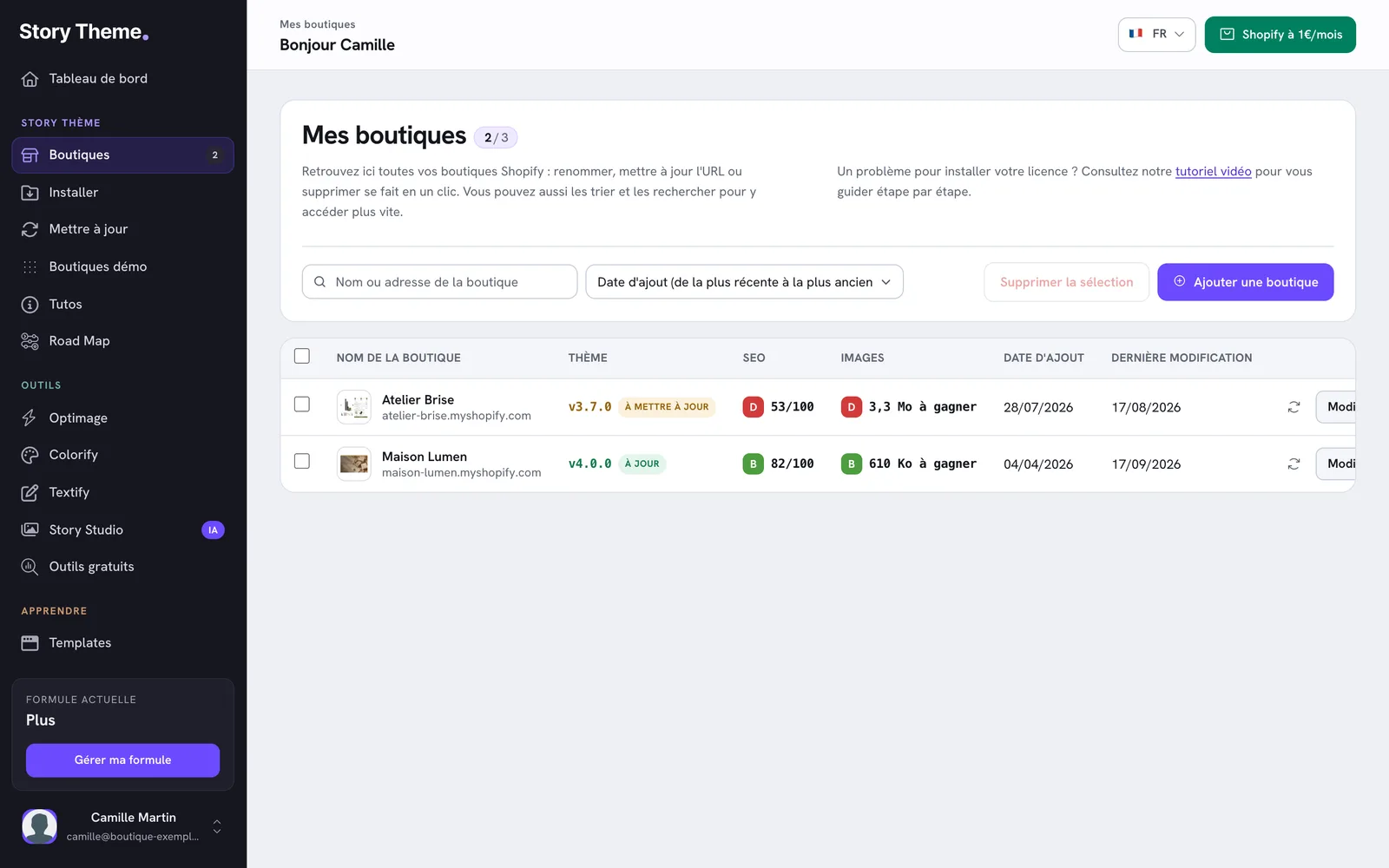
For each store, the table shows:
- Store name and its domain, which you can click to open the store;
- Theme: the Story Theme version installed, with Up to date or Update available;
- SEO: a letter from A to E and a score out of 100;
- Images: a letter from A to E and the weight you could save (for example 3.3 MB to save, or Nothing to save);
- Date added and Last modified;
- the actions: run the analysis again, Edit, Delete.

With several stores, use the Store name or address field to filter them, and the sort menu to order them by date added, date modified or alphabetically.
Add a store
- Click Add a shop.
- Enter a Shop name (only visible in your member area) and its Domain, without
https://. - Click Save.
The license is active as soon as you save. The domain to enter, and special cases, are covered in Add your store and activate the license.
Edit a store
- Click Edit on the store's row (or the gear icon on its card, from the dashboard).
- Change the name or domain in the Edit the shop window.
- Click Save. The message Shop updated. confirms the change.
Update the domain every time you change your store's primary domain in Shopify, otherwise the license no longer recognizes it. Changing the domain clears the previous analysis: the theme, scores and thumbnail are recalculated.
Delete a store
- One store: click Delete on its row and confirm. From the Edit the shop window, click Delete the shop, then Confirm deletion.
- Several stores: check them in the table, click Delete selection and confirm.
How many stores per plan
| Plan | Stores |
|---|---|
| Standard | 1 |
| Plus | 3 |
| Business | 10 |
When you reach the limit, the Plan limit reached box replaces the add button, with a Change plan link. See Change your plan.
Read the scores at a glance
Your member area analyzes each store's home page: installed theme, SEO and images. The analysis reruns on its own when you open the dashboard or the Shops page and the previous one is more than seven days old.
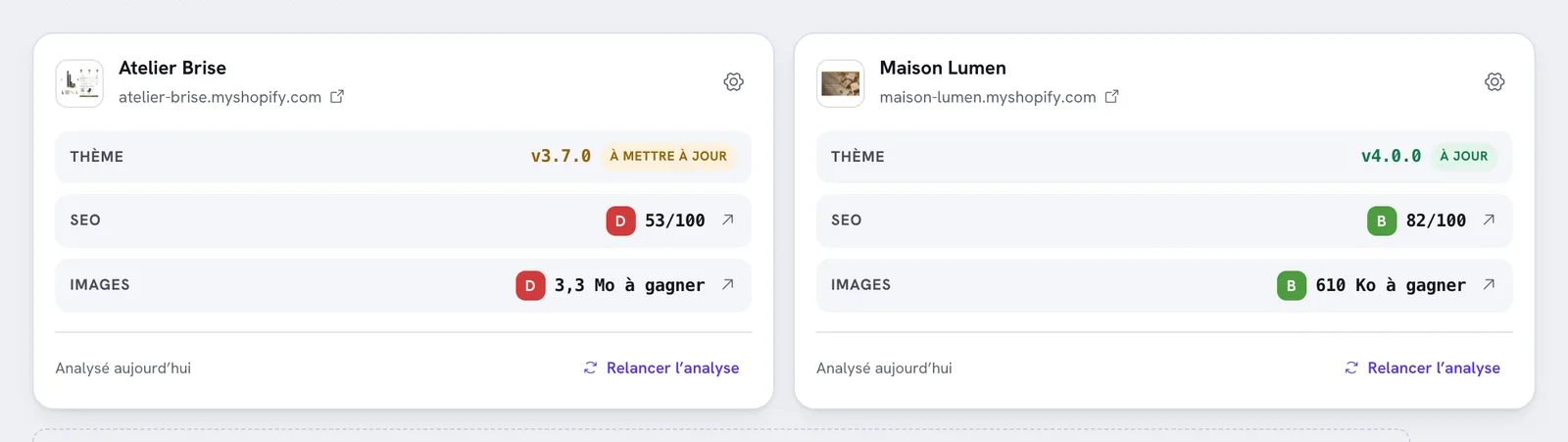
- The SEO score measures whether Google understands the page well: title, description, page headings, links, technical tags. Click it to open the SEO report, with each item rated To fix, Worth watching or Passing. See Read your store's SEO report.
- The Images score measures the weight of the images on the home page. Click it to see images that are too heavy or too large, and the possible savings for each one. See The image weight report.
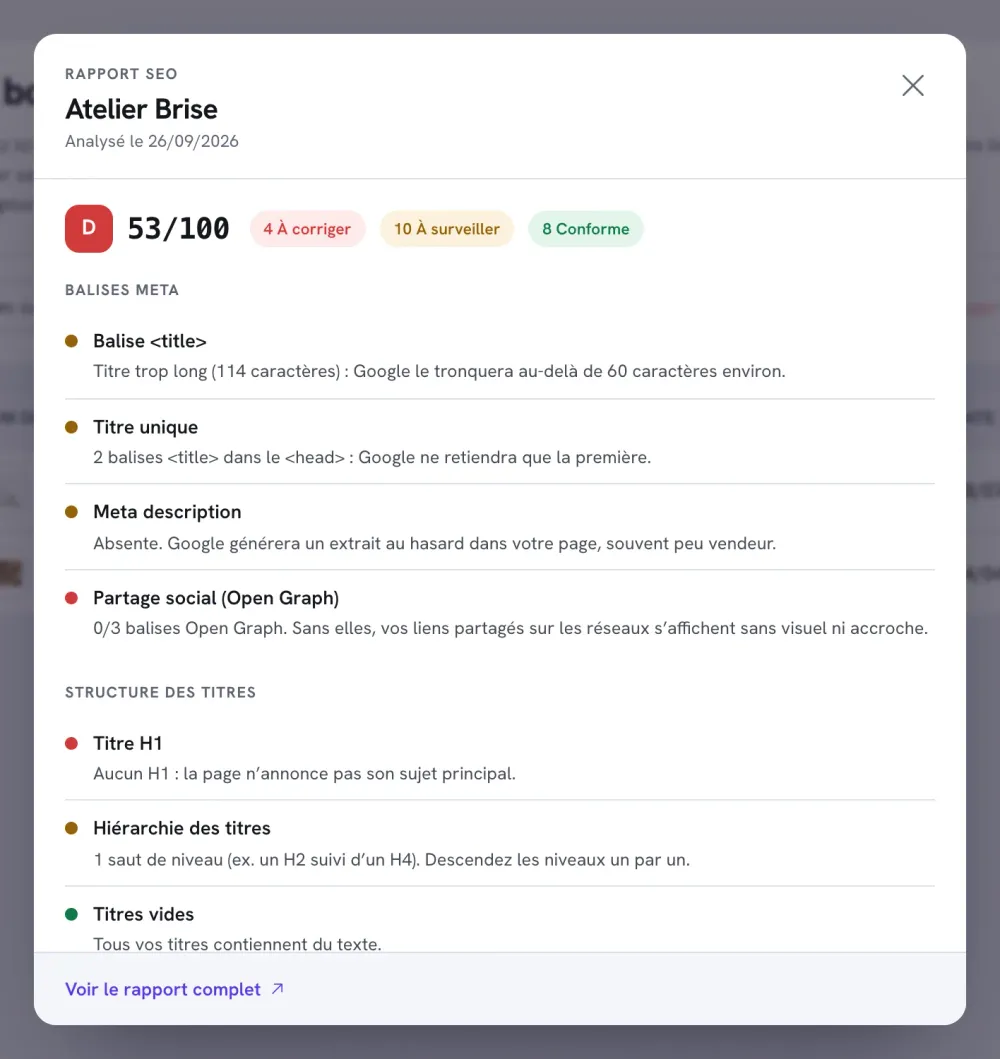
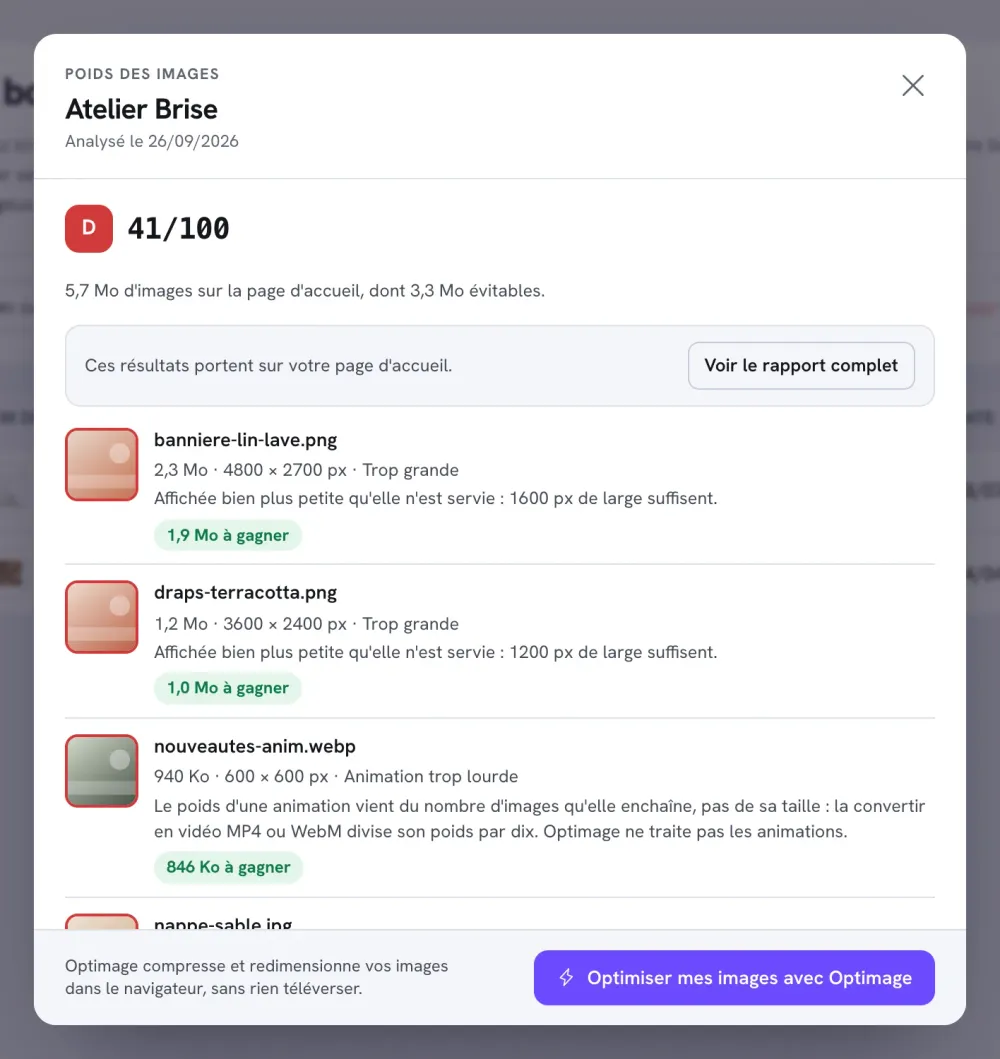
From these windows, See the full report opens the store's report page, where you can also analyze your product pages, collections and pages.
Run the analysis again
After fixing your store, click Run the analysis again (on the card, or the icon in the table) to see the new score. You get 10 reruns per day; after that, the button shows Daily limit reached until the next day.
Why a score shows "Not measurable" or "—"
- Not measurable: the store is password protected. A password page can't be read by Google, so it isn't scored. Remove the password (you need a paid Shopify plan) to get a score.
- —: the store hasn't been analyzed yet, or its address isn't responding. Check the registered domain.
- Another theme in the Theme column: the store publishes a theme other than the Story Theme. The Story Theme is only detected once it's published.