
Explore your member area
A tour of your Story Theme member area: the dashboard, each section of the sidebar and the documentation search.
Your member area brings together everything that comes with the Story Theme: theme downloads and updates, your stores and their licenses, the included tools, tutorials and support. Here's where to find everything.
The dashboard
The Dashboard is the page that opens after you log in. It sums up the state of your account and your stores.
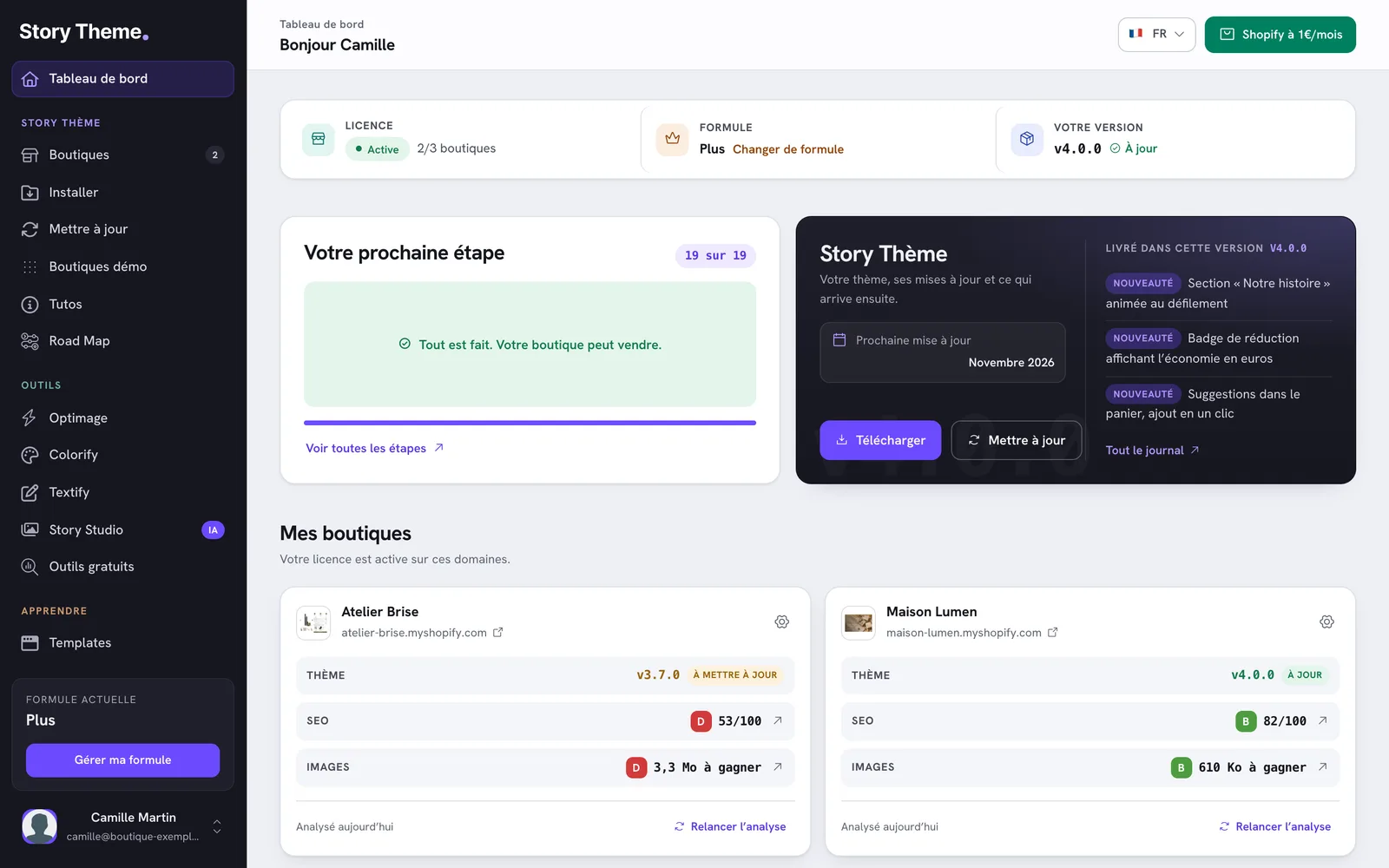
The status strip
Three boxes, at the very top:
- Licence: the number of stores registered on your plan (for example 2/3 stores), or your store's domain if you only have one. With no store, the Add link takes you to the Shops page.
- Plan: your current plan (Standard, Plus or Business) and the Change plan link.
- Your version: the Story Theme version detected on your stores. Up to date means you have the latest version; otherwise, the new available version is shown and an Update button appears.

Your next step and the Story Theme card
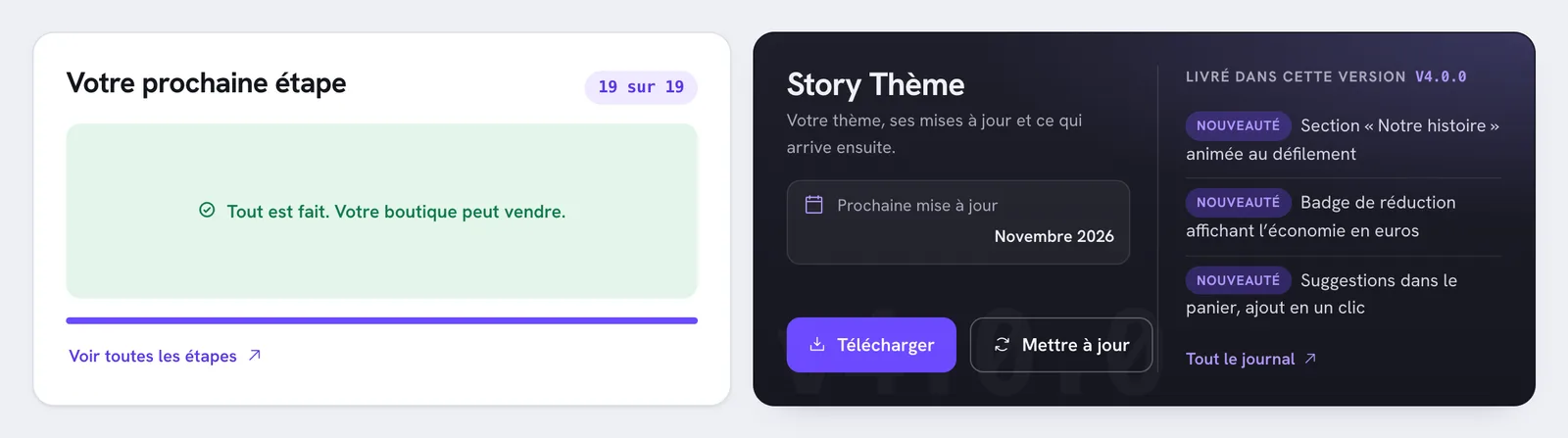
- Your next step shows the next box to check on your launch checklist. The See every step link opens the full list. See The checklist before you launch your store.
- The Story Theme card shows the latest theme version, the date of the Next update, and what's new in the current version. Its Download and Update buttons lead to the pages of the same name. The Full changelog link opens the roadmap.
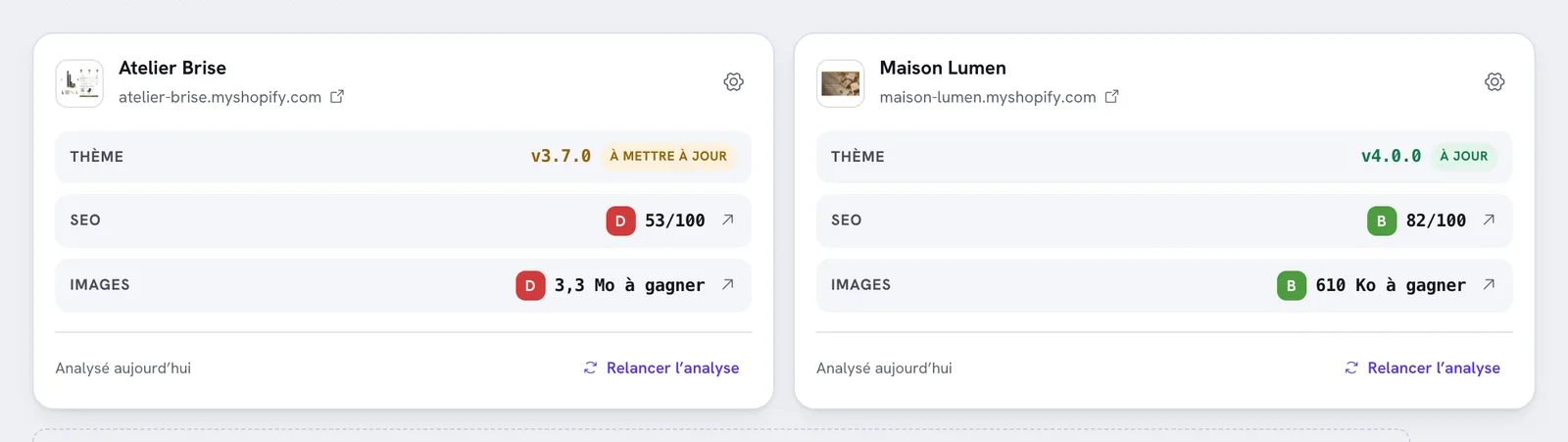
My shops
Each registered store has its own card (the six most recent are shown): installed theme version, SEO score and Images score for the home page. Clicking a score opens the detailed report. The gear icon lets you edit the store, and Manage all takes you to the Shops page. See Manage your stores.
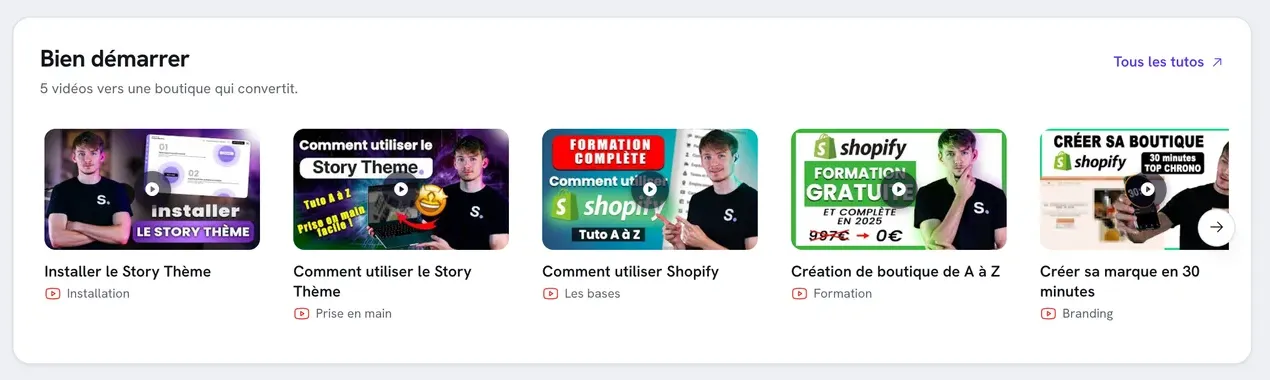
Further down the page
- Getting started: five videos to install the theme, get to grips with it and build your store. All tutorials opens the Tutos page.
- Story Studio: a shortcut to your brand and your latest generations. See Getting started with Story Studio.
- The toolbox: direct access to Optimage, Colorify, Textify and the free tools. A tool not included in your plan shows the Unlock button.
- Become an affiliate, earn revenue: the affiliate program. See The affiliate program.
- Need a hand?: the documentation search, and the All documentation and Write to us links.
Search for an answer from the dashboard
- Scroll down to the Need a hand? block.
- Type a few words in Search the documentation…: articles show up from the second character.
- Click a result to open the article.
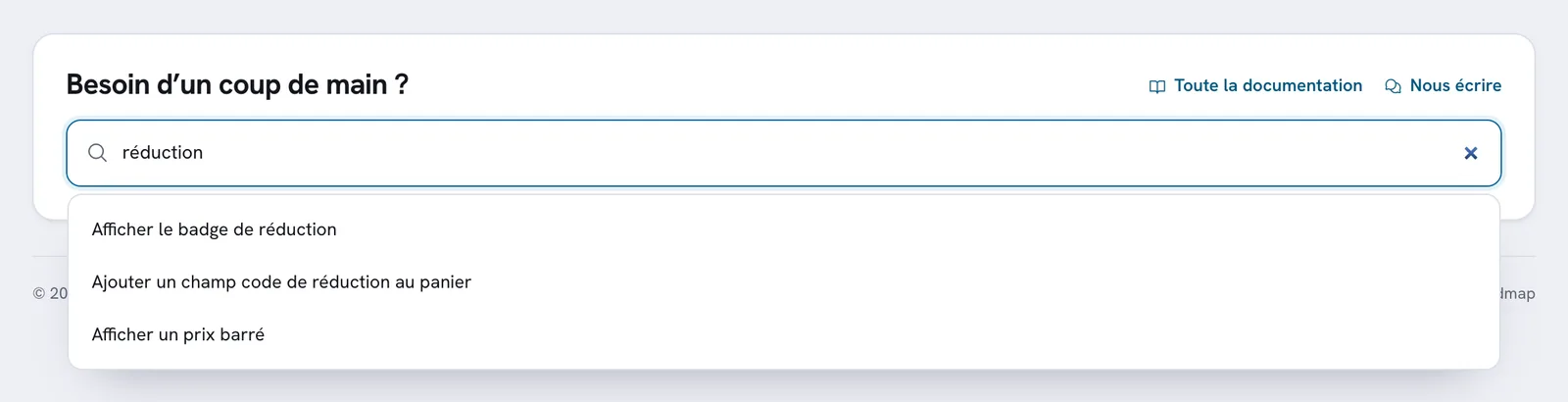
If no article matches, try a synonym or click Write to us.
The sidebar
The sidebar, on the left, is on every page of the member area. On mobile, it opens with the menu button at the top of the screen.
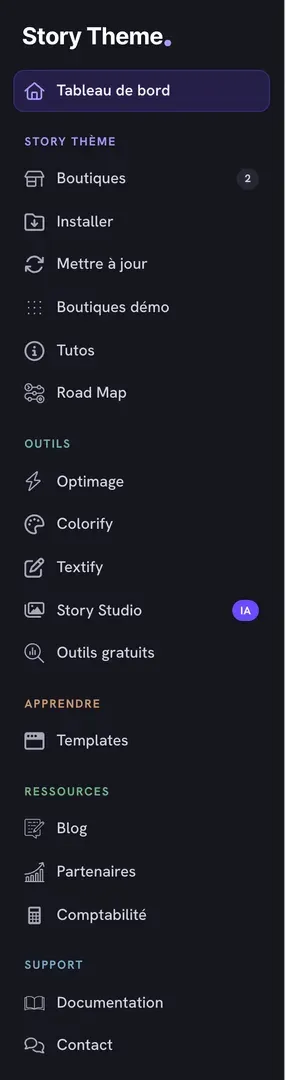
| Section | Item | What it's for |
|---|---|---|
| Dashboard | The overview described above. | |
| Story Theme | Shops | Register your stores (license), see their reports. |
| Install | Download the theme and follow the installation steps. | |
| Update | Bring your theme to the latest version without losing your settings. | |
| Demo stores | Download a store that's already laid out. | |
| Tutos | Video tutorials, sorted by topic. | |
| Road Map | What's coming in the next versions (new tab). | |
| Tools | Optimage | Compress your images and convert them to WebP. |
| Colorify | Build a palette and check contrast. | |
| Textify | Generate your store's copy (Business plan). | |
| Story Studio | Create your brand and generate visuals and ads with AI. | |
| Free tools | Free diagnostics and calculators (new tab). | |
| Learn | Templates | Page templates to import. |
| Resources | Blog | Blog articles (new tab). |
| Partners | Offers from our partners. | |
| Accounting | A callback request with our accounting partner. | |
| Support | Documentation | This documentation (new tab). |
| Contact | Answers to common questions and the contact form. |
At the very bottom of the sidebar:
- the Current plan box reminds you of your plan, with the Manage my plan button;
- the button with your name opens a menu with My account (profile, security, subscriptions, invoices) and Log out.
At the top right of every page, the language switcher sets the member area to French or English.