
Textify: generate your store copy
Describe your brand and your products, pick a tone: Textify writes the copy for your home page and product pages, section by section.
Textify uses AI to write your store's copy from your brand and your products: banner, image with text sections, reviews, benefits, product page… The copy is split by Story Theme section, ready to paste into the theme editor.
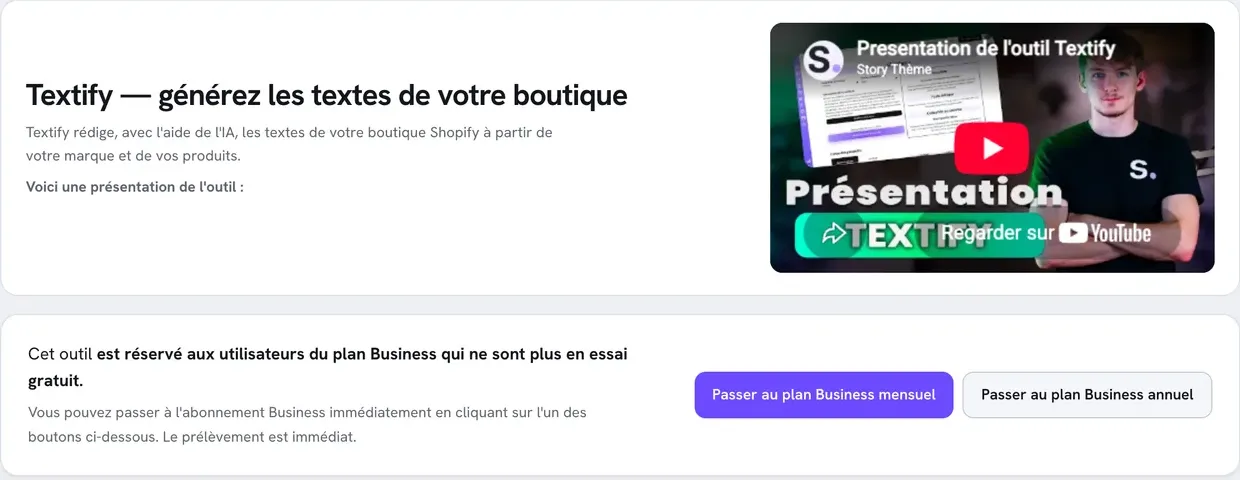
What Textify writes
- For your brand's home page: banner (hook and description), scrolling text, featured collection, three image with text sections (problems faced, solution, brand values), trust icons, newsletter, customer reviews, footer slogan, plus marketing angles, product benefits and three portraits of typical customers.
- For each product: hook, problems faced, proposed solution, extra benefits, key marketing angles and product benefits.
Textify doesn't change your store: it shows the copy on screen, and you paste it into Shopify.
Step 1: create the brand
- In your member area, open Tools > Textify.
- When asked "Do you already have a name for your brand?", click Yes or No.
- Yes: enter the name and click Confirm.
- No: go straight to the description; Textify will suggest names.
- Describe your brand as precisely as you can (between 50 and 3,000 characters): what you sell, to whom, what sets you apart, your values. Click Confirm.
- If you didn't have a name, choose one of the Suggested brand names and click Confirm.
On the right, the Your brief panel sums up, as you go, what will be sent to the generator.
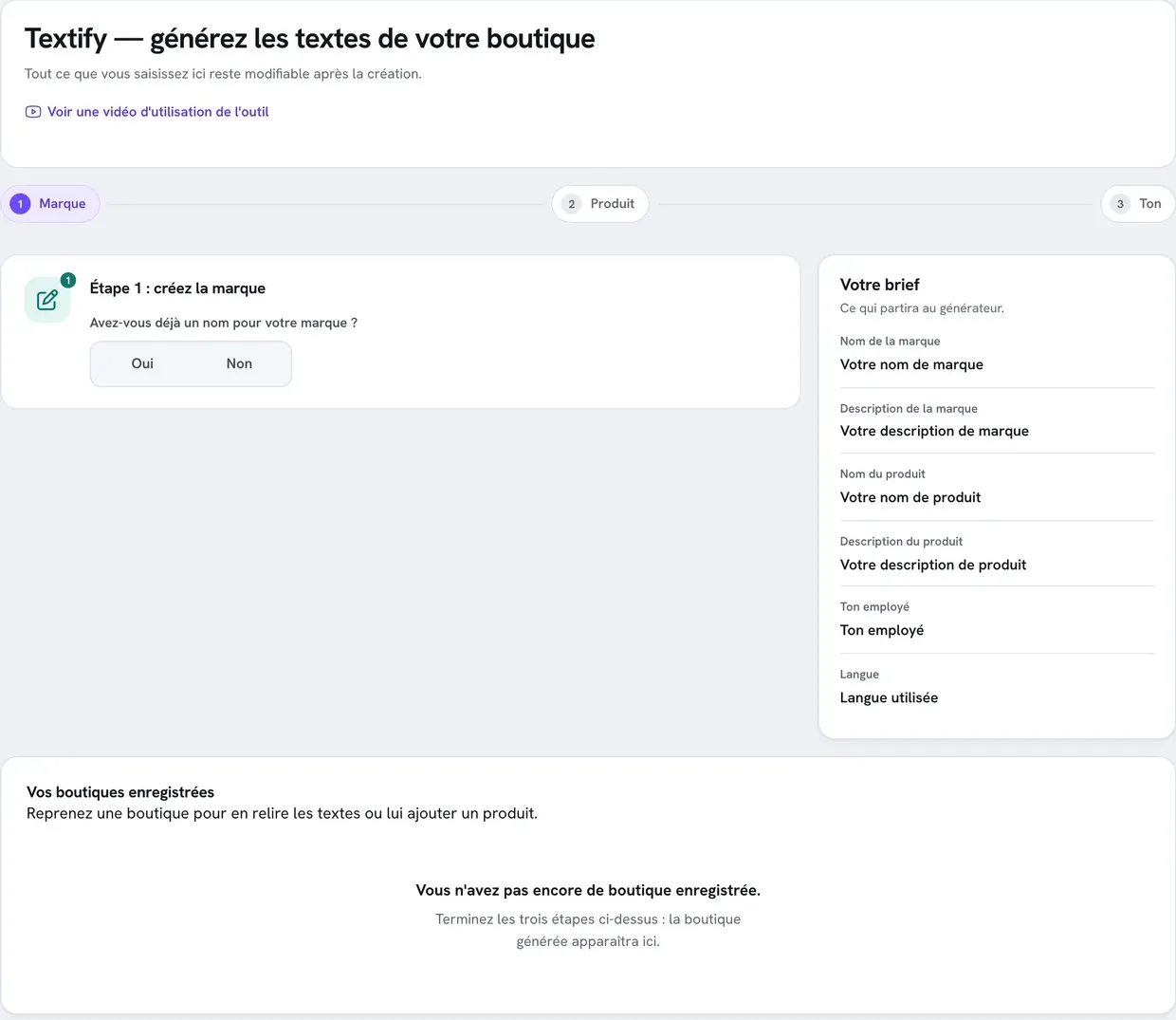
Step 2: describe the first product
- Answer "Do you already have a name for your product?" with Yes or No, as for the brand.
- Enter the name (at least 3 characters) or choose from the suggested names.
- Describe the product precisely (between 50 and 3,000 characters): what it does, who it's for, what sets it apart.
Step 3: choose the tone and language
- Choose the tone: Expert, Audacious, Playful, Sophisticated, Convincing, Encouraging, or Other to specify it yourself.
- Choose the language: French, English, Spanish, Italian, German, Portuguese, or Other.
- Click Generate the copy.
Textify then creates your brand and its first product, and opens the brand page. The copy isn't written yet at this point: you start the generation from the brand page.
Generate the home page copy
- On the brand page, check the Brand description, the Brand language and the Tone of voice. Everything can be edited with the pencil or Edit the description.
- Click Generate the home page copy.
- Wait while it's written: the copy appears in Generated copy, section by section.
Generate a product's copy
- On the brand page, in The brand's products, click Open on a product.
- For a new product, click Add a product, fill in the Product name and Product description (50 to 4,000 characters), then Create the product.
- On the product page, click Generate the product copy. The copy is written in the brand's language and tone.
Paste the copy into your store
- In Shopify, open Online Store > Themes and click Edit theme.
- For each section of your home page (banner, image with text, reviews…), select it and paste the matching copy into its fields.
- For product pages, paste the copy into the product page blocks, or into the product description in Products.
Always proofread before publishing: adjust the figures, promises and reviews to match the reality of your brand. Don't display made-up customer reviews as if they were real.
Quotas and limits
- 100 generations per month, shared between home page copy and product copy. The Texts generated this month counter shows on each page. It resets 30 days after the last reset.
- Name suggestions (brand or product) don't count.
- Only one version is kept: running the generation again replaces the brand's or product's previous copy. Copy what you want to keep before running it again.
- If a generation fails with "Generating the copy failed." when you've generated a lot this month, you've probably reached your quota.
Delete a brand or product
At the bottom of each page, the Delete the brand (or Delete the product) area permanently erases the brand and all its products (or the product and its copy). This deletion can't be undone.