
Story Studio: Meta ads and Store Builder
Generate Facebook and Instagram ads with Ads Copy, and a first draft of your store to import into Shopify with the Store Builder.
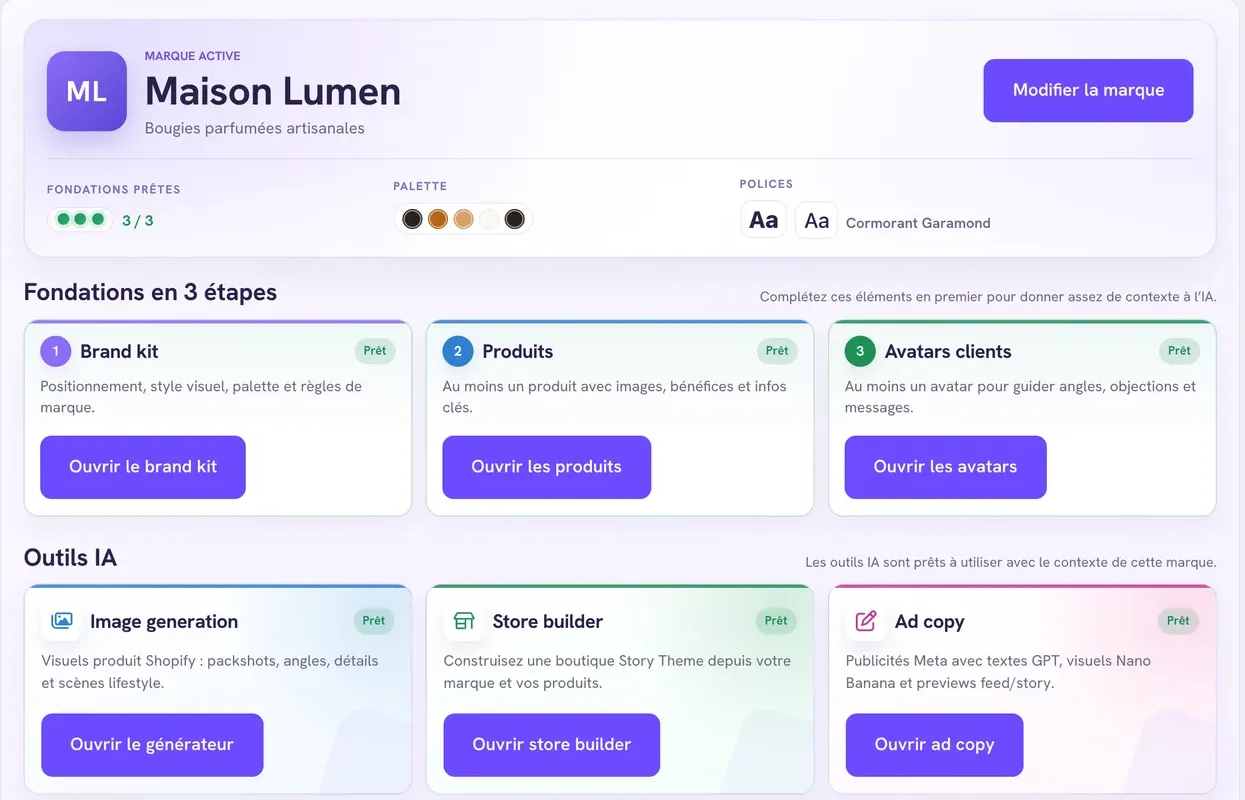
Once your brand, products and customer avatars are ready in Story Studio, two tools open up alongside the image generator: Ads Copy, which produces Meta ads (Facebook and Instagram), and the Store Builder, which generates a first draft of your store to import into Shopify.
Ads Copy: create Meta ads
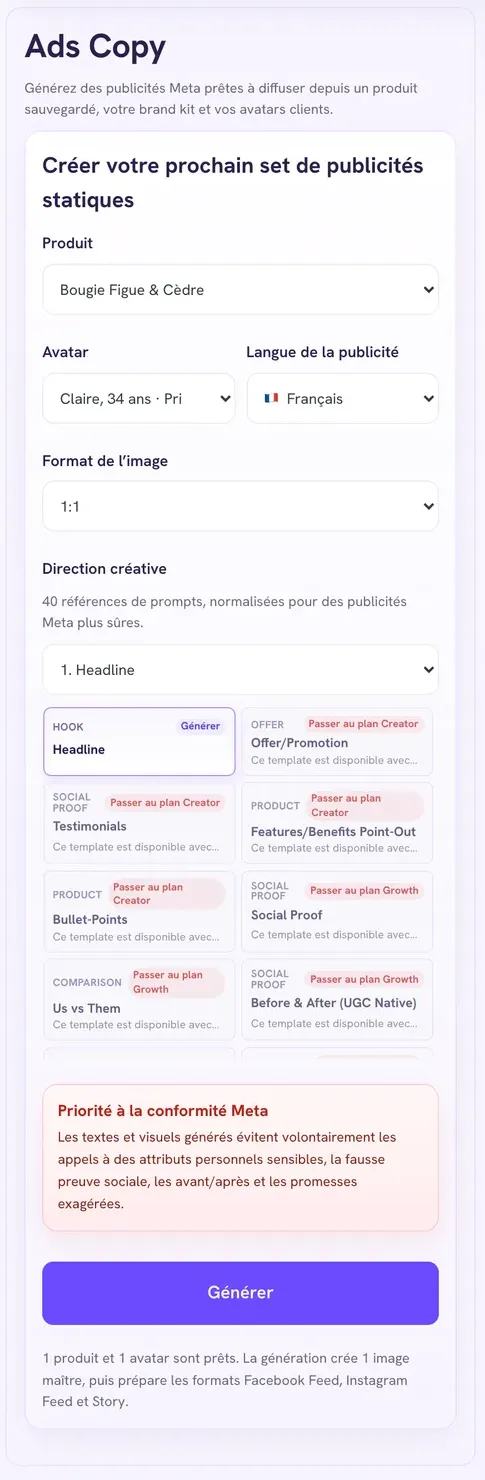
Ads Copy creates a complete ad pack from a product, a customer avatar and an ad template: one image adapted to the Facebook and Instagram formats, and several versions of the copy.
Generate a pack
- In your brand's workspace, click Open ad copy.
- Product: select a saved product.
- Avatar: select the typical customer the ad is aimed at.
- Ad language: choose the language of the copy.
- Image format: 4:5 vertical (Recommended), 1:1 square or 9:16 story, depending on your plan (the Included plan is limited to square).
- Creative direction: choose one of the 40 ad templates. Templates reserved for a higher plan are marked with the plan you need.
- If the chosen template highlights an offer, fill in Ad offer (for example "Free shipping" or "20% off").
- Click Generate Meta ads with AI. It takes about a minute.
What you get
- Three previews: Facebook post, Instagram Post and Instagram Story, built from the same image adapted to each format.
- Text versions: three versions of the ad copy (primary text, headline, description, call to action), each with a Copy button.
- Download image to get the visual.
Your earlier packs stay available in Previous ads, which you can filter by template type.
Publish the ad
Story Studio doesn't publish anything on Meta. Download the image, copy the text you've chosen, then create your ad in Meta Ads Manager. To track its results on your store, add UTM parameters to the link with the UTM link builder.
Store Builder: generate a first draft of your store
The Store Builder writes a store from your brand: home page text, pages, product page layouts. It delivers it as a theme .zip file to import into Shopify.
Generate the file
- In your brand's workspace, click Open store builder.
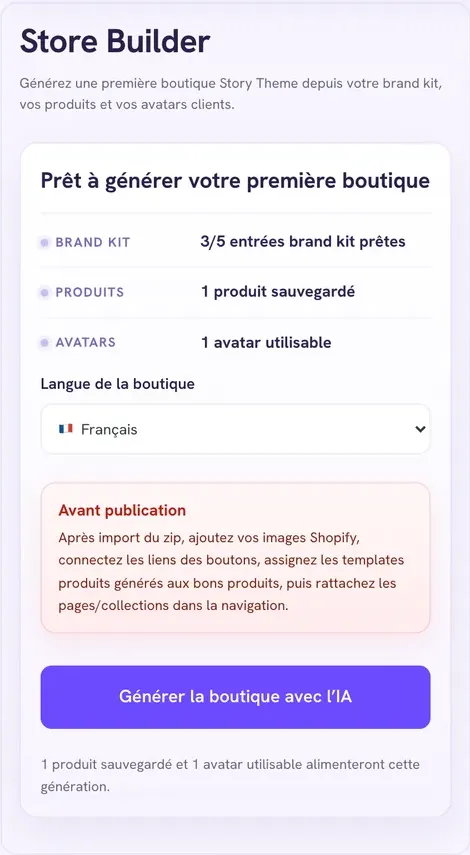
- Check the summary: Brand Kit inputs ready, saved products, usable avatars. You need at least one saved product; the Store Builder uses at most your 5 most recent products.
- Choose the Store language: French, English, Spanish, German or Italian.
- Click Generate store with AI. A preview of the first section appears once the generation is complete.
- Click Download theme zip.
Your generations stay available in Previous generations.
Import the draft into Shopify
- In Shopify, open Online Store > Themes.
- In the Draft themes section, click Import theme > Upload zip file and choose the .zip file as is, without unzipping it. The imported theme goes into your draft themes, without replacing your published theme.
- Open it with Edit theme to explore it.
Rework it before publishing anything
As the Store Builder's Before publishing screen points out, the draft isn't ready to sell:
- add your Shopify images to the sections;
- link the buttons to the right pages and collections;
- assign the generated product templates to the right products;
- add the pages and collections to your menus (Menus, header and footer).
We recommend taking the copy you like into a store built on the current version of the theme, rather than publishing the draft as is. Before publishing anything, go through the pre-launch checklist.
Quotas
Each Ads Copy pack and each Store Builder generation uses one credit from your Story Studio plan:
| Included | Creator | Growth | Studio | |
|---|---|---|---|---|
| Ads Copy / month | 1 | 20 | 50 | 120 |
| Ad templates unlocked | 1 | 5 | 20 | 40 |
| Store Builder / month | 1 | 5 | 15 | 40 |
Plan and pricing details are in Story Studio: create your brand and your first visuals.