
Colorify: check contrast and build your color palette
Check that your text stays readable on its background, generate color palettes with AI and apply them to the Story Theme's color schemes.
Colorify helps you choose colors that work well together and stay readable. It has two parts: a contrast checker, open to everyone, and an AI palette generator, which suggests complete palettes designed for the Story Theme.
Check the contrast of two colors
Light gray text on a white background looks nice on your screen, but it's unreadable on a phone in the sun. The checker tells you whether a text color has enough contrast against its background color.
- In your member area, open Tools > Colorify.
- In Check your colour contrast, enter the Text colour and the Background colour in hex format (for example
#1C1433), or click the round swatch to pick a color. - Read the result: the Contrast ratio, then the rating for Body text and for Headings. The preview on the right shows how a heading and a paragraph actually look.
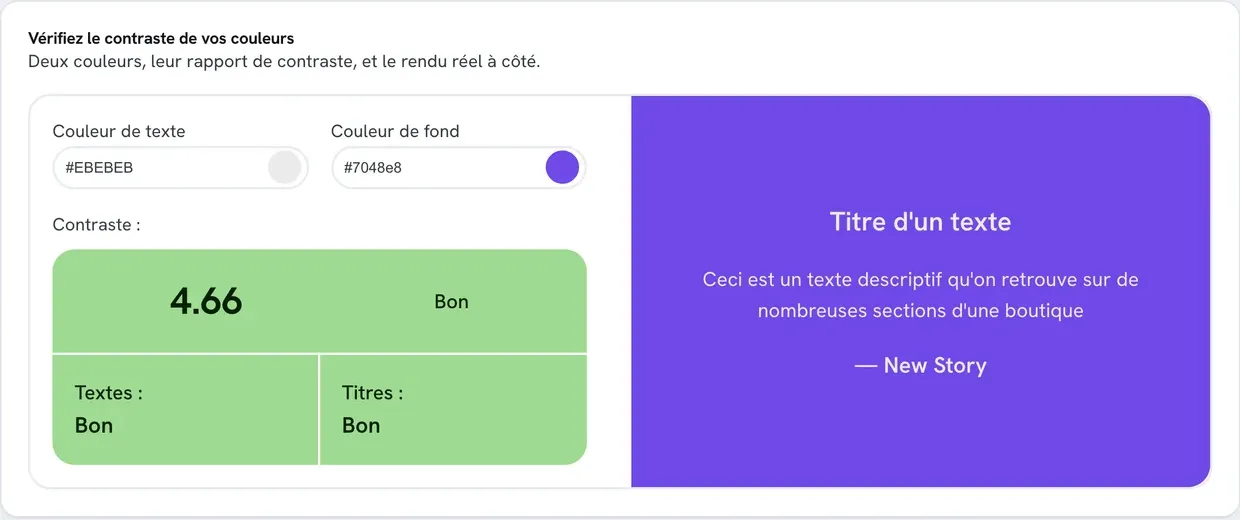
| Contrast ratio | Body text | Headings |
|---|---|---|
| 7 or more | Perfect | Perfect |
| 4.5 to 7 | Good | Good |
| 3 to 4.5 | Average | Good |
| 2 to 3 | Poor | Average |
| less than 2 | Poor | Poor |
Aim for at least Good for body text. A heading, being larger, stays readable with slightly lower contrast. These thresholds match web accessibility guidelines (AA level from 4.5).
Generate a palette with AI (Business plan)
Without the Business plan, the Generate your palette with AI panel is locked and offers to upgrade to the Business plan. The contrast checker is still available.

With the Business plan:
- In Generate a colour palette, describe your brand or product in Brand or product description: what you sell, to whom, the mood you're after.
- In Colour choice, choose:
- Let the AI choose: the AI picks your brand color itself;
- Colour: you pick a color family (Red, Blue, Green, Yellow, Purple, Orange, Black, White, Pink, Brown);
- Exact colour: you enter the hex code of your brand color, for example
#d0bfff.
- Click Generate palettes. Four palettes are shown side by side, each with its text, background and accent colors.
- Click Select this palette under the ones you like (at least one), then Save the selected palettes.
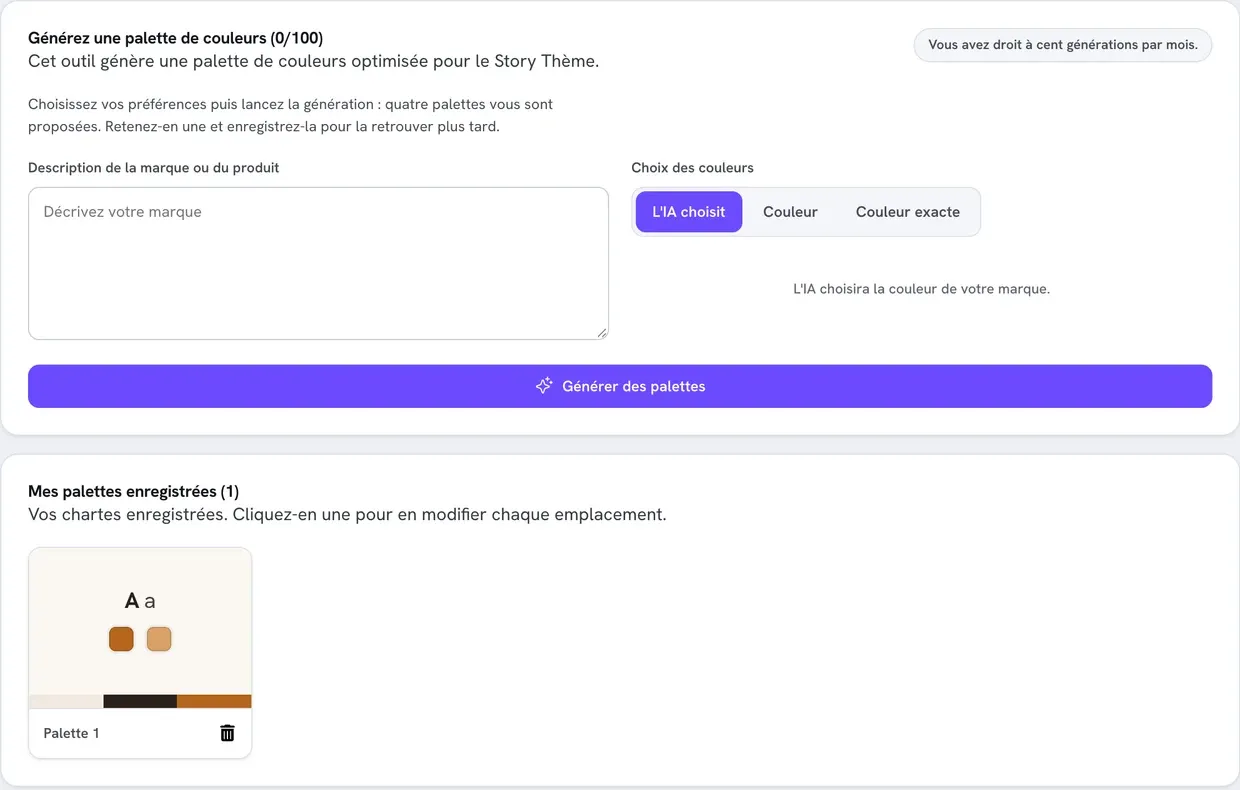
Each generation (one click) uses one of the 100 generations for the month and suggests four palettes. The counter appears in the title, for example (12/100).
Each saved palette automatically comes in four color schemes: the palette as is, a version with inverted backgrounds, a dark version (text and backgrounds swapped) and a version where the accents become the backgrounds. That gives you enough to style different sections without leaving your brand colors.
Find and edit your palettes
Your palettes appear in My saved palettes. Click one to open the Palette details: its four color schemes (Colour scheme 1 to Colour scheme 4), with every color slot.
- To change a color, click it, enter the new hex code (
#followed by six characters) and click Save. - To delete a palette, click the trash icon on its card and confirm.
Apply the palette in the Story Theme
The Story Theme's colors are organized into palettes (also called color schemes): each section chooses the palette it uses. Each theme palette has the same slots as a Colorify color scheme, so copying them over is straightforward.
- Open the Palette details in Colorify and keep it handy.
- In Shopify, open Online Store > Themes and click Edit theme on the Story Theme.
- Open Theme settings (gear icon), then Colors.
- Open a theme palette and copy the codes from one color scheme, slot by slot:
| In Colorify | In the Story Theme palette |
|---|---|
| Headings | Headings |
| Body text | Text |
| Text gradient | Text gradient |
| Background | Background |
| Secondary background | Background secondary |
| Background gradient | Gradient |
| Accent 1 | Accent 1 |
| Accent 2 | Accent 2 |
| Button gradient | Gradient button |
- Do the same with the other color schemes in the other palettes (for example the dark scheme in the palette you keep for sections on a dark background).
- Click Save.
The details of each palette and how to apply it section by section are explained in Color schemes. To set up your full identity (logo, fonts), see Logo, colors and fonts.
FAQ
I'm on the Business plan but generation is locked
Generation unlocks at the end of the free trial, once your first payment has gone through. The contrast checker stays available during the trial.
How many palettes can I generate?
100 generations per month, each suggesting four palettes. The counter resets one month after your last reset.
The generated colors aren't quite right
Save the closest palette, then edit the colors one by one in the Palette details. Run any questionable text/background pairs through the contrast checker again.