
Show an estimated delivery date
Set up the Story Theme Delivery date block: processing and shipping times, weekends, closed days and shipping cut-off time.
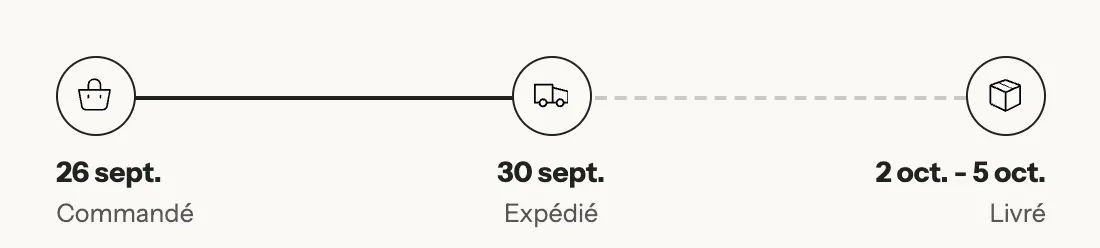
"Order today, get it between October 2 and 5": a clear date reassures the customer and answers the question they ask themselves right before buying. The Story Theme Delivery date block calculates these dates on its own, in business days, from your lead times.
Find the block
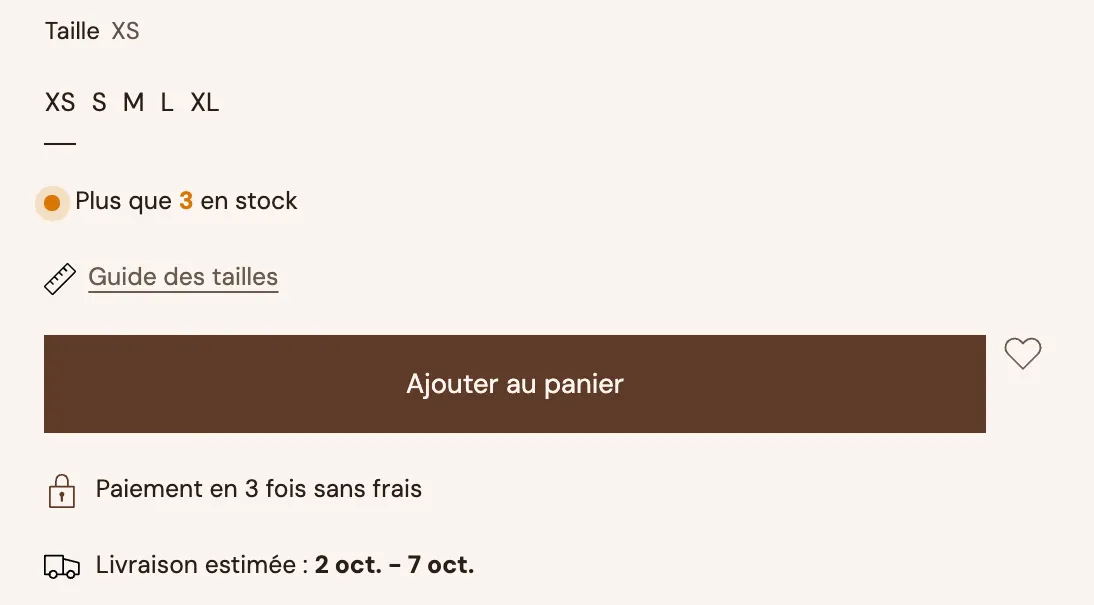
The block is already in the product page that ships with the theme, under the buy button.
- Open Online Store > Themes > Edit theme, template Products > Default product.
- In the Product page section, expand the Group and click Delivery date.
- If it's no longer there, click Add block in the Group and choose Delivery date in the Product page category.
Set your lead times
Everything happens in the block's Dates group:
- Days to prepare order: the time between the order and shipping (1 day by default).
- Shortest shipping time (days) and Longest shipping time (days): the transit time, in business days (2 and 4 by default). Use the times announced by your carrier.
- Don't count weekends: checked by default. Uncheck it if you also ship and deliver on Saturday and Sunday.
- Closed days: the days with no shipping or delivery, in DD/MM format, separated by commas. Default:
25/12, 01/01. Add your time off and public holidays, which the theme doesn't know automatically: for example25/12, 01/01, 04/07, 27/11. - Cut-off time: the time after which an order ships on the next business day, in HH:MM format (
14:00by default). Leave it empty if you don't have one. - Click Save.

Show the time left before the cut-off
With a cut-off time, the block can show a countdown to that time, followed by the earliest possible delivery date.
- Leave Show the time left before the cut-off checked.
- Adjust the Text if needed. Default: "Order within [timer] to get it by [date]".
[timer]is the time left,[date]the earliest possible delivery date.
This message only appears on business days, until the cut-off time: it's a real deadline, unlike a generic timer.
Choose the presentation
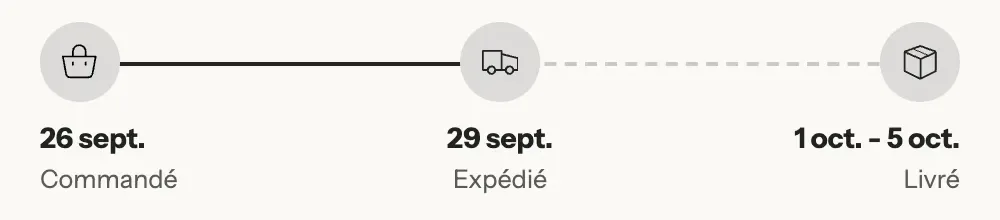
- Layout: Steps (default) shows the "Ordered / Shipped / Delivered" timeline; One line shows a short sentence, by default "Estimated delivery: [dates]".
- For Steps, each step has its own Label and Icon, and the Icon style can be Filled, Soft tint or Outline.
- Date format: Day and month, Weekday, day and month, DD/MM or MM/DD.
- The block's Style (Plain, Filled, Outline), Highlight (color of the icons and timeline) and Text size.
Frequently asked questions
The dates shown are off by one day
Check the store's time zone (Settings > General) and the Cut-off time: an order placed after the cut-off is prepared on the next business day.
Can I set different lead times for different products?
Yes, by creating a different product template with its own block settings, then assigning it to the products concerned.
Does the block guarantee the date to the customer?
No, it's an estimate calculated from your settings. Keep realistic lead times, consistent with your shipping rates.
Learn more
- Set up shipping
- Show remaining stock and an urgency message
- Structure a product page that converts
- Product page blocks: buying (Delivery date) and Cart blocks (Delivery estimate)