
Announcement bar and scrolling marquee
Show your messages at the top of every page, add a countdown to a specific date and create a scrolling text banner.
The announcement bar is the thin strip at the very top of your store, visible on every page: free shipping, a promo code, the end of an offer. The scrolling marquee is a section you place anywhere on a page, with phrases that scroll continuously.

Edit the announcement bar messages
- Open Online Store > Themes > Edit theme.
- In the list on the left, expand Announcement bar (in the header group), then the Center zone and the Announcements block.
- Click a Message block and edit its Text. The theme ships with two: free shipping and returns.
- Add a Link if the message should lead somewhere (the whole message becomes clickable) and choose an Icon: Truck, Return, Price tag, Stopwatch…
- For another message, click Add block in Announcements and choose Message.
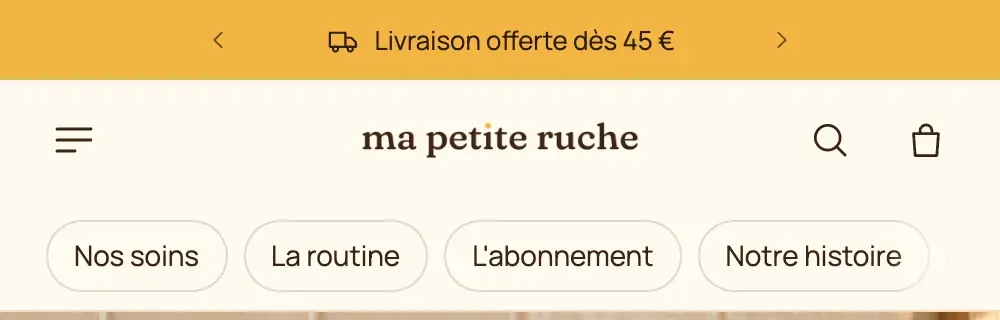
Choose how messages are displayed
Click the Announcements block. The Display setting offers:
- One at a time: messages follow one another, with a Transition and a Time per message (5 s by default);
- Continuous flow: messages scroll in a loop, with a Scrolling speed, a Direction and a Separator (Dot, Slash or your own icon);
- Typewriter: each message types itself out letter by letter;
- Side by side: all messages visible at the same time (for two short messages).
Mobile layout lets you use a different display on phones, for example Side by side on desktop and One at a time on mobile. Keep Show the pause button checked whenever messages move on their own.


In the Announcement bar section settings:
- Color palette: the bar's palette (the dark palette to start with);
- Behavior: Scrolls with the page, Always visible or Visible when scrolling up;
- Close button: visitors can hide the bar until the end of their visit. If you edit a message, the bar comes back.
All the settings are detailed in Announcement bar section.
Add a countdown to a date
Each Message can show a real countdown, based on your store's time zone.
- Open the Message concerned, for example "Sale: 20% off everything, ends in".
- In Countdown end, enter the end date and time in
YYYY-MM-DD HH:MMformat, for example2026-11-30 23:59. - Choose the Position (Before the text or After the text) and the Format: Days and clock (
2d 04:12:09), Clock or Boxes. - In Text once ended, write what shows at the deadline ("The offer has ended"). If left empty, the message disappears on its own.

For a real deadline, use this countdown rather than the sections' Countdown block: that one is a timer of a few minutes specific to each visitor, which restarts, not a date shared by everyone.
Add a scrolling marquee to a page
The Marquee is a page section: under the home page banner, between two sections, above the footer.
- In the template you want (for example Home page), click Add section.
- Choose Scrolling text (Text category). Two other variants exist too: Logo marquee and Scrolling images.
- Click the Scrolling text block and write your phrases in Text (one phrase per line).
- Set the look: Text size (and Text size mobile), Font (Body or Heading), Uppercase, Style Default or Outline (outlined letters), and a Separator between phrases (dot, star, heart, leaf…).
- Set the motion: Delay (the time for a full loop, 16 s by default: the higher the number, the slower it goes), Direction and Pause on hover.
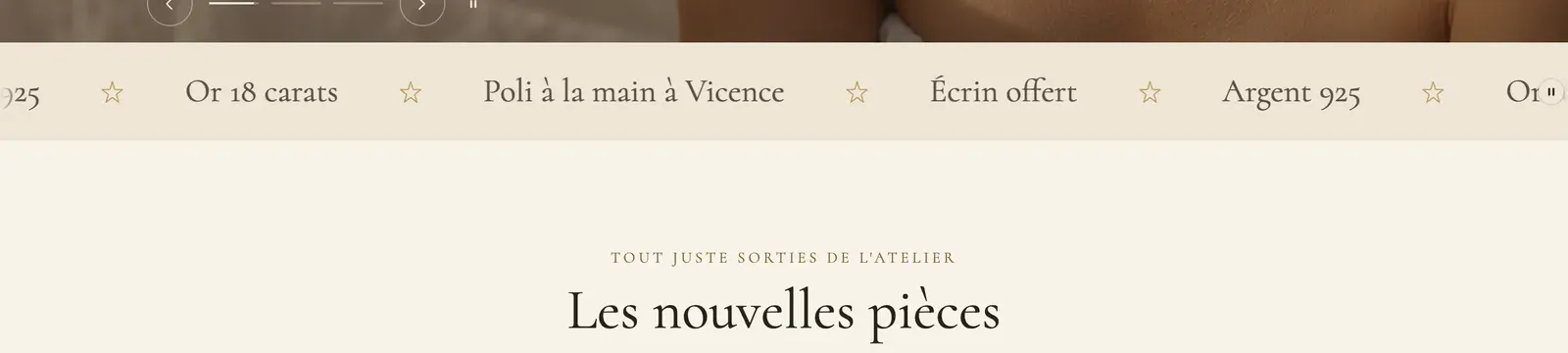


The two other variants replace the phrases with images or logos. Scrolling images runs a row of photos, like Maison Mocha's fabrics:

Check Edge to edge so the marquee fills the full width of the screen. A pause button shows automatically for visitors who want to stop the motion.