
Popups: newsletter, discount code and age verification
Turn on the Story Theme newsletter popup, offer a discount code on sign-up, choose when it opens or verify your visitors' age.
The Story Theme includes a Popup section: a window that opens after a few seconds to offer a newsletter sign-up or a welcome code, or to ask for the visitor's age. No app needed: subscribers go straight into Customers in your Shopify admin.
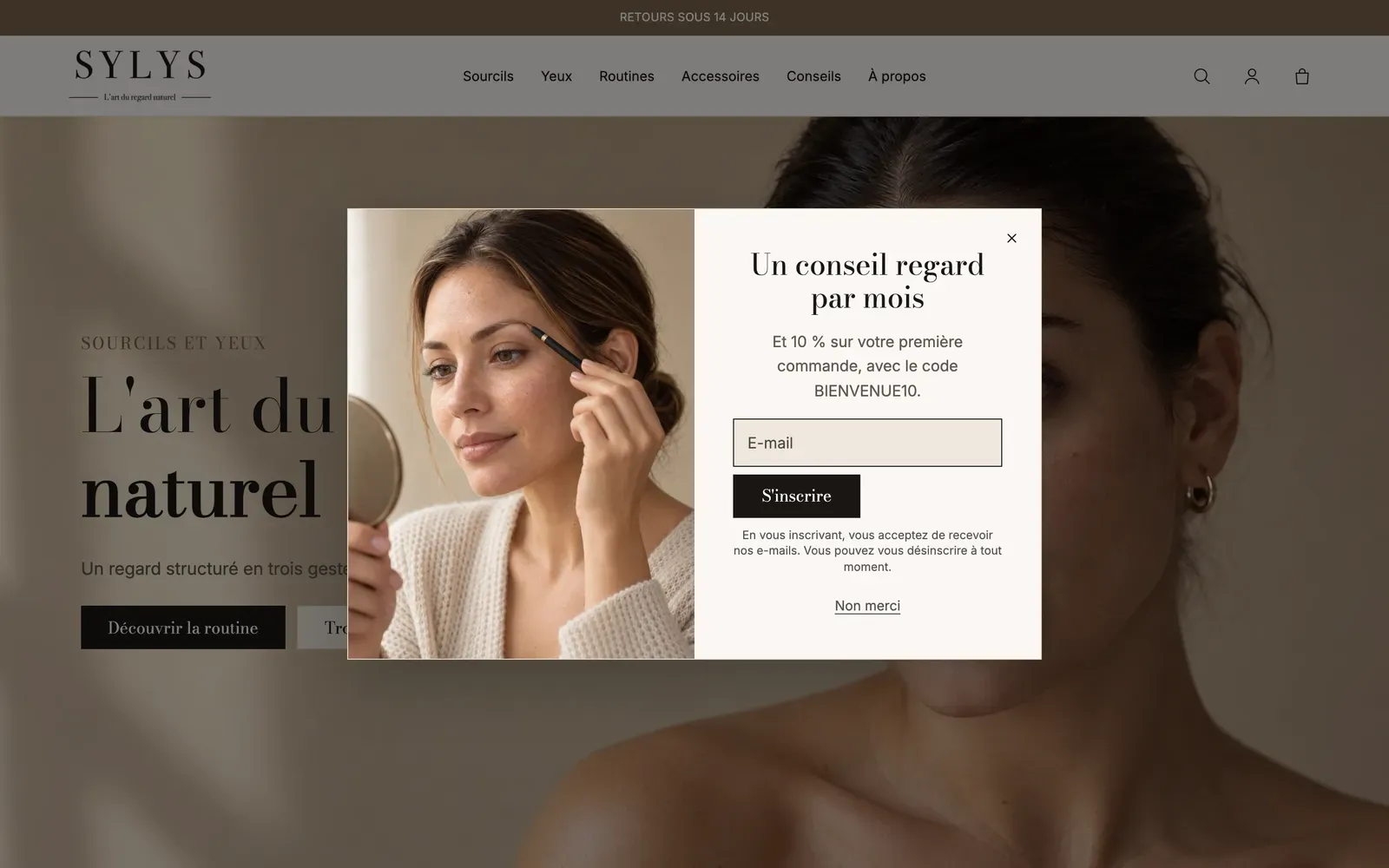
Show the newsletter popup included with the theme
The theme already contains a Newsletter popup at the bottom of the footer, but it ships hidden.
- Open Online Store > Themes > Edit theme.
- In the list on the left, scroll down to the Footer group: the Popup section appears there with a crossed-out eye.
- Click the eye icon to show it.
- Click the section: the popup opens in the preview so you can edit it.
- Edit the Heading and the Text, and add an Image under Media.
- Save.
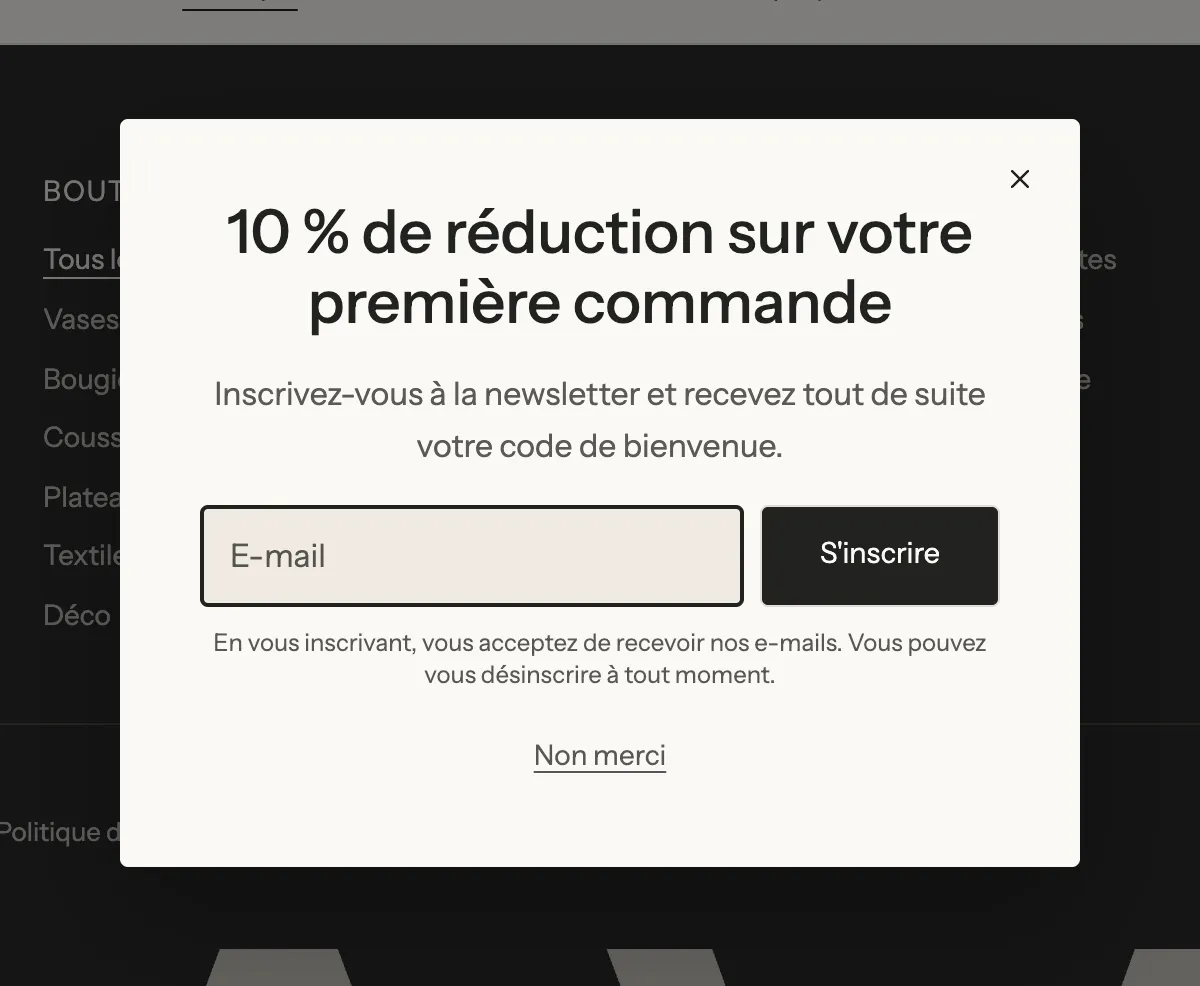
Placed in the footer, the popup applies to every page. You can also add a Popup section to a single template (Add section, Popups category).
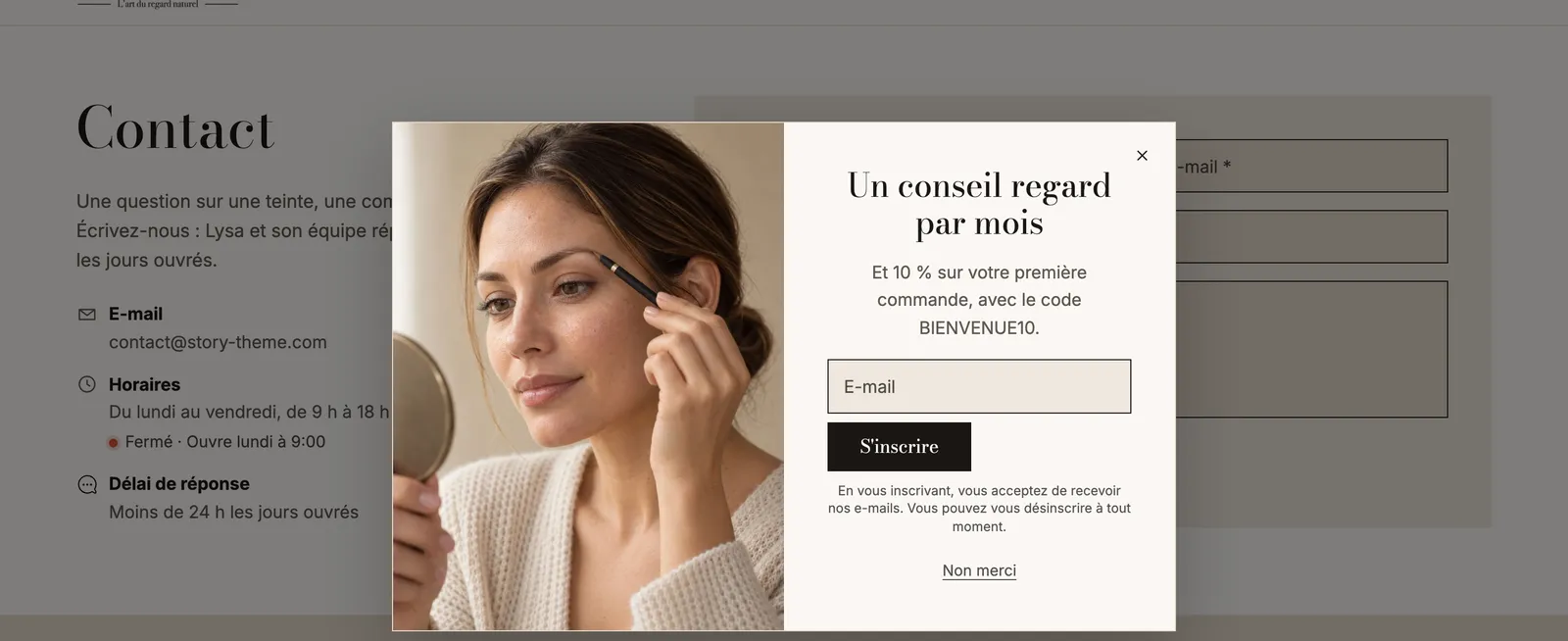
Offer a discount code on sign-up
- First create the code in Shopify, for example
WELCOME10: see Create a discount code. - In the popup, click the Newsletter block.
- Enter the code in Discount code to reveal. After signing up, the code shows with a Copy button.
- Announce the offer in the Heading ("10% off your first order").
To start from a dedicated layout, add a new section and choose the Discount popup preset.
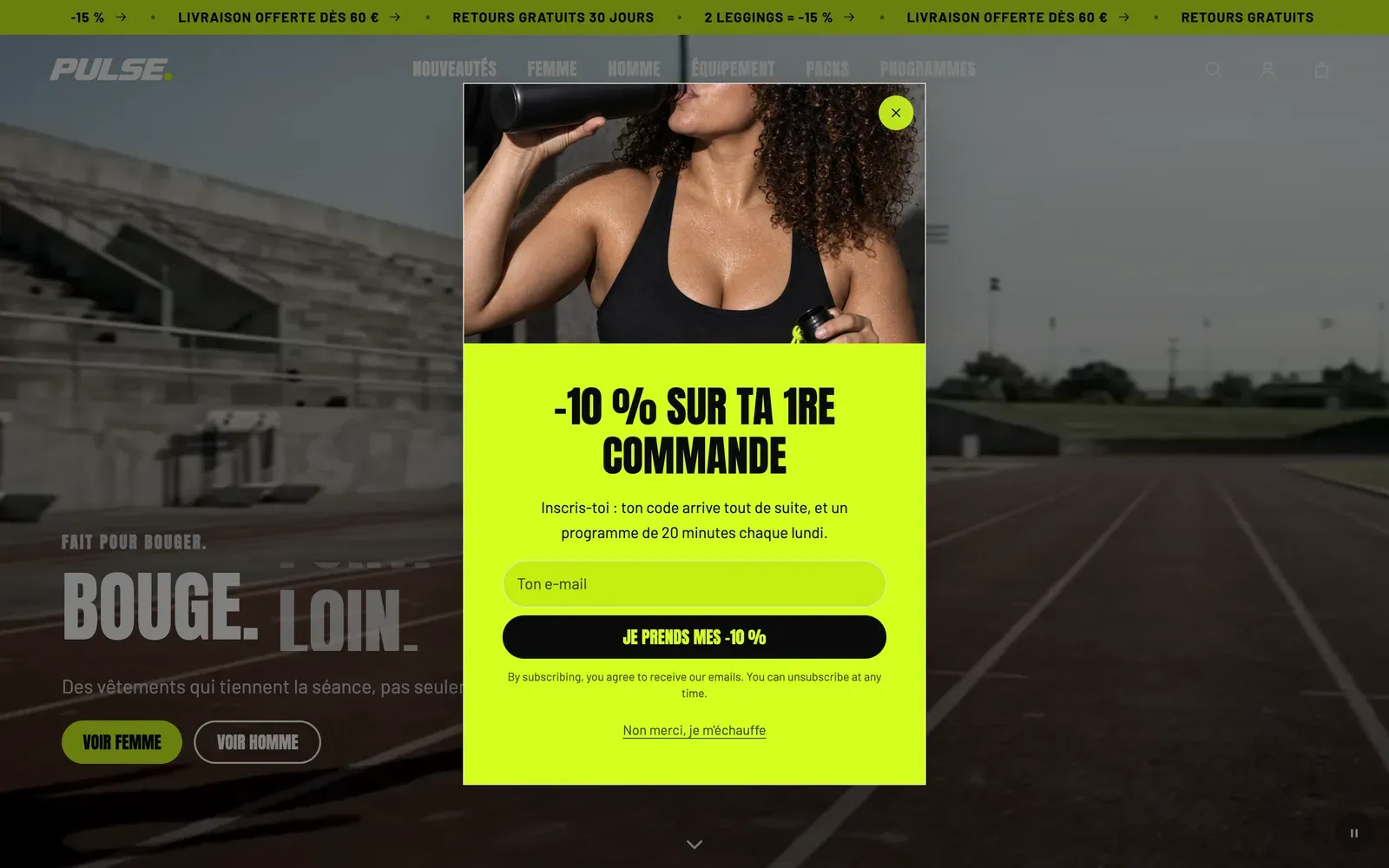
In the Newsletter block, you can also Ask for the first name, Collect phone numbers for SMS and set the Marketing consent. The Customer tags (newsletter by default) are added to each subscriber's profile.
Choose when the popup opens
Click the Popup section. In Display:
- Pages: Every page, Home page, Product pages or Specific pages (list the addresses in Page addresses, one per line);
- Open automatically, with a Delay (5 s by default) and, if needed, Page scrolled at least a percentage of the page;
- Also open when the pointer leaves the page (desktop): the popup opens when the mouse heads toward the address bar or the tab, just as the visitor is about to leave;
- Hide from customers already subscribed.
Show again sets the frequency: Every page, On the next visit or After a number of days (7 days by default). Avoid Every page for a newsletter: a popup that keeps coming back drives visitors away.
Set the appearance
In Layout:
- Position: Center, Bottom left or Bottom right;
- Position on mobile: Center or Bottom sheet (the window slides up from the bottom of the screen, which feels more natural on phones);
- Width and Page behind (Unchanged, Dimmed, Blurred).
In Media, Position places the image on the left, on the right or at the top, and Media on mobile shows it or not on phones.
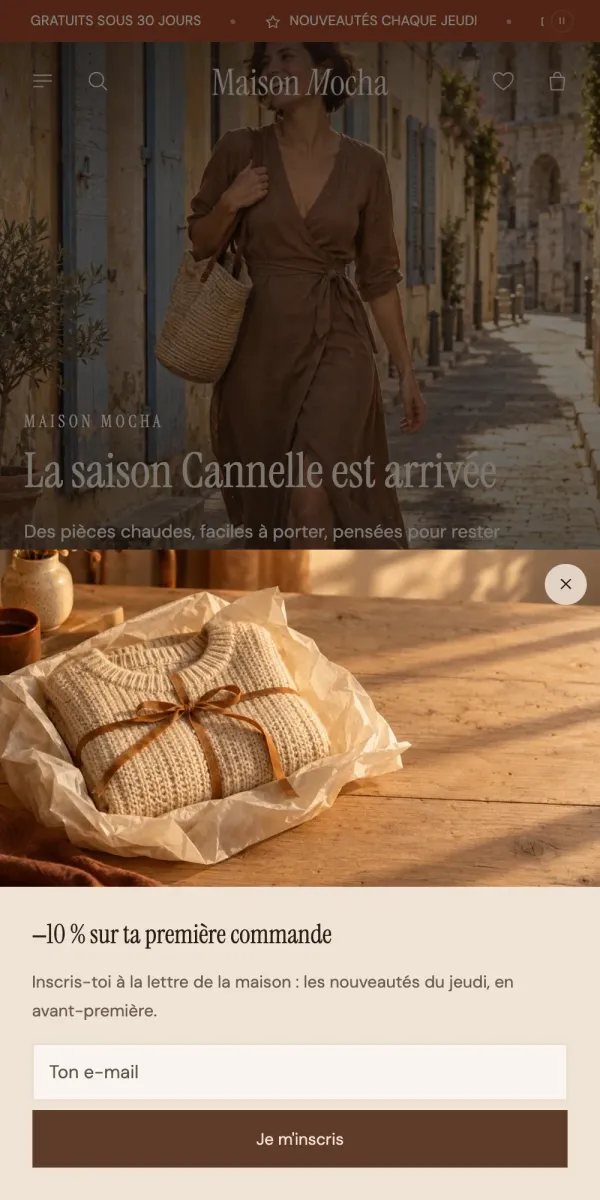
The Close button block adds a "No thanks" type link. Check Never show the popup again after this click so this visitor doesn't see it again.
Verify your visitors' age
For a store that sells alcohol or adult-only products:
- Add a section and choose Age verification (Popups category), preferably in the Footer group so it covers every page.
- Make sure Require a choice before browsing is checked: visitors can't close the window or press Escape.
- Edit the text and the two buttons: the Close button serves as the confirmation (it closes the window and doesn't show it to this visitor again), the Button block sends underage visitors elsewhere; fill in its link.
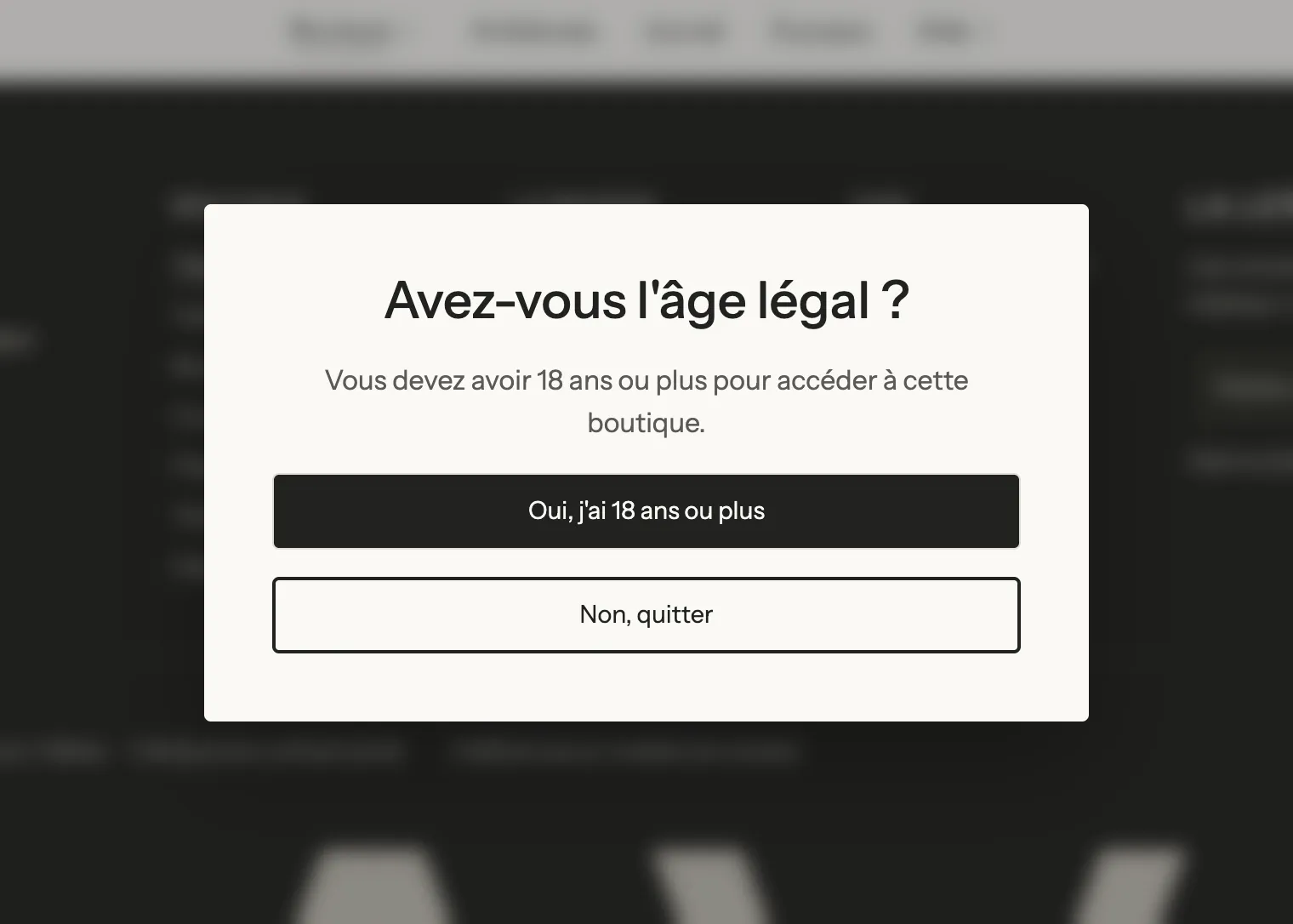
The verification relies on what visitors declare: it doesn't replace the legal obligations specific to your business.