
Slideshow section: rotate several banners
Show up to 12 banners in a row with the Story Theme Slideshow section: transitions, auto-rotate, arrows, pagination by titles and mobile settings.
The Slideshow section rotates through several large banners one after the other: a new collection, your craftsmanship, an offer. Each slide has the same options as a banner (image or video, overlay, text, buttons). It's mostly placed at the top of the home page.
Presets
Two presets are offered in the Banners category of the section picker, each with three slides.
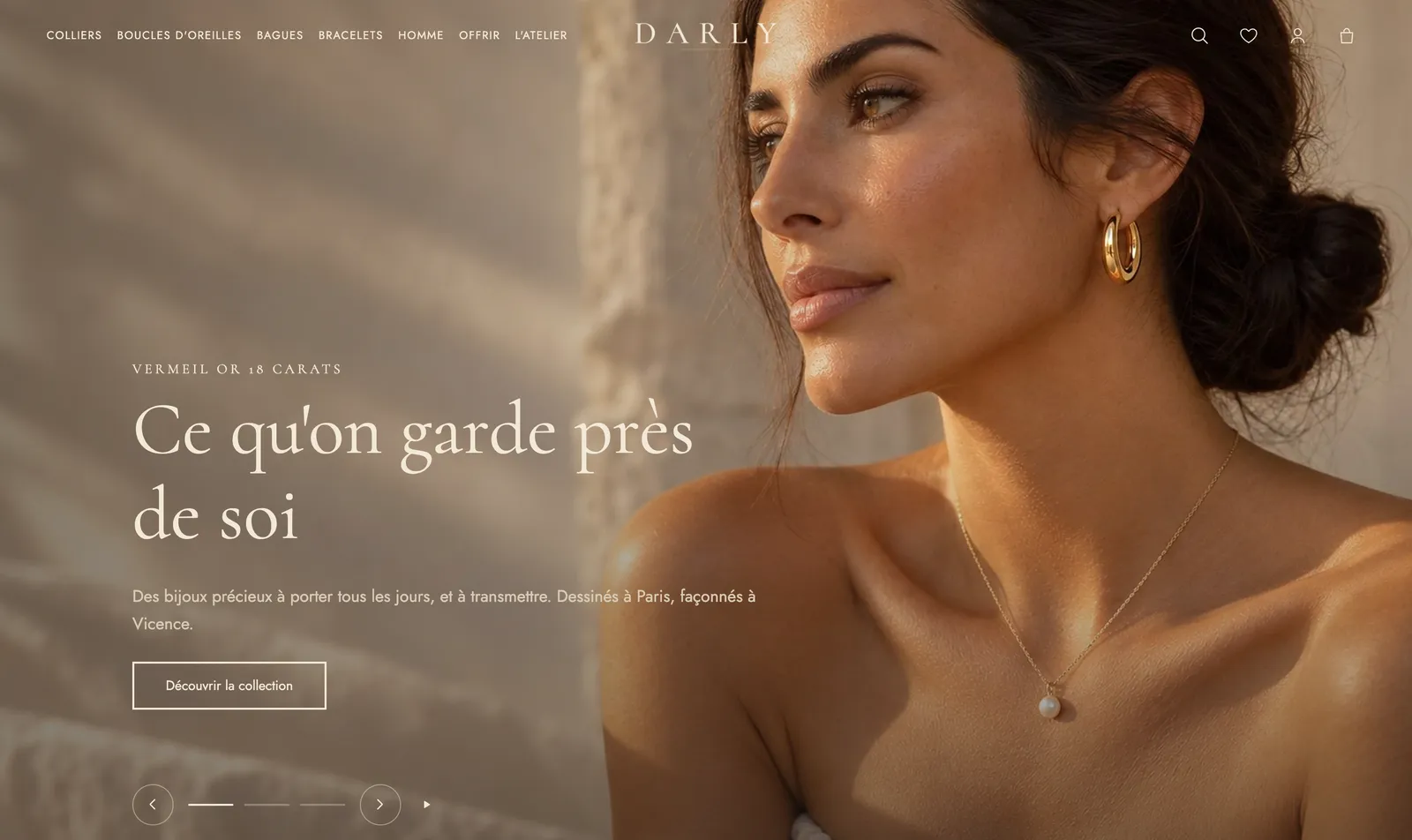
Slideshow
Full-screen slides that follow one another with a Zoom effect. The arrows and progress bars are grouped at the bottom left, with a play/pause button. It's the immersive preset, for beautiful photos.

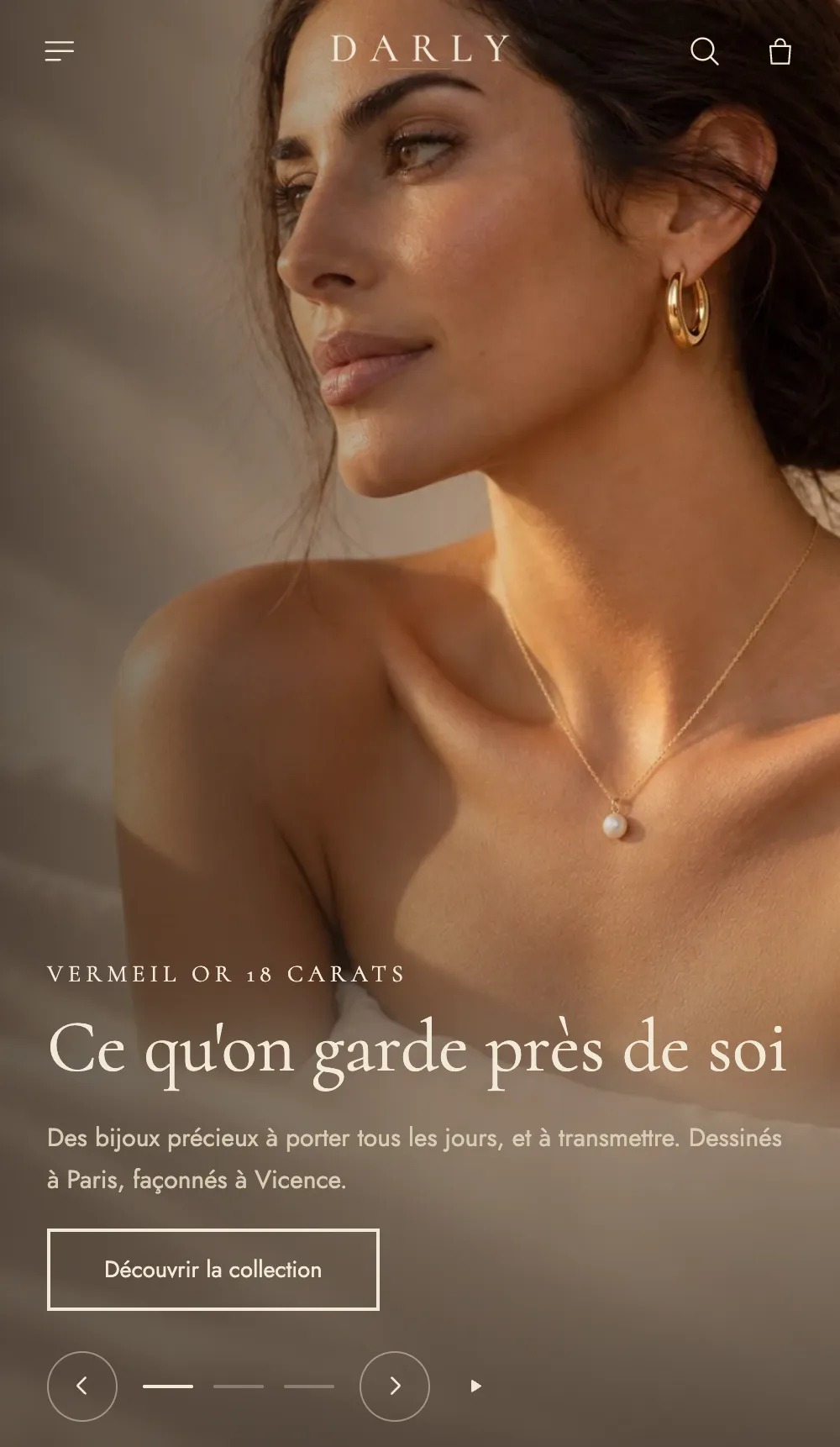
On mobile, on the Darly demo, the text and controls stay on the photo:
Slideshow with previews
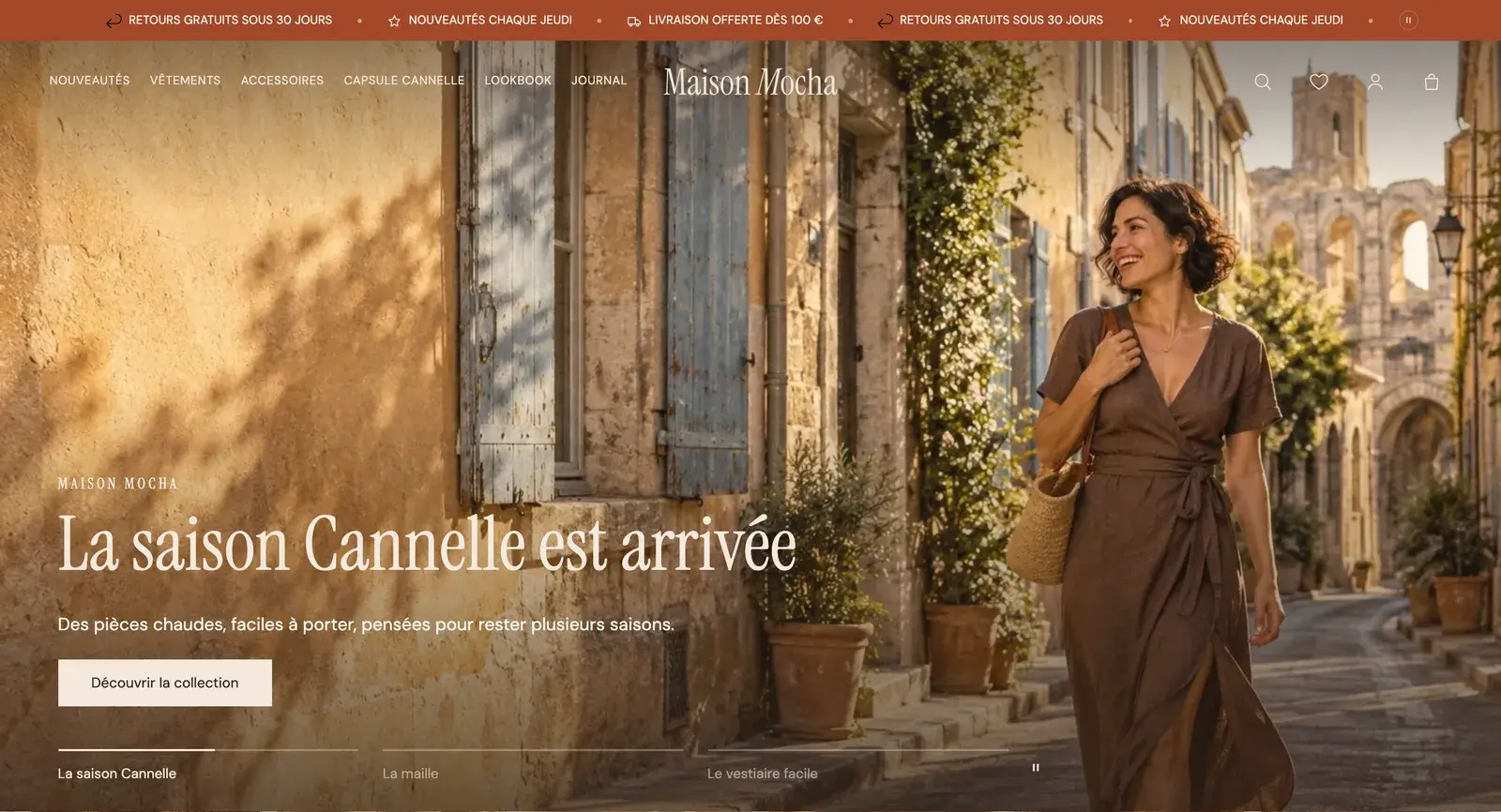
Slides with rounded corners, with the edge of the neighboring slides visible (Preview of the next slides) and a Slide transition. Below the images, the pagination shows each slide's title: visitors see right away what's coming.
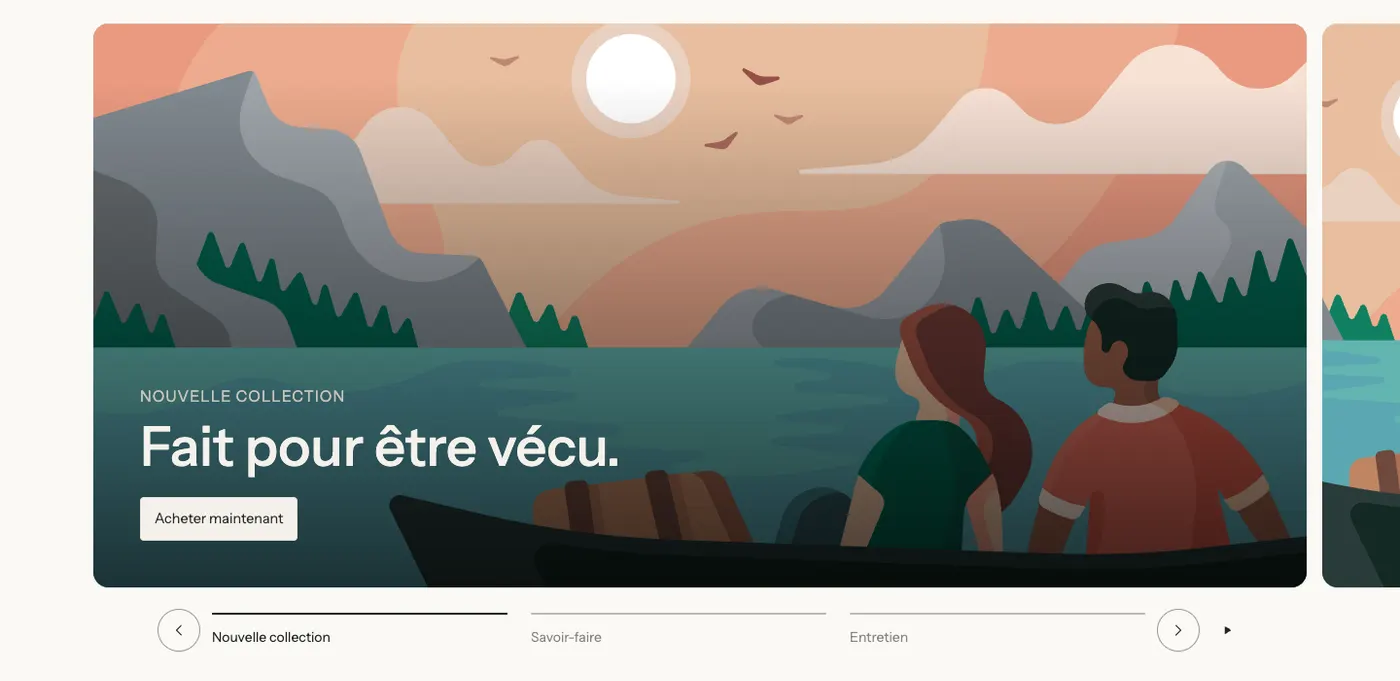
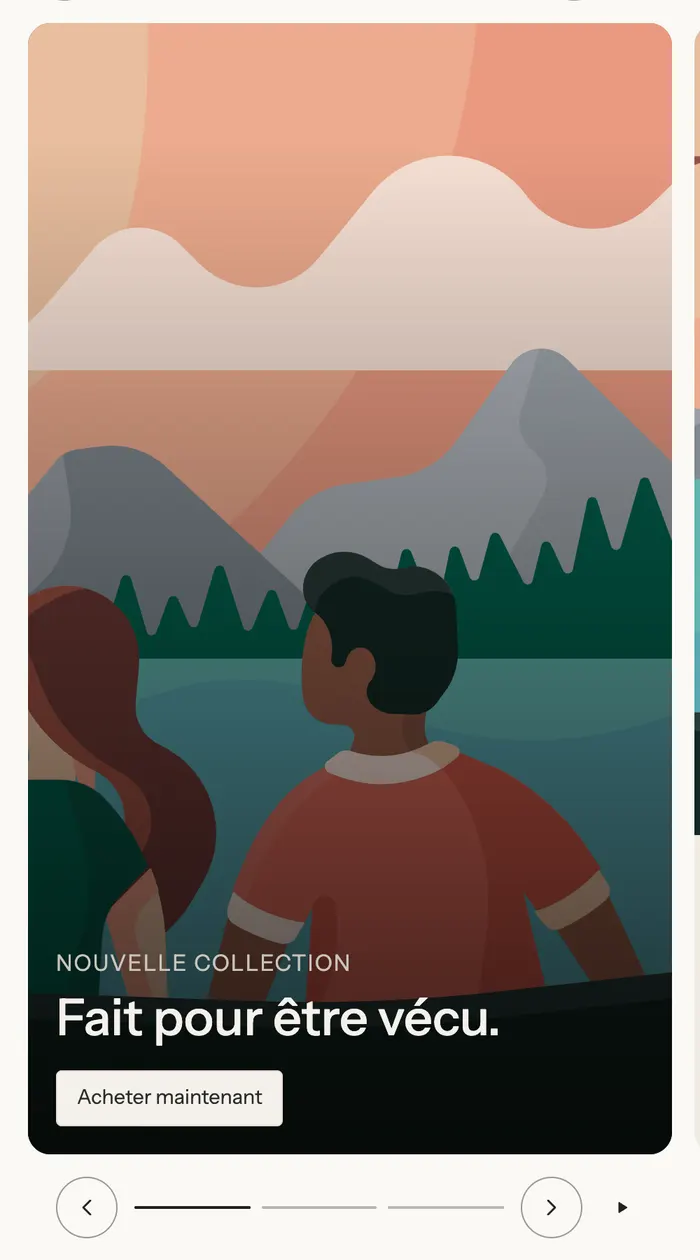
The Maison Mocha demo uses title pagination on a full-screen slideshow:
Add the section
- In Online Store > Themes, click Edit theme and open the page you want.
- Click Add section, open the Banners category and choose Slideshow or Slideshow with previews.
- Expand the section: each Slide shows up as a block. Click one to choose its image and edit its texts.
- Add a Slide block to create a new one (12 maximum), or drag slides to change their order.
The Slide block
Each slide is a complete banner. It in turn holds Heading, Text and button Group blocks, and accepts every theme block.
- "Slide": Title in the pagination (shown by the Slide titles pagination) and Time on this slide (0 uses the slideshow setting).
- "Media" and "Media on mobile": Media type (Image, Video, YouTube or Vimeo, None), Image, Video, Media effect, and a mobile-specific media.
- "Overlay": None, Solid, Gradient, Custom, color and Opacity.
- "Layout": Content over the media or Media beside the content, Layout on mobile, alignments, Content max width.
- "Content background": None, Solid, Translucent or Frosted glass.
- The slide's Color palette and Link (the whole slide becomes clickable).
Section settings
"Slideshow"
- Transition style: Fade (default), Zoom, Curtain, Parallax or Slide, and Transition speed.
- Auto-rotate slides (checked by default), Change slides every (6 s by default), Pause on hover (desktop), Loop.
- With Slide: Preview of the next slides, Preview on mobile and Spacing.
"Controls"
- Arrows: None, On the sides or With the pagination; Navigation style (Circle, Square, Outline, Blur); Only on hover (desktop).
- Pagination style: None, Dots, Progress bars, Numbers, Counter or Slide titles.
- Controls position: Bottom left, Bottom center, Bottom right or Below the slides.
"Size" and "Animations"
The same as the banner: Height and Height on mobile (from Fit the content to Full screen), Space around the content, Corner radius, Content animation and Delay between elements.
The slideshow has the simplified banner frame: a section Color palette and Separators. See Understand the theme editor.
Tips and pitfalls
- Three slides are enough. Many visitors only see the first one: put your main message there.
- Allow at least 5 to 6 seconds per slide so the text has time to be read.
- Each image is a large image to load: compress them (see Optimage) and avoid several videos in the same slideshow.
- Fill in each slide's Title in the pagination if you use Slide titles, otherwise the pagination stays empty.
- For a single strong message, the Banner section is simpler and faster.
Learn more
- Banner section
- Hero banner and video: the step-by-step guide
- Build your home page
- Header section (transparent header over the slideshow)
- Animations and effects