Offer quantity discounts and bundles
Show 1, 2 or 3-item offers, "buy X get Y" deals and packs with the Offers block, then create the Shopify discount that actually charges them.
The Story Theme Offers block shows selectable cards on the product page: "1 bottle", "The duo, -10%", "Buy 2 + 1 free"… The customer picks a card, the quantity and price update, and the buy button adds the offer to the cart. It's a simple way to increase your average order value.
Add the Offers block
- Open Online Store > Themes > Edit theme, template Products > Default product (or a template reserved for certain products).
- In the Product page section, expand the Group and click Add block.
- In the Offers category, choose the Offers block in one of its three versions:
- Quantity breaks: 1, 2, 3 items with an increasing percentage;
- Buy X get Y: free items;
- Packs: packs sold as variants (a "1 jar", "Pack of 3"… option).
- Drag the block just above Buy buttons.
- Click Save.
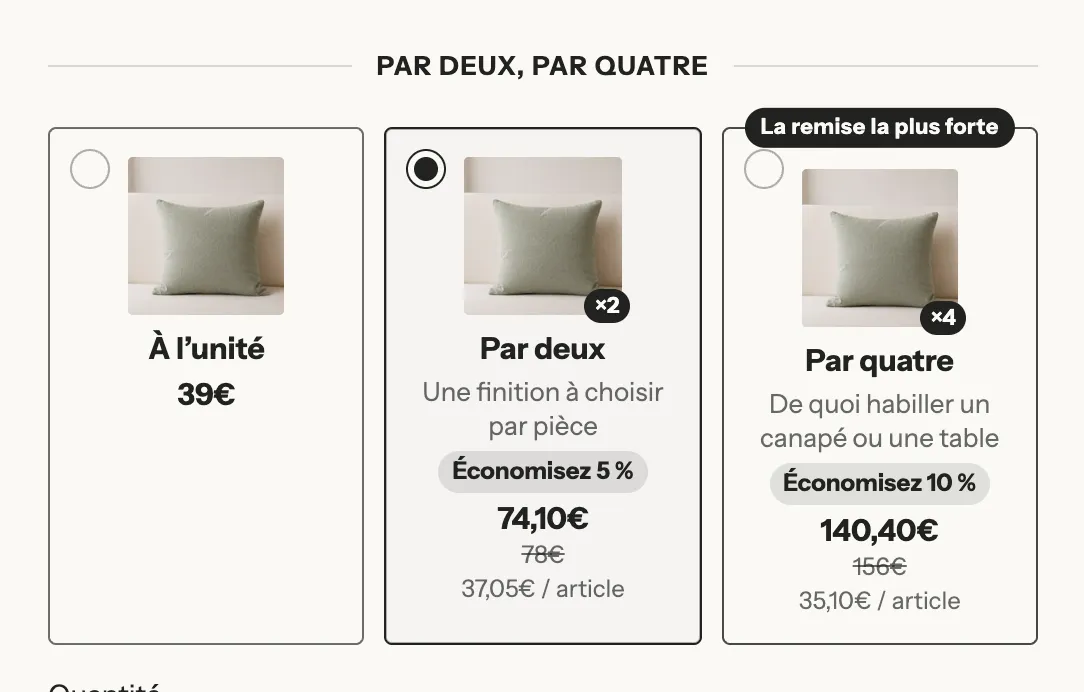
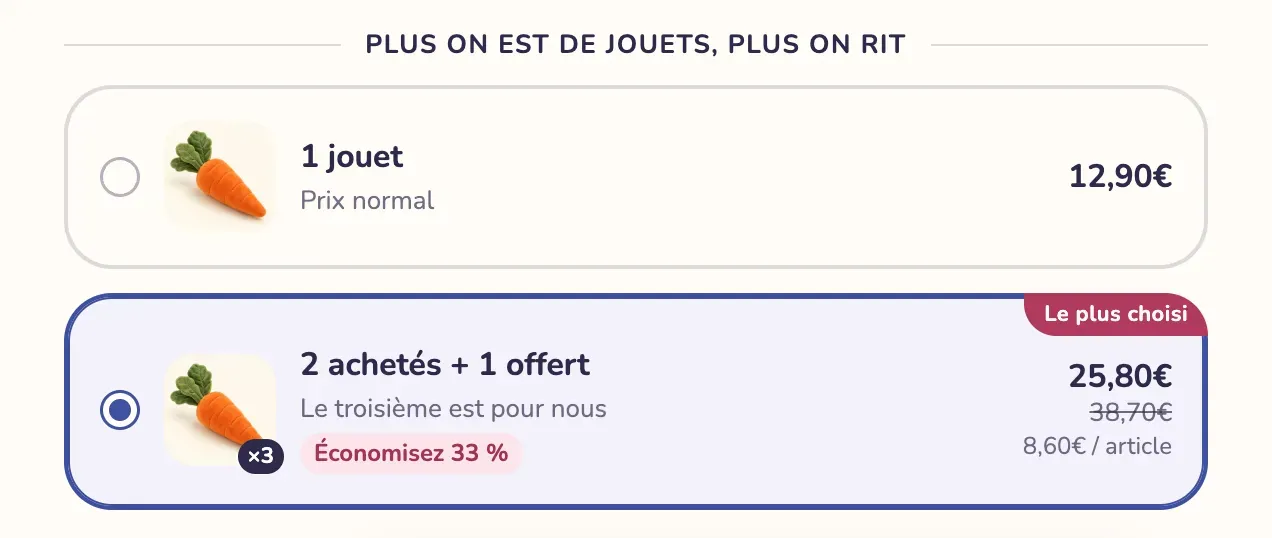
The same offer can look completely different depending on the Layout and the card style. On the Havn demo store, three cards in a grid with the product photo and a badge on the best deal:
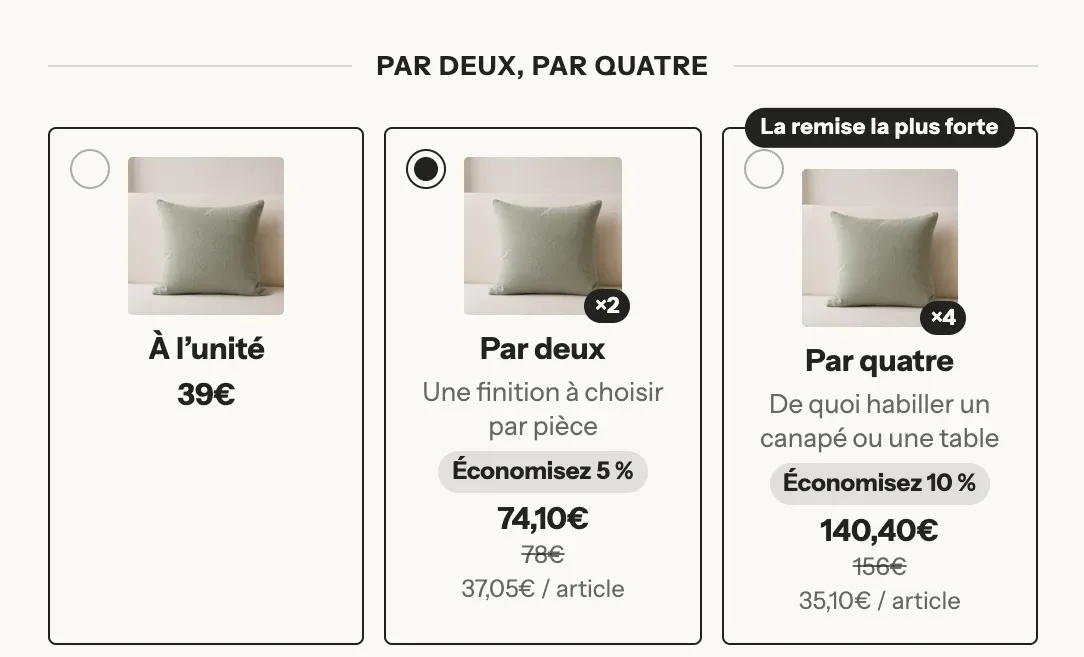
On mobile, a grid can switch to a list to stay easy to read:
The theme also includes ready-to-use product templates that already contain this block: offers-quantity, offers-bogo, offers-packs, offers-bundle and offers-minimal.
Set up each offer
Each card is an Offer sub-block. Click it to set it up:
- Title and Subtitle: the text on the card. The title accepts variables that are replaced automatically:
[quantity](quantity),[free](free items),[price],[compare_price],[unit_price](price per item),[savings](amount saved),[percent](percentage saved). - Badge: a label such as "Most popular".
- Highlight this offer and Selected by default: for the offer you recommend.
- Quantity: the number of items in the offer (1 to 20).
- Discount: None, Percentage, Amount off each item, Amount off the offer or Price of the offer, with its Value.
- Free items: for a "buy X get Y", the number of free items added to the quantity, and Discount on free items (100% = free).
- Linked option value: to sell an existing "pack" variant (for example
Pack of 3) instead of multiplying the quantity. - Products (Products included group): other products added with the offer, to build a bundle of different products.
- Gift products (Gifts group): a gift added under the product's line item, and removed with it.
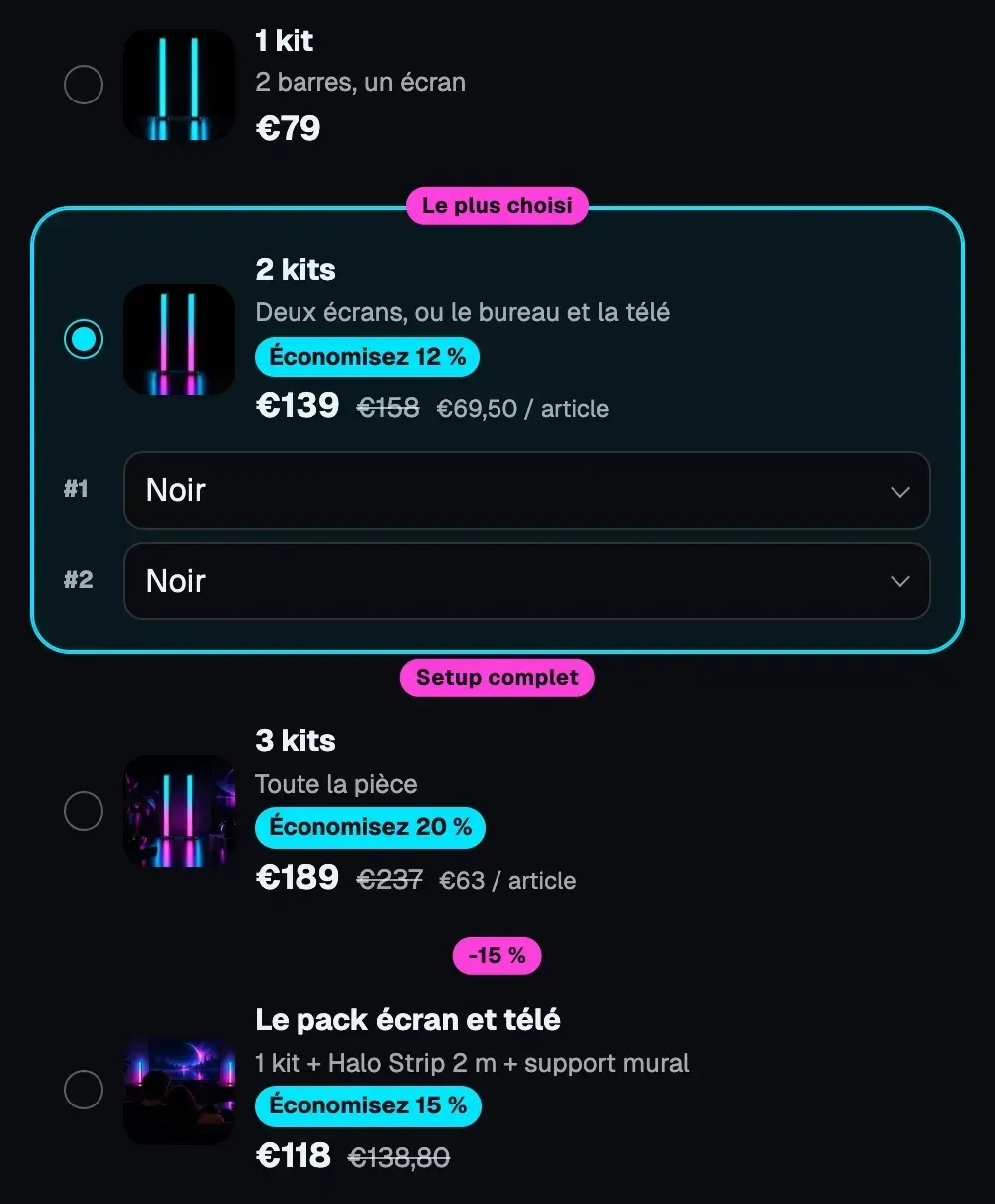
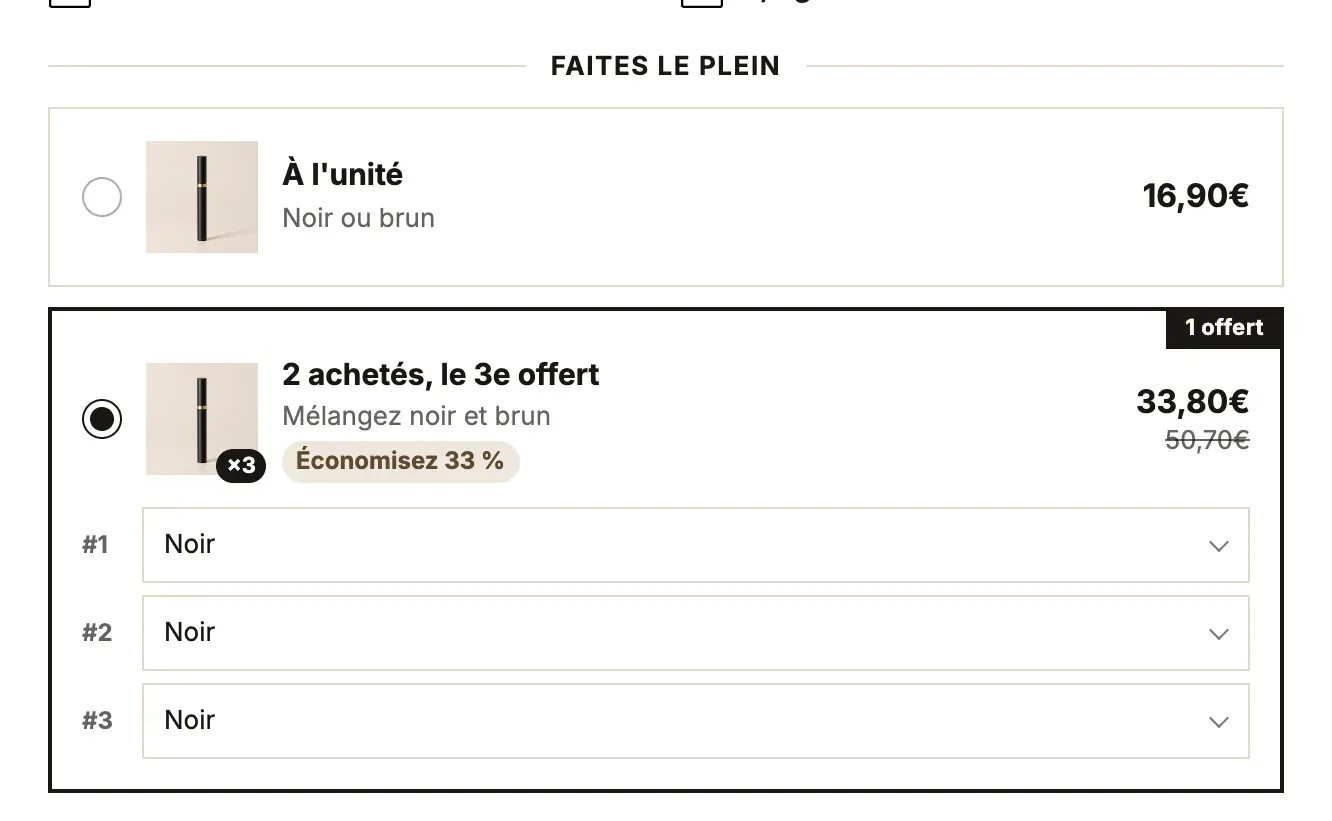
With Show variant selector, the customer chooses the variant of each item in the offer:
Offers can also build bundles of different products, each with its own image, a badge and the compare-at price:
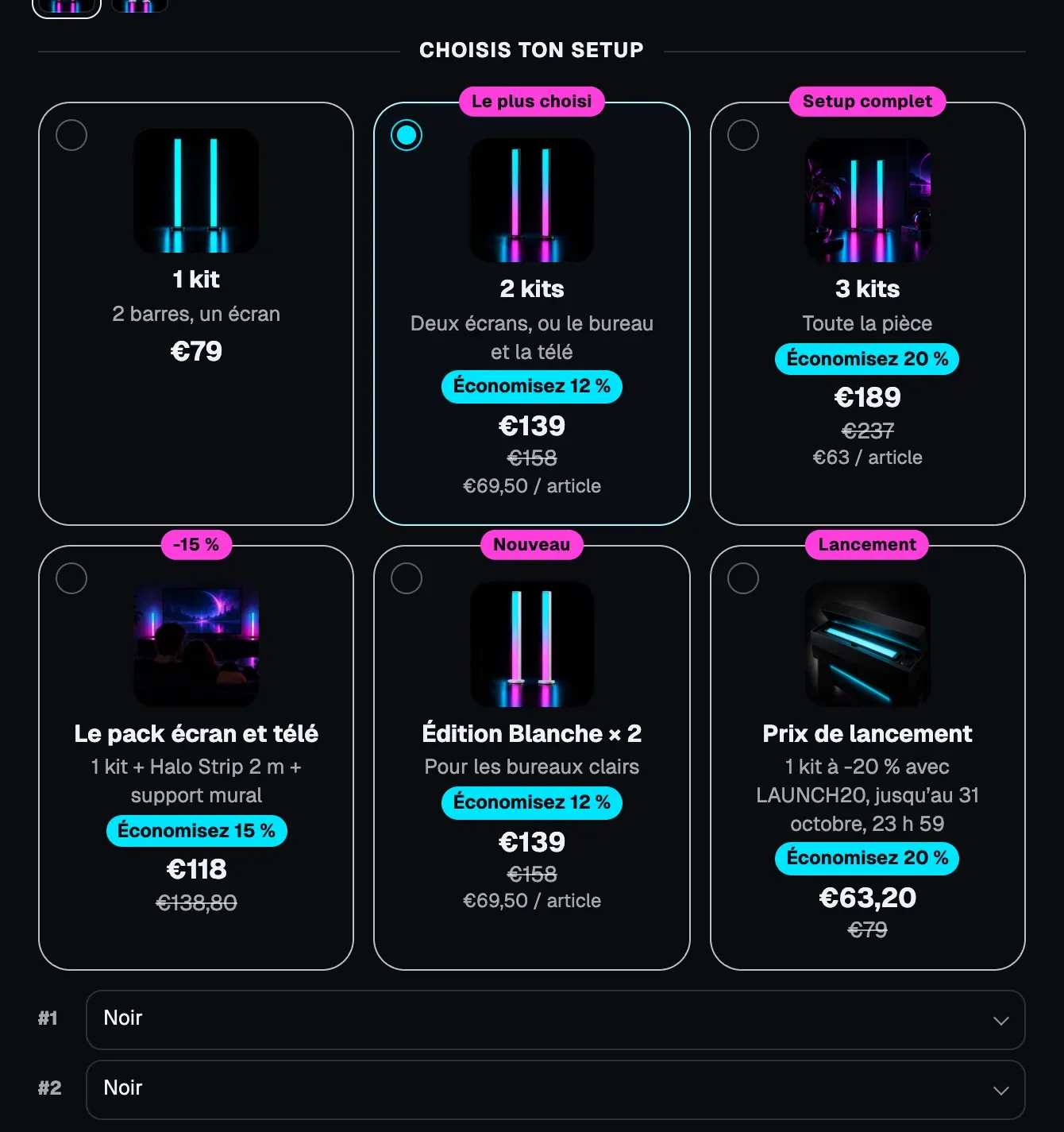
The settings of the Offers block itself control the presentation: Layout (List, Grid, Carousel, Compact), card Style, Show compare-at price, Savings (Percentage or Amount), Show the price per item. Under Behavior, Sync the quantity selector makes the quantity follow the chosen offer.
Create the matching discount in Shopify
This is the step that actually makes customers pay the right price. Let's take an offer with two tiers: 10% off from 2 items and 20% off from 3 items.
Quantity breaks: one discount per tier
- In your Shopify admin, open Discounts, then click Create discount.
- Choose Amount off products.
- Under Method, choose Automatic discount and give it a title your customers will see, for example "Duo -10%".
- In Discount value, choose Percentage and enter
10. - In Applies to, select the product concerned.
- Under Minimum purchase requirements, choose Minimum quantity of items and enter
2. - Click Save.
- Repeat for the next tier: 20%, minimum quantity
3.
The values must be identical to those of the offers: same percentage, same quantity, same product. If you change the offer in the theme, change the discount too.
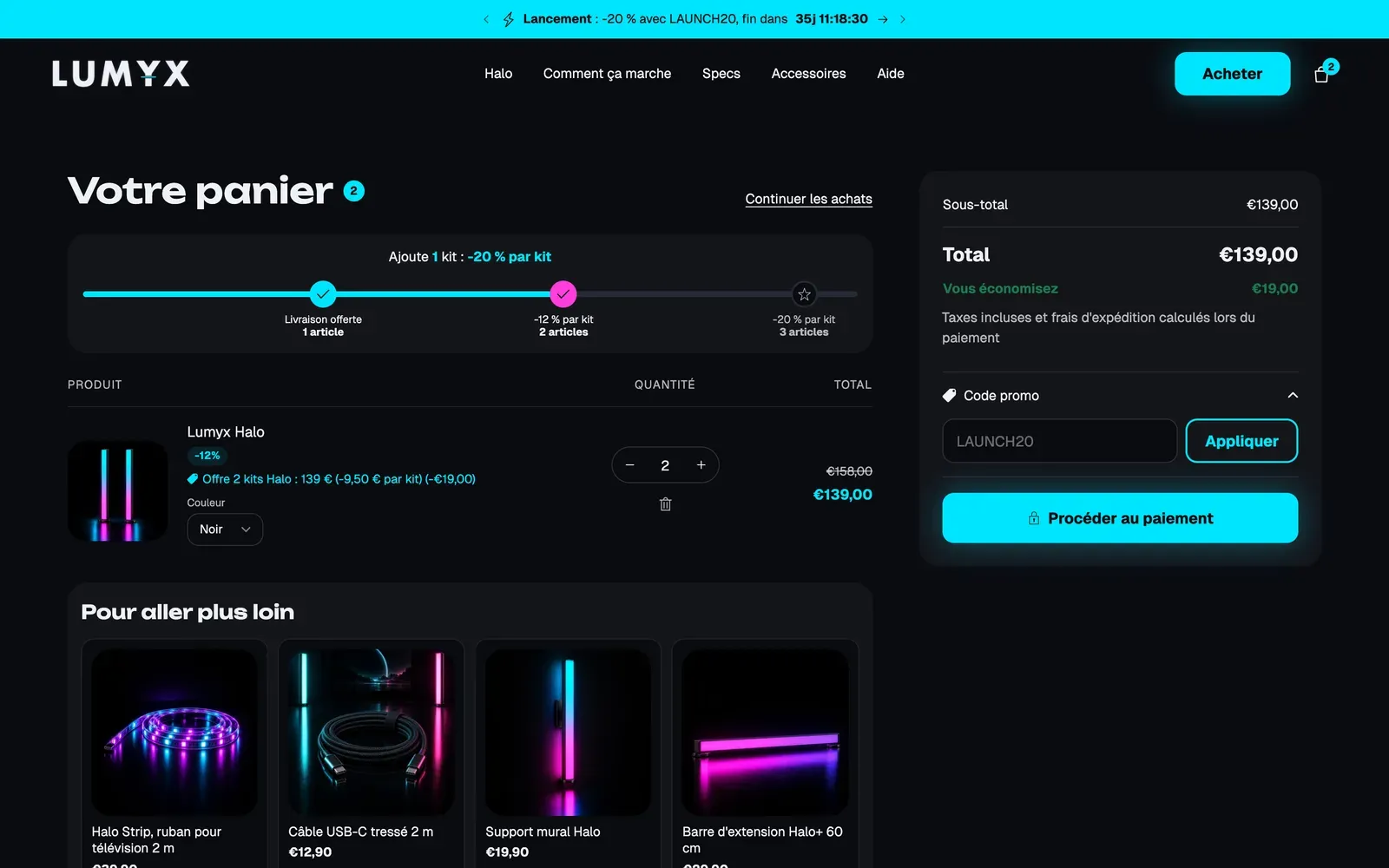
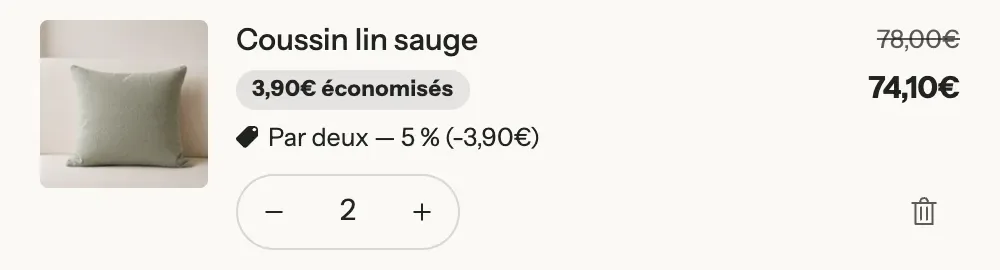
Once the discount is in place, the cart shows its title under the item, along with the discounted price:
Free items and gifts: "Buy X get Y"
For "Buy 2 + 1 free" or a gift added with the offer, create a Buy X get Y automatic discount: the customer buys 2 items of the product and gets 1 item (the same product, or the gift product) at 100% off.
Packs sold as variants
If the offer uses a Linked option value (a "Pack of 3" variant with its own price in Shopify), the customer pays the price of that variant: that's the price to set on the product in Shopify.
Instead of an automatic discount, you can also enter a Discount code in the offer (Discount at checkout group): it's applied to the cart when the offer is added. Leave this field empty if an automatic discount handles it.
Test before publishing
- On your store, choose each offer and add it to the cart.
- Check in the cart, then on the checkout page, that the total matches the price shown on the card.
- If the total is higher, the Shopify discount is missing or doesn't match the offer.