
Show customer reviews and star ratings
Show your review app's rating under the product title, a rating summary, the list of reviews and testimonials with Story Theme.
Reviews are often what wins over a hesitant customer. Story Theme shows the average rating and the number of reviews under the product title, a detailed rating summary, and nicely formatted testimonials. Collecting the reviews, on the other hand, is the job of a review app.
The rating under the product title
The Product rating block is already included on the product page that ships with the theme, above the title.
- Open Online Store > Themes > Edit theme, template Products > Default product.
- In the Product page section, expand the Group and click Product rating.
- Leave Source on Product: the block shows the rating saved by your review app.
- Choose the Style: Score only, Score and stars or Stars (default).
- Adjust the Text beside the rating if needed.
[count]shows the number of reviews; if left empty, the text is "Based on [count] reviews". - Click Save.
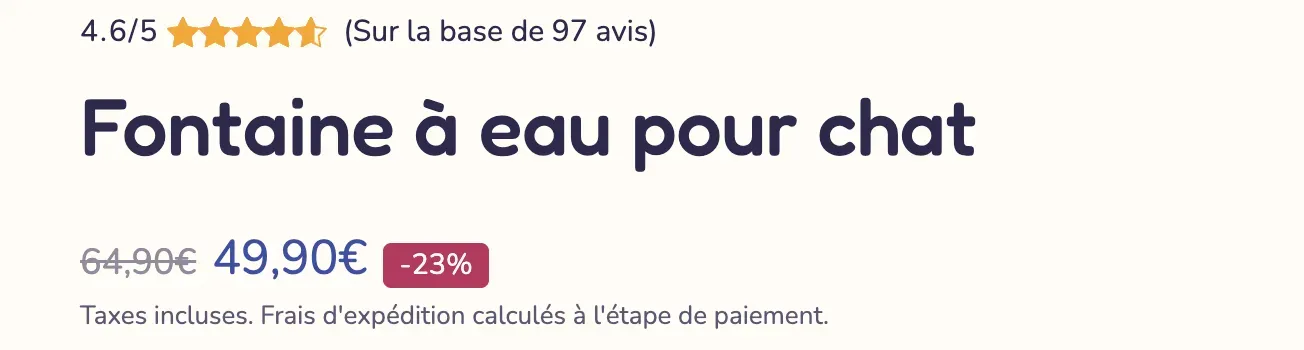
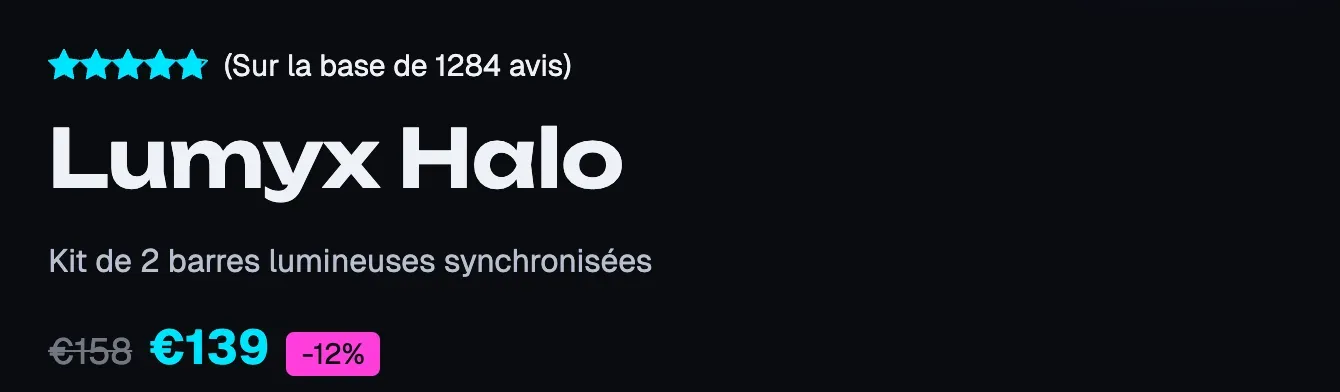
A product with no reviews yet shows nothing on the store. In the editor, the block shows a sample so you can adjust its appearance.
The rating can also appear on product cards in collections: in a product list, add the Rating sub-block to the Product Card.
The list of reviews
The theme doesn't display the detailed list of reviews itself: your app's widget handles that, with photos, sorting and the form for leaving a review.
- In the editor, on the Products > Default product template, click Add section below the product page (or Add block inside a section).
- In the apps tab or category, choose your review app's block (its name varies from app to app).
- Place it below the product page or next to the FAQ, then click Save.
A rating summary
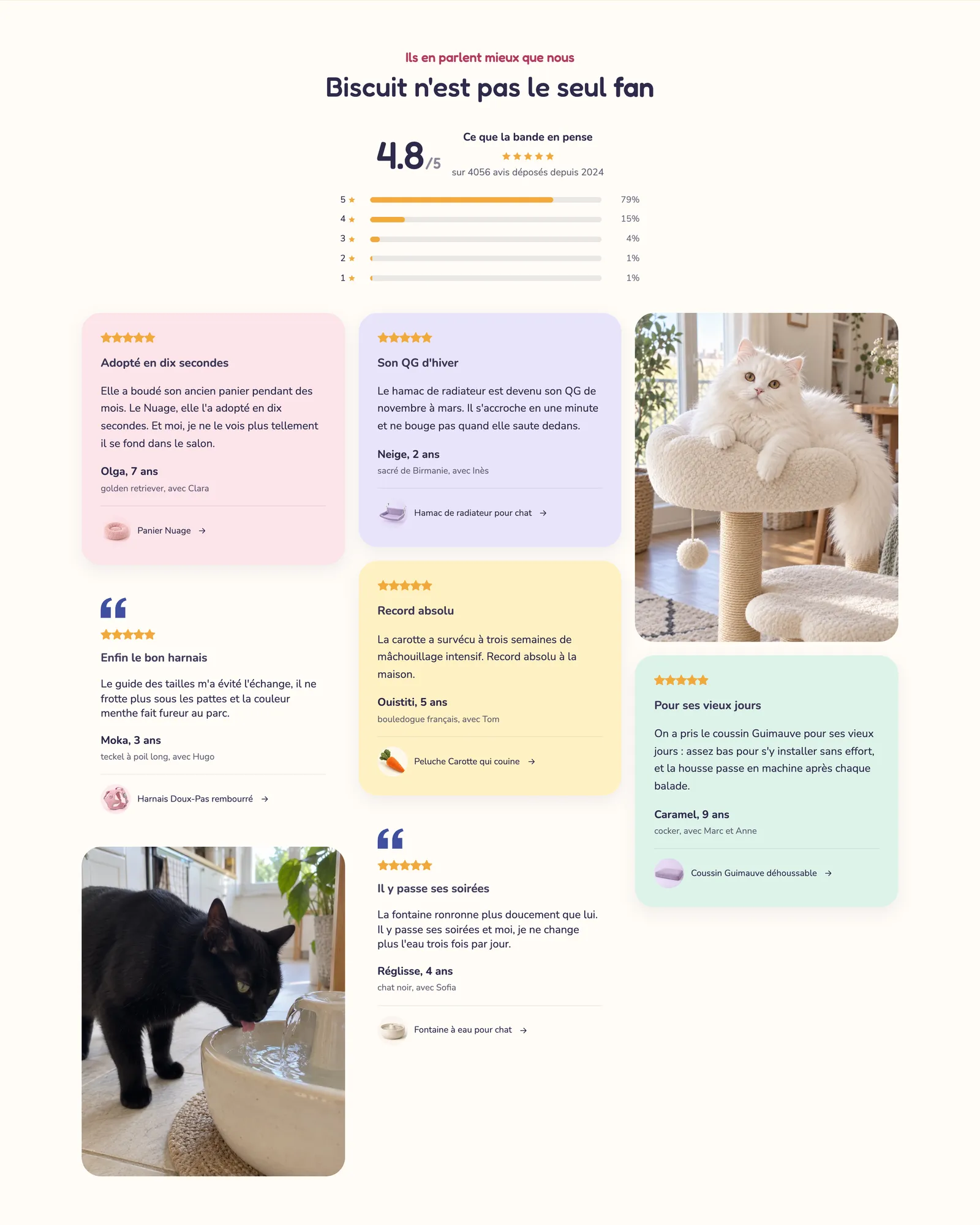
The Rating summary block shows the average rating, the number of reviews and the breakdown by stars. You'll find it in the Reviews section (Reviews and trust category), Rating banner version, or as a block in any section.
- Source: Product reads the rating from your review app; Custom lets you enter the score (Rating), the Number of reviews and the Distribution as percentages from 5 to 1 star (for example
82, 12, 4, 1, 1). With Custom, use the real figures from your app. - Layout: Stacked or Row.
- Button text and Link: to send visitors to the page with all your reviews.


On the Softy demo store, a rating summary opens a reviews section, followed by a mosaic of testimonials with photos:
Nicely formatted testimonials
The Testimonials section (Reviews and trust category) highlights a few selected reviews: as a carousel, a grid, a mosaic with photos, or a single testimonial with an image. Each Testimonial contains stars, the text, the author (photo, name, a mention such as "Verified buyer") and the product purchased.
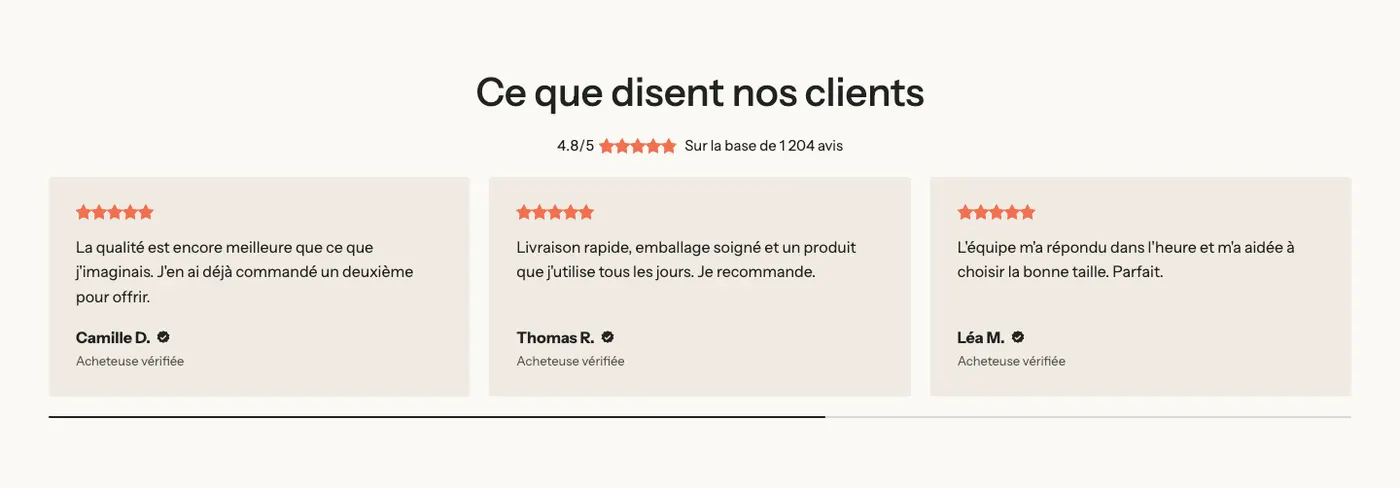
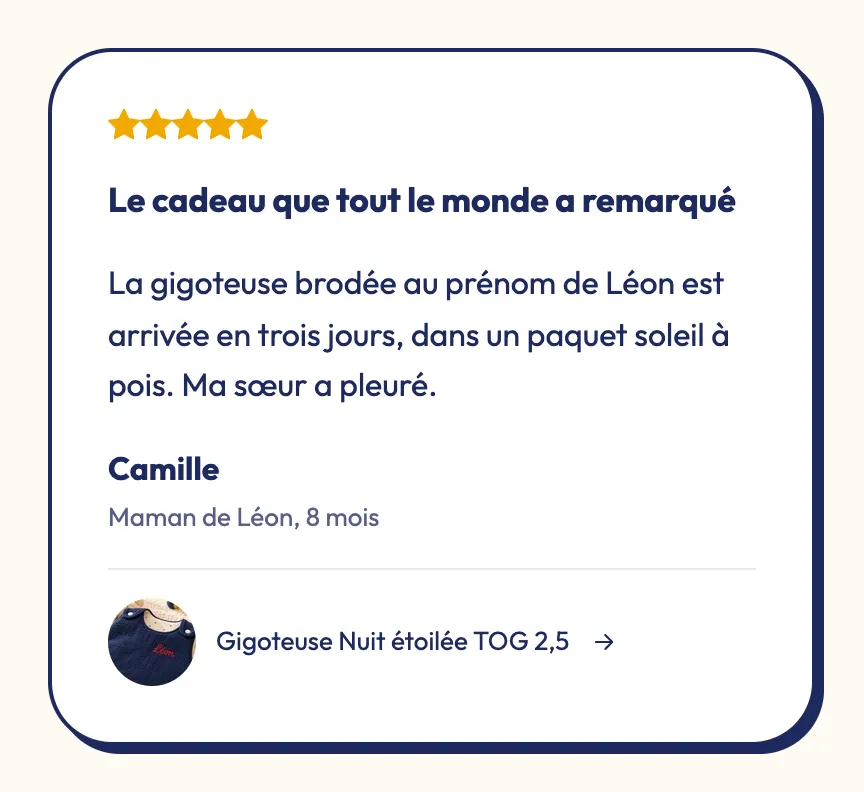
Testimonials can also go below the product page:
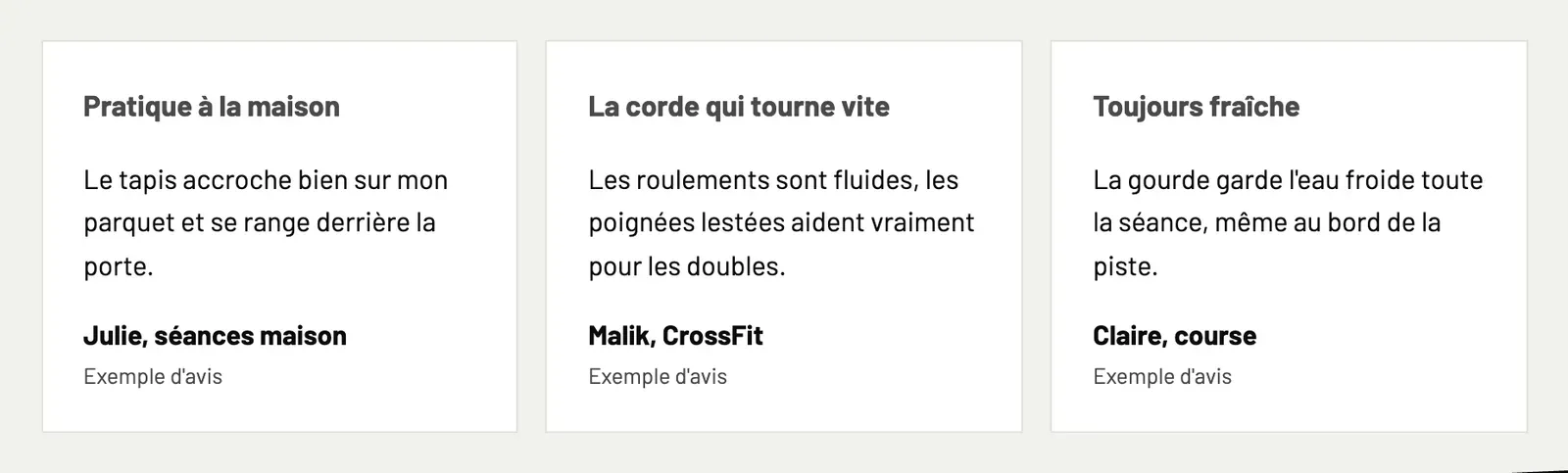
These testimonials are entered by hand: copy real reviews left by your customers, without rewriting them.
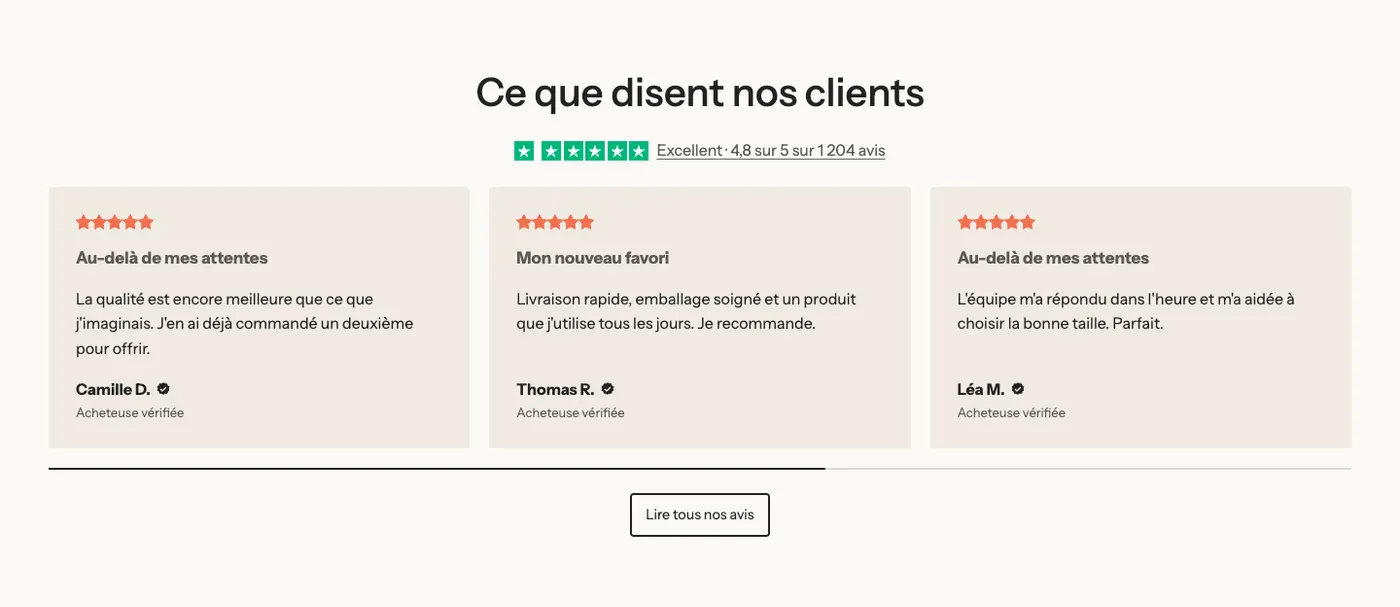
If you have a Trustpilot account, the Reviews section also offers a Trustpilot reviews version, with your rating and, optionally, the official TrustBox widget (Load the TrustBox widget setting, with the IDs provided by Trustpilot).
Star color
The theme's stars use the star color defined in the Color palette (Theme settings > Colors), coral orange by default. The Stars (typed score) block also has a Stars color setting for a one-off exception; leave it empty to follow the palette.
So the color changes from one store to another: coral orange on the Softy demo store (above), turquoise on the Lumyx demo store, golden yellow on the Hopla demo store.

Stars in Google results
Most review apps already add the rating information that Google can show in its results. If yours doesn't, click the Product page section and check Add the rating to search results. Don't turn it on if your app already does this: Google would see the rating twice.
Frequently asked questions
The rating doesn't show even though the product has reviews
Check that the block's Source is set to Product, then that your app syncs the rating to Shopify (an option to turn on in the app). If the rating appears in the Shopify admin but not on the store, make sure you're using the latest version of the theme (see Update the theme), then contact support with the product link.
Can I import my reviews from another store?
Importing happens in your review app, not in the theme. Most apps offer a file import.
Learn more
- Trust badges, tabs and accordions
- Structure a product page that converts
- Optimize your pages' SEO
- The Reviews section and the Testimonials section
- Reviews and trust blocks (Testimonial, Rating summary, Trustpilot)