
FAQ section: collapsible questions, contact and topic tabs
Answer your customers' questions with accordions, a contact box or tabs by topic, marked up for Google results.
The FAQ section shows your frequently asked questions as accordions: the customer clicks a question and the answer expands. Place it on a dedicated FAQ page, below a product page or at the bottom of a landing page, wherever hesitation shows up. It also adds the questions to the structured data Google reads.
The variants (presets)
The three variants are in the Text category of the picker.
FAQ
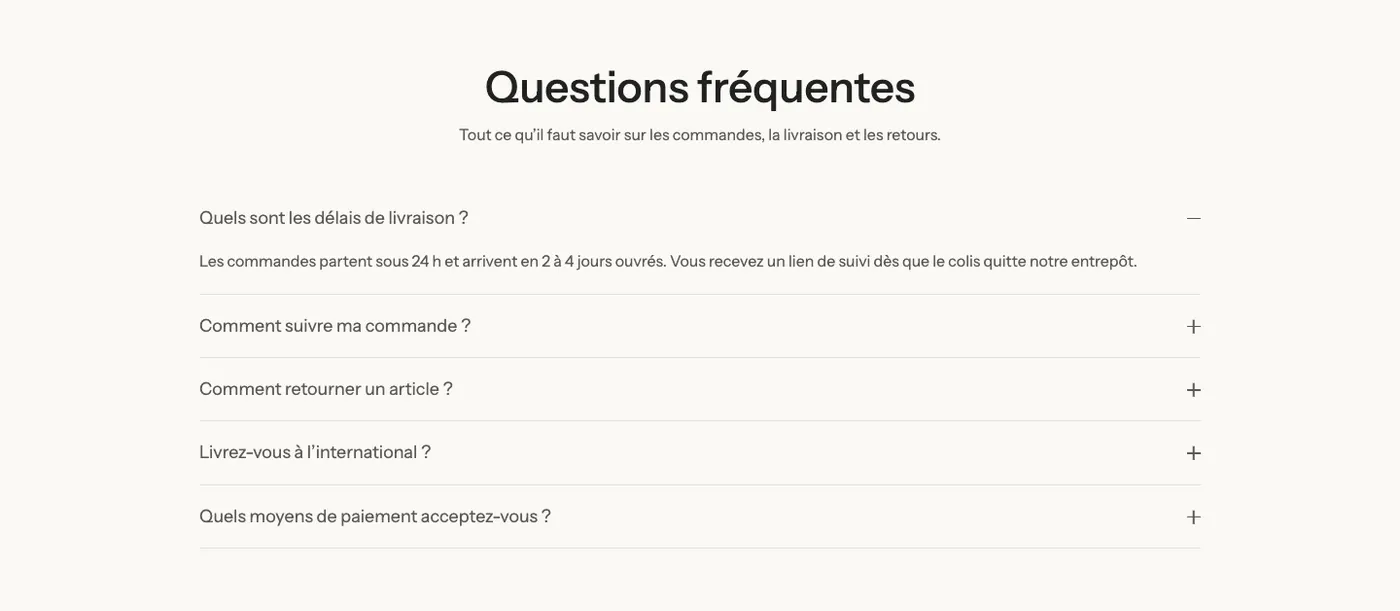
A centered heading and intro sentence, then five questions in the minimal style (a line under each question). The most understated variant, for a product page or a home page.
FAQ with contact
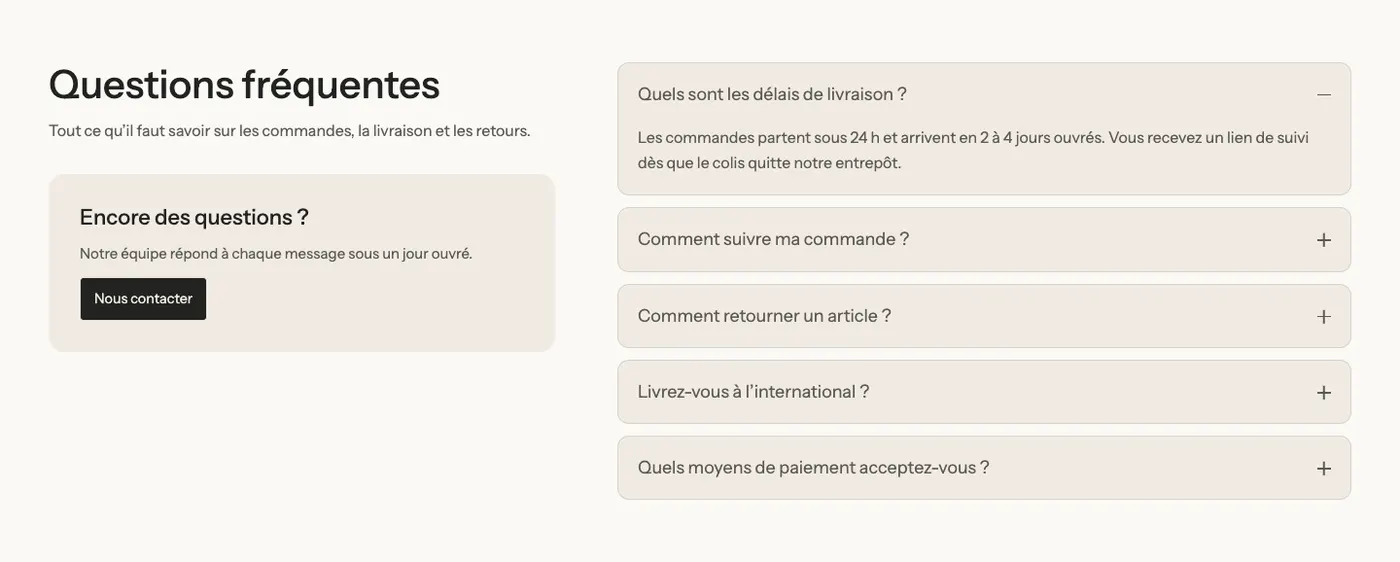
Two columns: on the left the heading and a "Still have questions?" box with a button to your contact page; on the right the questions in card style. A customer who can't find their answer knows right away where to write.
FAQ by topic
A heading, then a Tabs block: one tab per topic (orders, shipping, returns), each with its own questions. For a complete FAQ page without an endless list.
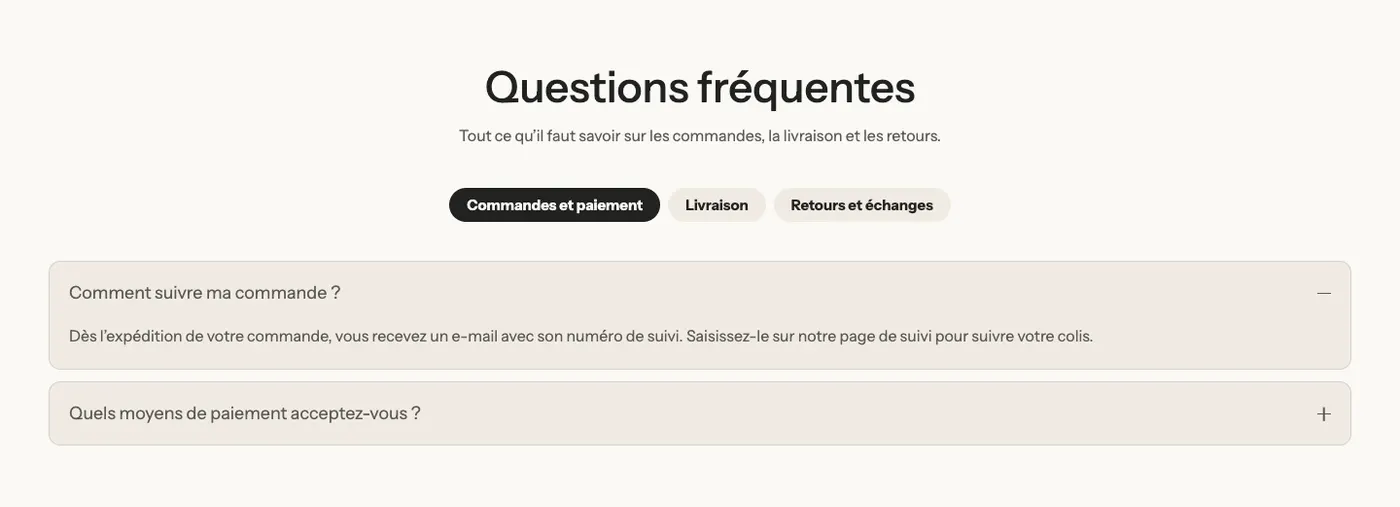
On mobile, the tabs scroll sideways:
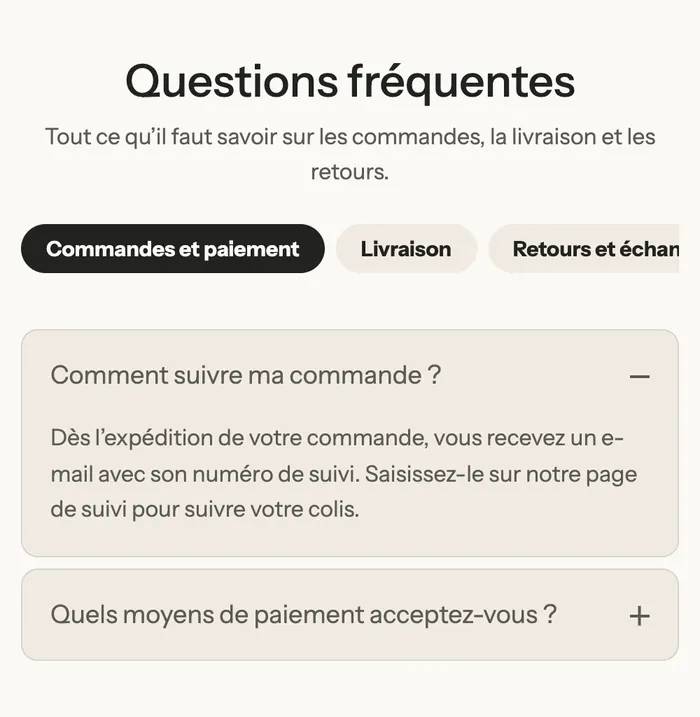
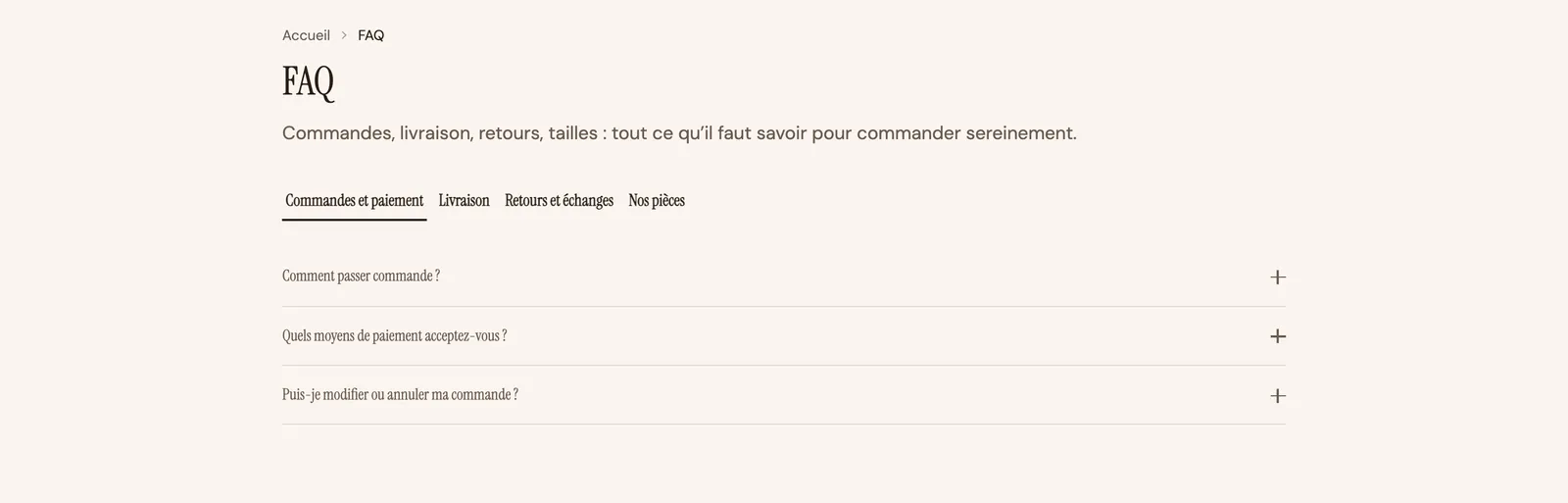
The Maison Mocha demo (at the top of this article) uses this variant with Underline style tabs and minimal-style questions: the same content, with a more editorial look.
Add the section
- In your Shopify admin, open Online Store > Themes and click Edit theme.
- Pick the template in the top menu (a page, Products > Default product…).
- Click Add section, open the Text category and choose FAQ, FAQ with contact or FAQ by topic.
- Click each Accordion / FAQ to write the question in Heading and the answer in Content.
- Click Save.
The section's blocks
| Block | What it's for |
|---|---|
| Accordion / FAQ | A question and its answer. |
| Tabs and Tab | The topics of the FAQ by topic variant. Each tab holds its accordions. |
| Group | A column (heading, contact box, list of questions). |
| Heading, Text, Button | The introduction and the contact box. |
The Accordion / FAQ block
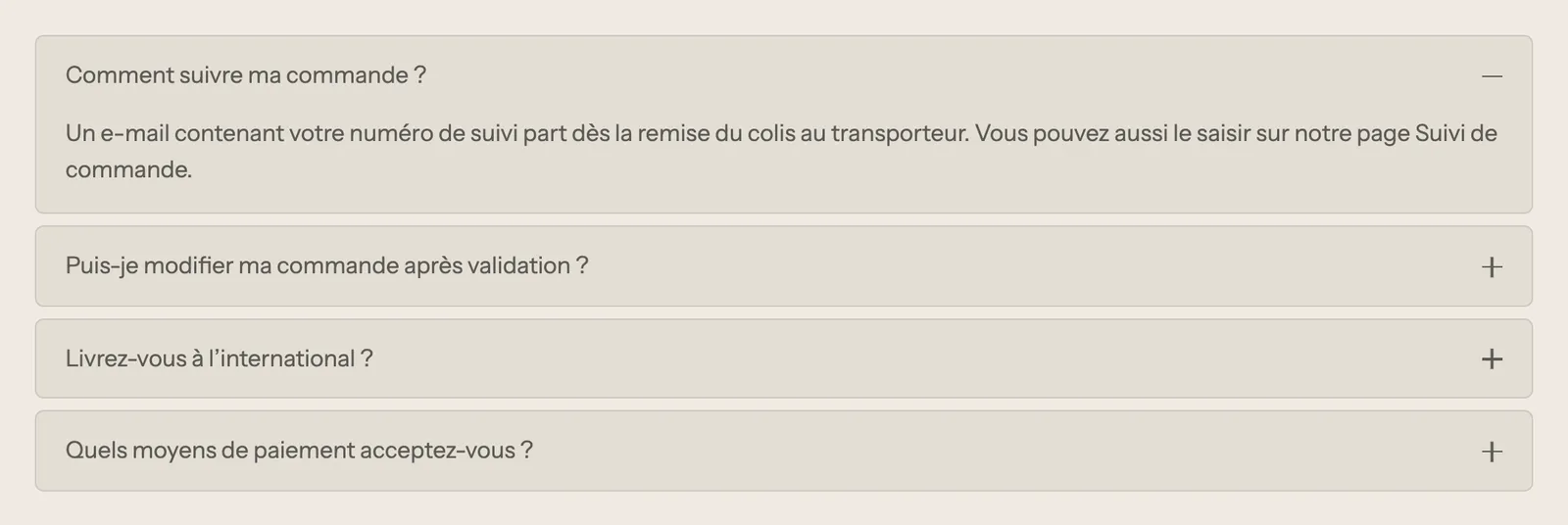
- Style: Minimal (bottom line) (default), Card (background and border) or Filled (background only).
- Open / close icon: Plus / minus, Chevron or None.
- Question size (17 px by default) and inner padding.
- Heading (the question) and Content (the answer, in rich text with links).
- Page: adds the content of a Shopify page below the answer. Handy to reuse your return policy without copying it.
- Open by default: the question is expanded when the page loads.
- Close other accordions when this one opens (checked by default): opening a question closes the others.
- Include in the FAQ structured data (checked by default).
- Icon: a pictogram in front of the question, or a Custom icon.
The Tabs block
- Tabs style: Pills (default), Underline or Minimal.
- Alignment and Tab position on desktop (Top or Left).
- Uppercase labels, Label size, Bold, and the colors of active and inactive tabs.
The section settings
- Mark up the questions for search engines (checked by default): adds FAQ structured data to the section's accordions, so Google can understand your questions and answers.
- The common frame: Layout, Color palette, Separators, Animations, explained in Understand the theme editor.
Tips and pitfalls
- Keep Mark up the questions for search engines on for only one FAQ section per page. On the bundled FAQ page, which has two, it's only checked on the first one: keep it that way if you add questions.
- If you check Open by default on several questions that also have Close other accordions when this one opens, the browser keeps only one open (the last one). Turn it on for a single question only.
- Write the questions the way your customers ask them ("Do you ship internationally?"): these are often the words they type into Google.
- A short, precise answer beats a long text: add a link to the detailed page (shipping, returns) in the Content.
- Below a product page, three to five questions about the product (size, care, delivery time) are enough; keep general questions for the FAQ page.