
Create an FAQ page with the Story Theme
Create your frequently asked questions page from the template included with the theme, organize your questions by topic and get them to show in Google.
A good FAQ answers questions before they land in your inbox: delivery times, returns, payment, sizing. The Story Theme includes a ready-built FAQ page template, with questions organized by topic in tabs and a box inviting visitors to contact you. All that's left is to create the page in Shopify, then write your answers. For every setting of the section, see also the FAQ section.
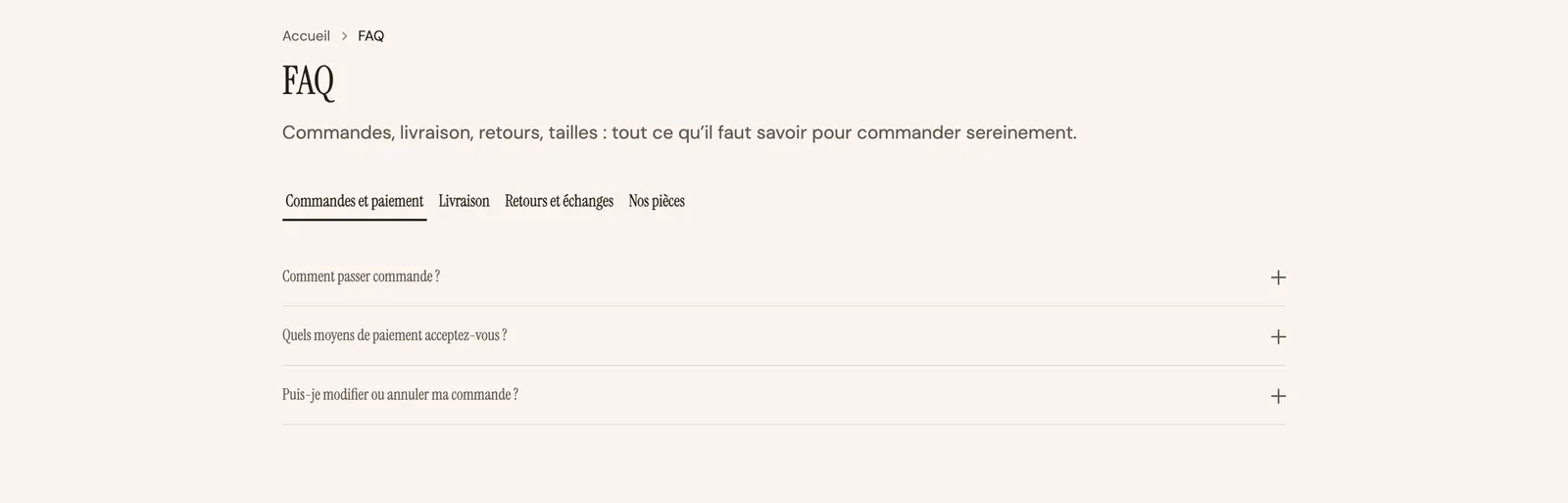
1. Create the page in Shopify
- In your Shopify admin, open Online Store > Pages, then click Add page.
- Enter the title, for example "Frequently asked questions". Leave the content empty: the questions are set in the theme editor.
- Under Theme template, on the right, choose faq.
- In Search engine listing, check that the URL handle is
faq: the page will live atyour-store.com/pages/faq. - Click Save.
To show the page in your menu, follow Create a page and add it to the menu.
2. Write your questions
- Open Online Store > Themes > Edit theme.
- In the dropdown at the top, choose Pages, then faq.
- In the left column, expand the first FAQ section. It contains:
- a Group with the Page title and an introductory Text;
- a Tabs block, with one Tab per topic (orders, shipping, returns…).
- Click a Tab and change its Tab label.
- Expand the tab: each Accordion / FAQ block is a question. Click it, then fill in Title (the question) and Content (the answer).
- To add a question, click Add block in the tab and choose Accordion / FAQ. To add a topic, click Add block in Tabs.
- Click Save.
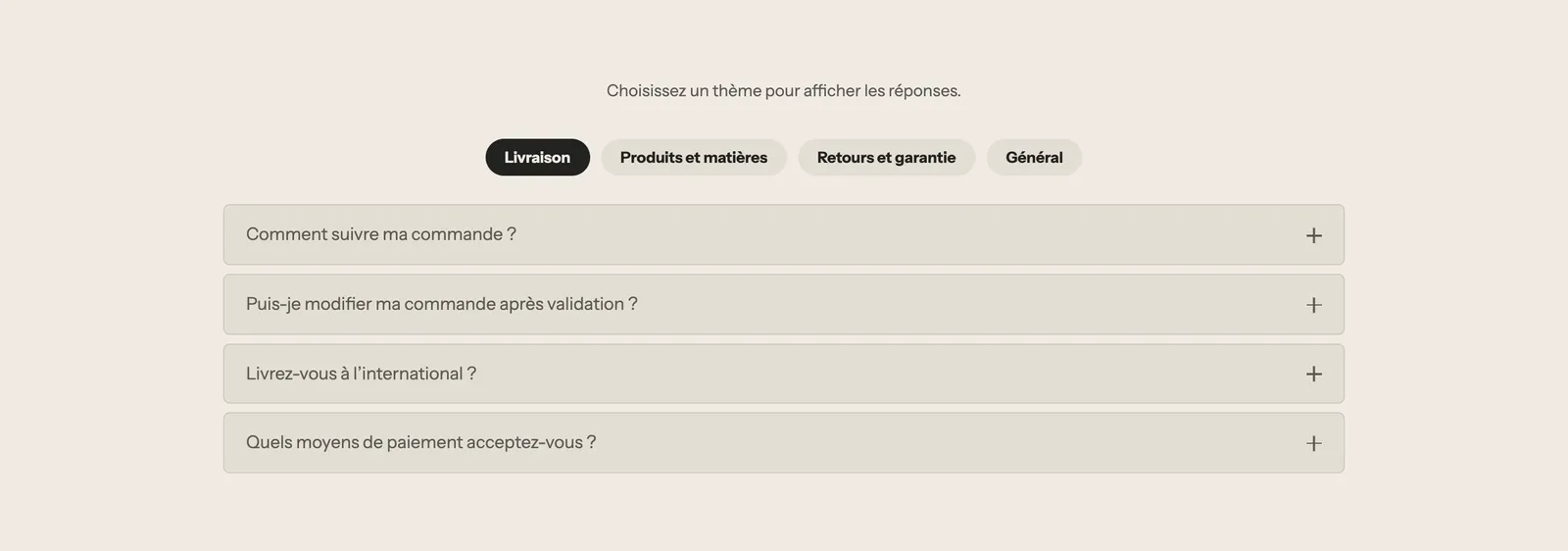
A question's settings
- Open by default: the answer is already expanded when the page loads. Keep this for a single question.
- Close other accordions when this one opens (on by default): opening a question closes the others.
- Page: adds the content of a Shopify page under the answer, for example your return policy.
- Icon: a small icon in front of the question.
To change the look of all the questions, set each accordion's Style: Minimal (bottom line), Card (background and border) or Filled (background only). Tabs are set on the Tabs block: Tabs style (Pills, Underline or Minimal) and Tab position on desktop (Top or Left). The Accordion / FAQ and Tabs blocks are covered in detail in Text blocks and Layout blocks.
3. Set up the contact box
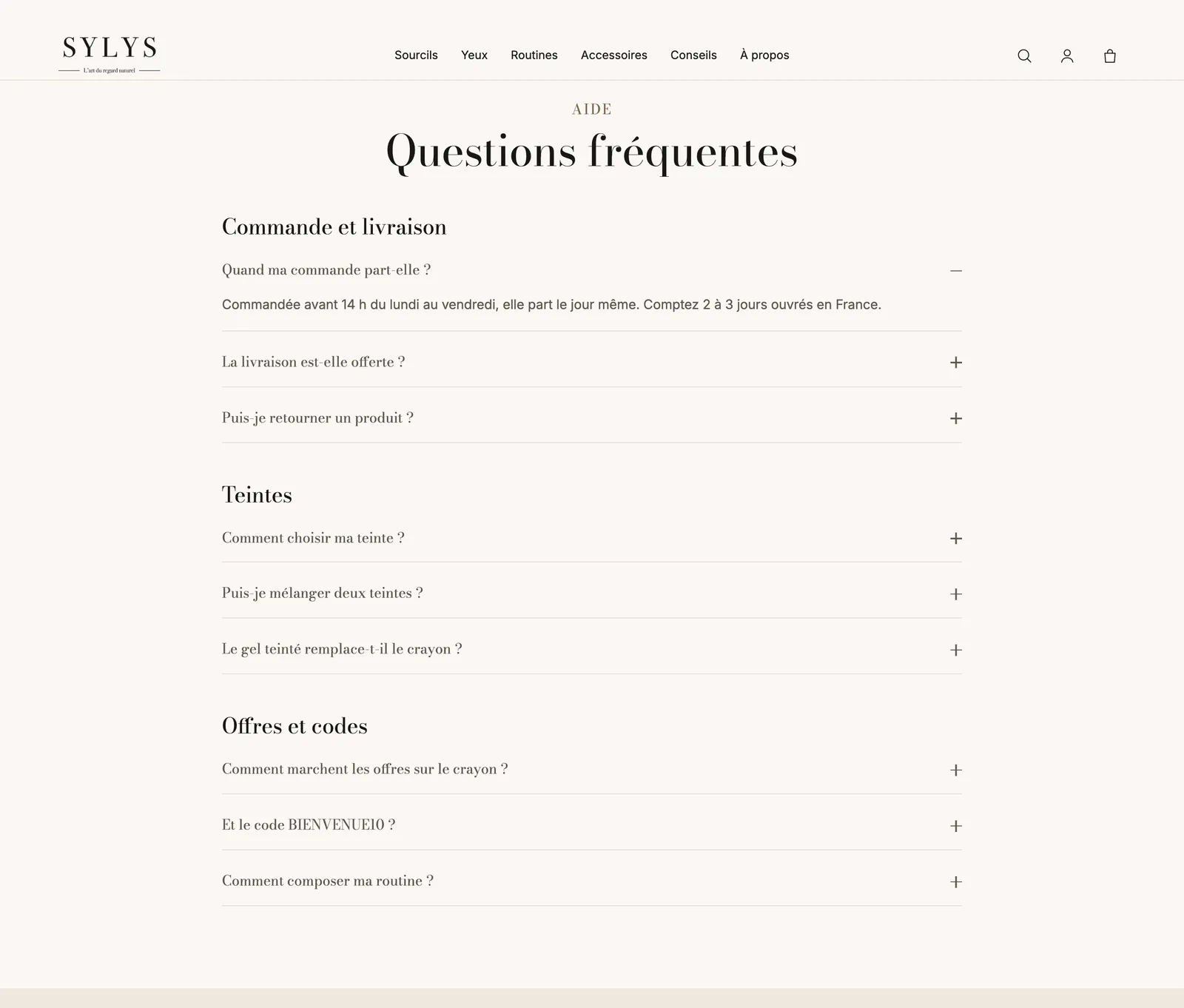
The page's second FAQ section repeats a few general questions next to an invitation to write to you: "Another question?" and a button.

- Expand the second FAQ section.
- Edit its heading, text and questions as in the previous step.
- Click the Button and check that its link goes to your contact page.
4. Show up in Google results
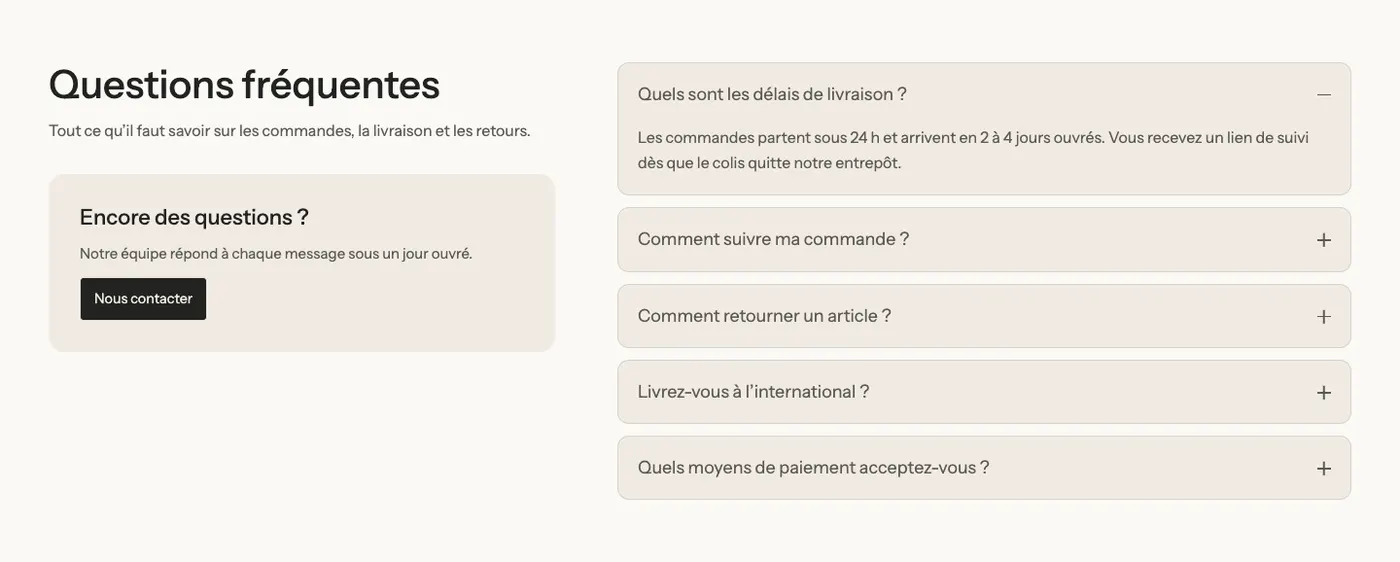
Each FAQ section has a Mark up the questions for search engines setting. It describes your questions to Google in a format it understands. On the template as delivered, it's on for the first section and off for the second: leave it that way.
Frequently asked questions
Can I put an FAQ on another page?
Yes. On any template, click Add section, Text category, and choose FAQ, FAQ with contact or FAQ by topic.
Is there a more complete help page template?
Yes, the help template: a heading, a search bar, four cards pointing to the FAQ, order tracking, returns and contact, then the most asked questions. Create a page with the help template and the help handle, the same way as in step 1.