
Create an order tracking page
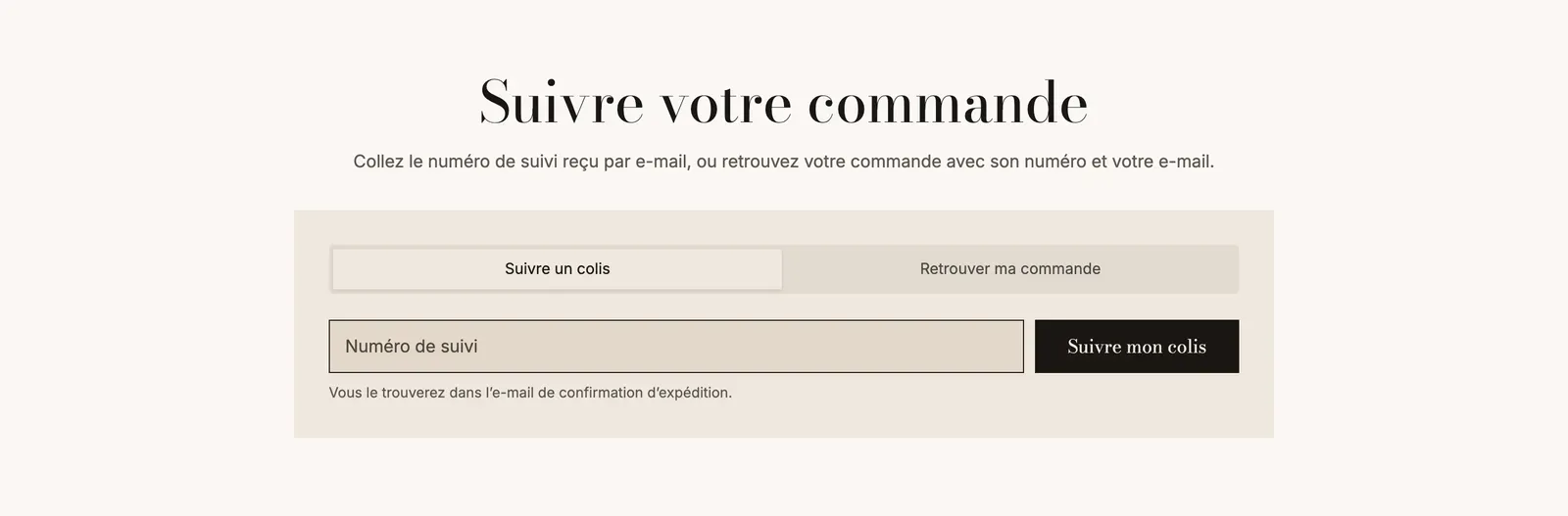
Set up the package tracking page included with the Story Theme: your customers follow their delivery on your store, with their tracking number.
"Where's my order?" is one of the most frequent customer service questions. With the Story Theme's tracking page, your customers paste their tracking number and see their package's progress without leaving your store, and without paying for a tracking app. For details on the settings, see also the Order tracking section.
1. Create the page in Shopify
- In your Shopify admin, open Online Store > Pages, then click Add page.
- Enter the title, for example "Track my order". The content can stay empty.
- Under Theme template, on the right, choose tracking.
- In Search engine listing, check that the URL handle is
tracking: the page will live atyour-store.com/pages/tracking. - Click Save, then add the page to your menu or your footer. See Create a page and add it to the menu.
2. Set up the tracking form
- Open Online Store > Themes > Edit theme, then choose Pages > tracking from the dropdown at the top.
- Expand the Order tracking section. The Group at the top contains the Page title and an introductory Text: adapt them.
- Click the Order tracking block.
Here are its settings:
| Setting | What it does |
|---|---|
| Field label, Help text, Button text | The text around the field. Left empty, they show translated default text ("You'll find it in your shipping confirmation email."). |
| Button | Next to the field or Below the field. |
| Let customers choose the carrier | Adds a list of carriers. Otherwise, the carrier is detected automatically. |
| Carriers to list | Names separated by commas, for example USPS, UPS, FedEx. Empty: every carrier. |
| Remember recent searches | Customers find their latest numbers again, saved on their device. |
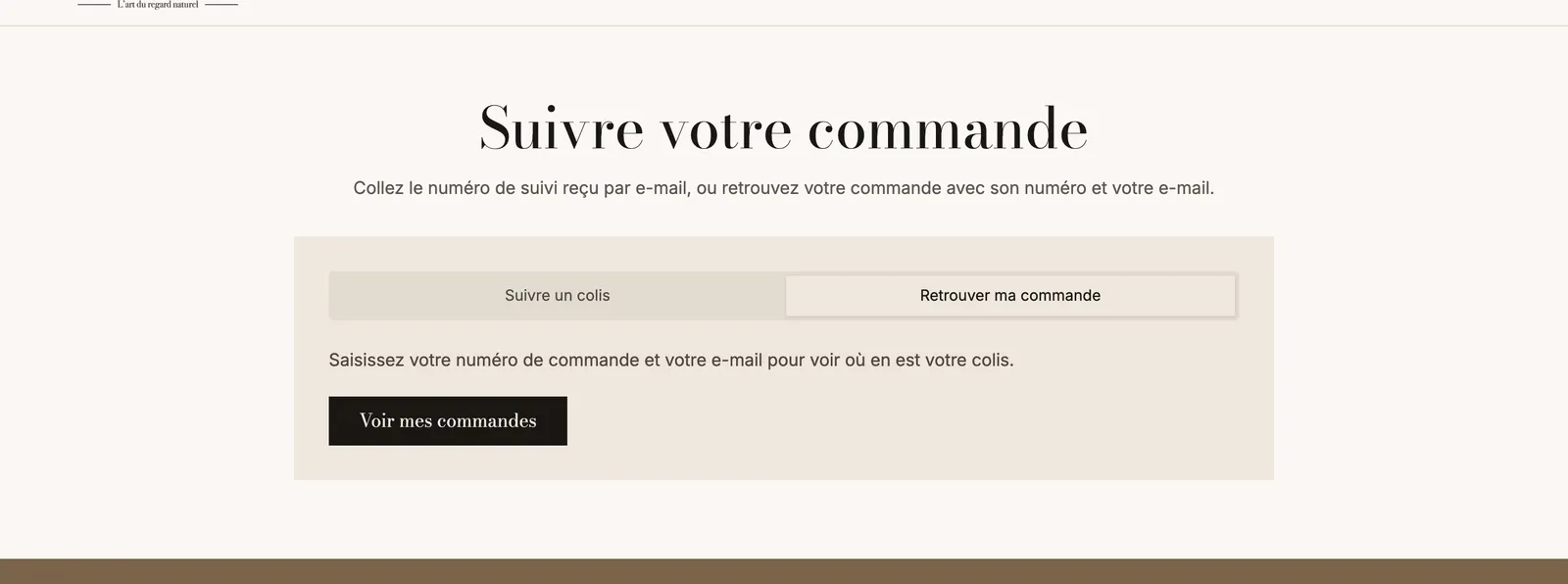
| Show a Find my order tab | Adds a second tab for customers who don't have a tracking number. |
| List the recent orders of logged-in customers | In that tab, a logged-in customer sees their latest orders. |
The Appearance group sets the form's background, border, corners and shadow.
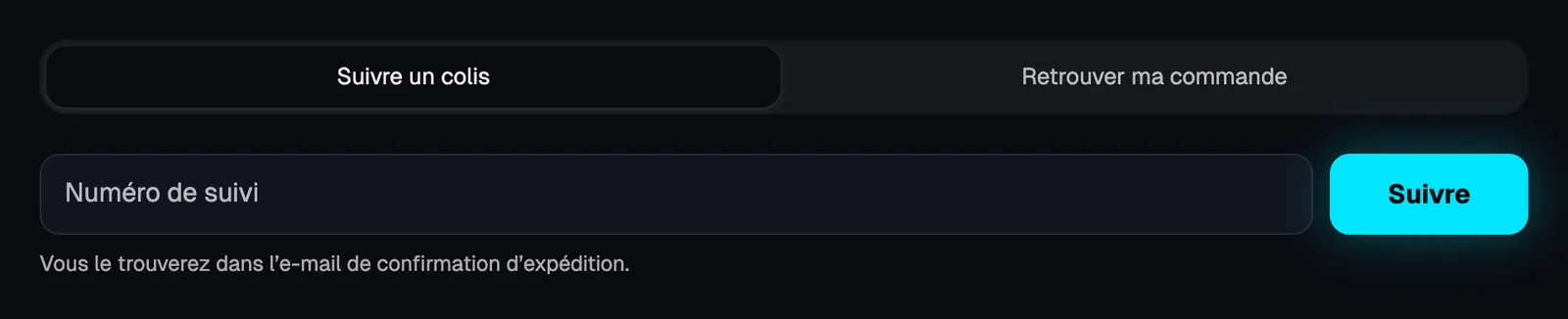
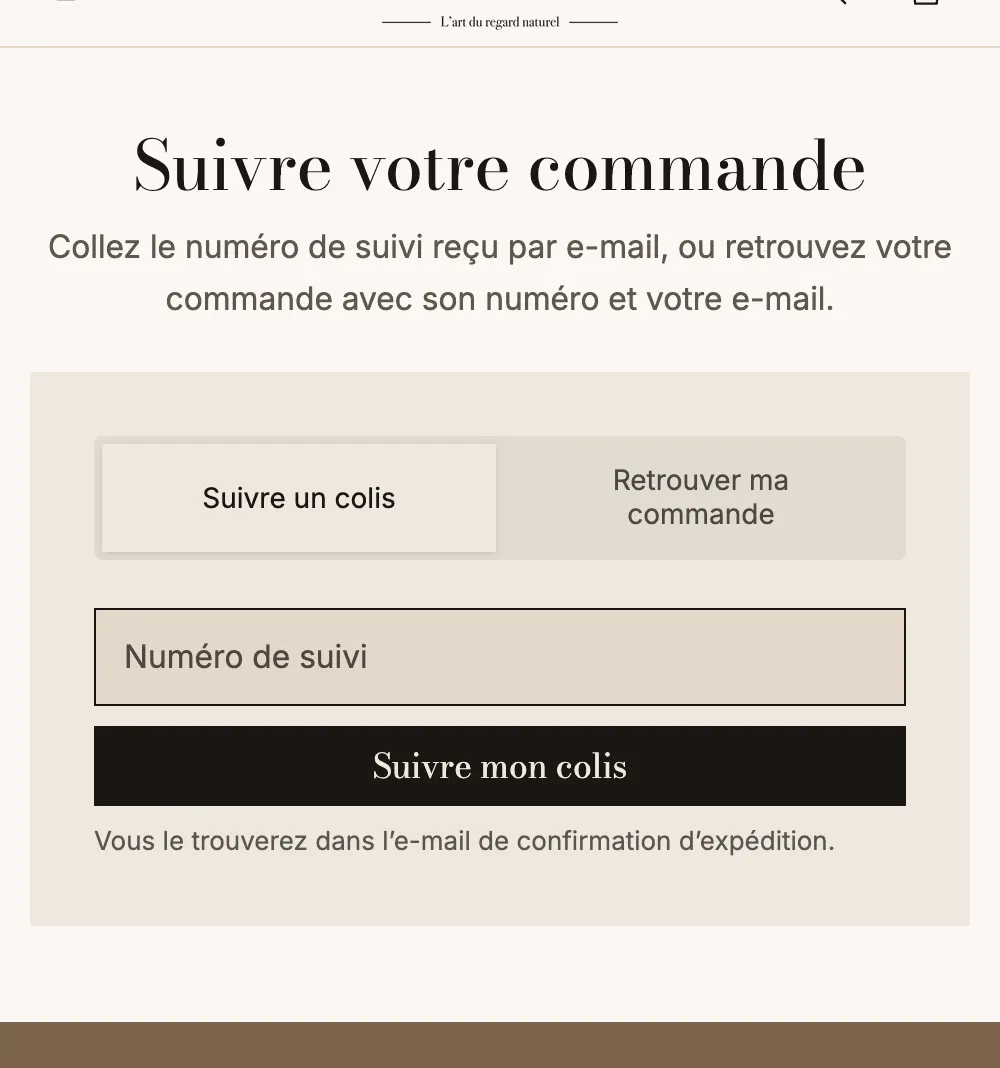
The Order tracking block is one of the form blocks: it can also be added to another page.
3. What your customer sees
- The customer pastes their tracking number, received in the shipping email, then clicks the button.
- The theme recognizes the carrier and shows the package's progress right on the page. Results are provided by the 17TRACK tracking service, loaded only when a search is made.
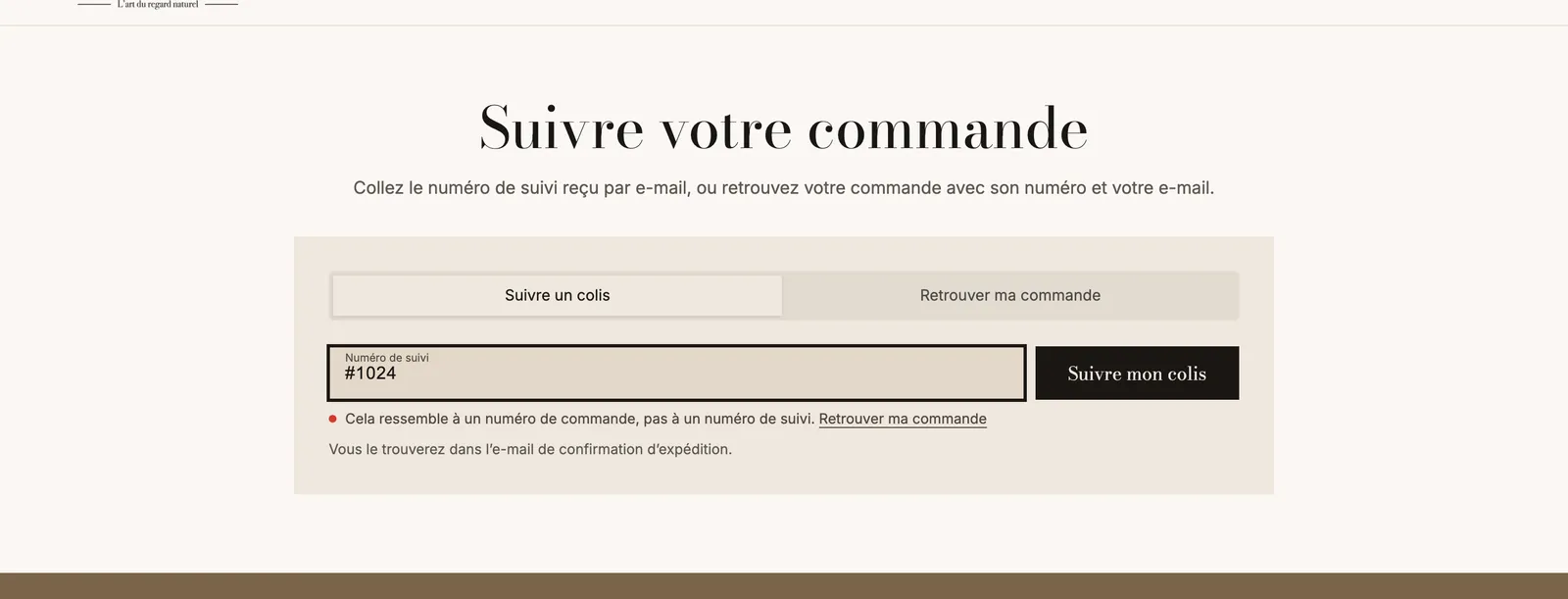
- If they enter an order number by mistake, a message warns them that it isn't a tracking number.
 4. In the Find my order tab, they're guided to their account or to their order confirmation email. If they're logged in, they see the list of their recent orders.
4. Complete the shipping FAQ
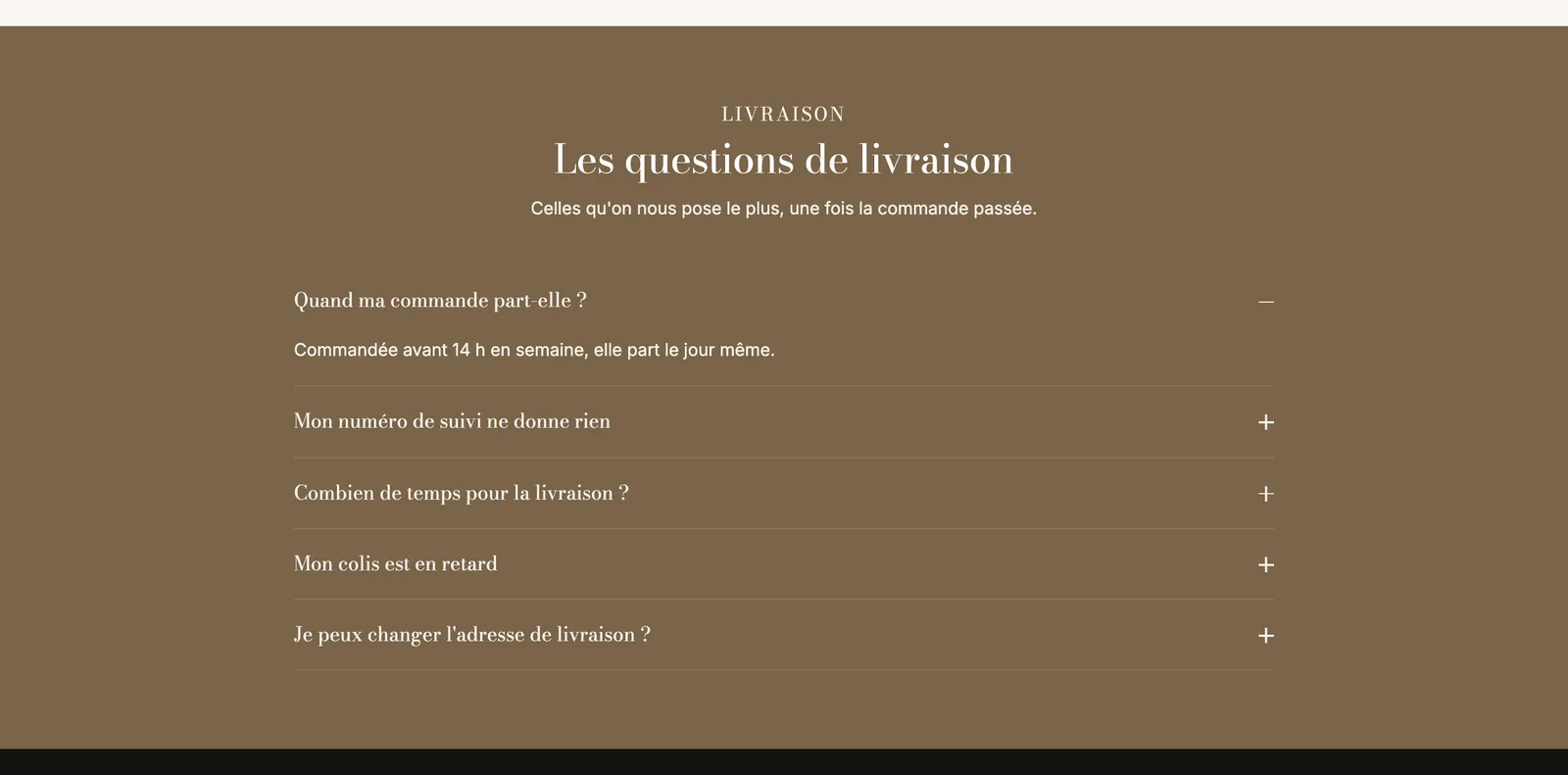
Below the form, an FAQ section answers common concerns: shipping date, tracking number with no information, delivery time, late package, address change. These answers are samples: replace them with your real delivery times and your real policies. See Create an FAQ page.
Frequently asked questions
Tracking shows nothing
A tracking number isn't always active right away: the carrier can take a few hours to register it after the package is handed over. Ask the customer to try again later. If there's a problem with the tracking service, the page offers to try again or to track the package directly on 17TRACK.
My customers don't know about this page
Add it to the footer and the menu, and mention it on your contact page and in your customer service replies.