
Animations and scroll effects
Set up the Story Theme animations: reveals, hover effects, page transitions and scroll-effect sections, without slowing your store down.
The Story Theme animates your store on three levels: global settings (reveals, hover, transitions between pages), an animation setting on every section and block, and whole sections built around scrolling. Used in the right amount, animations guide the eye; overdone, they tire visitors and slow things down.
The global settings
Open Online Store > Themes > Edit theme, then Theme settings > Animations.
- Enable animations (on by default): sections and blocks fade in smoothly as they come on screen. When unchecked, there are no more reveals, and the animation script isn't loaded at all.
- Enable page transitions (off in the default theme): a color overlay or your logo covers the screen between two pages. You choose the Transition style (Fade, Background with logo, Curtain, Circle from the click…), the Transition color, the Transition speed and the Loading image (the logo shown in the center with the Background with logo style).
- Hover: the effect when the mouse moves over a product card (Cards: Lift, Image zoom, 3D tilt, Spotlight…) and over a button (Buttons: Lift, Fill, Shine, Magnetic…), with their Duration and Strength. These effects only play with a mouse.
The animation of each section and block
Each section has an Animations group with an Animation menu: None, Fade up (default), Fade down, Fade right, Fade left, Zoom in, Zoom out. Most blocks have the same menu.
On Group, Content over image and Image blocks, the menu also offers On scroll effects: Fade, Rise, Zoom in, Parallax (slow), Parallax (fast), Reveal from the bottom, Blur. The effect then follows the page position instead of playing only once. Browsers that don't support these effects simply show the block, without animation.
The first section of a page is never animated: it shows right away, for a fast first screen.
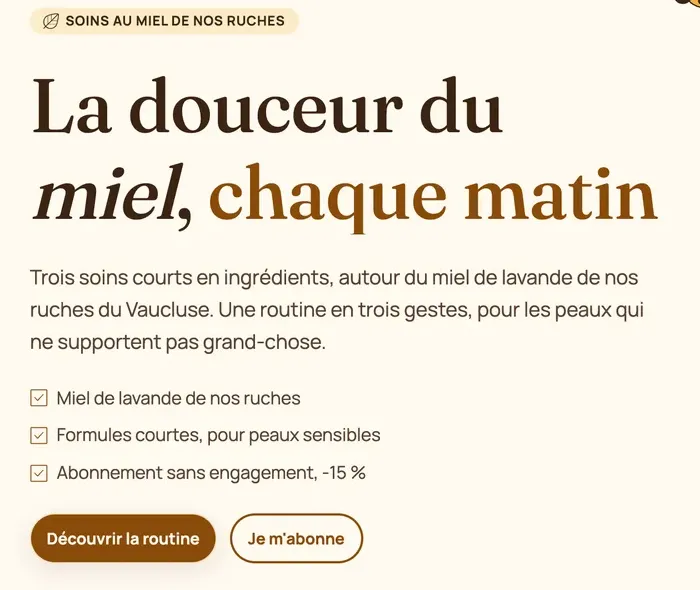
The Heading block also has its Rotating words: one word per line, placed where [words] is in the heading. On Ma Petite Ruche, "every morning" gives way to "every evening", then to "all year round".
Banners have their own Content animation (Fade, Zoom in, Blur, Rise…) and a Media effect (Slow zoom, Parallax, Zoom on scroll): see Hero banner, slideshow and video.
Scroll-effect sections
In Add section, the Scroll effects category groups sections whose whole point is motion:
| Section (preset) | What happens |
|---|---|
| Stacking cards | The cards pin one after another and stack up as you scroll. Keep each card shorter than the screen. |
| Horizontal scroll (Horizontal gallery) | On desktop, the cards slide sideways while the page scrolls down; on mobile, they're swiped with a finger. |
| Scrollytelling | An image stays fixed and changes with each step of the text, with a Progress indicator. |
| Zoom on scroll (Expanding image) | An image or video starts in a rounded frame and grows to full screen. Text effect makes the text appear or disappear during the zoom. |
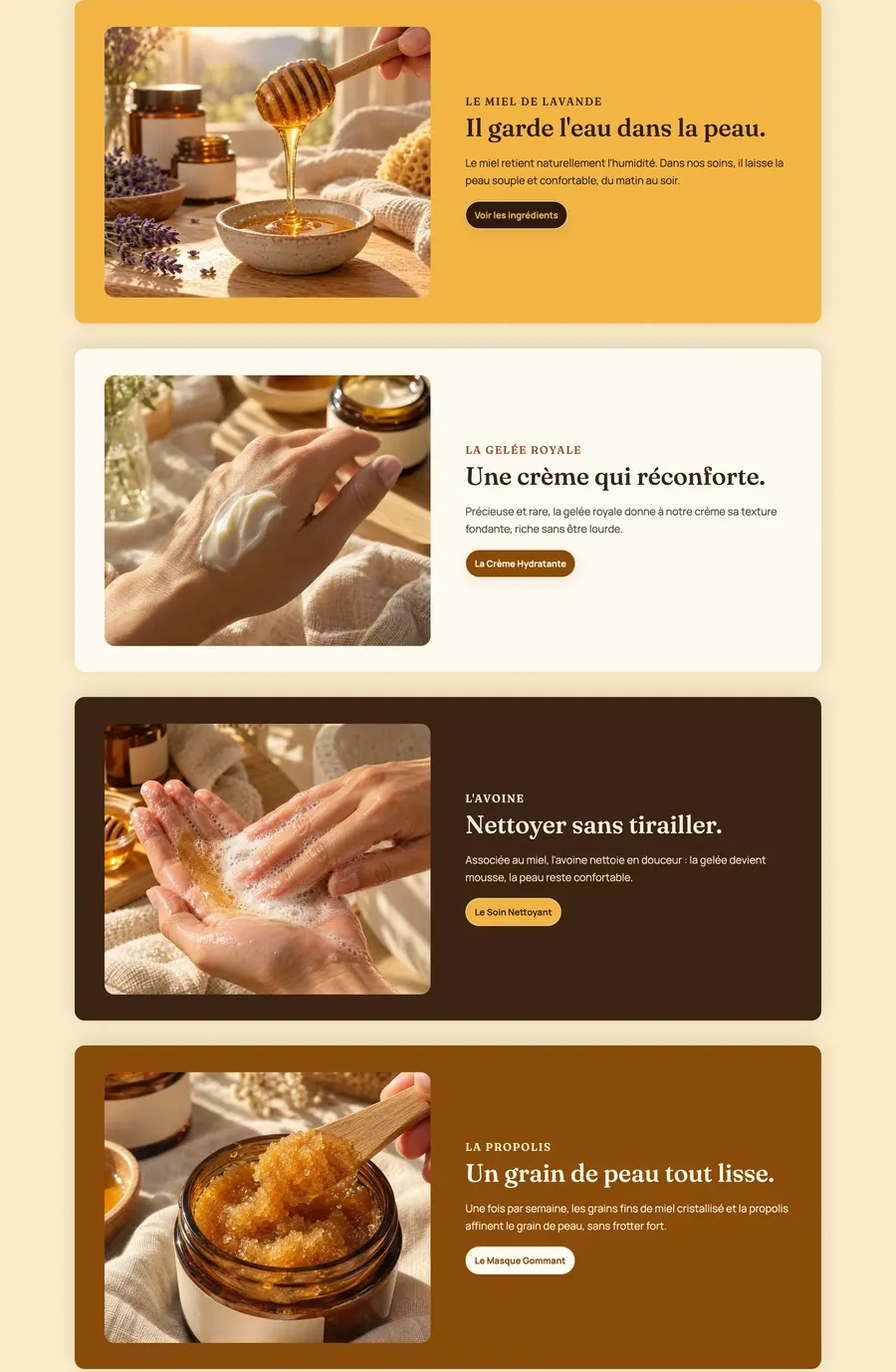
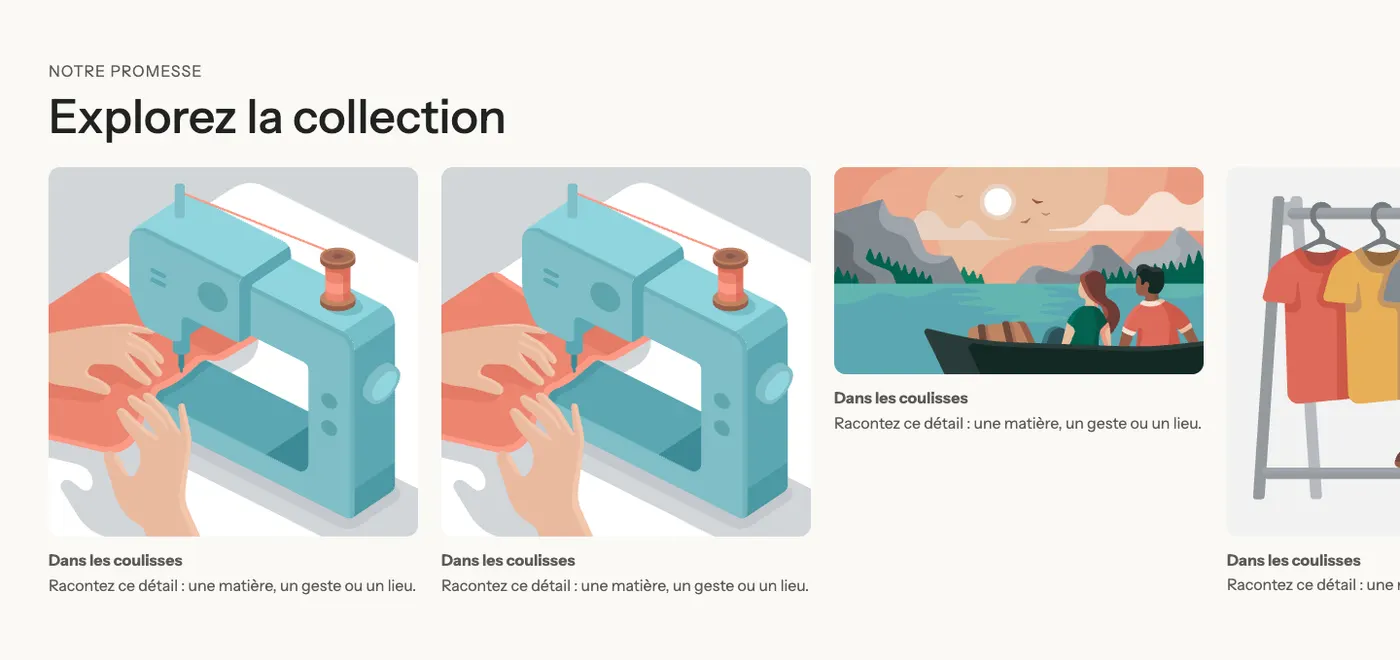
Sylys's Scrollytelling, at two points of the scroll: the image and the counter change with the step.
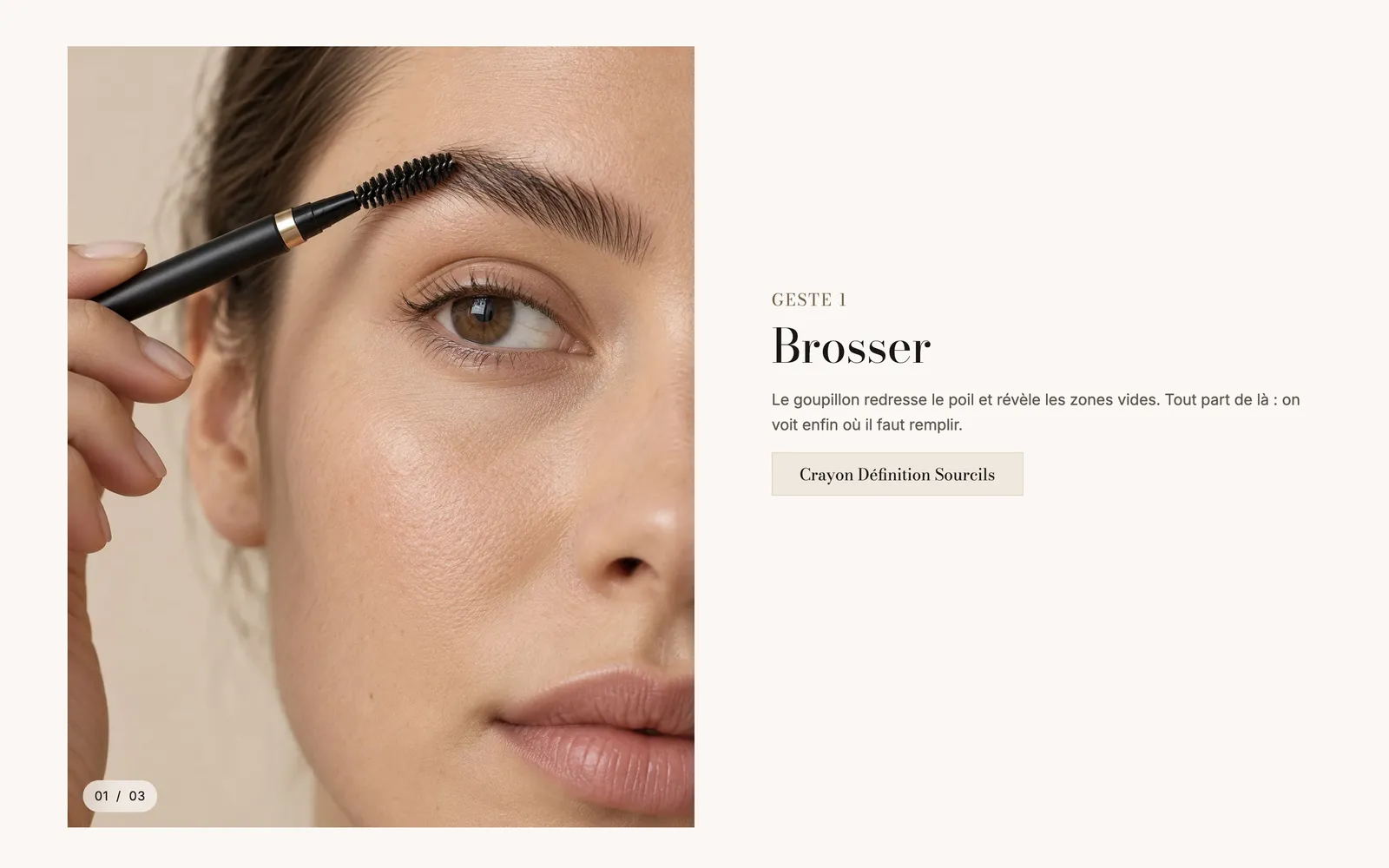
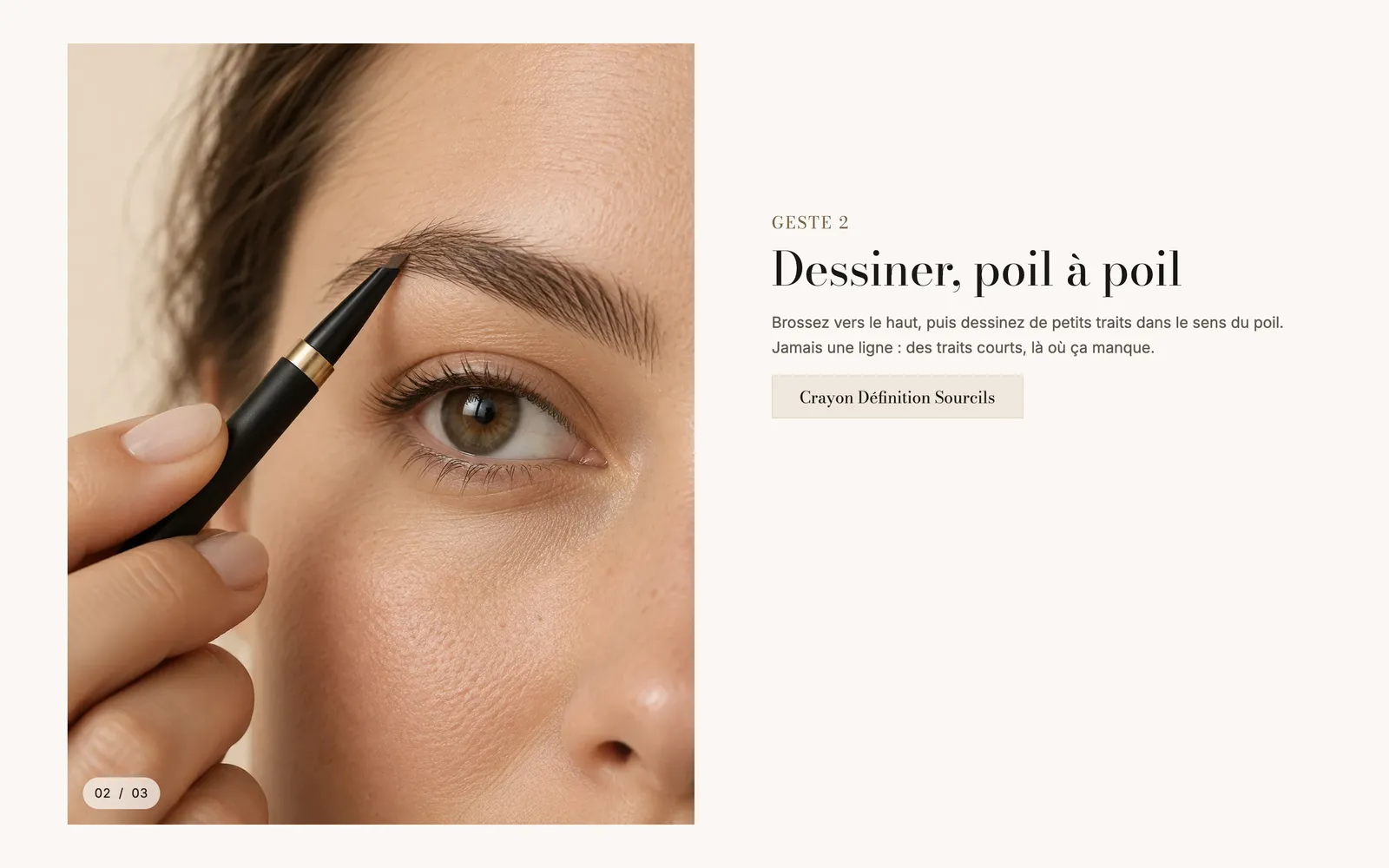
Darly's Zoom on scroll, at the start and then at the end of the effect:
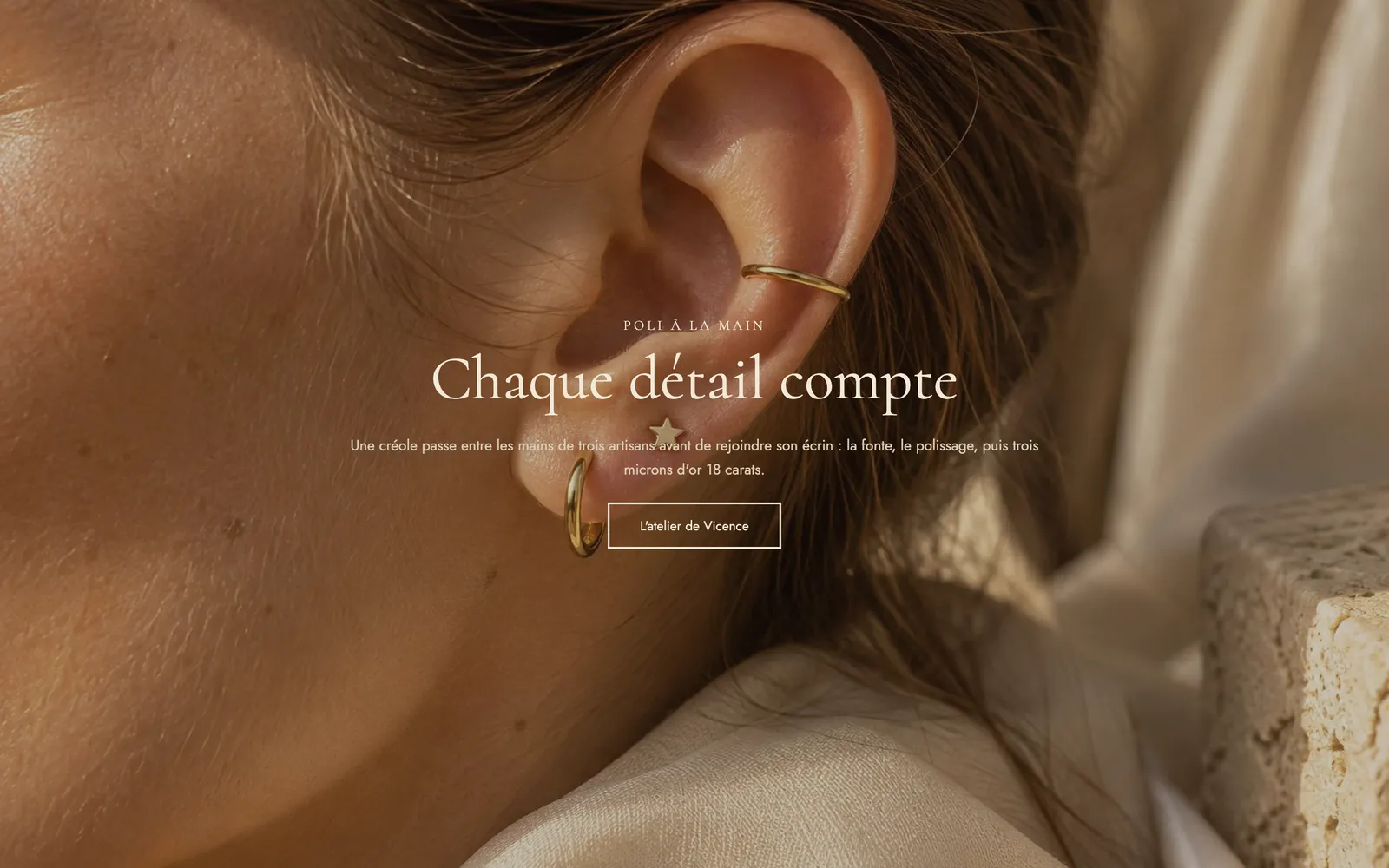
The Text reveal block, in the same category, lights up a sentence word by word as you scroll. Set its Opacity before the reveal and the Color of bold words. It works well for a brand statement, not for a paragraph.

Section Separators (waves, clouds, zigzag…) also have an Animation setting: Continuous flow, Breathing, Grow on scroll or Parallax.
Speed and accessibility
The theme already does part of the work:
- every animation respects the "reduce motion" setting on the visitor's phone or computer;
- anything that moves on its own for more than a few seconds (marquees, slideshows) offers a pause button;
- the first section is never animated and its images load first.

If your store feels slow, start with images and apps before cutting animations: see Improve your store's speed. Unchecking Enable animations is still the lightest option. Page transitions only cover internal clicks and lift after one second at most.