
Popup section: newsletter, discount and age verification
Set up the Story Theme Popup section: when it opens, on which pages, how often, and how to turn it into an age verification.
The Popup section opens a window over the page: newsletter signup, welcome code or age verification. You choose when it appears (delay, scroll, exit intent), on which pages and how often. Placed in the footer, it applies to every page; placed in a template, only to the pages using that template.
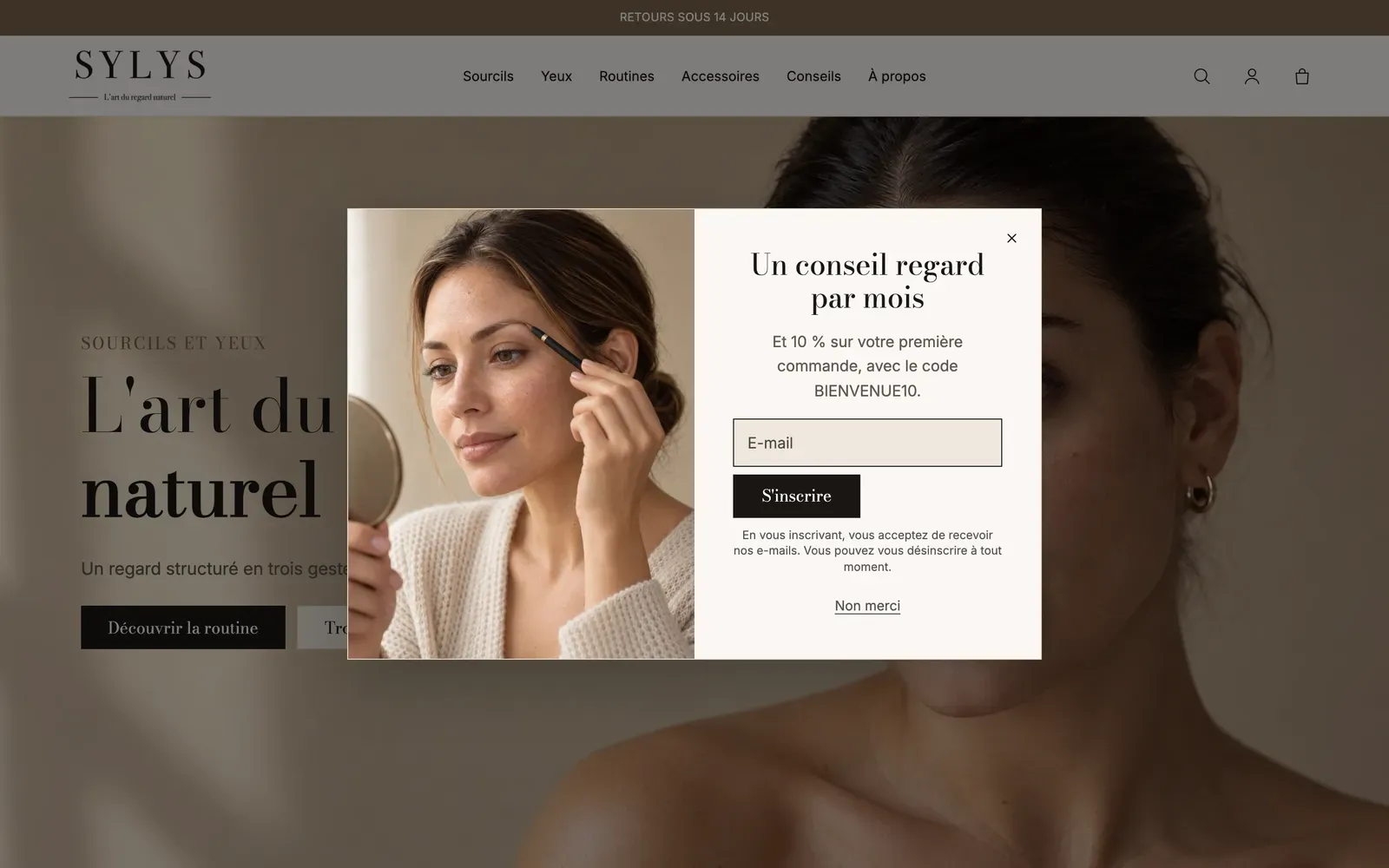
The presets
Newsletter popup
A heading, a text, the Newsletter block and a Close button block ("No thanks"). Add an image in the section settings to get the Sylys layout above.
Discount popup
The same blocks, designed to offer a code: the Newsletter block has a Discount code to reveal, shown with a Copy button after signup.
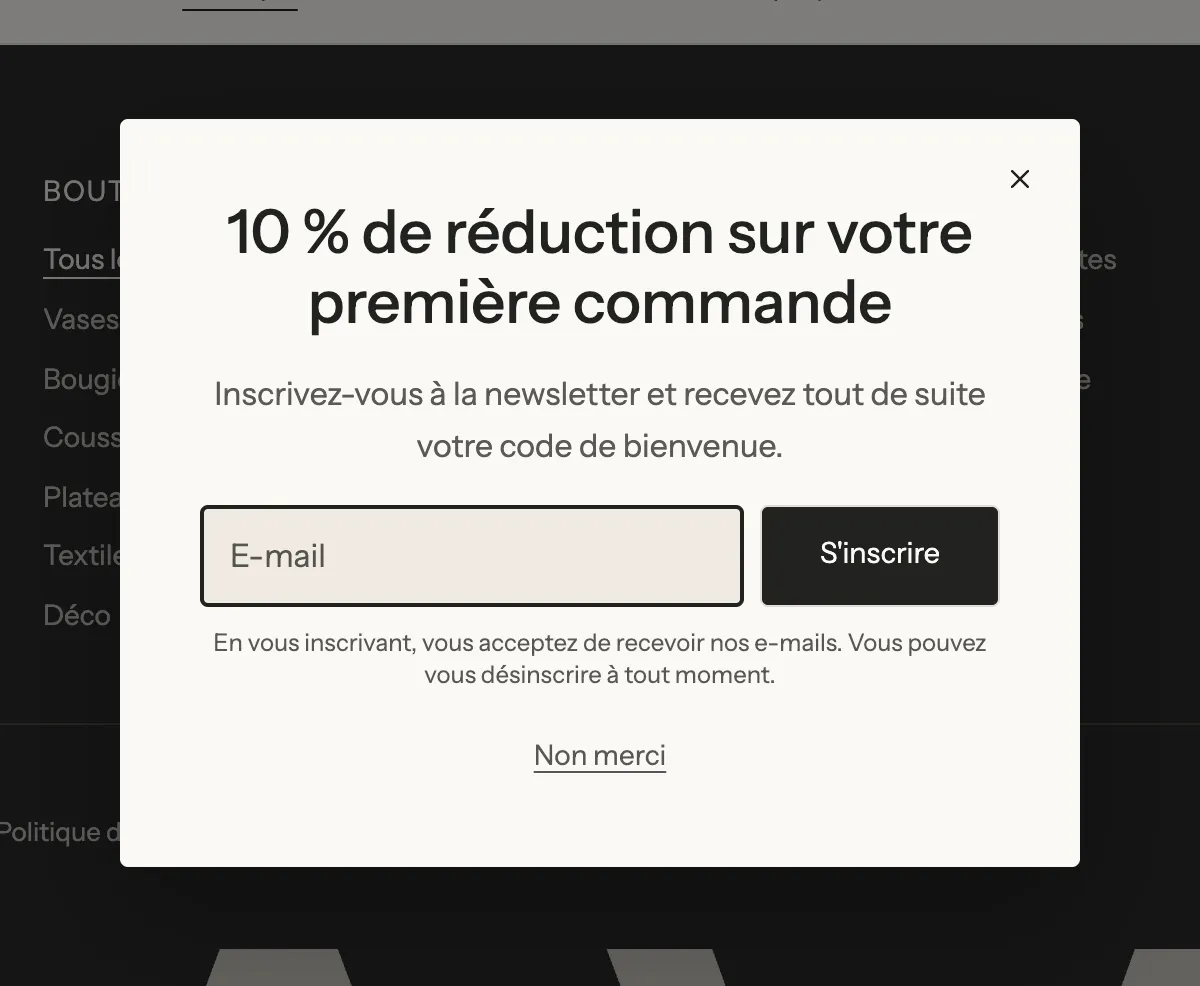
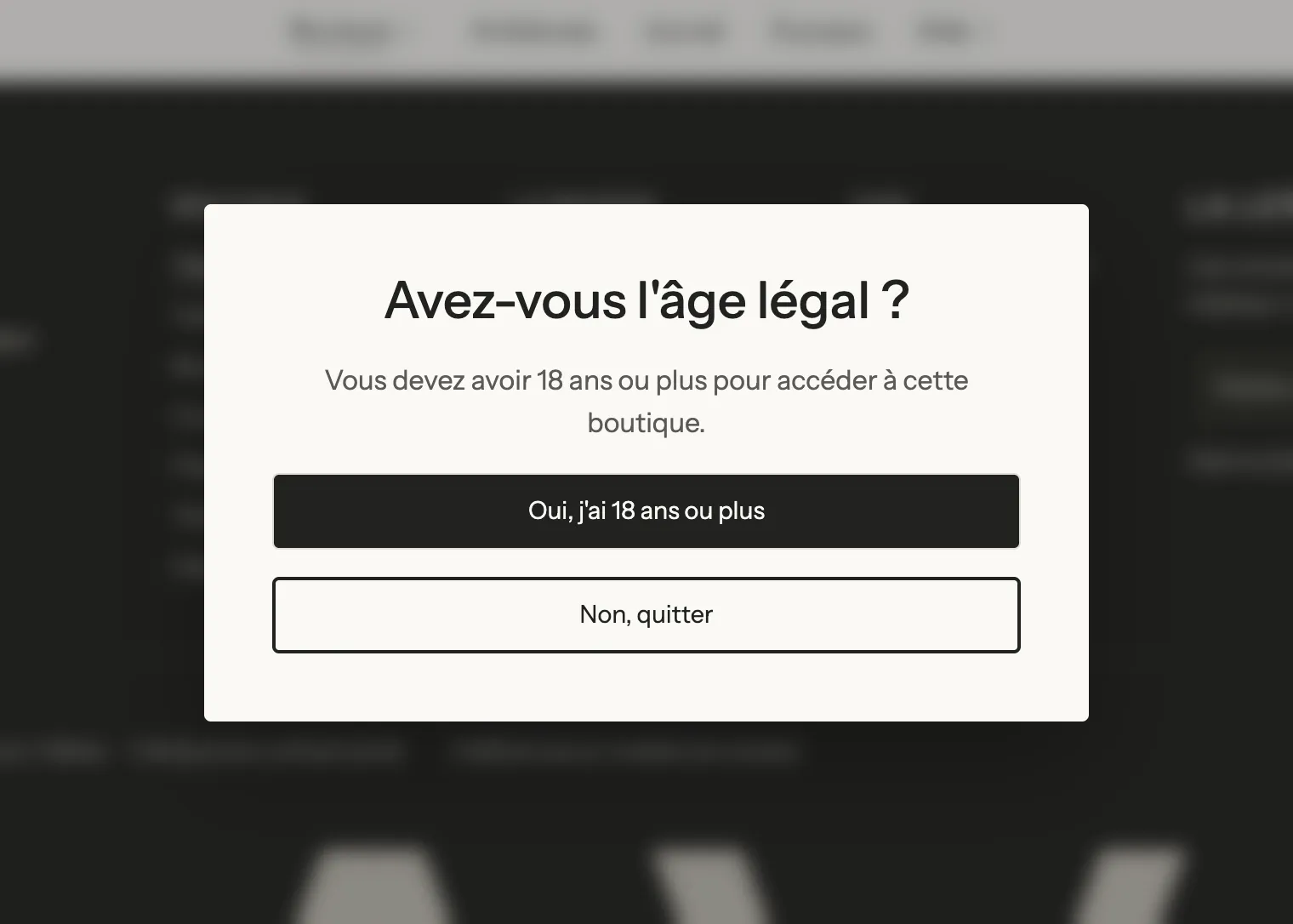
Age verification
A heading, a text and two buttons (enter or leave). Built for stores selling alcohol, tobacco or CBD: it uses Require a choice before browsing, so it can't be closed with the X, the Esc key or a click outside.
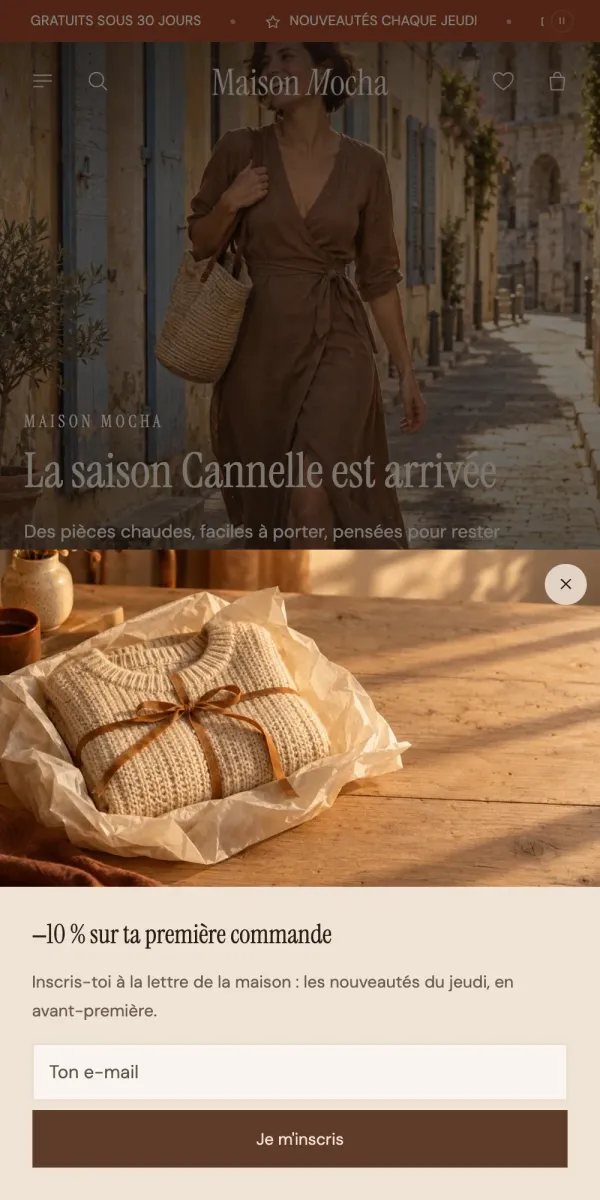
On mobile, the popup shows by default as a sheet that slides up from the bottom of the screen (example from the Maison Mocha demo):
Add the section
- Open Online Store > Themes > Edit theme.
- For every page, click Add section in the Footer area of the sidebar; for a single page, add it to that page's template.
- Open the Popups category and choose Newsletter popup, Discount popup or Age verification.
- Click Save.
In the editor, the popup opens as soon as the section or one of its blocks is selected, so you can edit it.
The section's blocks
| Block | What it's for |
|---|---|
| Heading, Text | The hook. |
| Newsletter | The email field, consent and the Discount code to reveal. |
| Close button | A link or button that closes the popup. |
| Button | A link (e.g. "No, leave" to another site). |
The Close button block
Label, Style (Link by default, or a button style), Full width, Alignment and, most importantly, Never show the popup again after this click: check it on the "I'm 18" button of an age verification, or on a final "No thanks".
The section settings
[Display]
- Pages: Every page, Home page, Product pages or Specific pages; in the last case, Page addresses, one per line (e.g.
/pages/about-us), ending with*to include every address that starts that way. - Hide from customers already subscribed.
- Open automatically (on by default), with Delay (5 s by default), Page scrolled at least (%) and Also open when the pointer leaves the page (desktop).
- Show again: Every page, On the next visit or After a number of days (Days: 7 by default).
- Popup name (
newsletterby default): any link ending in#popup-newsletteropens the popup. Change this name to show it again to visitors who closed it.
[Layout] Position (Center, Bottom left, Bottom right), Position on mobile (Center or Bottom sheet), Width (720 px by default), Page behind (Unchanged, Dimmed, Blurred), Require a choice before browsing, Show close button.
[Media] Image, Position (Left, Right, Top), Media on mobile.
[Appearance] Corners, Inner spacing, Alignment.
The section also has the common section frame, described in Understand the theme editor.
Tips and pitfalls
- Give visitors a few seconds before opening the popup (delay or scroll): a window that opens instantly often gets closed without being read.
- With Require a choice before browsing, always add a Close button: otherwise the visitor is stuck.
- Create the discount popup's code in Discounts before showing it (see Create a discount code).
- To open the popup from a button or a menu link, use a link ending in
#popup-followed by the Popup name. - Footer popups don't show on pages in landing page mode.