
Marquee section: scrolling text, images and logos
Scroll your selling points, photos or press logos in a continuous loop with the Marquee section, and set the speed, size and separators.
The Marquee section loops a line of text, a row of images or logos from one edge of the screen to the other. It sets the rhythm of the home page between two sections and repeats your key selling points ("Free shipping", "Made in France"…) without taking up space.
The presets
The section comes in three presets, stored in three different categories of the section picker.
Scrolling text (Text category)
Large, uppercase phrases with a star between each one. This is the most used preset: your selling points, your values or the name of a collection.

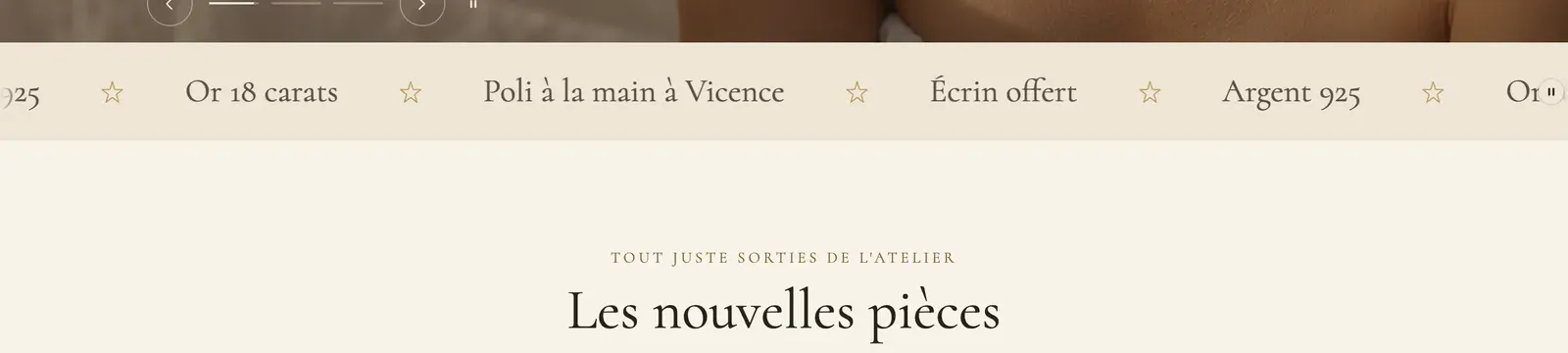
Each demo gives it its own character. Darly uses it in an elegant font, without uppercase, on a beige background:

Pulse uses it huge, black on neon yellow, with a cross as the separator:

On mobile, the text stays on one line; set a smaller size with Text size mobile:

Scrolling images (Media category)
A row of portrait photos scrolling slowly. Ideal for a mood, materials or customer photos.

The Maison Mocha demo uses it to show its fabrics:

Logo marquee (Reviews and trust category)
Logos of the press, your partners or your certifications, in grayscale until hovered and slightly transparent. The preset comes with sample logos to replace with your own.

Add the section
- In your Shopify admin, open Online Store > Themes and click Edit theme.
- Choose the template from the menu at the top (for example Home page).
- Click Add section, then open the preset's category: Text for Scrolling text, Media for Scrolling images, Reviews and trust for Logo marquee.
- Click the section's block to type your phrases, or choose your images or logos.
- Click Save.
The section's blocks
| Block | What it's for |
|---|---|
| Scrolling text | Scrolling phrases, with their separator. |
| Phrase | A separate phrase, to add inside Scrolling text to connect it to a metafield or give it a link. |
| Scrolling images | A row of scrolling images. Contains one Scrolling image block per image (image and Button link). |
| Logo list | The logos, in the Scrolling layout. Contains one Logo block per logo (image, name, link, text). |
These blocks can also be placed in other sections with Add block.
The Scrolling text block
- Text (one phrase per line): type one phrase per line; blank lines are ignored. To connect a phrase to a metafield, add a Phrase block instead.
- Text size and Text size mobile (0 keeps the theme's size), Text color, Font (Body or Heading), Uppercase.
- Style: Default (solid letters) or Outline (outlined letters).
- Separator: None, Dot or an icon from the library (Star, Heart, Leaf, Truck…), with its Color. Custom icon accepts your own image, ideally an SVG or a square PNG.
- Gap between phrases (48 px).
- Layout group: Delay (the time for one full loop, from 4 to 40 seconds: the longer it is, the slower the text scrolls), Direction (Left or Right), Pause on hover.
- Edge to edge: the marquee breaks out of the section's margins and touches the edges of the screen.
The Scrolling images block
- Image ratio: Adapt to image, Portrait, Square or Landscape.
- Image sizes and Width on mobile (0 uses the desktop size), Gap, Corner radius.
- Grayscale until hovered.
- Delay, Direction, Pause on hover and Edge to edge, as for text.
The Logo list block
In the Logo marquee preset, its Layout is set to Scrolling. Set the logos' Height (and Height on mobile), the Style (Plain, Card, Outline), Grayscale until hovered and the Opacity. The details are in Logo list section.
The section settings
The section only has the frame shared by almost every section in the theme: Layout (width, spacing), Color palette, Separators and Animations. The Color palette sets the marquee's background (Pulse's neon yellow, Darly's beige). The frame is explained in Understand the theme editor.
Tips and pitfalls
- Three to six short phrases are enough: a marquee that's too long can't be read anymore.
- A pause button appears automatically on the marquee: it lets visitors bothered by motion stop it. And if the visitor has asked their device to reduce motion, the marquee doesn't move.
- Keep a fairly long Delay (20 seconds or more for text): fast-scrolling text is tiring and hard to read.
- On mobile, lower the Text size mobile: 56 px text on desktop is too big on a phone.
- For logos, use PNG or SVG files with a transparent background and the same visual height.
- Place the marquee right under the home page banner: it makes the transition to the rest of the page.