
Customer photos & videos section: a shoppable Instagram wall
Show your customers' photos and videos in a grid or carousel, with the featured product on each post and a full-screen viewer.
The Customer photos & videos section shows your products in the hands of the people who bought them: Instagram photos, videos shot on a phone, customers with their order. Each post can show its author's name and the product it features, with its price. It's strong social proof, to place on the home page, below a product page or on a dedicated page.
The presets
Shop our Instagram
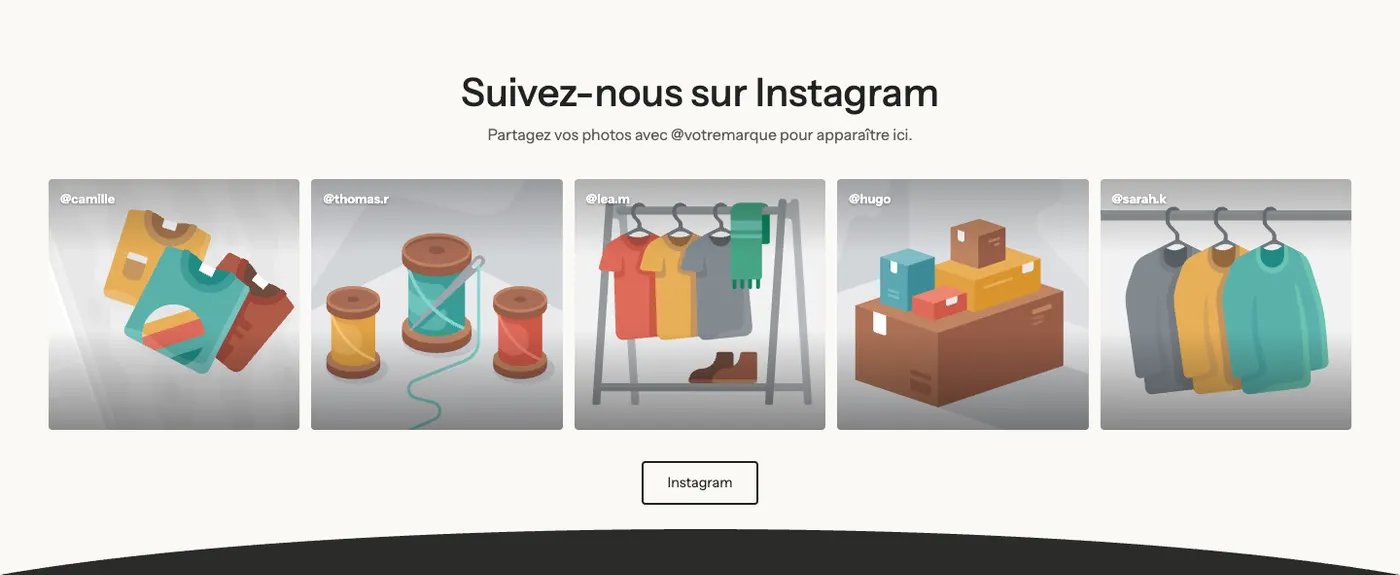
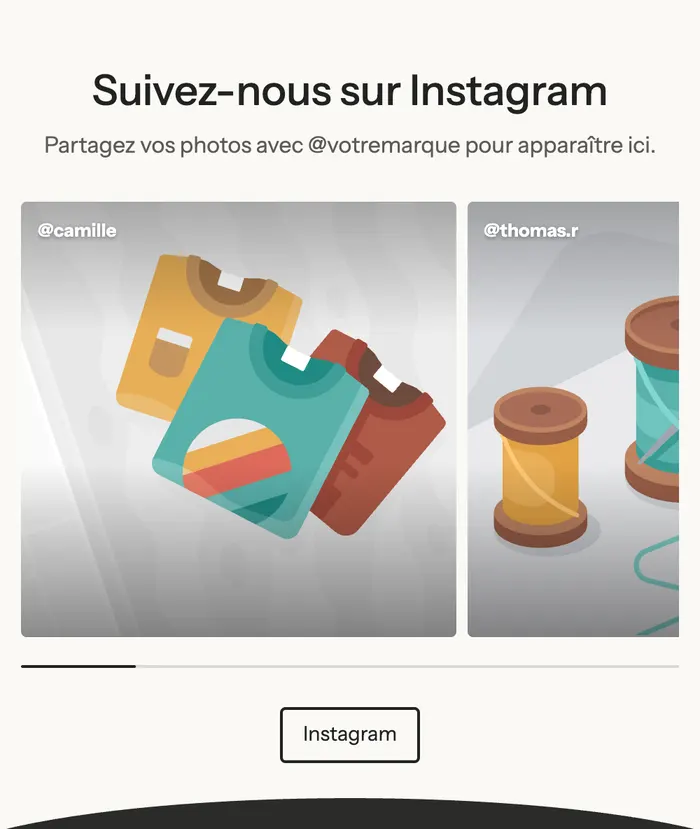
A centered heading and text, five square posts in a grid, and a button to your Instagram account. On mobile, the grid becomes a carousel.
Customer videos
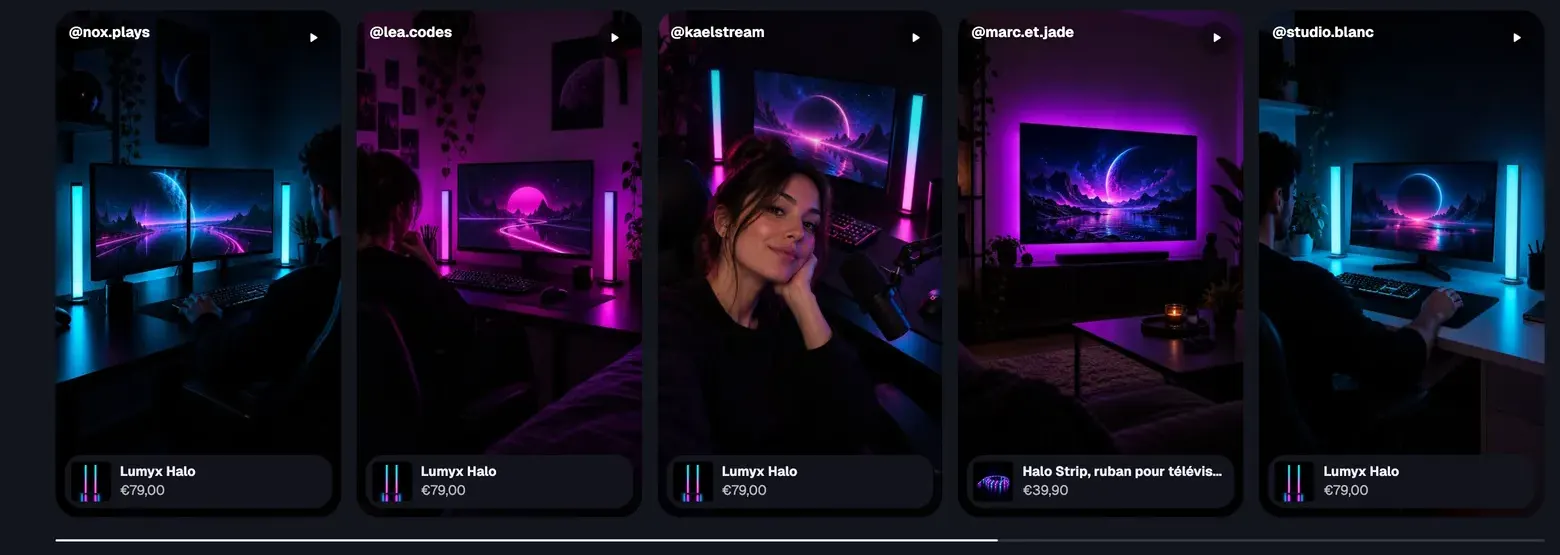
A heading and a carousel of posts in Vertical (9:16) format, the format of videos filmed on a phone. The most visible video plays on its own, muted.
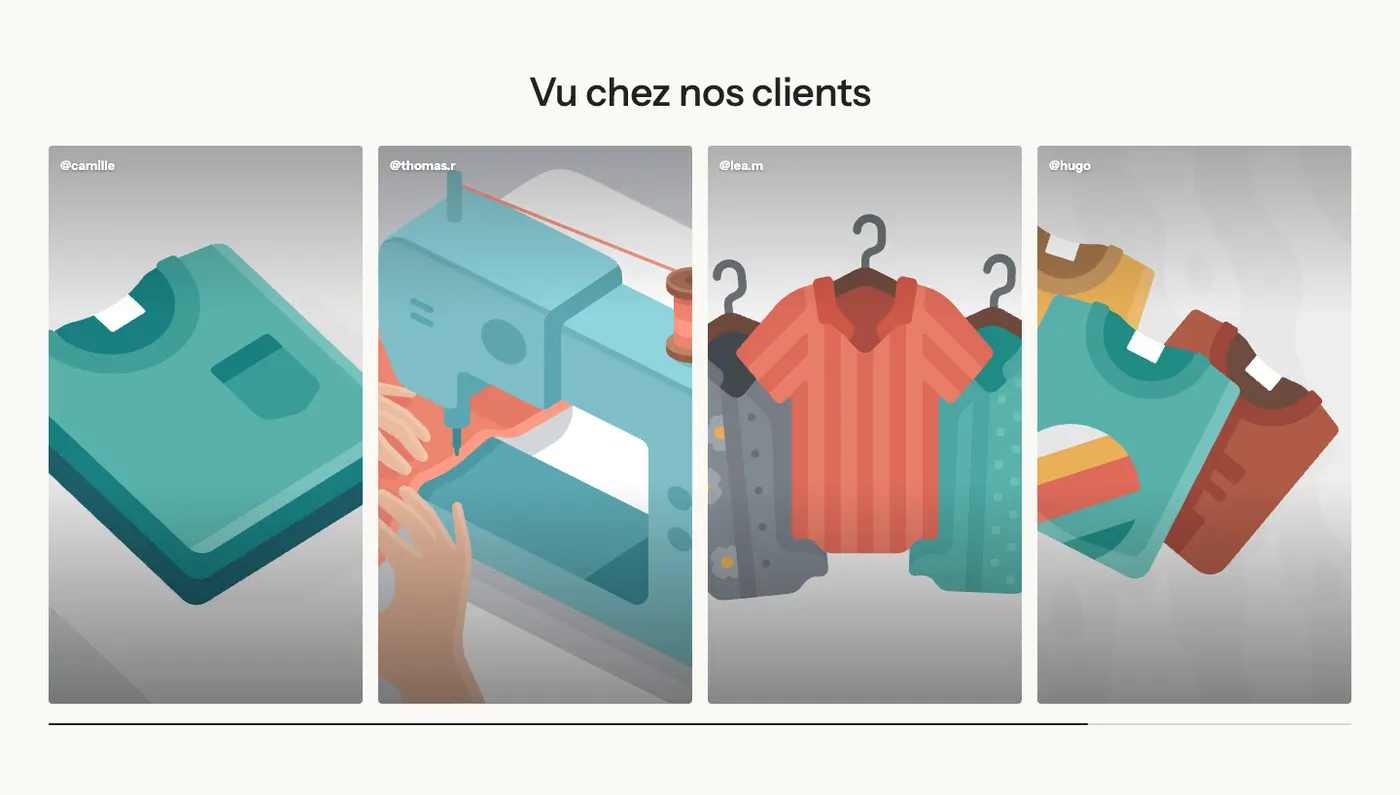
The Lumyx demo uses it for its customers' setups, with the product under each video:
On the demos
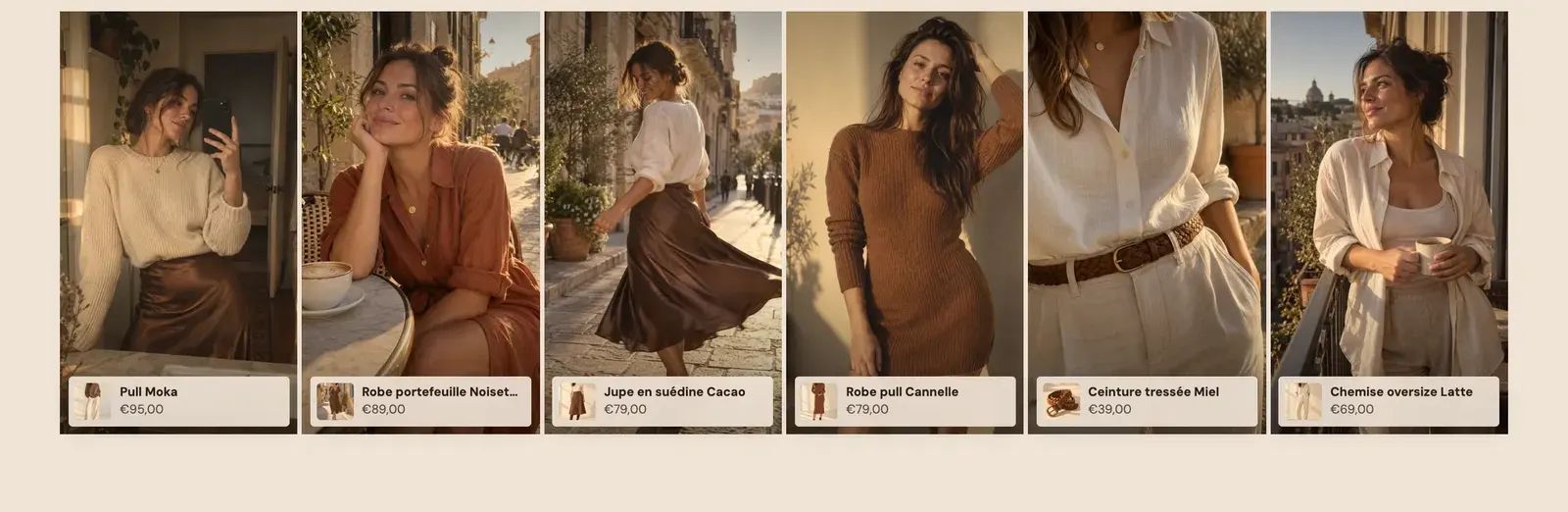
Maison Mocha shows six portrait posts, each with the piece being worn:
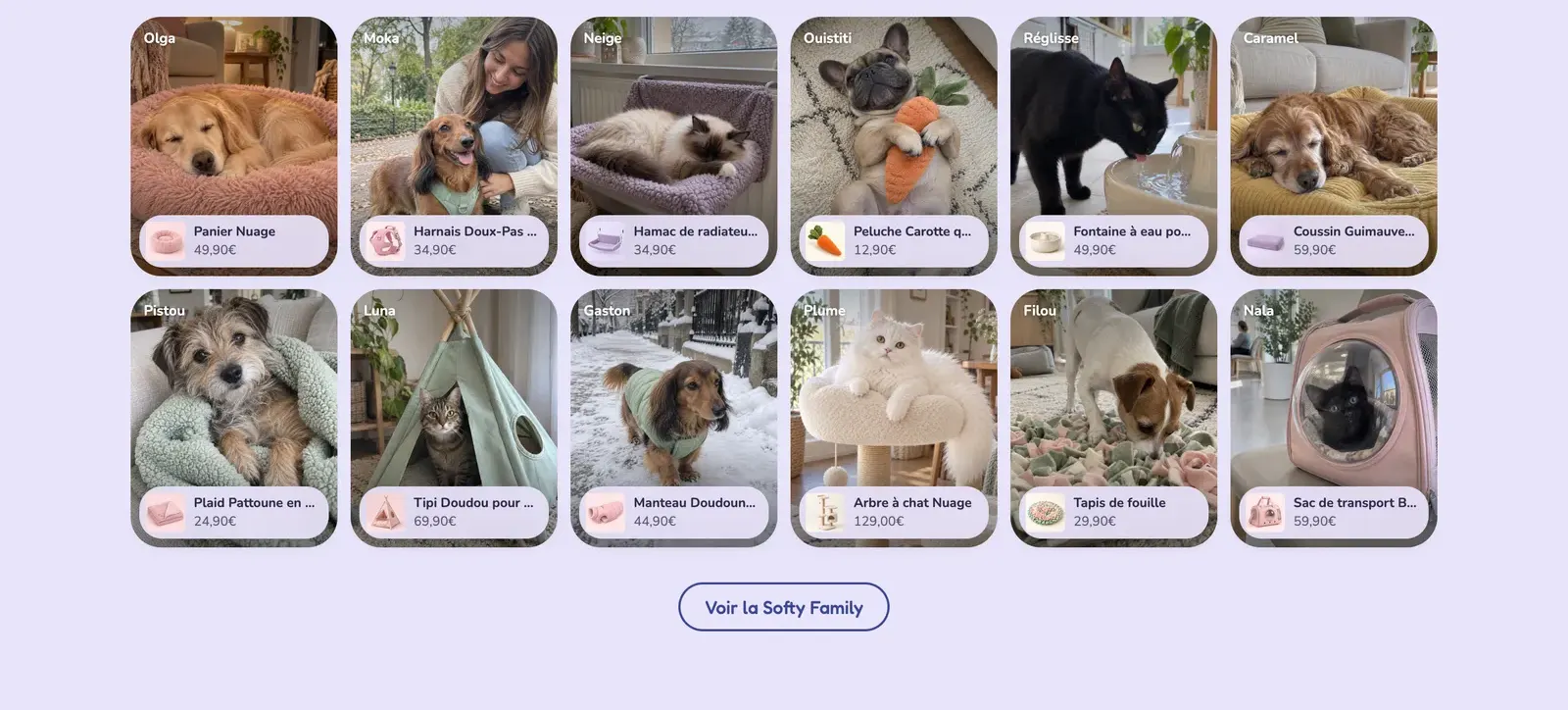
Softy dedicates a whole page to its community, with a four-column grid:

What the customer sees
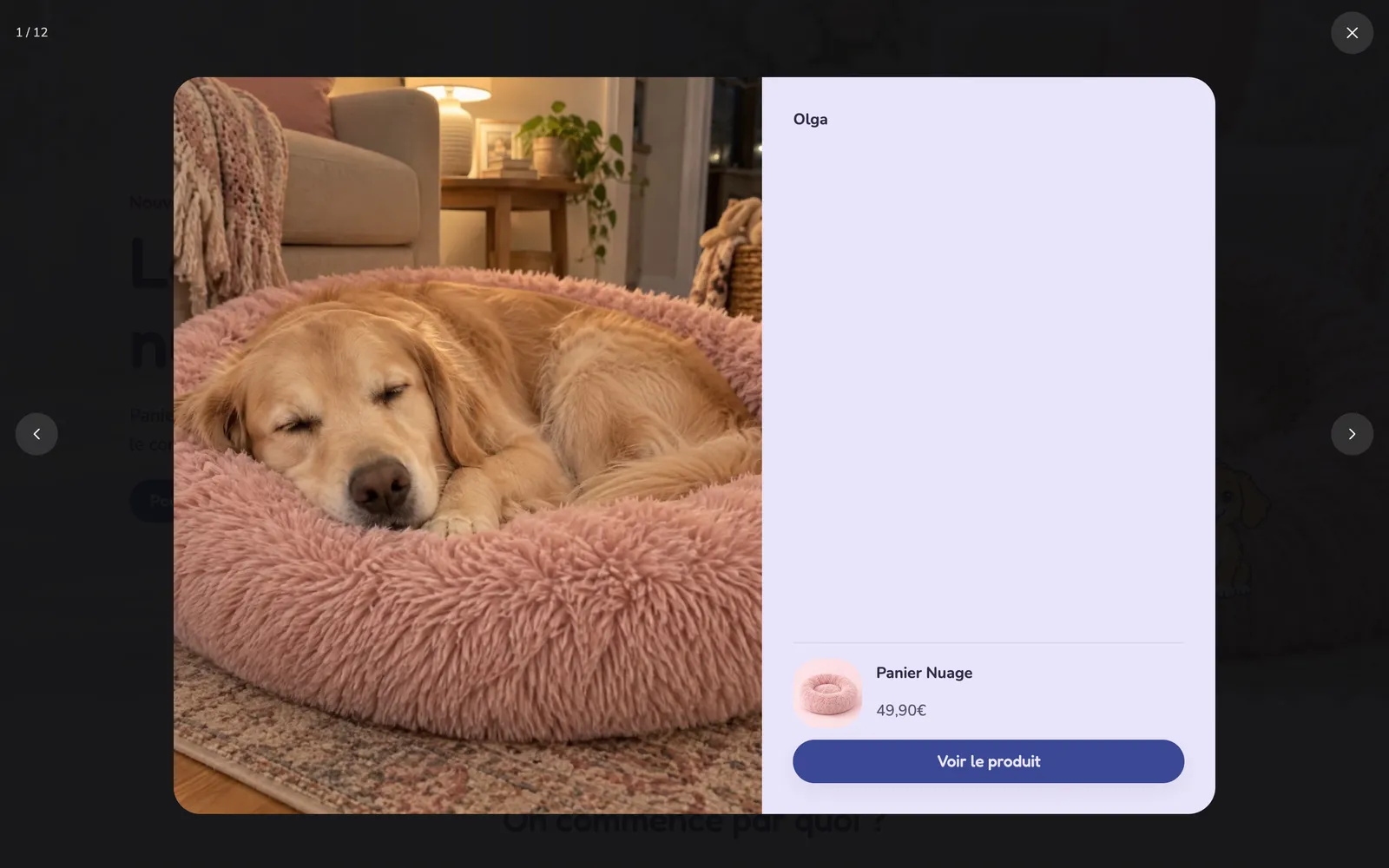
Clicking a post opens a full-screen viewer: the photo or video shown large, the author's name, the text, and the product with its price and a View the product button. Arrows move from one post to the next.
On mobile, posts scroll in a carousel:

Add the section
- Save your customers' photos and videos (with their permission), then upload them to Content > Files in your Shopify admin.
- Open Online Store > Themes and click Edit theme.
- Choose the template from the menu at the top (for example Home page).
- Click Add section, open the Media category and choose Shop our Instagram or Customer videos.
- Click each Customer post to choose the image or video, the author and the product.
- Click Save.
The section's blocks
| Block | What it's for |
|---|---|
| Heading, Text, Group, Button | The heading, the invitation to share and the button to your account. |
| Customer photos & videos | The grid or carousel. Also available as a block in Add block > Media. |
| Customer post | One customer photo or video. |
Customer post
- Image or Video.
- Author: shown at the top of the post ("@camille", "Olga").
- Text: the caption, shown in the viewer.
- Product: the product card, with image and price, on the post and in the viewer.
- Link: an optional URL, for example the original Instagram post.
Customer photos & videos
- Layout group: Layout (Grid or Carousel), Carousel on mobile, Columns on desktop (5 by default), Columns on tablet, Columns on mobile, space between columns and rows, Use the full width of the screen.
- Controls group (carousel): Arrows, Move by, Navigation style, Pagination style (Dots, Progress bars, Counter), Auto-rotate slides.
- Media group: Image ratio (Square, Portrait, Vertical (9:16) or Landscape), Enlarge on click, Zoom on hover, Autoplay for videos (muted, as soon as they're on screen).
The section settings
The section has the frame shared by almost every section: Layout, Color palette, Separators and Animations. See Understand the theme editor.
Tips and pitfalls
- Always ask the customer for permission before publishing their photo or video, and keep a record of their answer.
- The section doesn't import anything automatically from Instagram: each post is an image or video you choose. Refresh them from time to time to keep the wall alive.
- Choose the Image ratio based on your content: Square for an Instagram feed, Vertical (9:16) for phone videos.
- Fill in the Product on every post: that's what turns a nice photo into a path to purchase.
- Use short, lightweight videos. The theme only plays the most visible video and pauses the others.