
Rich text section: message, quote and section title
Add a heading, a paragraph and buttons without an image, a founder quote or a big brand statement between two sections.
The Rich text section shows text with no image required: a heading and a paragraph, a quote, a big brand statement. Use it to introduce a page, to give a busy home page some breathing room between two sections, or to announce the section that follows.

The variants (presets)
The four variants are in the Text category of the picker. Each one is a starting point: you can add, remove or move the blocks.
Rich text
A subheading, a Heading, a Text and two Button blocks side by side, all centered. For a page introduction or conclusion ("Discover the collection").
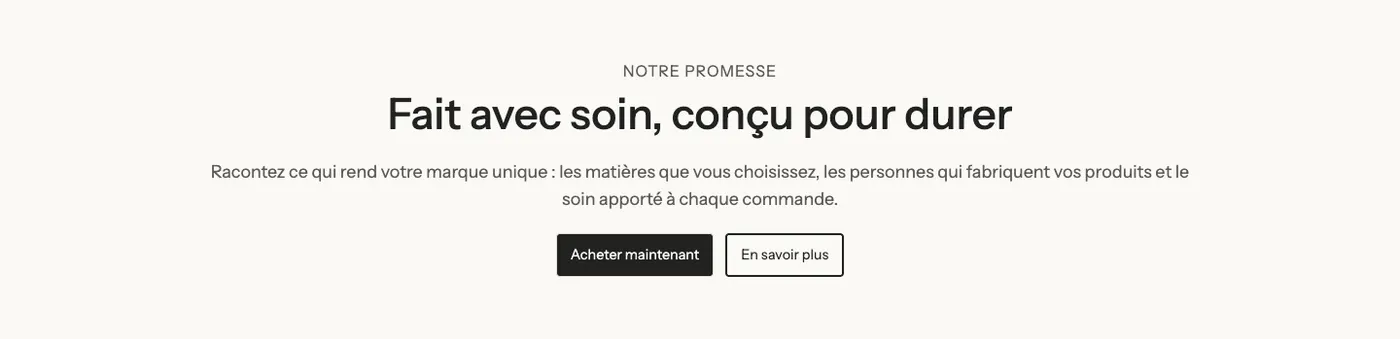
Pull quote
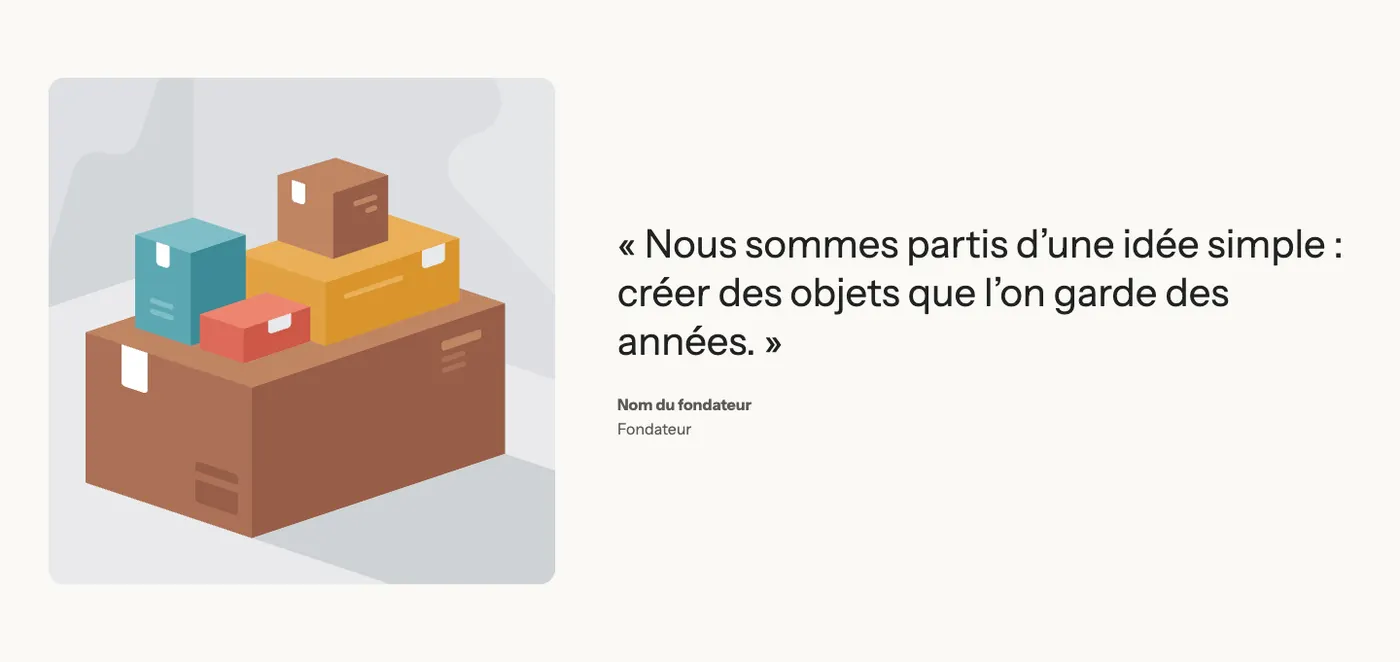
An Image on the left and, on the right, a large quote with its author's name and role. For the words of the founder or a craftsperson.
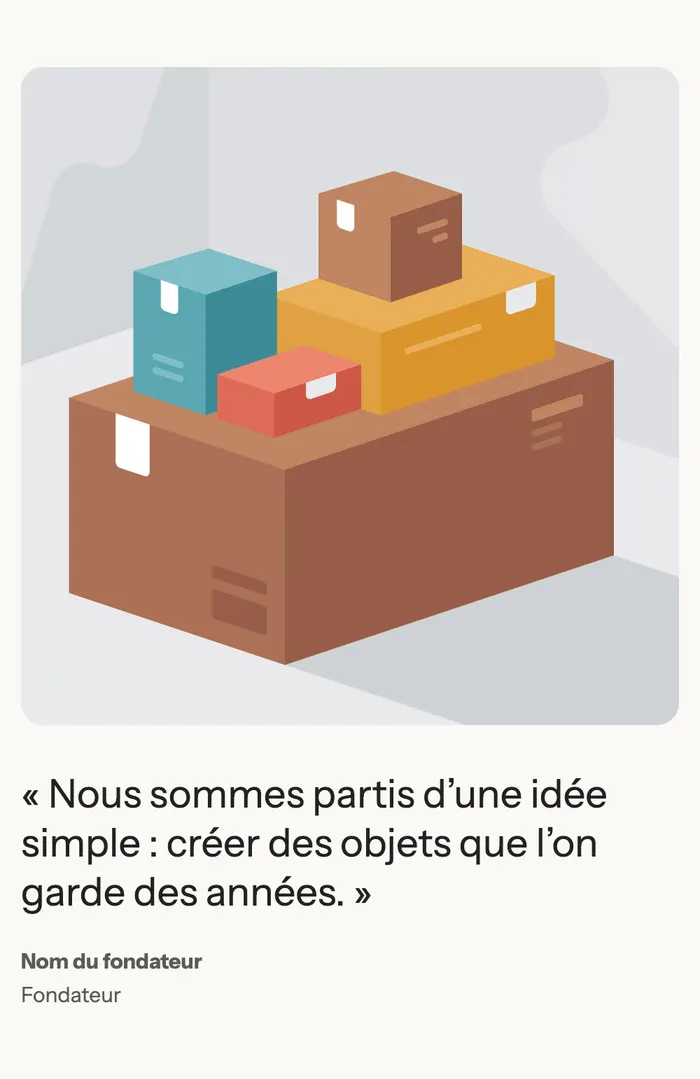
On mobile, the image moves above the quote:
Section title
A subheading, a heading and a sentence on the left, a button on the right, on a single line. Place it right above a section that has no heading (a product grid, a gallery) to announce it.

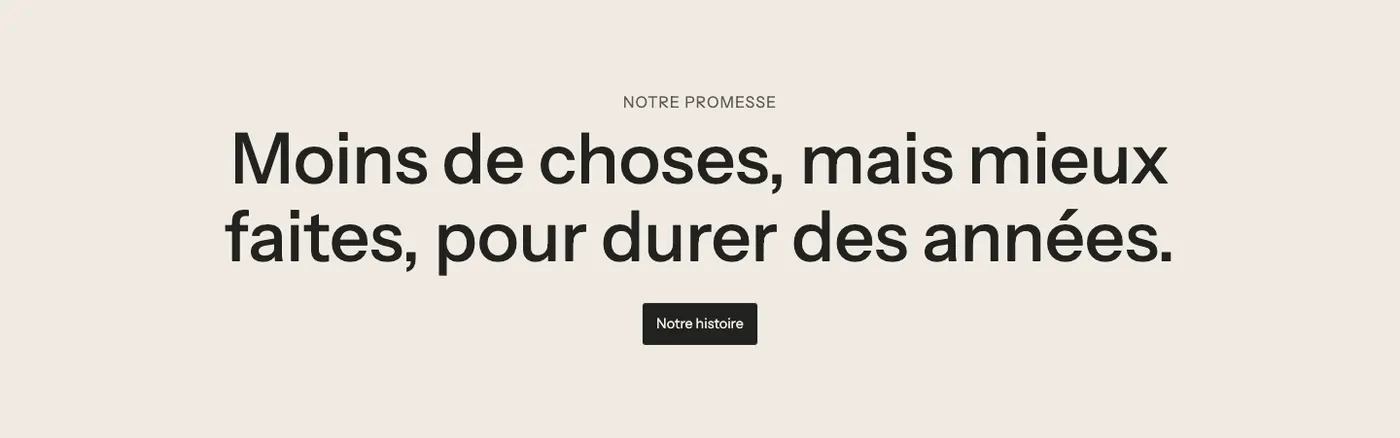
Big statement
A very large, centered sentence with a button. For a brand promise or a manifesto. It's the layout Maison Mocha uses, without a button, at the top of this article.
Add the section
- In your Shopify admin, open Online Store > Themes and click Edit theme.
- Pick the template in the top menu.
- Click Add section, open the Text category and choose the variant.
- Click each block to replace the sample texts and the buttons' links.
- Click Save.
The section's blocks
| Block | What it's for |
|---|---|
| Heading | The Subheading and the Heading, with its Heading style (1, 2 or 3) and size. The tag (H1, H2…) is picked with the field's Aa menu. It can also show Rotating words. |
| Text | The paragraph, in rich text (bold, italic, links). |
| Button | A link to a page, a collection or a product. |
| Group | Lines up several blocks side by side (the two buttons) or in a column (the quote and its author). |
| Image | The photo of the Pull quote variant. |
Every theme block can be added with Add block: a Checklist, a Badge, Stars (typed score), a Text reveal whose words light up as you scroll…
Useful settings of the Text block
- Description: the text itself.
- Color of bold words: Heading, Text, Accent 1 or Accent 2. Put a word in bold in the paragraph to color it.
- Alignment and Mobile alignment.
- Custom font size: reveals Font size on desktop (16 px by default) and Font size on mobile (14 px).
The section settings
The section only has the frame shared by almost every section: Layout (width, alignments, inner spacing), Color palette (the background; Maison Mocha uses a beige palette to make its sentence stand out), Separators and Animations. It's explained in Understand the theme editor.
For readable text, choose Page width narrow in Layout width: lines stay short even on a large screen.
Tips and pitfalls
- One strong sentence beats a long paragraph: the section is made to be read in two seconds.
- One H1 per page: a Heading set to H1 only keeps that tag in the first section of a page that has no title of its own; elsewhere, it becomes an H2 that looks exactly the same. So choose H2 for your mid-page sections.
- For a long content page (terms, shipping), use a regular Shopify page and its Page content instead: you edit it in Online Store > Pages, without going through the editor.
- A big sentence on a colored background creates a pause between two image sections: alternate palettes to give the page rhythm.