
Bundle builder section: "Build your bundle" and "Bought together
Let your customers build their own bundle with tiered discounts, or offer several products to add together in one click.
The Bundle builder section gets customers to buy several products at once. With the Build your bundle preset, customers pick their own items from a grid and watch their discount grow tier after tier. With Bought together, you offer a ready-made selection, added to the cart in a single click. Place the section on the home page, a dedicated page ("Gift box", "Box") or a collection page.
Presets
Build your bundle
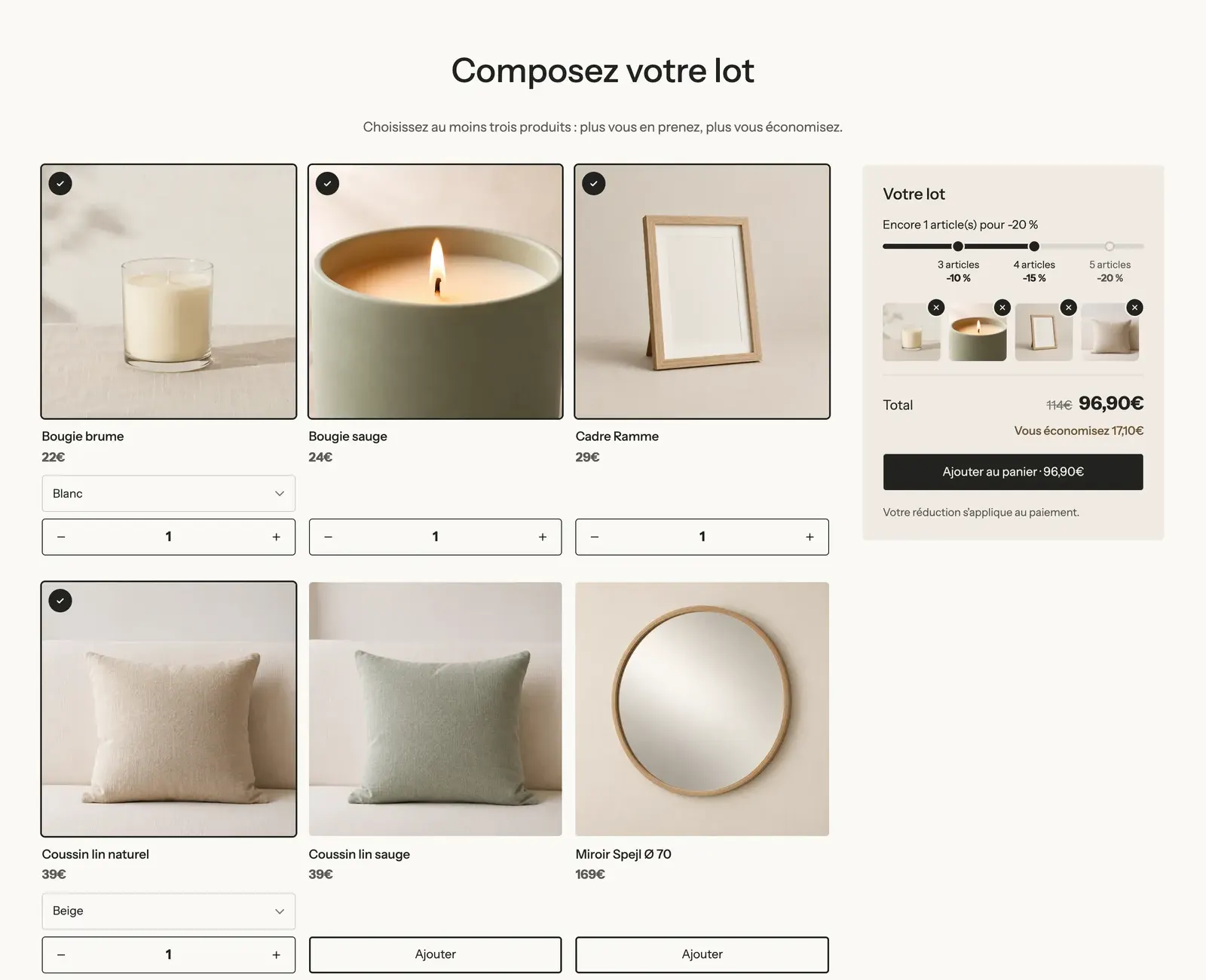
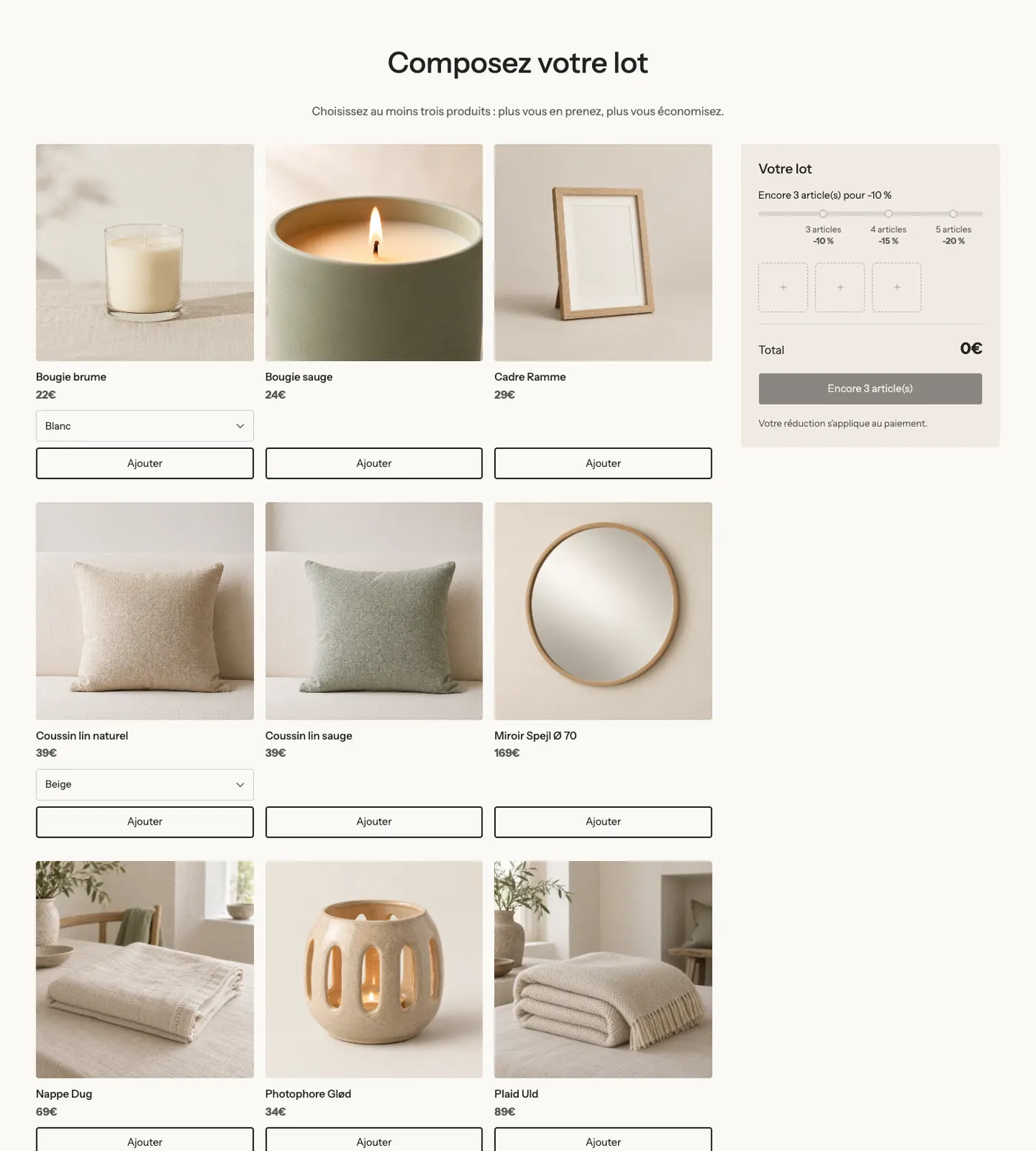
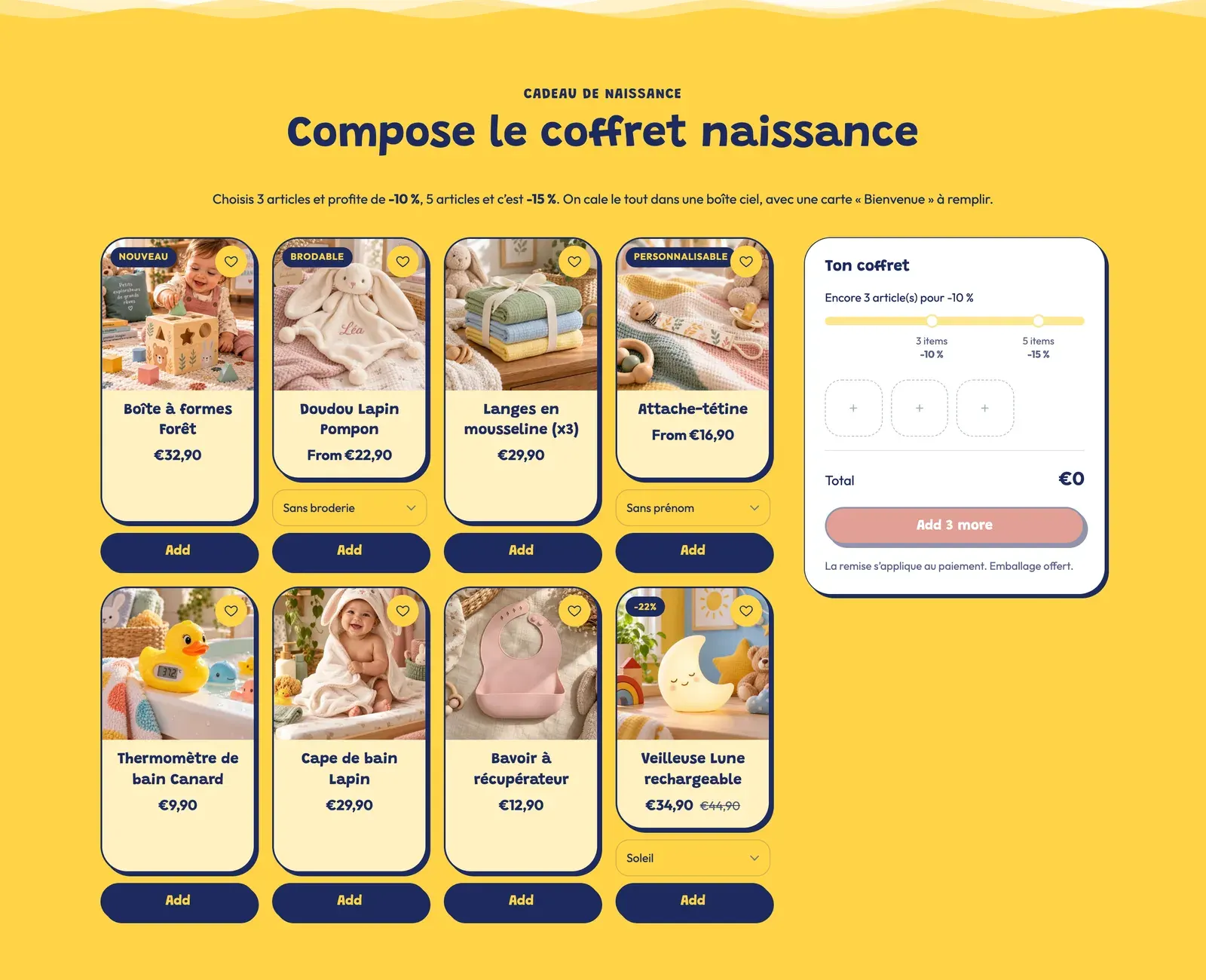
A heading, a text and the Bundle builder block: a product grid (three columns, square images) and, on the right, a summary with a tier bar set to 3 items -10%, 4 items -15% and 5 items -20%. Customers must choose at least three products and at most six. When empty, the summary slots wait for the first items:
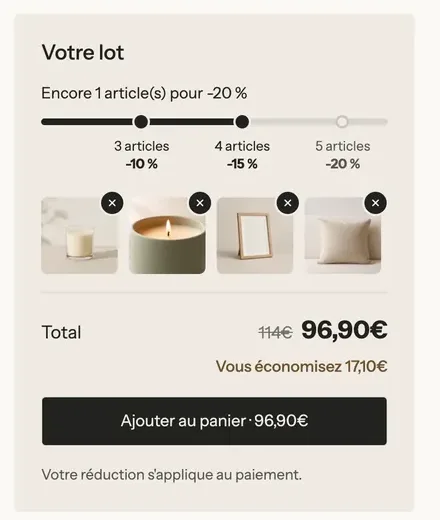
Each item added fills a slot, moves the bar forward and updates the total and savings:
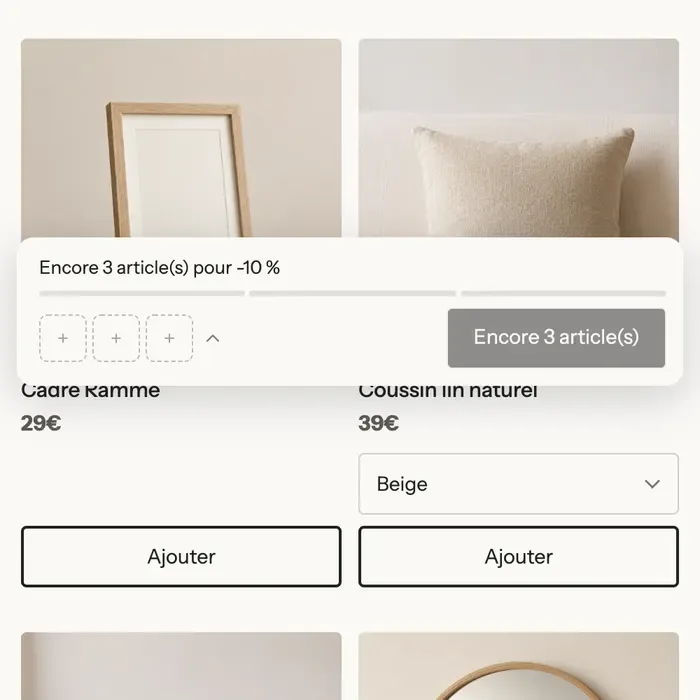
On mobile, a sticky bar shows the progress, the chosen items and the button while the products are on screen:
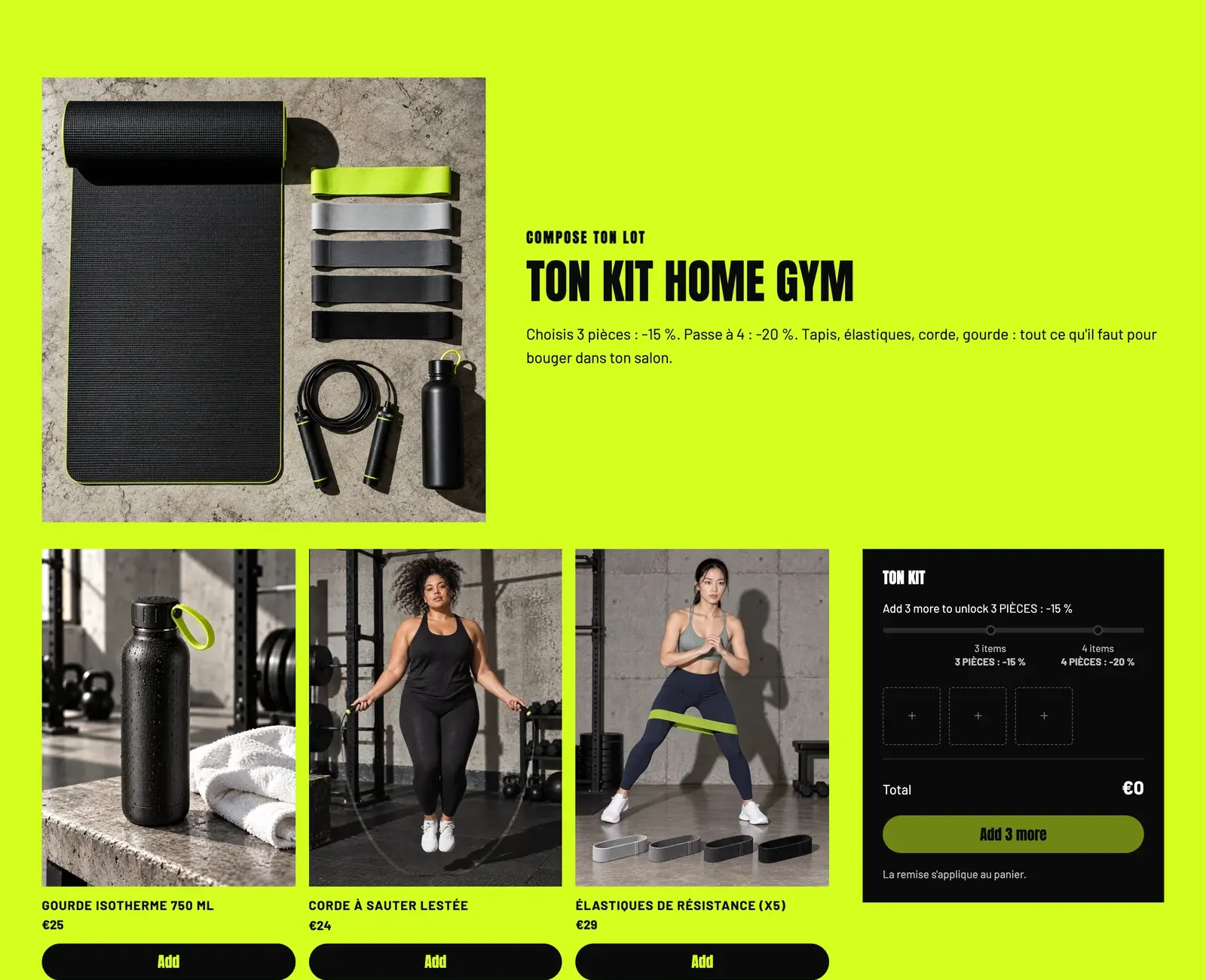
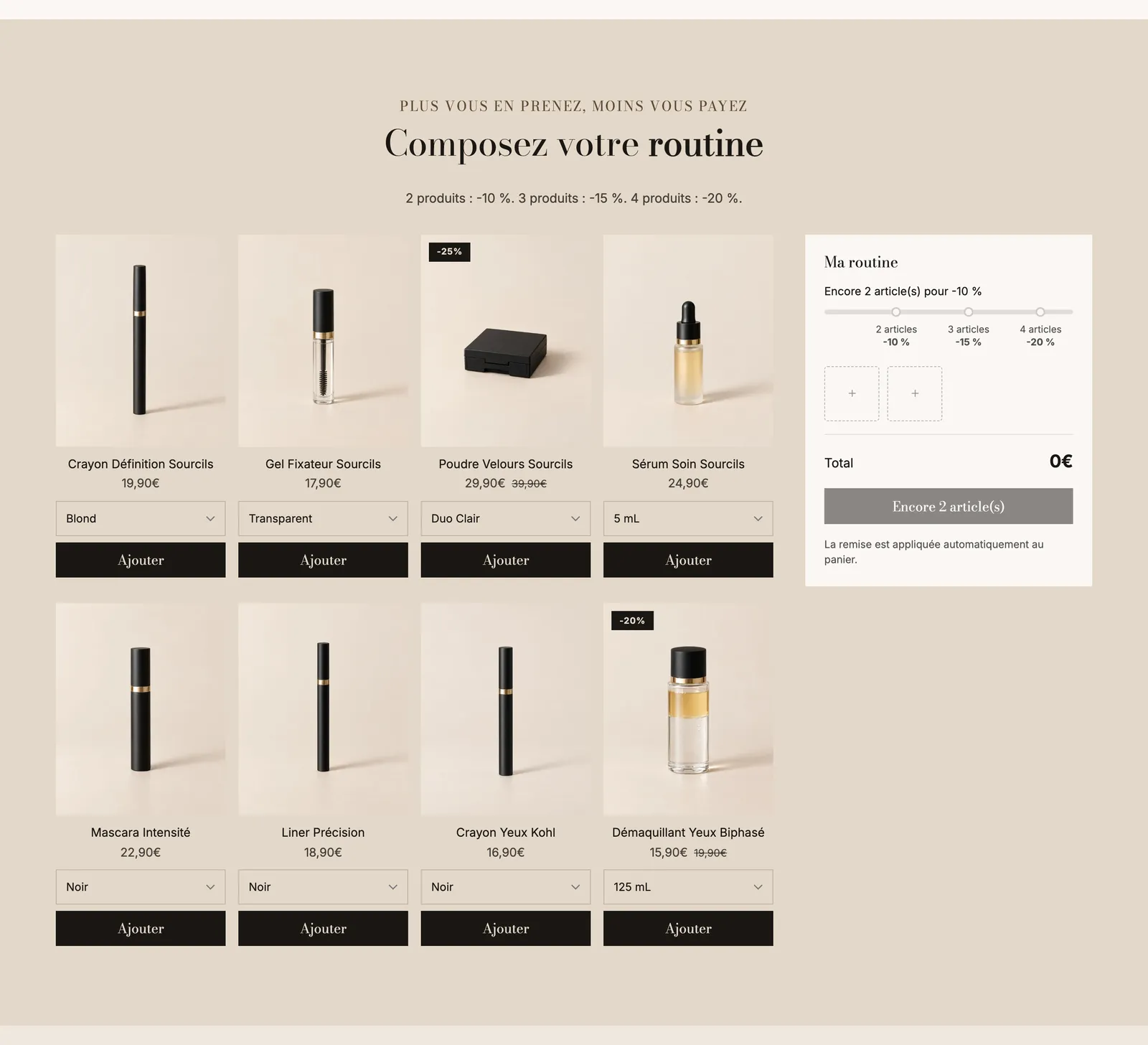
Each demo puts its own spin on it. Hopla turns it into a two-tier baby gift box; Pulse adds a large photo and a text above a black summary; Sylys uses it to build a beauty routine:
Bought together
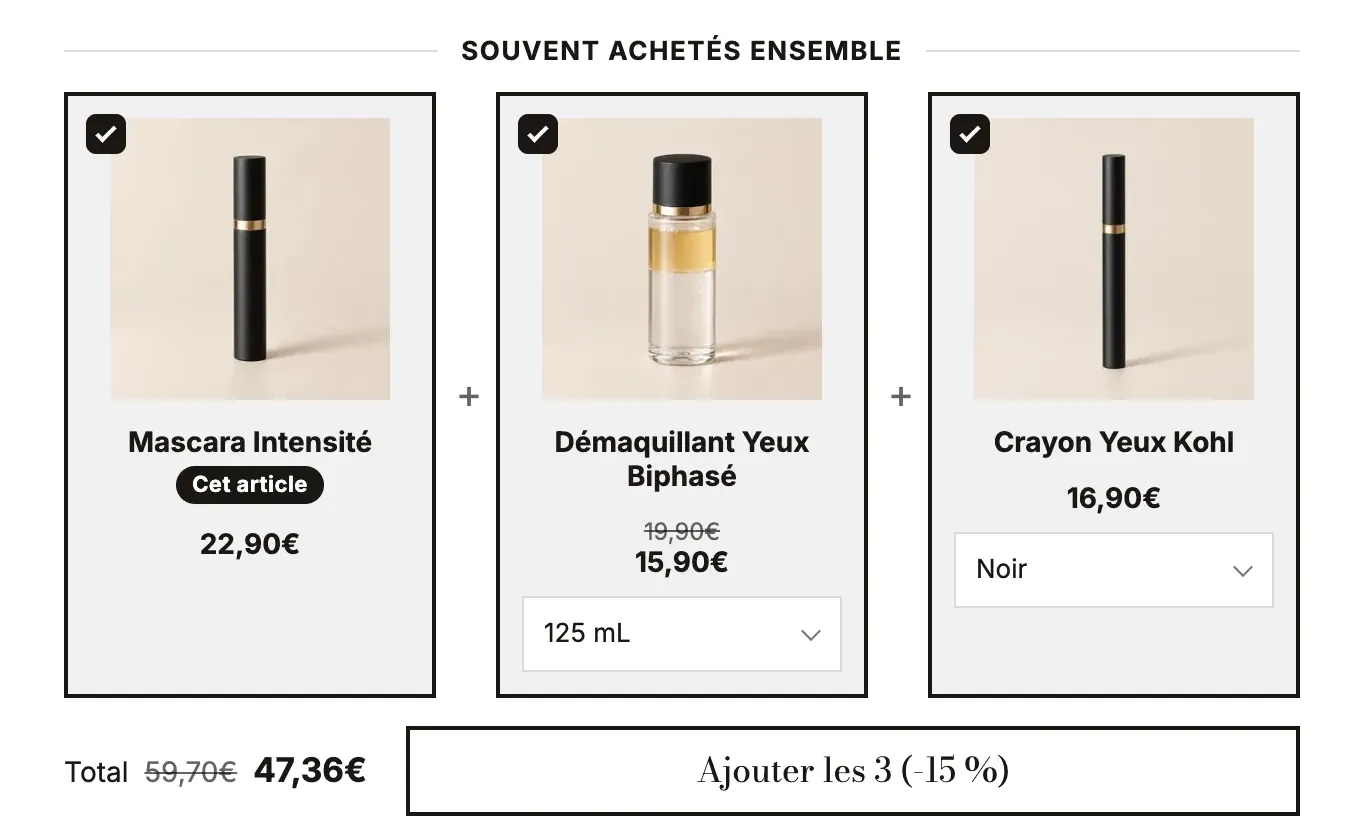
A heading, a text and an Add-ons block in the Bought together layout: several products linked by a "+", all checked, with the total and a button that adds them all at once (10% discount shown). The three add-ons are empty at first: until you've chosen a product in each one, only the heading and text show.

Once filled in, it looks like the Sylys setup, where the same Add-ons block sits on the product page and includes the product on the page ("Cet article"):
Add the section
- Open Online Store > Themes > Edit theme and choose the template (for example Home page).
- Click Add section, Products category, then Build your bundle or Bought together.
- Build your bundle: click the Bundle builder block and choose the Collection (or Chosen products). Bought together: click each Add-on block and choose its Product.
- Set up the tiers (see below), then click Save.
- In Shopify, create the automatic discount that matches each tier.
The section's blocks
| Block | What it's for |
|---|---|
| Bundle builder | The grid of products to choose from, the allowed quantities and where the summary goes. |
| Product Card | How the products in the grid look (image, title, price…). |
| Summary | The "Your bundle" panel: slots, total, savings, button. |
| Progress bar and Tier | The discount tiers shown in the summary. |
| Add-ons and Add-on | For the Bought together preset: one Add-on block per product. |
| Heading, Text… | The heading and text above. |
Bundle builder
- Products group: Source (Collection or Chosen products), Collection (empty: the page's collection, otherwise all products), Number of items (12), Hide sold out products (checked), Show variant selector (checked).
- Quantity group: Minimum items (3), Maximum items (0 = no limit; 6 in the preset), Maximum of the same product, Bundle name in the cart (saved on each order line, invisible to the customer, so you can recognize the bundle).
- Layout group: Layout (Grid or Carousel), columns on desktop, tablet and mobile, spacing.
- Summary group: Summary position (Right, Left or Bottom), Width, Show the summary first on mobile, Sticky bar on mobile (checked) and its Position (Bottom or Top).
Summary
Heading ("Your bundle"), Show compare-at price, Savings, Button label ([count] and [price] are replaced by the number of items and the total), Button style, Text below the button, Keep visible while scrolling (checked), then the design: background, border, corners, inner spacing, shadow.
Progress bar and tiers
The Progress bar has a Progress message ([amount] for what's left, [reward] for the next reward), a Message once everything is unlocked, Show thresholds, and its colors. Each Tier has a Quantity, a Discount in % and a Label (empty: the discount, for example -10%).
Add-ons (Bought together)
Layout (List, Cards, Bought together), Selection (Several, One only, All included), Show variant selector, Add to cart (With the product's button or Separate button), Include this product, Button label ([count], [price]), and the Discount group (type, Value, Minimum add-ons selected, optional Discount code). Each Add-on has its Product, a Title, a Description, a Badge and Selected by default. This block is covered in detail in Offer blocks.
Section settings
The section only has the shared frame: Layout, Color palette, Separators and Animations (see Understand the theme editor).
Tips and pitfalls
- Match the theme's tiers and your automatic discounts exactly: same minimum quantity, same products, same percentage.
- A collection dedicated to the bundle ("Baby gift box", "Routine") avoids offering products that don't fit.
- Keep Hide sold out products checked: a customer who can't complete their bundle gives up.
- For Bought together, leave Include this product unchecked outside a product page: there's no "product on the page" on the home page.
- Test adding to cart and going to checkout before launching the offer: it's the only way to check that the discount applies.