
Image with hotspots section: shop the look and explained product
Place clickable points on a lifestyle photo to sell every product in it, or to explain a product's details point by point.
The Image with hotspots section places points on a photo. On hover or click, each point opens a small card: a product with its price and an Add to cart button, or an explanatory text. Use it to sell an entire scene (a living room, an outfit, an ear styled with several pieces of jewelry) or to break down a product in detail.

The variants (presets)
Shop the look
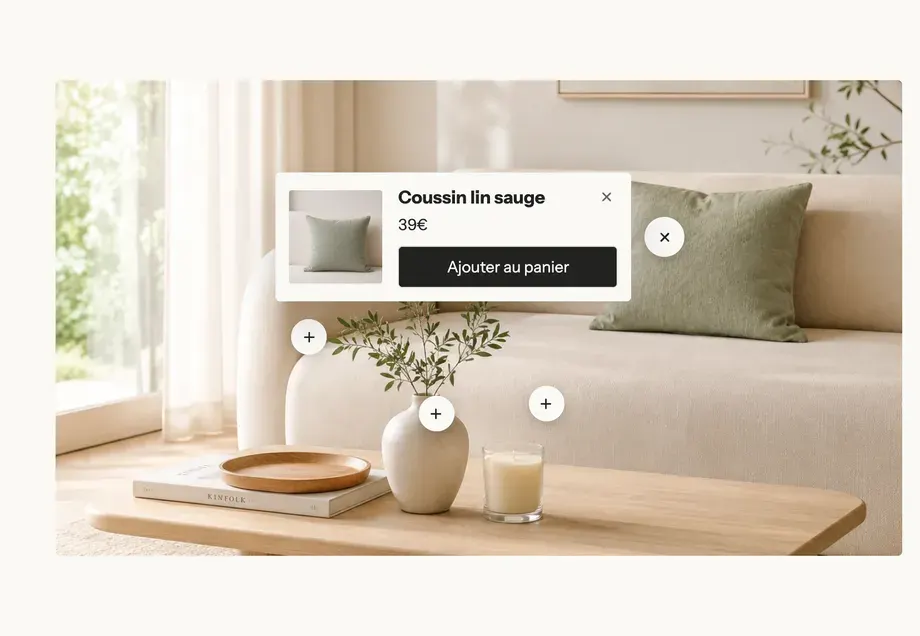
A centered heading above a large landscape image, with three Product type points. The customer hovers over a point and sees the product, its price and a button to add it to the cart without leaving the page.
Once the products are chosen, the point opens the product card:
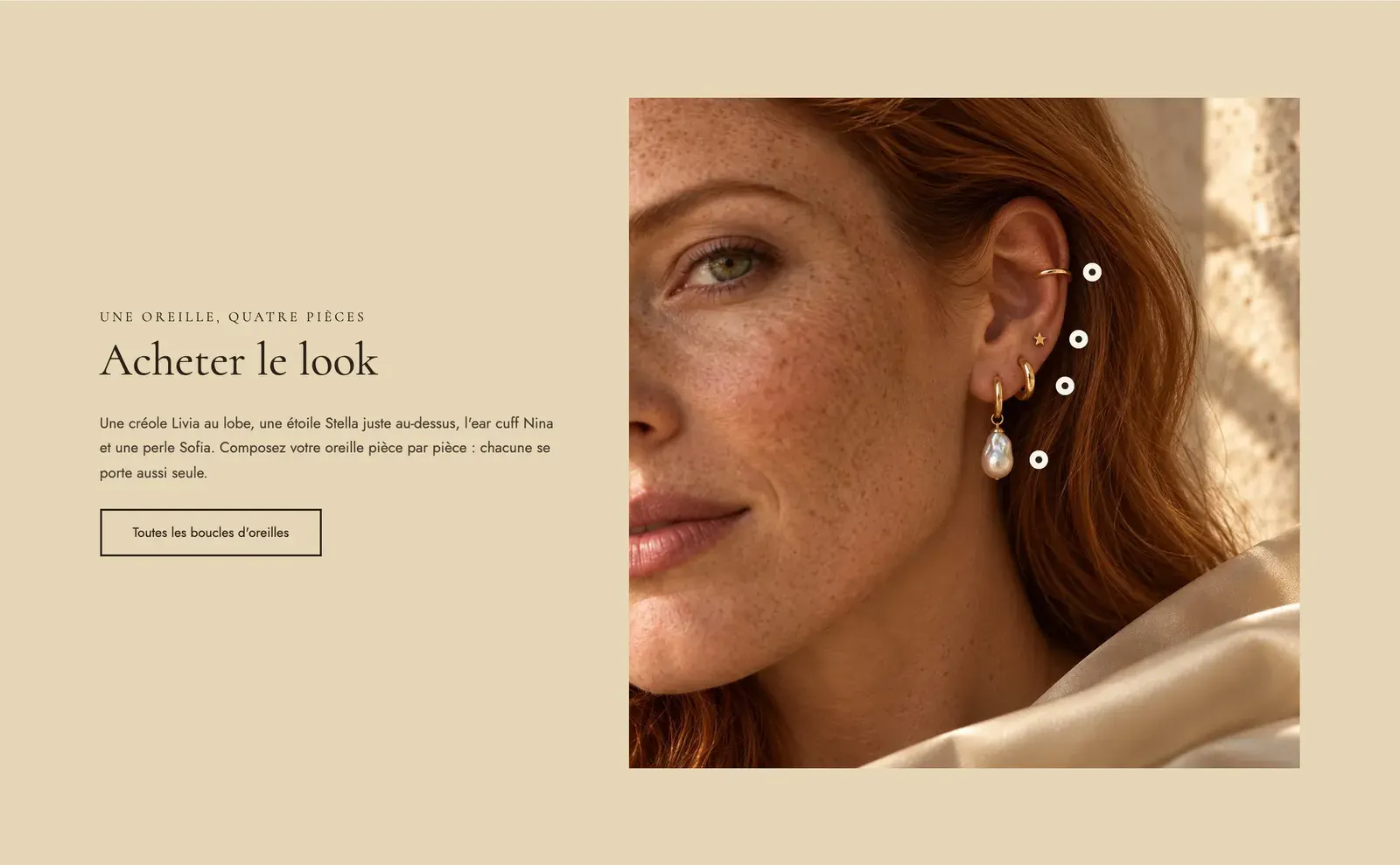
The Darly demo uses it for an ear adorned with four pieces of jewelry, with four discreet points placed near the pieces:
Explained product
A square image on the left with numbered Text type points, and on the right a heading, a text and a button. The points open on click and answer the customer's questions (material, finish, use). This variant sits in the Product page category of the picker.
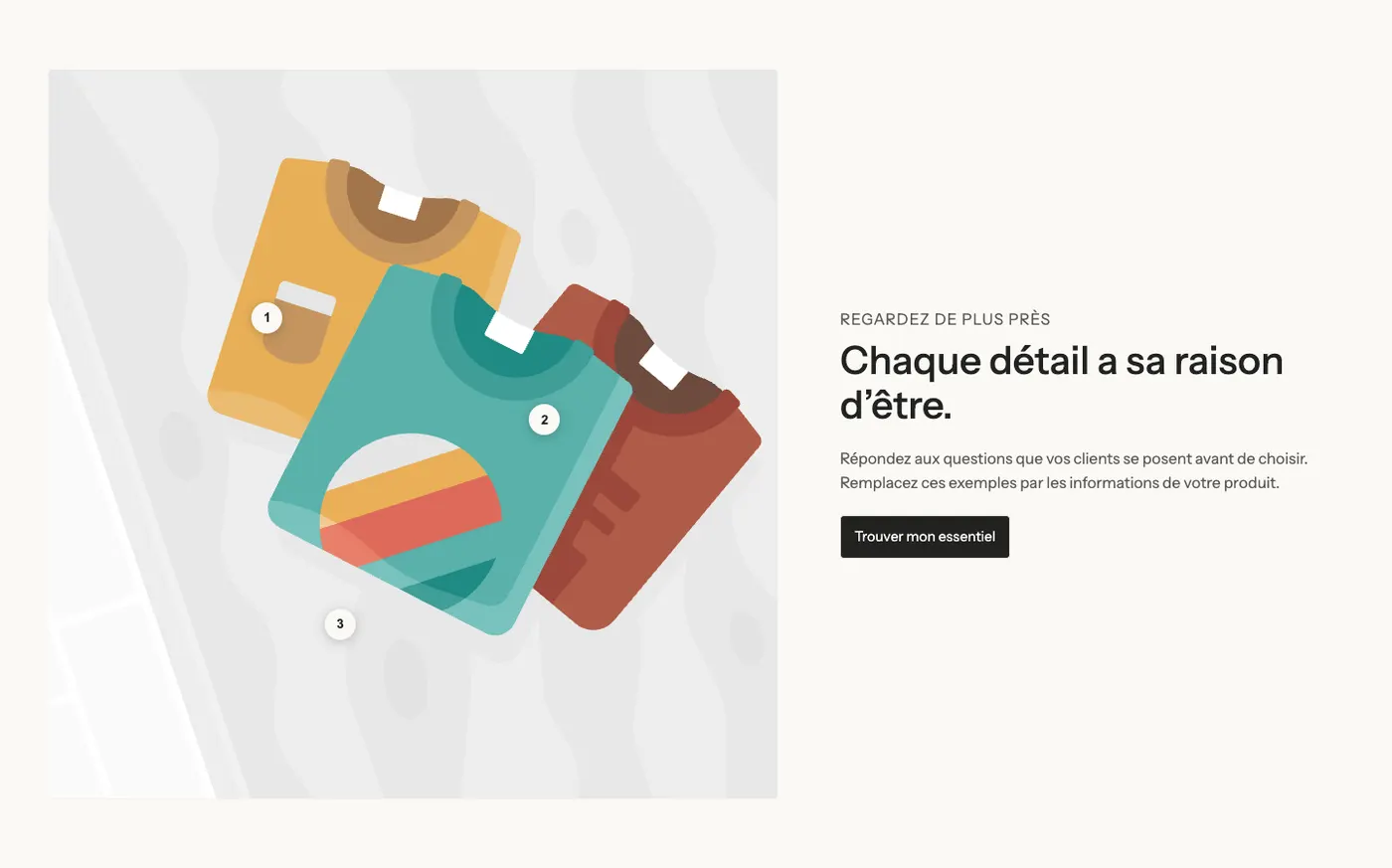
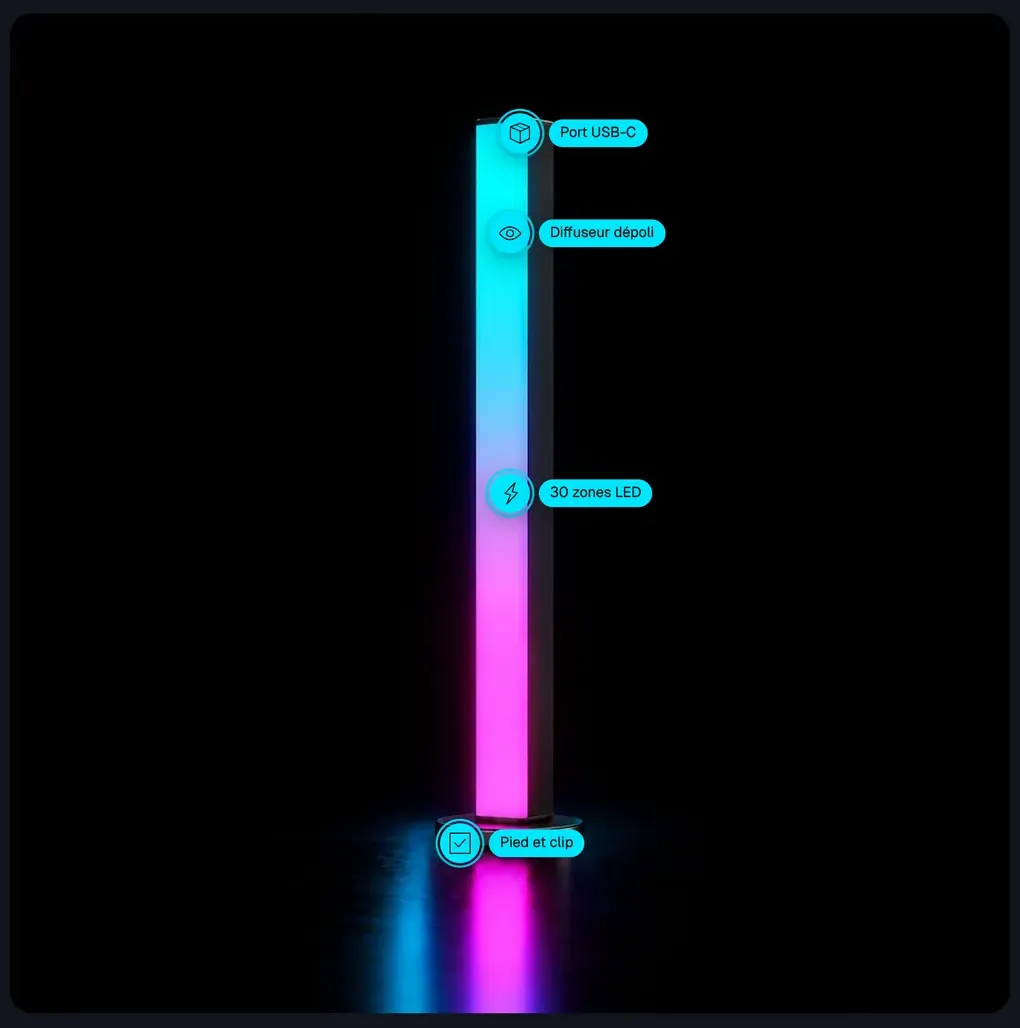
The Lumyx demo turns it into a technical view: each marker has an icon, followed by a label naming the detail:
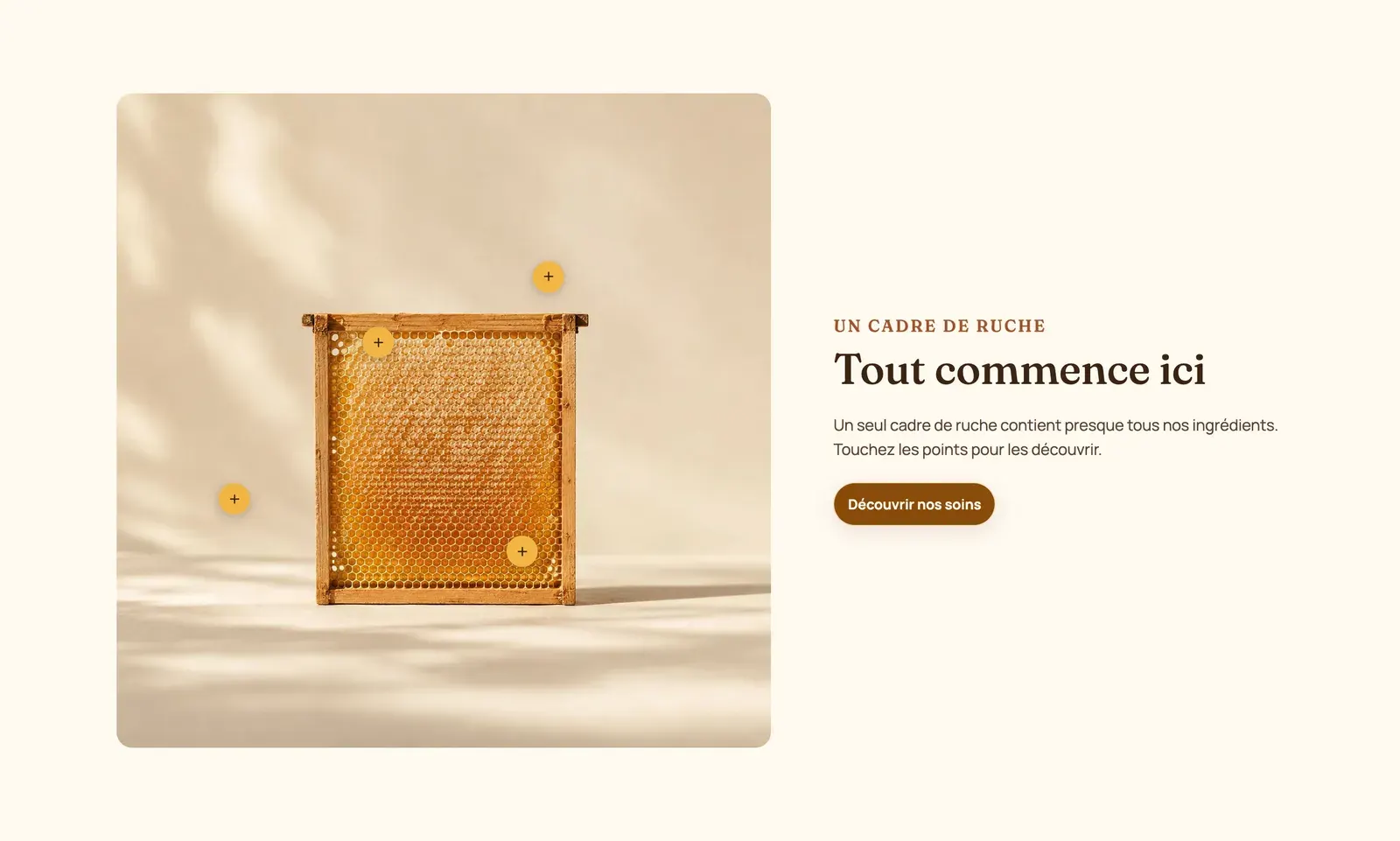
Ma Petite Ruche keeps markers with a plus sign, colored in the brand's shades:
Add the section
- In your Shopify admin, open Online Store > Themes and click Edit theme.
- Pick the template in the top menu (for example Home page, or a "Lookbook" page).
- Click Add section, then choose Shop the look (Selling points category) or Explained product (Product page category).
- Click the Image with hotspots block and choose your Image.
- Click each Hotspot, choose the Product (or write the text) and place it with Horizontal position and Vertical position.
- Click Save.
The section's blocks
| Block | What it's for |
|---|---|
| Heading, Group (heading, text, button) | The text around the image. |
| Image with hotspots | The image and the marker style. Also available as a block (Add block > Selling points). |
| Hotspot | A point: a product or a text, and its position on the image. |
Image with hotspots
- Media group: Image, Media on mobile (another image for phones), Image ratio (Adapt to image, Portrait, Square, Landscape), Corners.
- Marker group:
- Style: Dot, Plus, Numbers, Icon or Product image (the product thumbnail serves as the marker);
- Shape (Circle, Rounded, Square), Size and Size on mobile;
- Background, Color, Background on hover, Colour on hover, Border width, Shadow;
- Animation: None, Pulse (default) or Ripple, to show the point is clickable;
- Hover effect and Label beside the point: None, Title or Price.
- Display group:
- Open the details on: Hover (default) or Click;
- Add to cart (checked by default): a single-variant product is added straight to the cart, others link to their product page so the customer can pick a size or color;
- List under the image: None, Mobile only (default) or Desktop and mobile. The products are repeated as a list below the photo, easier to tap on a small screen.
Hotspot
- Type: Product or Text. For text: Title, Text, Link, Button label and an optional Image.
- Position group: Horizontal position and Vertical position in %, and Another position on mobile if the mobile image is cropped differently.
- Marker group: an Icon, colors and a Label text specific to this point.
The section settings
The section has the frame shared by almost every section: Layout, Color palette, Separators and Animations, explained in Understand the theme editor.
Tips and pitfalls
- Choose a photo where each product is clearly visible and leave space around it: points that are too close overlap, especially on mobile.
- If the mobile image is cropped, check the mobile preview: a point placed on a cushion on desktop can land on empty space on a phone. Fix it with Another position on mobile.
- Hover doesn't exist on phones: keep List under the image on Mobile only so products stay reachable.
- Three to six points per image. Beyond that, the photo becomes unreadable.