
Video section: player, video with text or background video
Add a Shopify, YouTube or Vimeo video: as a player with a button, next to a text, sticky while scrolling or as a muted background behind a heading.
The Video section shows your product in motion: a demo, behind the scenes at the workshop, a brand film. It accepts a video uploaded to Shopify or a YouTube or Vimeo link, and comes in four layouts, from a simple player to a muted full-screen background video.
The variants (presets)
Video
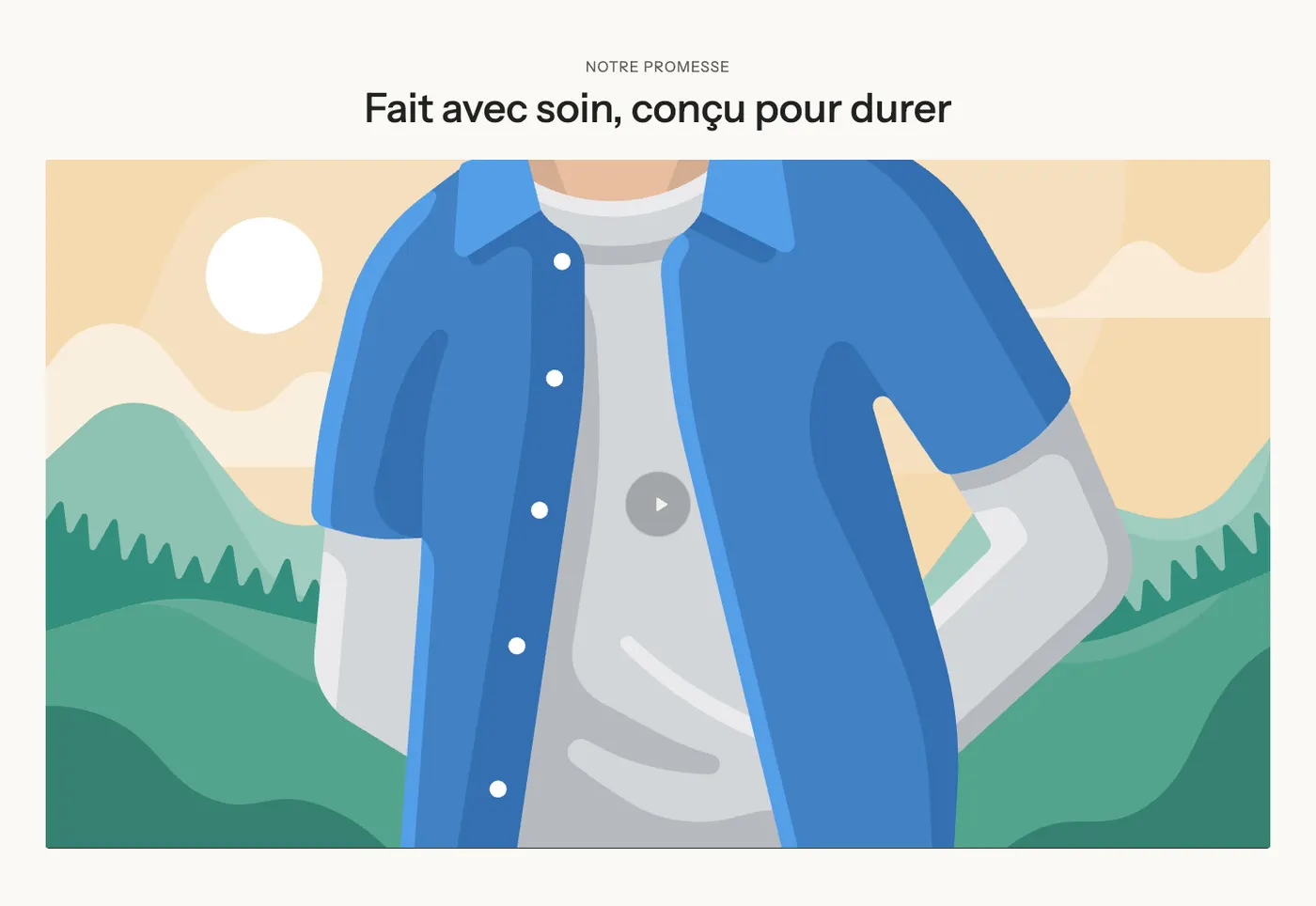
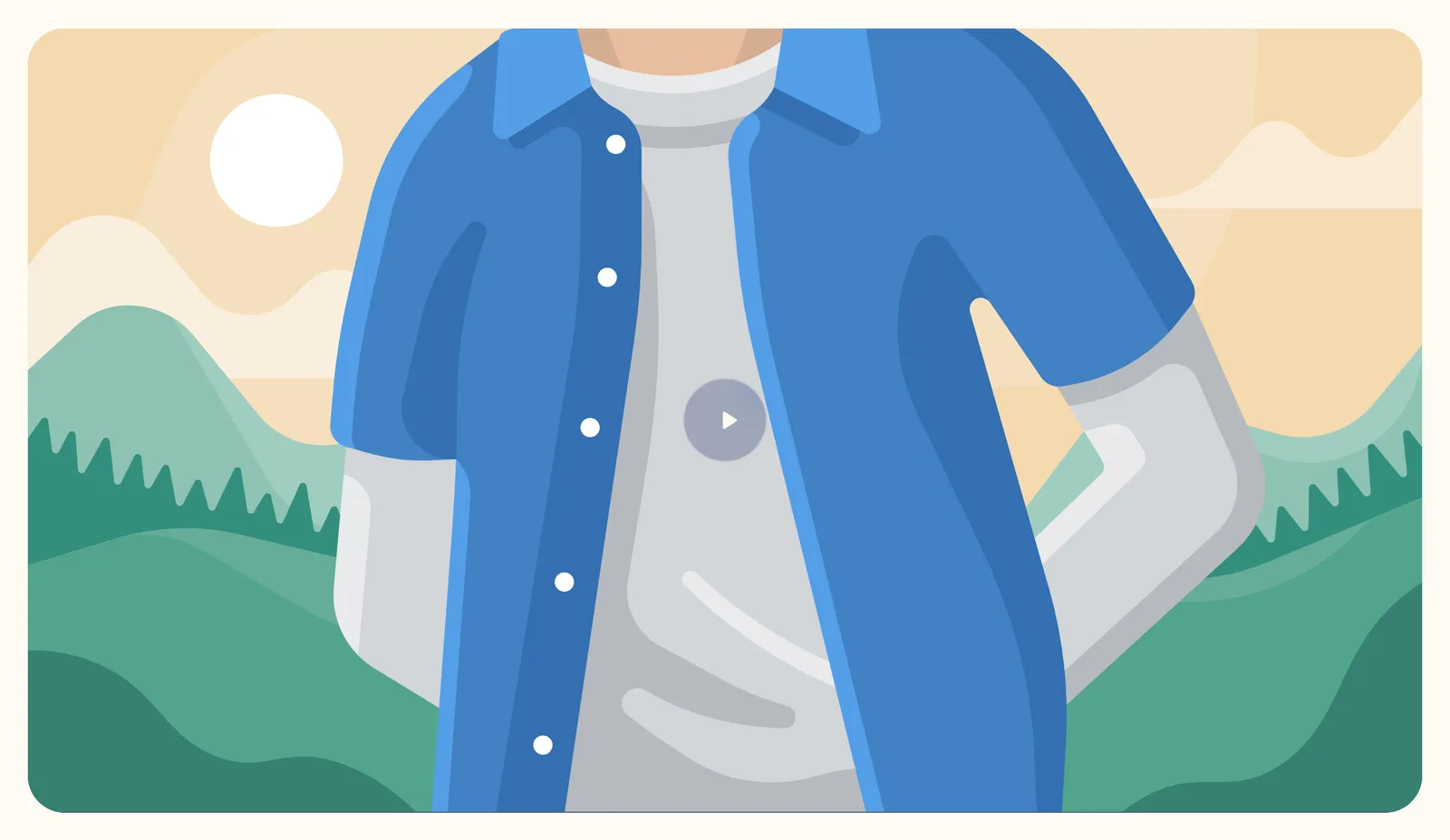
A centered heading above a wide (16:9) player, with a frosted glass play button. The customer starts the video themselves, with sound. It's the variant for a demo or a film meant to be watched in full.
Video with text
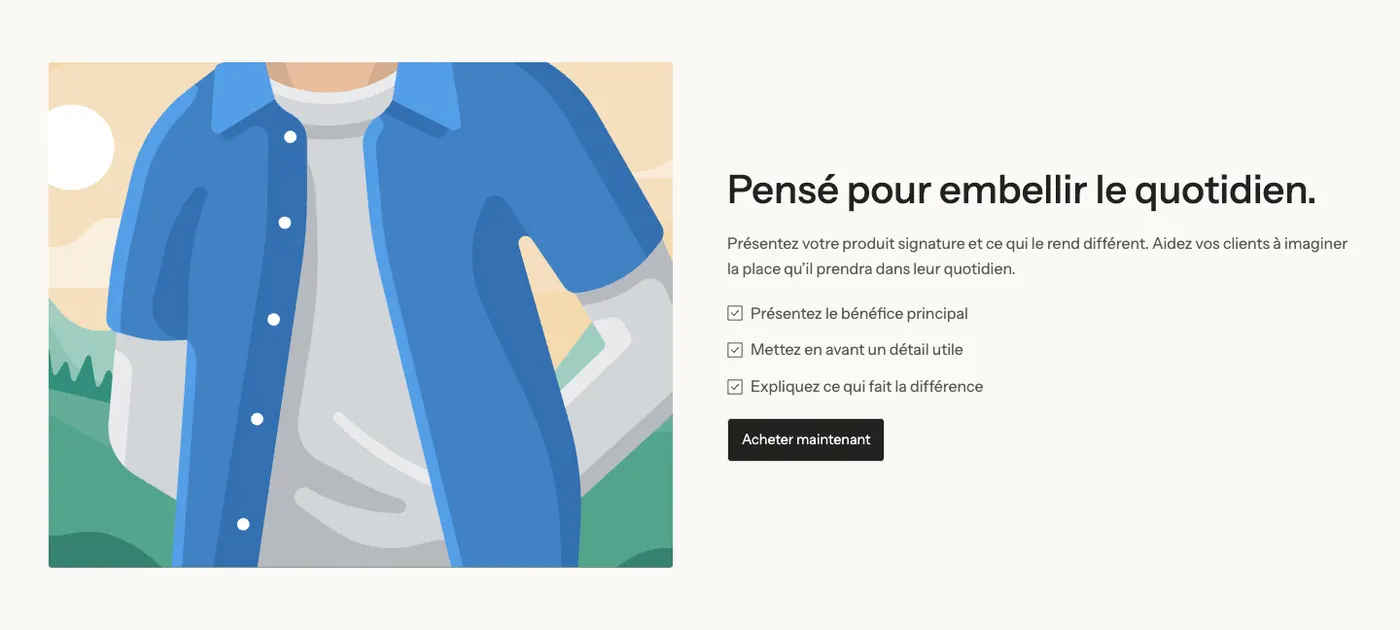
The video on the left, muted and looping, and on the right a heading, a text, a checklist and a button. It works like an image with text section, but in motion.
Sticky video
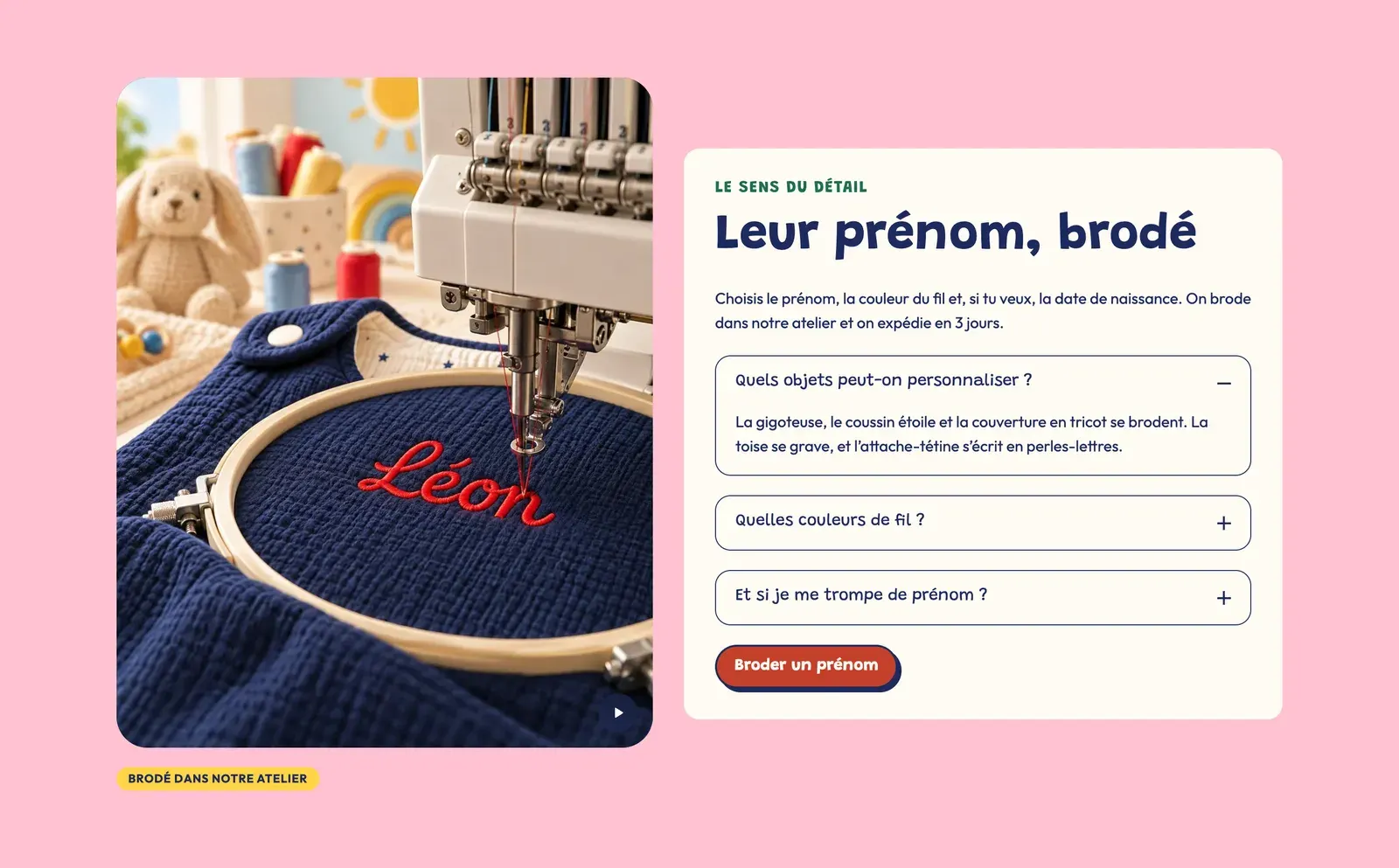
The video stays in place on the left while the right column scrolls: a heading, four benefits with icons, collapsible questions and a button. It's the variant for long product pages and launch pages.
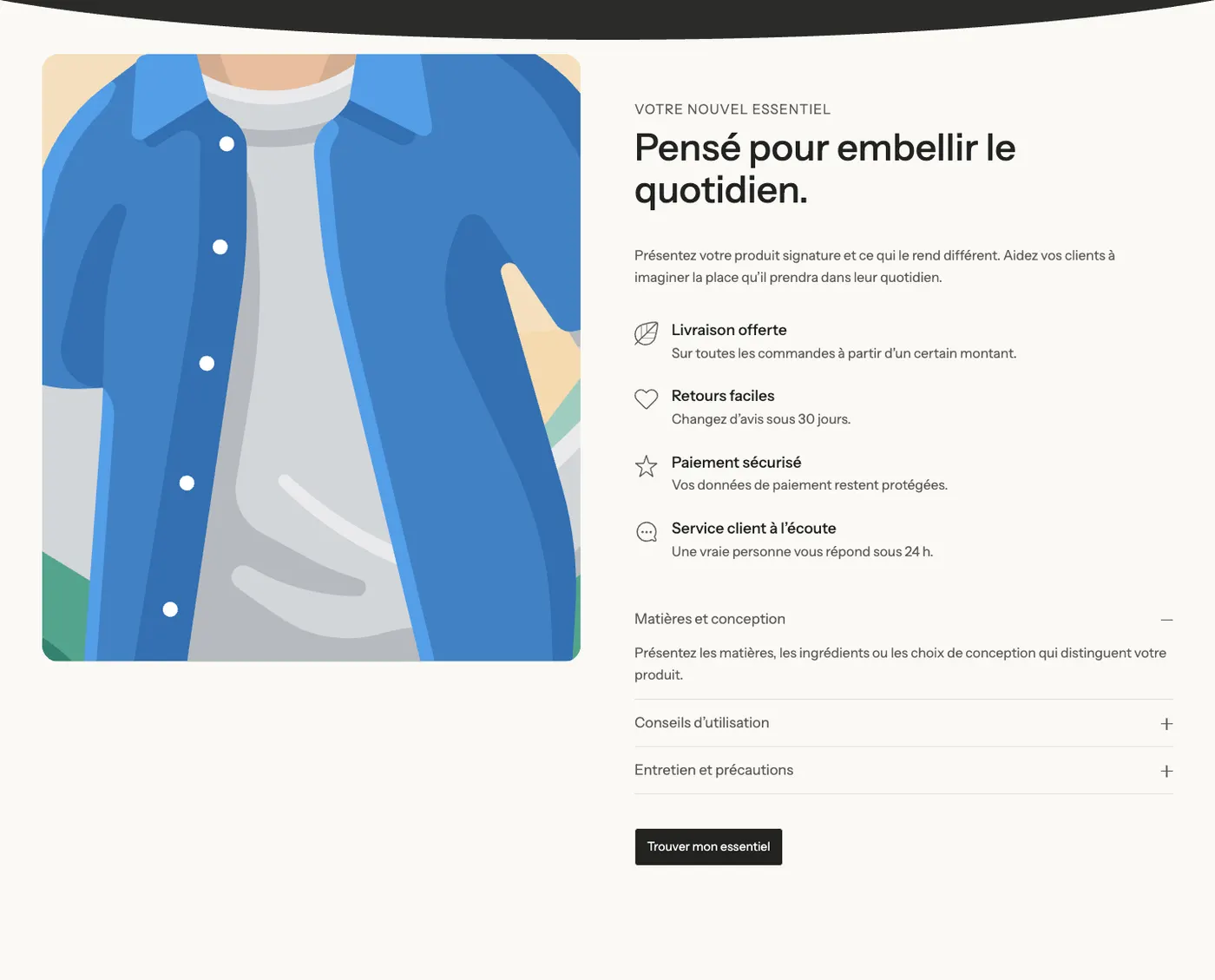
Background video
A muted, full-width video, darkened by an overlay, with a heading, a text and a button on top. It takes up 80% of the screen height and often opens a page.
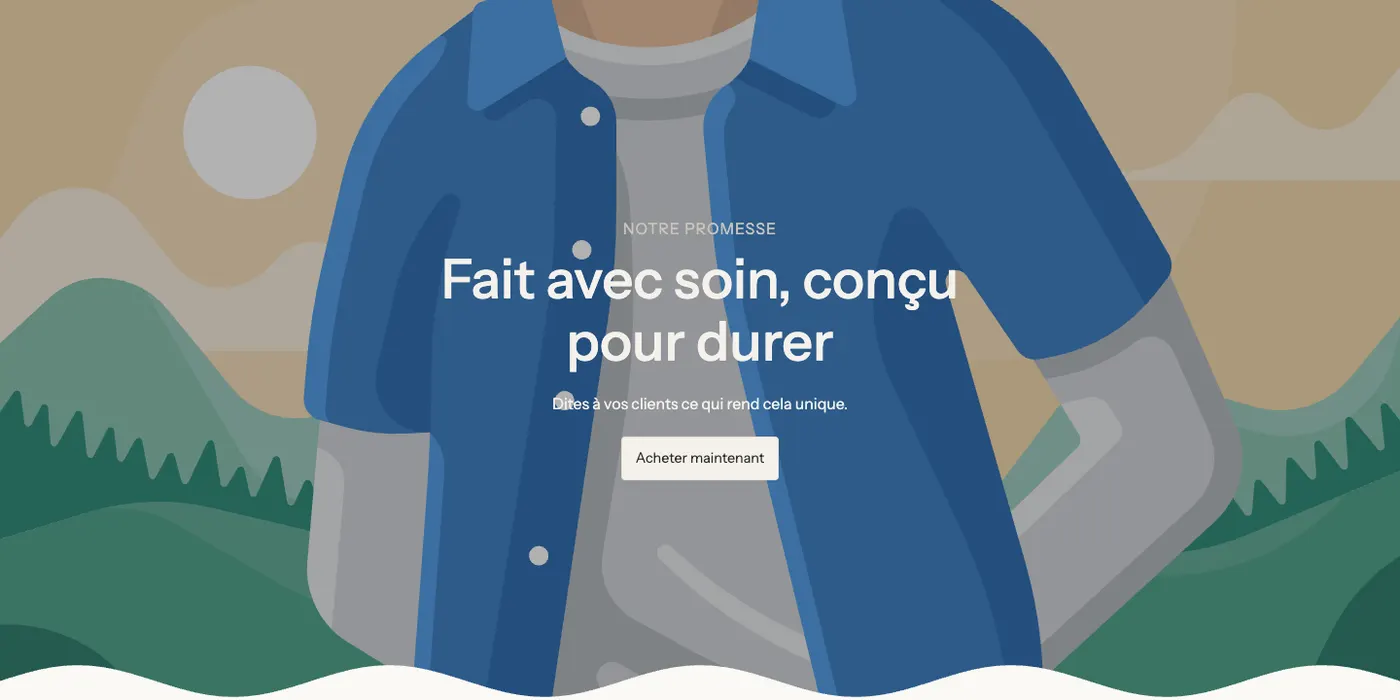
Add the section
- First upload your video in Content > Files in your Shopify admin, or copy its YouTube or Vimeo link.
- Open Online Store > Themes and click Edit theme.
- Pick the template in the top menu (for example Home page).
- Click Add section, open the Media category and choose one of the four variants.
- Click the Video block and choose the Video (or paste the link into YouTube or Vimeo).
- Click Save.
The section's blocks
| Block | What it's for |
|---|---|
| Video | The player or the background video. Also available as a block in Add block > Media. |
| Heading, Text, Checklist, Button, Accordion / FAQ, Icon, Group | The content around the video, or on top of it in the background variant. |
The Video block
- Media group:
- Style: Player (the customer starts the video) or Background video (muted, looping, no play button);
- Video (a Shopify video) or YouTube or Vimeo (used only when no Shopify video is selected);
- Video on mobile: a vertical or lighter version for phones;
- Cover image (when empty: the video's preview image) and Video alt text for screen readers.
- Controls group:
- with Player: Autoplay (without sound, as soon as the video is on screen), Enable video looping, Play button (Solid circle, Frosted glass, Outline or With text) and its Size;
- with Background video: Show a pause button on videos (checked by default) and Show a sound button.
- Layout group:
- Aspect ratio: Adapt to the video, Wide (16:9), Vertical (9:16), Square, Portrait (4:5), Portrait (3:4), Fill the height or Height in % of the screen, and Aspect ratio on mobile;
- Fill mode: Cover (crops to the ratio) or Contain (shows the whole image);
- Color palette, Background, Corners.
- Content over the video group: blocks added inside the video show on top of it. Set their Horizontal alignment and Vertical alignment, the Content max width, the Space around the content and the Overlay opacity that darkens the video to keep the text readable.
The section settings
The section has the frame shared by almost every section: Layout (direction, width, spacing), Color palette, Separators and Animations. See Understand the theme editor.
Tips and pitfalls
- The theme only loads the video when it gets close to the screen. A YouTube or Vimeo video loads nothing before the customer clicks: only the cover image shows.
- Choose a sharp Cover image: it's what visitors see before playback, and on slow connections.
- A background video must make sense without sound. Keep it short (10 to 20 seconds) with a clean loop.
- On mobile, think about Video on mobile (vertical format, lighter file) or Aspect ratio on mobile: a 16:9 video gets very small on a phone.
- Autoplay and background videos use data. As the first section on mobile, an image is often faster.