
Quick order list section: order several variants at once
Show every size and color of a product, or every product in a collection, with a quantity for each, added to the cart in one click.
The Quick order list section shows variants as a table: one row per size or color, a quantity field on each row, then a single button to add everything to the cart. It's mainly for volume sales (resellers, business customers, teams) and for products with many variants, where picking one size at a time gets tedious. Shopify B2B quantity rules and volume pricing apply to it.
Preset
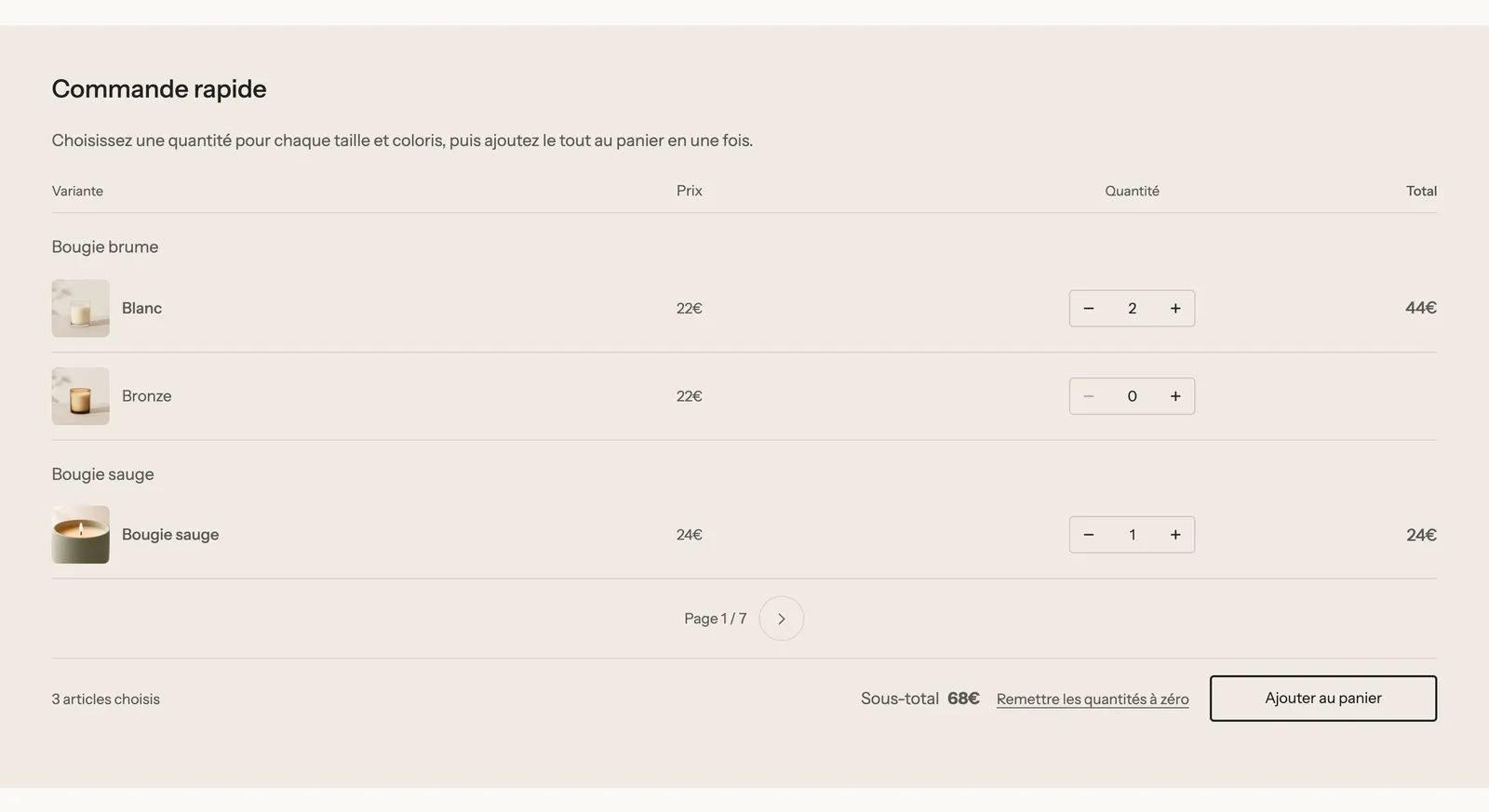
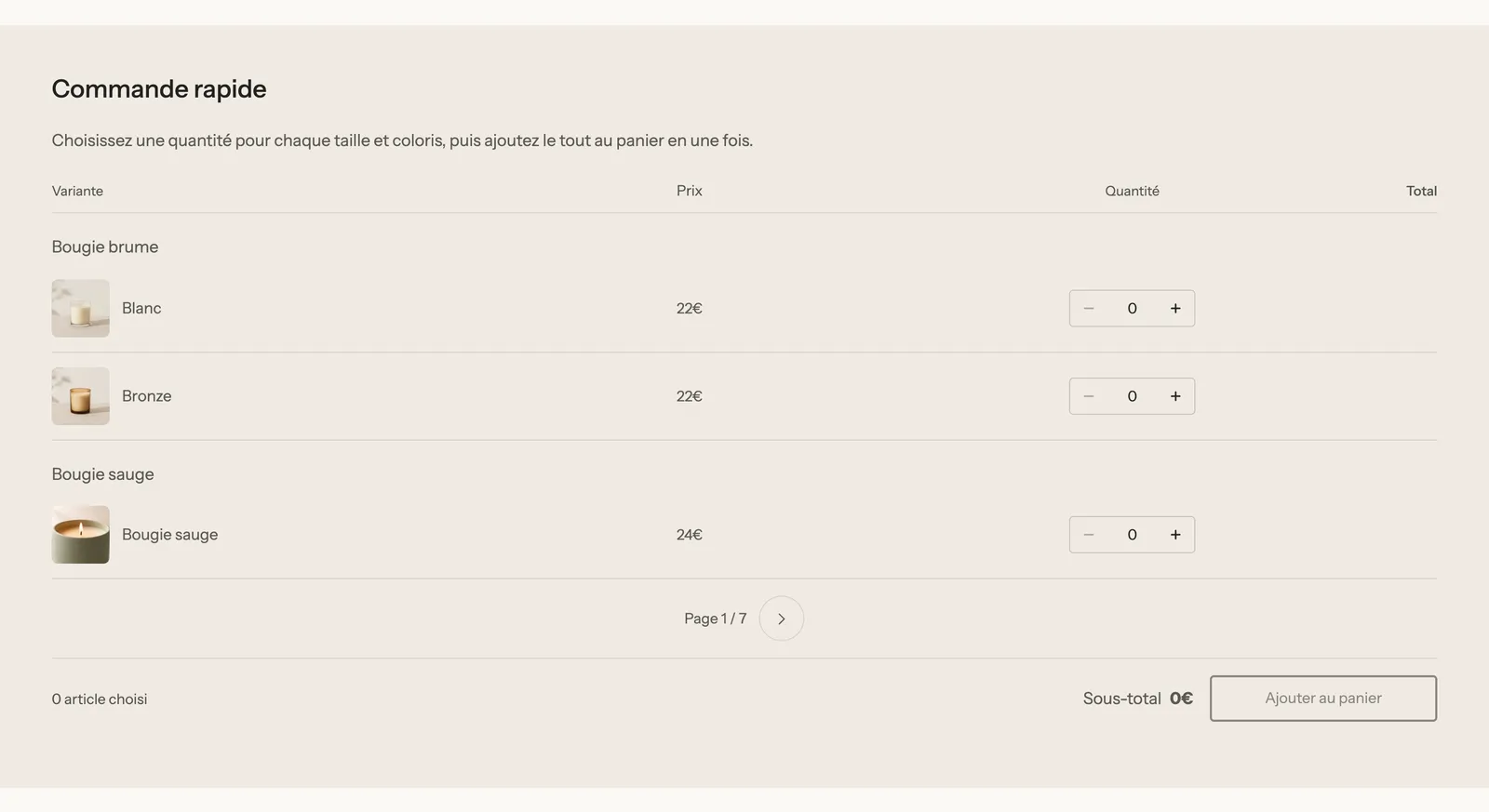
The section has only one preset, Quick order list: a heading ("Quick order"), an explanation text and the table. As it's added, it lists the variants of the product on the page. Outside a product page, and until you've chosen a product or a collection, only the heading and text show:

With the Collection source, each product on the page becomes a small group of rows, with pagination ("Page 1 / 7") when the collection is long:
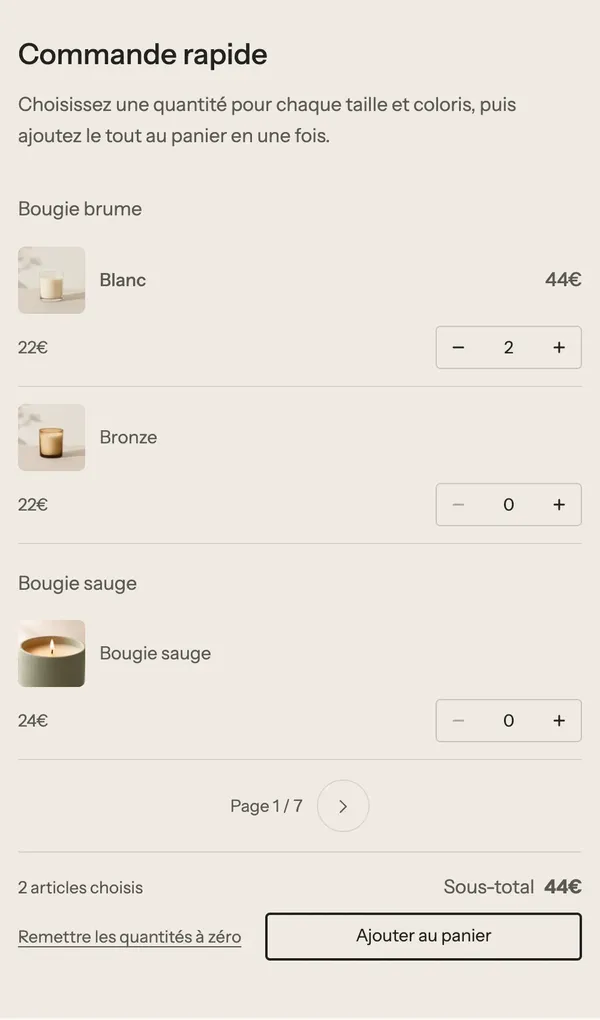
On mobile, each row stacks: image and name, then price and quantity. The bottom of the table keeps the number of items chosen, the subtotal, the Reset quantities link and the button:
Add the section
- Open Online Store > Themes > Edit theme.
- Choose the template: a product template to list the variants of the product being shown, or a page (or the home page) for a whole collection.
- Click Add section, Products category, then Quick order list.
- In the section settings, choose the Source: Product or Collection, then the product or collection.
- Click Save.
The section's blocks
| Block | What it's for |
|---|---|
| Heading | The heading above the table ("Quick order"). |
| Text | The explanation below the heading. |
| Other blocks | The section accepts theme and app blocks (Add block): trust badges, text about business terms, etc. |
The table itself isn't a block: it's set in the section settings.
Section settings
Source group:
- Source: Product (default) or Collection.
- Product: leave it empty on a product page to list the variants of the product being shown.
- Collection: with the Collection source, each product on the page lists its variants.
- Variants per page (Product source): 25 by default, from 5 to 100.
- Products per page (Collection source): 4 by default, from 1 to 12.
Display group:
- Show images and Show SKUs: checked by default.
- Show volume pricing: for B2B customers, when their catalog sets quantity-based prices for the product.
- Hide sold out variants: unchecked by default.
- Keep the total in view: the bottom of the table (subtotal and button) stays on screen while scrolling.
Button group: Button label (empty: "Add to cart" in the store's language) and Button style.
And, like almost every section, the shared frame: Layout, Color palette (Havn uses a beige background), Separators, Animations. See Understand the theme editor.
Tips and pitfalls
- Volume pricing comes from Shopify B2B catalogs: it only shows to logged-in business customers whose catalog sets quantity-based prices.
- Shopify quantity rules (minimum, maximum, increment) apply to each row's field: a reseller can't order less than the set minimum.
- Give each variant an image in Shopify: the table shows the variant image, which is what lets customers tell two colors apart at a glance.
- For a product with many variants, check Hide sold out variants: the table stays readable.
- On mobile, keep Keep the total in view checked: customers see their subtotal while filling in the rows.