
Floating video section: a video bubble in the corner of the screen
Show a small video bubble that follows the customer through their visit and opens into a player with sound, the featured product and a button to its page.
The Floating video section places a small video bubble, muted and looping, in a corner of the screen. When the customer taps it, it opens into a large player with sound, along with the featured product and a button. It's a discreet way to show a demo, a filmed customer review or a message from the founder, without taking up space on the page.
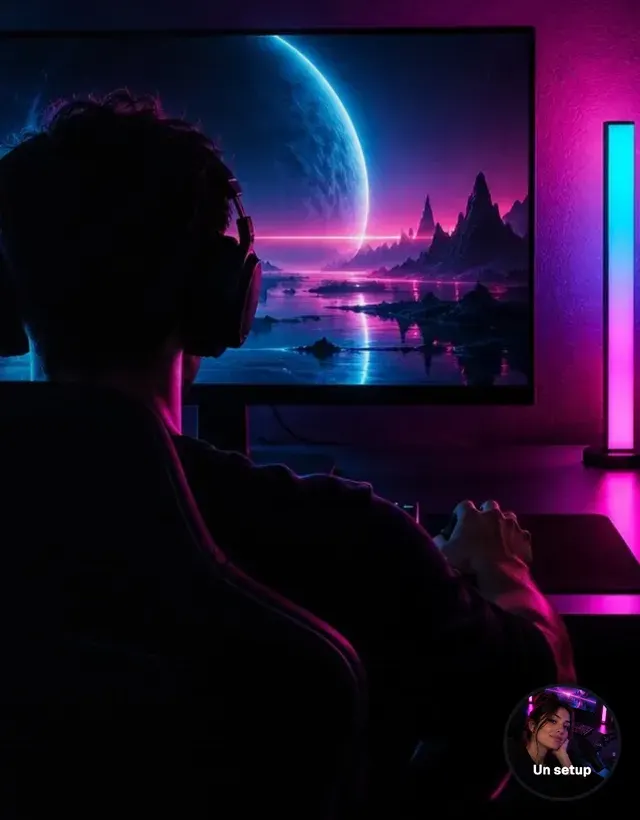
What the customer sees
The bubble appears after a short delay (2 seconds by default). It stays in the same place while the customer scrolls the page. A click opens it in a window:
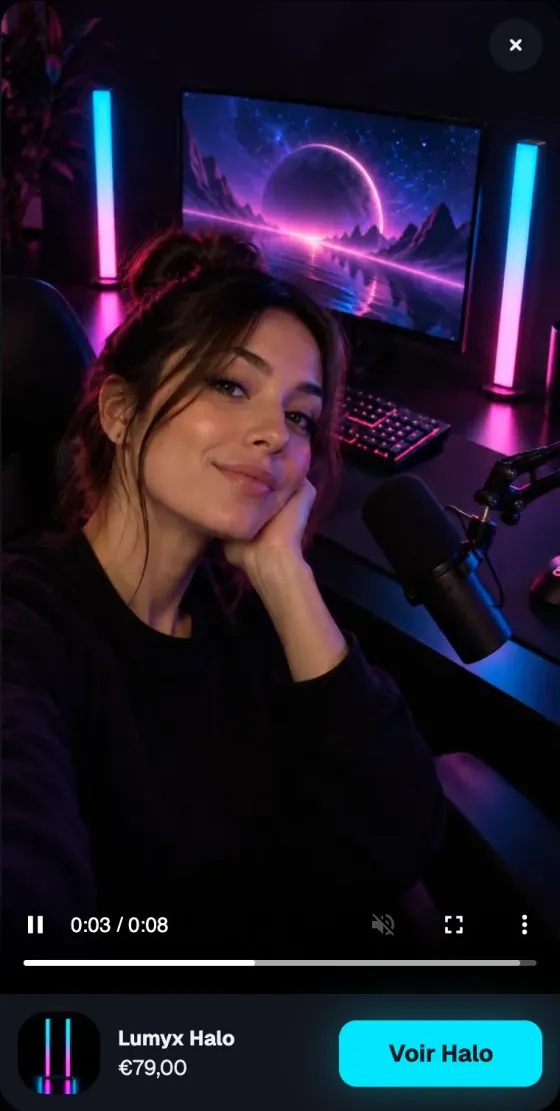
The customer can also minimize the bubble or close it. Once closed, it doesn't come back during their visit.
Add the section
The section has a single preset, Floating video, in the Media category.
- In your Shopify admin, open Online Store > Themes and click Edit theme.
- Pick the template the bubble should appear on (for example Home page).
- Click Add section, open the Media category and choose Floating video.
- Choose the Video, then the Product featured in the player.
- Click Save.
A section added to a template only shows on the pages that use that template. The Pages setting then lets you narrow down where it appears (for example to product pages only).
The section settings
The section has no blocks: everything is set in its four groups.
Media
- Video: a video uploaded to Shopify; or YouTube or Vimeo, used only when no Shopify video is selected.
- Cover image: when empty, the video's preview image is used.
- Video alt text: a description for customers who use a screen reader.
Display
- Pages: Every page, Home page, Product pages or Specific pages.
- Page addresses (with Specific pages): one address per line, for example
/pages/about-us. End with*to include every address that starts that way:/products/*targets every product page. - Delay: the time before the bubble appears, from 0 to 30 seconds (2 by default).
Bubble
- Position: Left or Right (default).
- Shape: Circle (default), Portrait or Square.
- Size (120 px by default) and Size on mobile (90 px).
- Horizontal offset, Vertical offset and Vertical offset on mobile: the distance from the edges of the screen.
- Label: a short word shown on the bubble ("A setup", "Demo", "30 s").
Player
- Player width: 420 px by default.
- Product: shown below the video, with its image and price.
- Button label and Link: the button next to the product.
Tips and pitfalls
- A short, vertical video works best: it's the phone format, and the bubble is small.
- On mobile, check that the bubble doesn't hide an important button, like the sticky add to cart bar of a product page. Adjust the Vertical offset on mobile or change the Position.
- One bubble per page. Several floating elements (bubble, chat button, popup) get in each other's way.
- On a landing page, Landing page mode can hide floating elements, including this bubble.
- On the pages excluded by Pages, the section isn't rendered at all: it doesn't weigh those pages down.