
Savings calculator section: show customers what they save
A slider that calculates your customer's savings live: your price against another one, subscription against one-time purchase, or cost per use.
The Savings calculator section turns a price argument into a personal number. The customer moves a slider ("how many coffees a week?", "every how many weeks?") and instantly sees what they save, per month or per year. It suits products bought again and again, subscriptions, and durable products that replace a recurring expense.
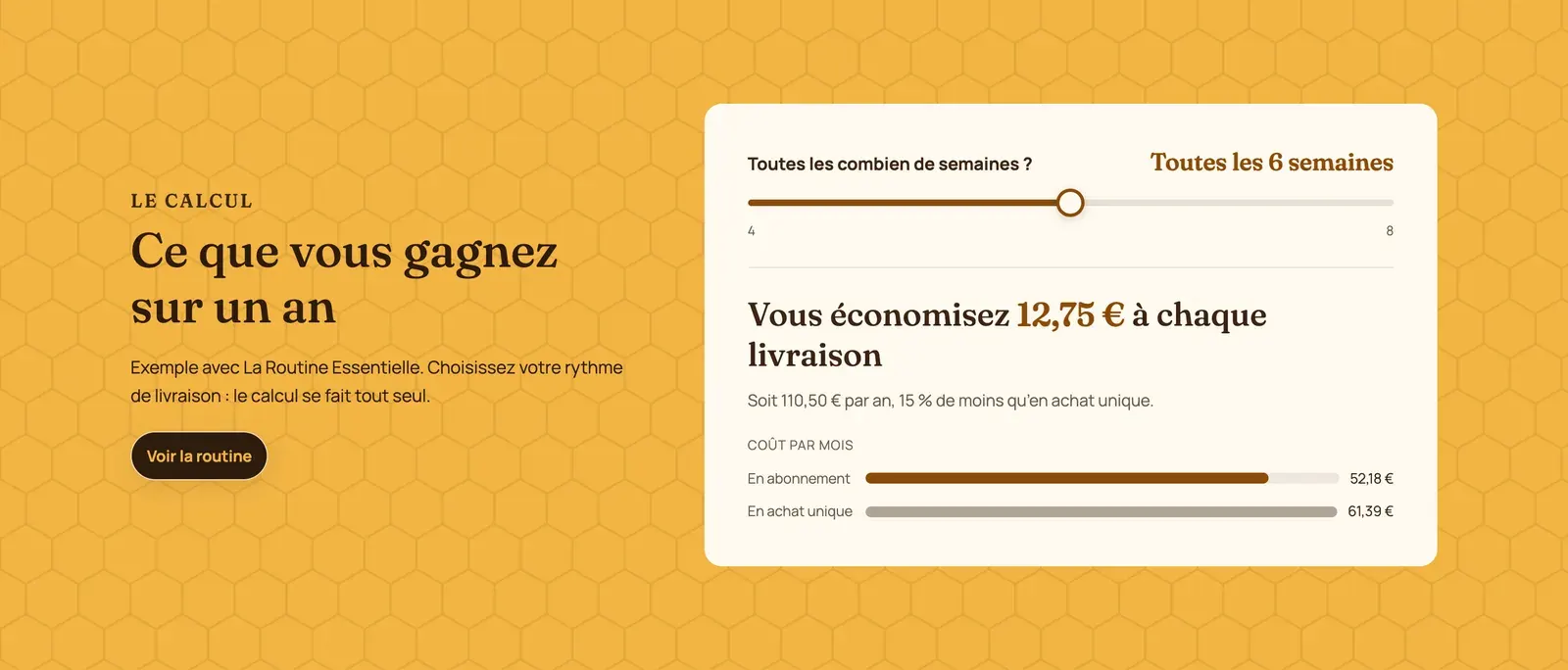
The variants (presets)
The three variants share the same layout (a text with a button on the left, the calculator on the right). They change the calculation.
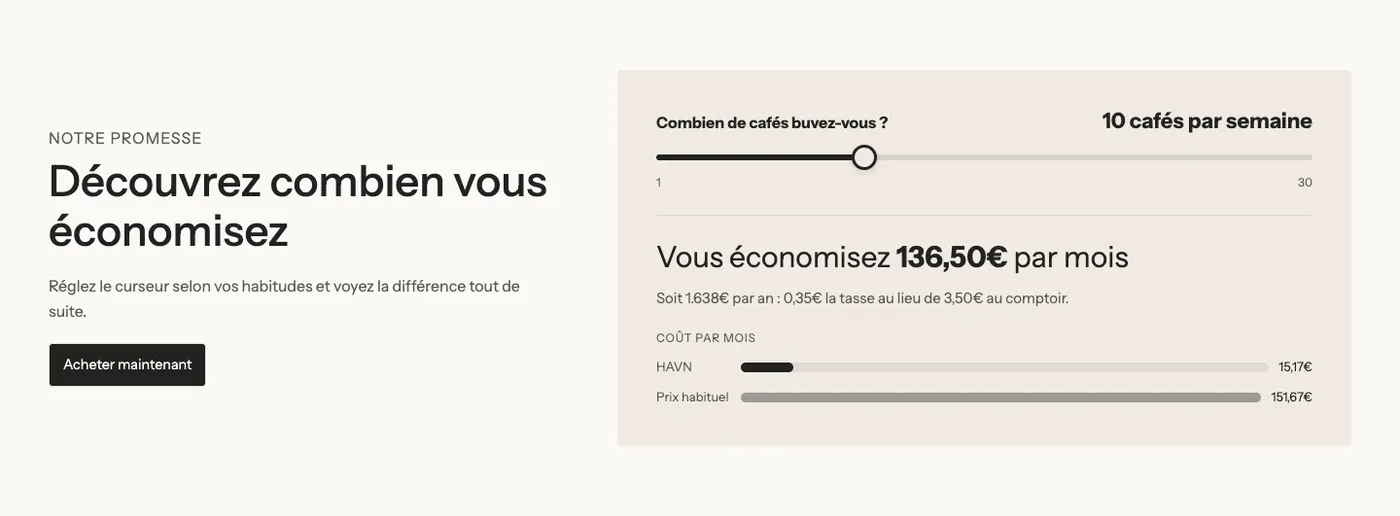
Savings calculator
Your unit price against another price. Bundled example: your coffee at 0.35 a cup, 3.50 at the coffee shop. At 10 cups a week, the customer saves 136.50 a month.
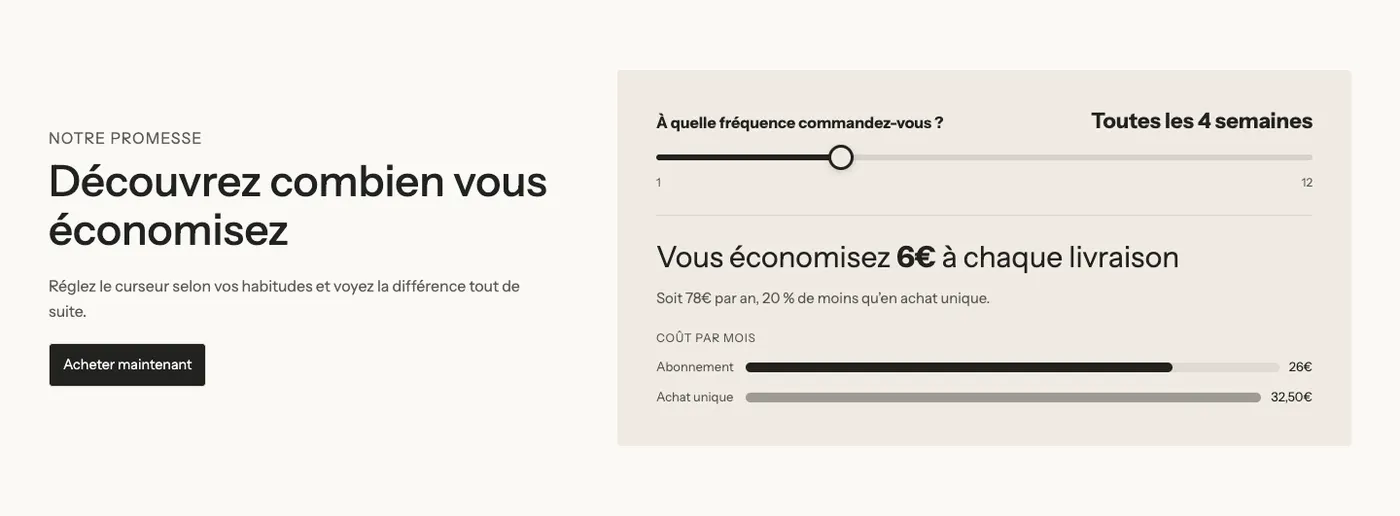
Subscription calculator
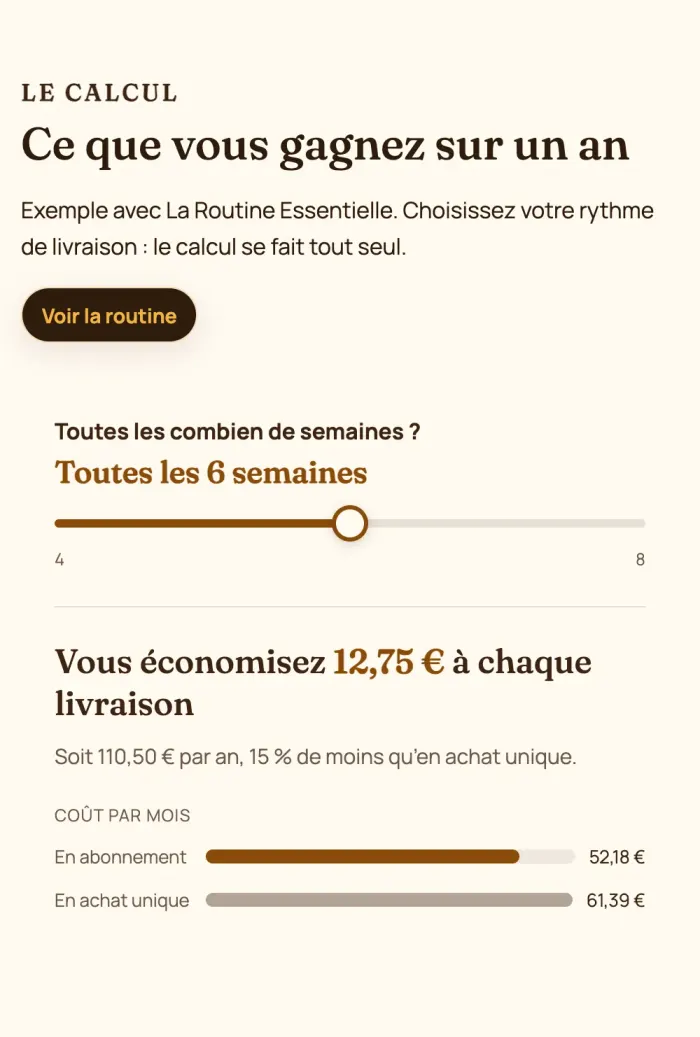
The one-time purchase price against the subscription price per delivery. The customer picks the delivery frequency. Bundled example: 30 for a one-time purchase, 24 with a subscription, so 6 saved per delivery.
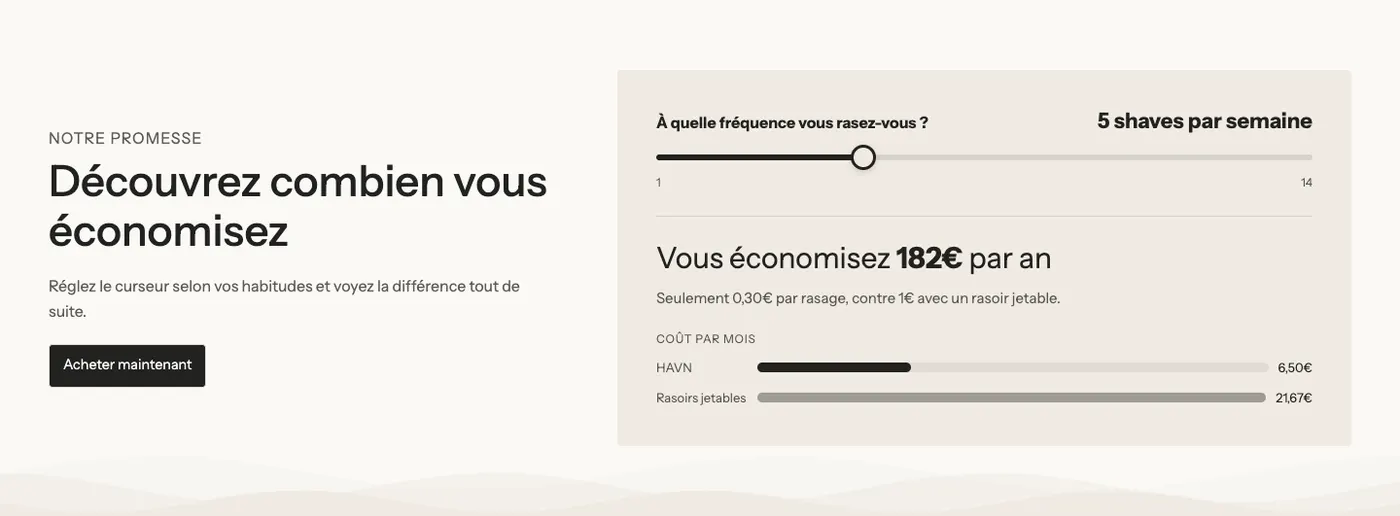
Cost per use calculator
For a durable product: its price divided by the number of uses, against the cost of a disposable alternative. Bundled example: a 60 razor that lasts 200 shaves, so 0.30 per shave, against 1.00 with a disposable one.
On mobile, the text moves on top and the calculator takes the full width:
Add the section
- In your Shopify admin, open Online Store > Themes and click Edit theme.
- Pick the template in the top menu: Home page, a page (for example a "Subscription" page) or a product template.
- Click Add section, open the Selling points category and choose one of the three variants.
- Click the Savings calculator block and fill in your prices.
- Click Save.
The section's blocks
| Block | What it's for |
|---|---|
| Group (with Heading, Text, Button) | The text column on the left. |
| Savings calculator | The slider, the result and the bars. It's also available as a block to place in any section (Add block > Selling points). |
The calculator settings
Everything is set in the Savings calculator block.
What to compare and the prices
- What to compare: Your price vs another price, Subscription vs one-time purchase or Cost per use of a durable product. This setting is what sets the three variants apart.
- Prices group > Prices come from: Prices typed below or Product. With Product, your price is read from the chosen product: its compare-at price can serve as the other price (Use its compare-at price as the other price), and for a subscription the price comes from its first selling plan. On a product page, leave Product empty to use the page's product.
- The price fields change with the calculation: Your price per unit and Other price per unit; One-time purchase price and Subscription price per delivery; Price of your product, Uses before it needs replacing and Cost per use of the alternative.
Enter prices in your store's currency (for example 12.50): they're converted for customers who pay in another currency.
The slider
- Question: the text above the slider.
- Period: Day, Week or Month.
- Unit and Unit in the singular: "coffees" / "coffee", shown after the number. Always replace the sample unit with your product's ("shaves", "jars", "washes"…).
- Minimum, Maximum, Step and Default value (1, 30, 1 and 10 by default).
The result
- Main result and Detail line: texts in which codes in square brackets are replaced as the slider moves:
| Code | Replaced with |
|---|---|
[monthly_savings], [yearly_savings] | The savings per month, per year |
[unit_savings] | The savings per unit, per delivery or per use |
[percent] | The percentage saved, without the % sign |
[our_price], [their_price] | The two prices |
[our_cost], [their_cost] | The monthly cost of each option |
[cost_per_use] | Your price per use |
[quantity], [unit] | The slider value and its unit |
- Show the cost per month of each option (checked by default): the two bars below the result, with Name of your option and Name of the other option (when empty: a name that fits the calculation).
Button and design
- Button group: Button label, Link (when empty: the product link when prices come from a product), Button style.
- Design group: Background (None or Color palette), Color palette, Inner spacing, Corners and accent Color (when empty: the theme colors).
The section also has the common frame: Layout, Color palette, Separators, Animations. See Understand the theme editor.
Tips and pitfalls
- Set the Default value to a realistic usage. It's the first number the customer reads, before even touching the slider.
- Choose an honest, verifiable other price: average market price, your own one-time purchase price, a real compare-at price.
- The calculator shows a calculation, it doesn't create a discount. For a subscription price, you need a subscription app; for a discounted price, an automatic discount.
- Keep the Detail line short, with the math that makes the number believable ("€0.35 a cup instead of €3.50").