
Countdown section: timer and limited offer banner
Show a days, hours, minutes, seconds timer with the Story Theme Countdown section, choose its style and understand how it restarts.
The Countdown section shows a timer (days, hours, minutes, seconds) with a heading and a button. It creates a sense of urgency around an offer, a launch or a drop. Place it on the home page, on a launch page or above a list of products on sale.
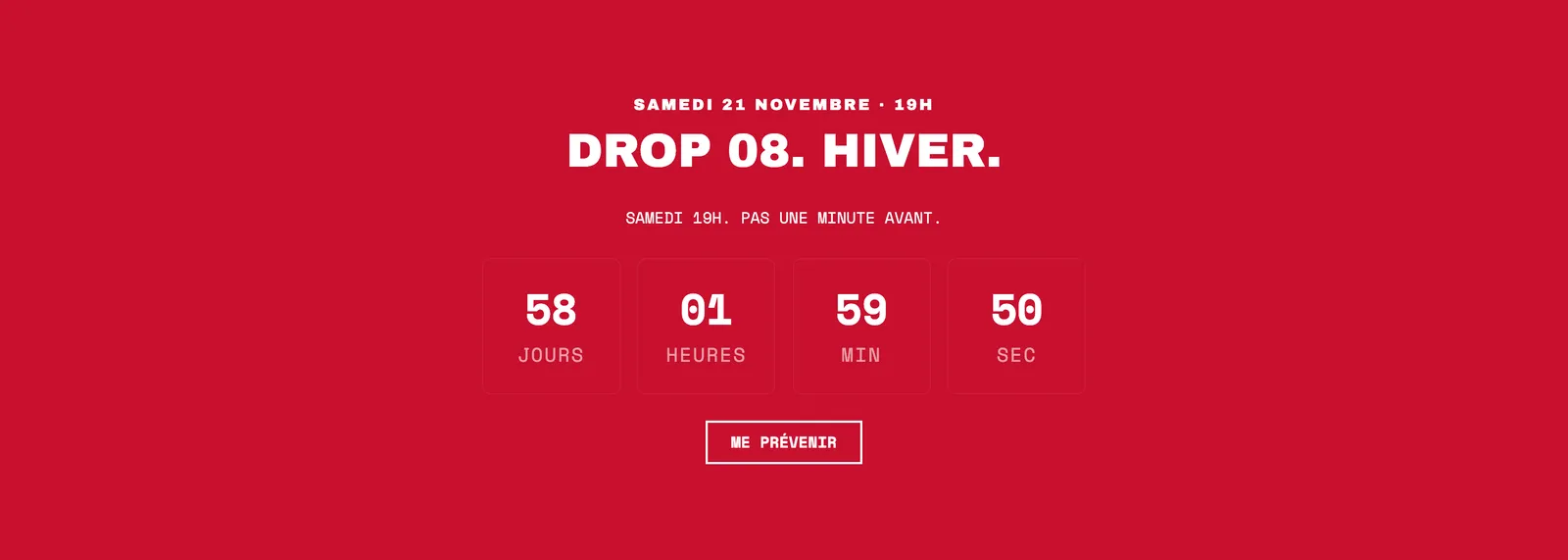
Presets
The section comes in two presets, filed under two different categories of the section picker.
Countdown
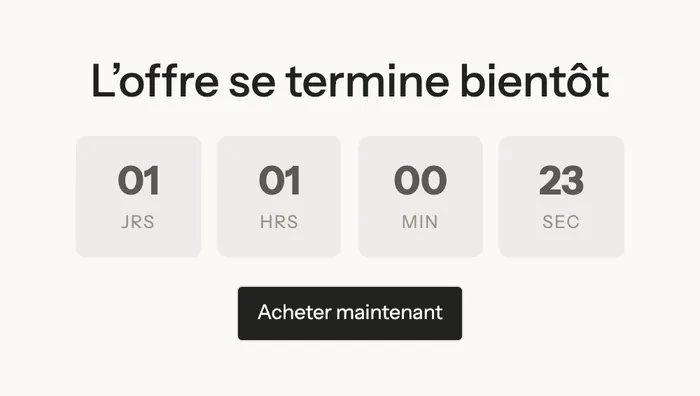
In the Selling points category: a heading, the timer in cards and a button, centered on the page background. Understated, it fits between two sections.
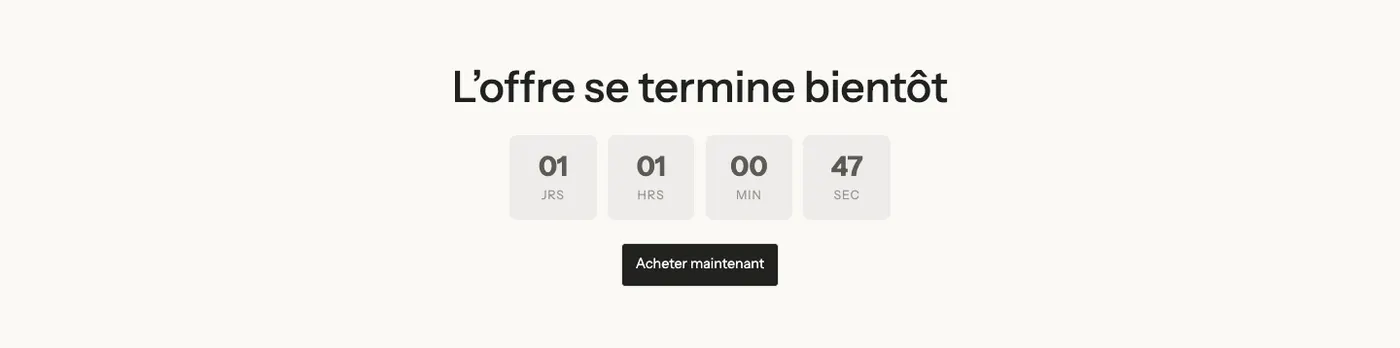
Limited offer banner
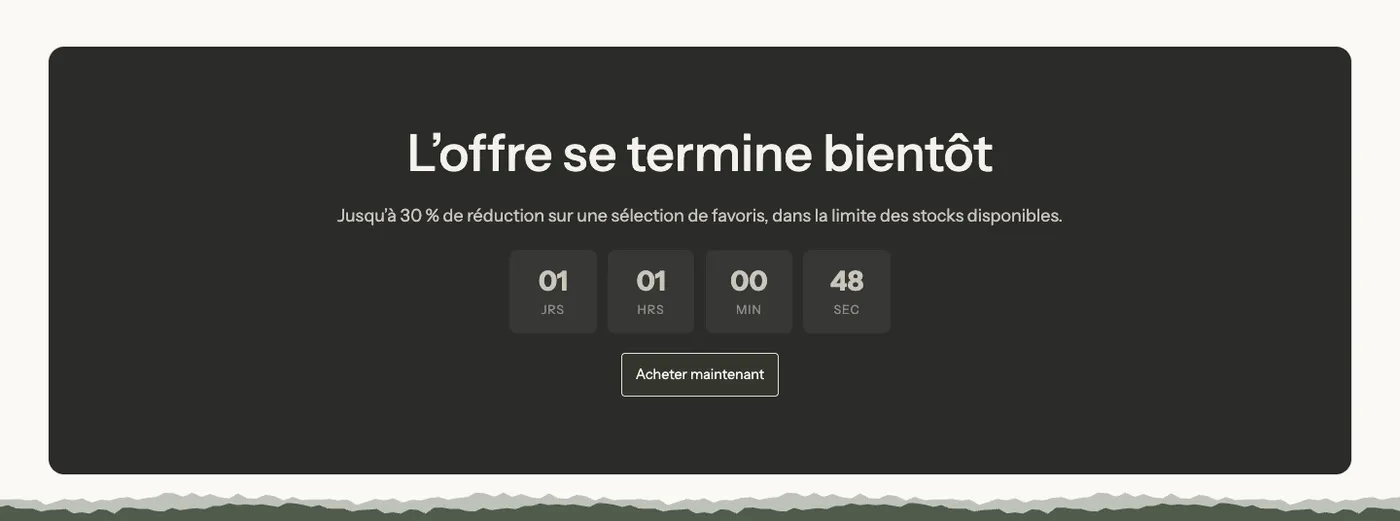
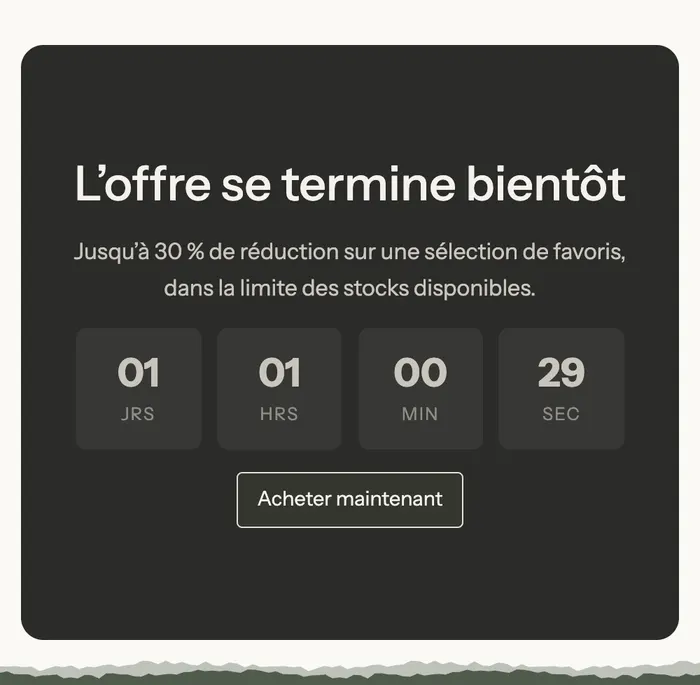
In the Banners category: the same content in a large dark box with rounded corners (a Content over image block), with a detail sentence below the heading. You can add a background image to turn it into a real promotional banner.
Add the section
- In Online Store > Themes, click Edit theme and open the page you want.
- Click Add section.
- Choose Countdown in the Selling points category, or Limited offer banner in the Banners category.
- Click the section's Countdown block to set the duration and style.
The section's blocks
| Block | What it's for |
|---|---|
| Heading | The offer message |
| Text | The details: discount, conditions, products included |
| Countdown | The timer itself |
| Button | The link to the collection or product on sale |
| Content over image | The box of the Limited offer banner, which holds the blocks above |
Like every section in the theme, you can add other blocks to it: an image, a checklist, a badge.
The Countdown block
- "Style": Timer style — Cards (default), Outline (border only), Inline with labels or Minimal (digits only); Font size (20 px by default), Corner radius and Card color (empty = secondary text color).
- "Text": Text shown with the timer, where
[timer]marks where the time remaining goes; Minutes (1501 by default); When timer expires: — Restart in next session, or restart after 1 minute, 15 minutes, 30 minutes, 1 hour, 3, 6 or 12 hours, 1 day or 1 week. - "Unit labels": Days, Hours, Minutes, Seconds (to write "DAYS", "Days", "D"…). They don't show in the Minimal style.
- "Layout": Alignment, Bottom spacing and Show on.
The same block can be added elsewhere: on a product page, in a home page box or even in the header.
Section settings
The section has no settings of its own: it uses the frame shared by all sections — Layout width, alignments, Padding top / bottom, Color palette (for a colored background like on Narvo), Separators and Animation. See Understand the theme editor.
Tips and pitfalls
- Always pair the timer with a clear offer: what's discounted, by how much, and a button that leads to it.
- The discount you announce must exist in Shopify, or the customer pays full price: create an automatic discount or a discount code.
- For a specific date that's the same for everyone, use the countdown in an announcement bar Message (
YYYY-MM-DD HH:MMformat), or the Cart countdown block for a shipping cutoff time. - A timer that restarts endlessly is quickly noticed by a returning customer: choose a duration and restart setting that match your offer.
- On mobile, the Inline with labels style takes up less height than the cards.